

First Login
As an operator or admin, you will sign in to BigBooks and arrive on the dashboard for your company, so that every entry you make afterwards is recorded against the right legal entity.
What you'll accomplish
As an Operator or Admin, you will sign in to BigBooks and arrive on the dashboard for your company, so that every entry you make afterwards is recorded against the right legal entity.
Before you start
The sign-in screen is at /[lang]/login. It is a focused authentication card (not a list-detail screen) with two tabs:
- Email — your email address and password, for owner/admin-style accounts.
- Employee — an employee code in the form
COMPANY-EMPLOYEE(for exampleACME-EMP-001) plus a password, for staff accounts created by an admin.
The interface is bilingual: the language is part of the address (/en/... or /lo/...), and you can switch it later from the top bar. BigBooks is multi-tenant, so a single account can be linked to more than one company; the company you are working in is your active company, and it decides which ledger, chart of accounts, and fiscal periods every later action touches.
Compliance Note
Your active company silently tags everything you create to that one legal entity. Confirm the company name in the top bar before posting — choosing the wrong company would post to the wrong ledger.
Steps
Open the sign-in screen
Go to /[lang]/login. Choose the Email tab to sign in with your email and password, or the Employee tab to sign in with your employee code and password. If you forgot your password, use the Forgot password? link on the Email tab.
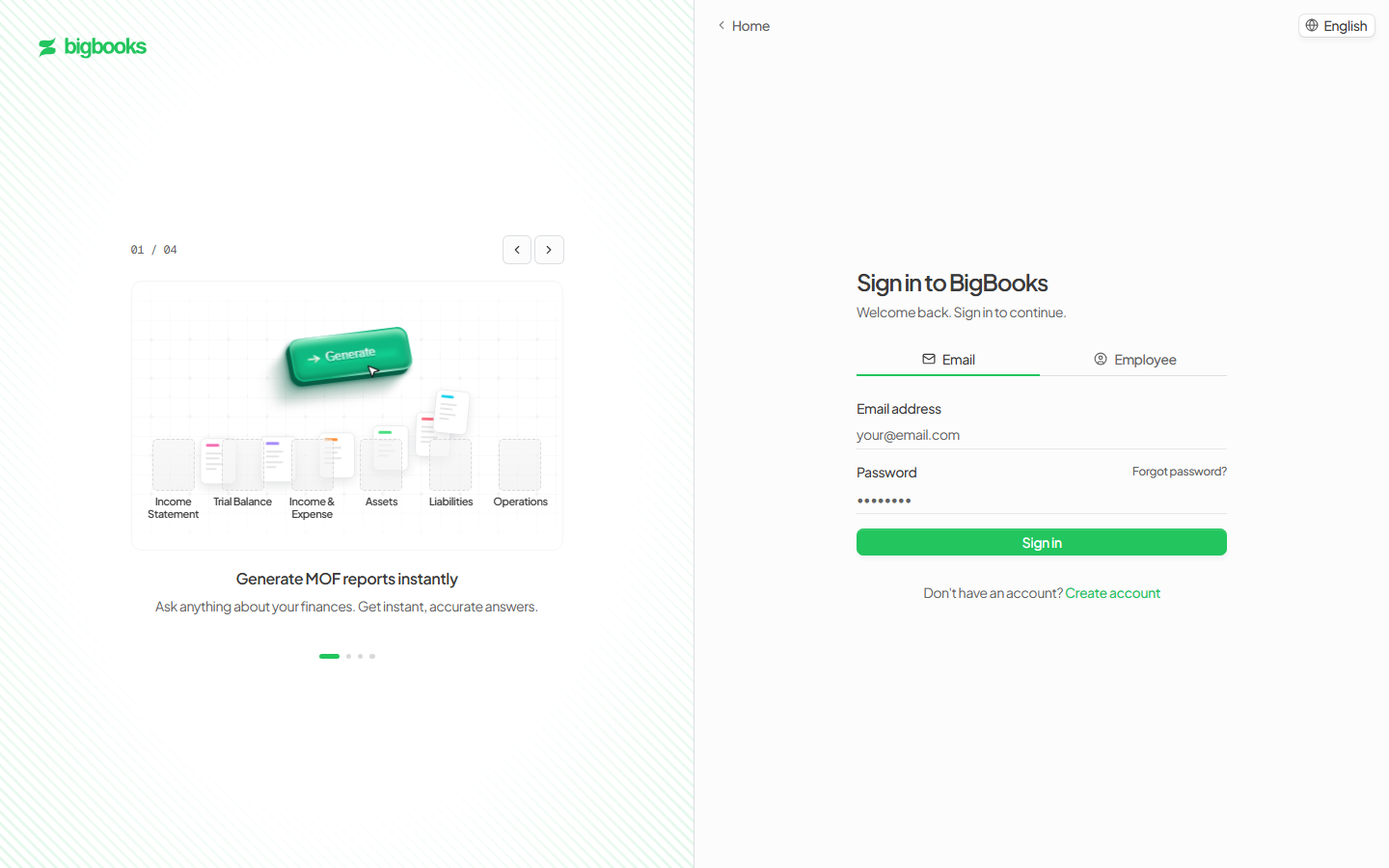
Enter your credentials and submit Fill in your details and press Sign in. If the credentials are wrong you stay on the screen with an inline error message and can try again. An employee account that is signing in for the first time with a temporary password is sent to a Change password step before continuing.
Land on your company dashboard
On success you are taken to your dashboard at /[lang]/dashboard. (A brand-new account that has not finished onboarding is routed to the onboarding flow first.) The dashboard greets you with Welcome <company name> and shows your bento overview — receivables and payables, quick actions, the financial-overview chart, recent activity, cash flow, expenses, and outstanding items.
Switch company if you work in more than one Your active company is chosen for you automatically. If your account is linked to several companies, a workspace switcher appears in the top bar — open it to search your companies and select a different one. The whole app reacts to the change; the dashboard, reports, and postings re-scope to the company you pick.
What happens behind the scenes
Email sign-in goes through BigBooks' password authentication (configured in auth.ts); employee sign-in first validates the code and password (auth/employeeAuth.ts) and then establishes the same session. There is no separate company-selection screen — once you are authenticated, your active company is resolved from your session row, falling back to a default drawn from your active memberships (auth/activeCompany:getActiveCompanyContext, persisted by ensureSessionActiveCompany). The dashboard reads your company through companies/queries:getByUser, and onboarding routing is decided by users/queries:hasCompletedOnboarding. When you change companies in the top-bar switcher, memberships/activeContext:switchActiveTenant writes the new active company to the server-side session and Convex's reactive queries propagate it everywhere — the active company is the single source of truth that scopes every subsequent record you create.
Common problems
- Wrong email or password: An inline error appears and you stay on the sign-in screen — re-check the credentials or use Forgot password?.
- Wrong employee code: Codes follow the
COMPANY-EMPLOYEEformat (e.g.ACME-EMP-001); a mistyped or unknown code is rejected with a clear message. - Inactive account: An account an admin has deactivated cannot sign in — contact your administrator.
- Password must be changed: A first-time employee password sends you to the Change password step before you reach the dashboard.
- No company assigned: If your account has zero active company memberships, the dashboard has no ledger to load — ask an admin to add you to a company.
- Wrong company in the top bar: If you belong to several companies, confirm the active one in the workspace switcher before posting; the switcher is also where you correct it.
- Wrong language: If you land on
/en/...but expected Lao (or vice-versa), switch the language from the top bar.