

Employees
As an operator or admin, you will create and maintain employee master records — personal and employment details plus base pay — and set the allowances and deductions that the monthly payroll run reads.
What you'll accomplish
As an Operator or Admin, you will create and maintain employee master records — personal and employment details plus base pay — and set the allowances and deductions that the monthly payroll run reads.
Before you start
Employees live at /[lang]/employees, an upgraded master-detail screen: a searchable list on the left with All / Active / Inactive view presets, and a tabbed detail panel on the right when you open a record. The secondary header carries Import, Template, and New employee actions. Creating or editing an employee requires admin or account-manager permission. Salary and allowance amounts are entered in a major unit and stored as integer satang (1 LAK = 100 satang).
Compliance Note
Creating an employee posts nothing to the general ledger — it is a master record. Pay only reaches the GL when you run and approve a payroll cycle, which reads this employee's base salary and Compensation.
Steps
Open the employees list
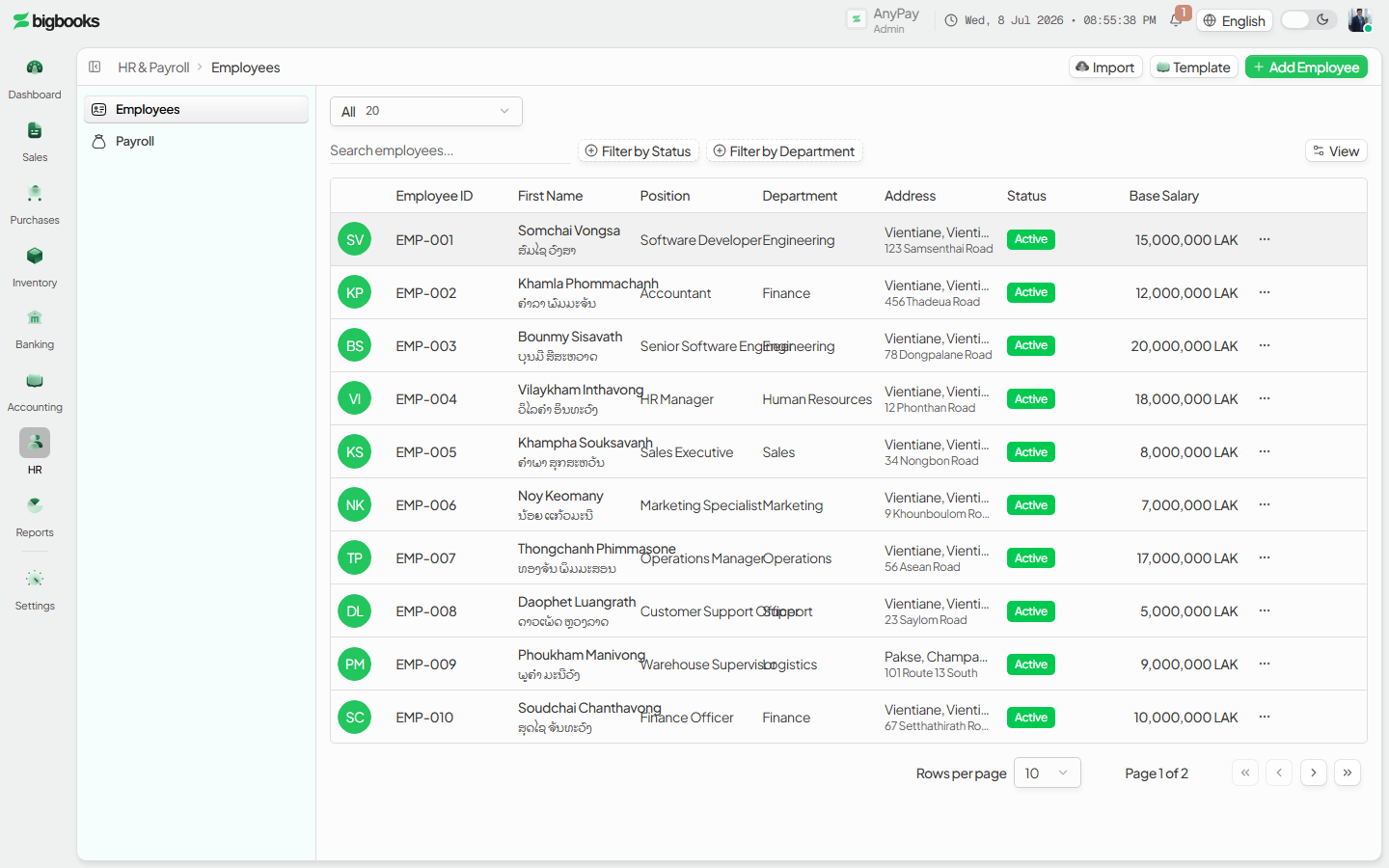
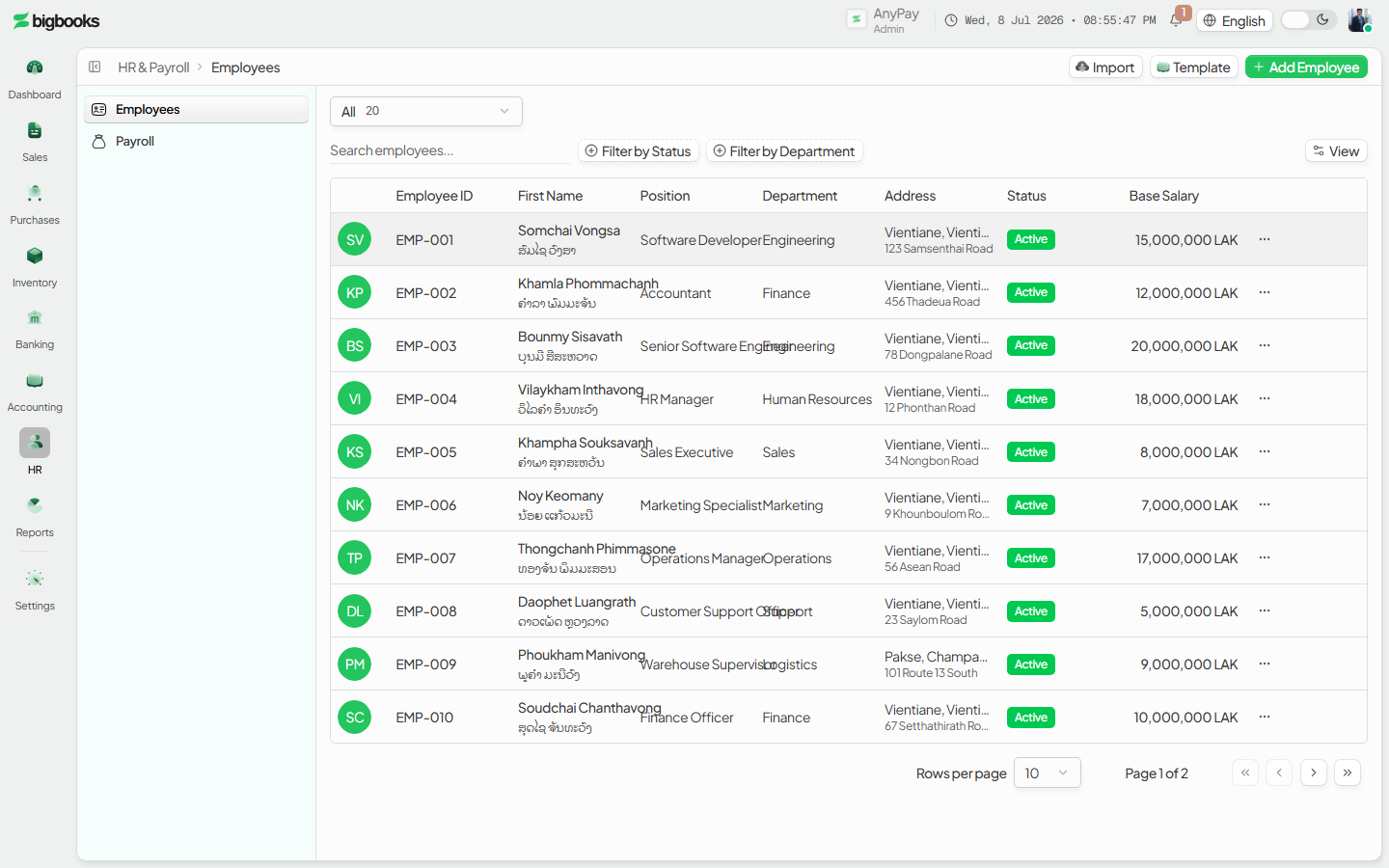
Go to /[lang]/employees. The list shows each employee's ID, name (with Lao name where set), position, department, and status; use the All / Active / Inactive views and the search/filters to find people. On an empty company an illustrated EmptyState offers New employee and Import.
Add a new employee
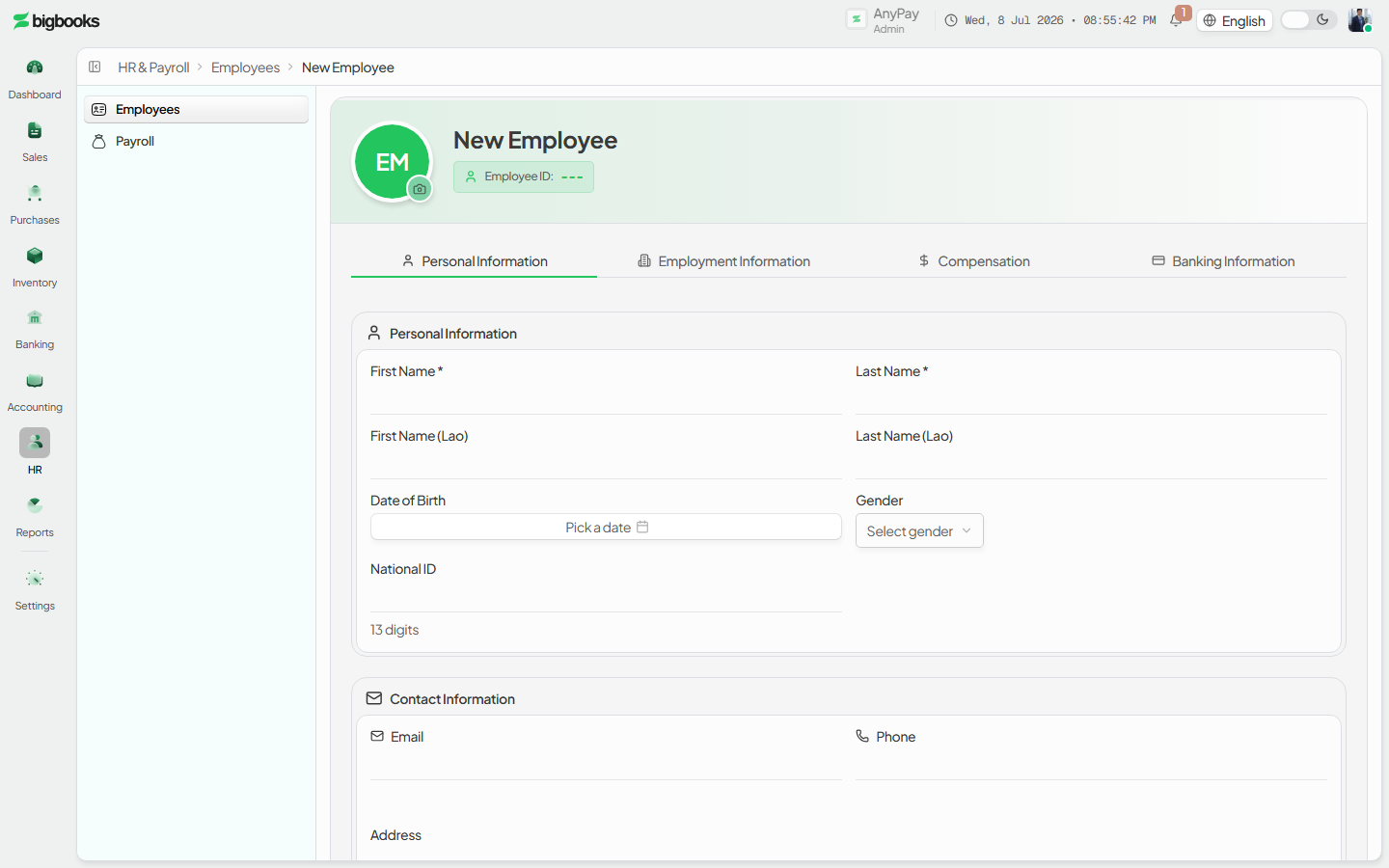
Click New employee to open the full-page form at /[lang]/employees/new. Fill in personal details (first/last name, optional Lao names, date of birth, gender, optional national ID), contact (email, phone), structured address (province / district / village + street), and employment details (a unique employee ID, hire date, employment type, position, department). Set the base salary and currency, and optional bank details.
Open the record (detail panel)
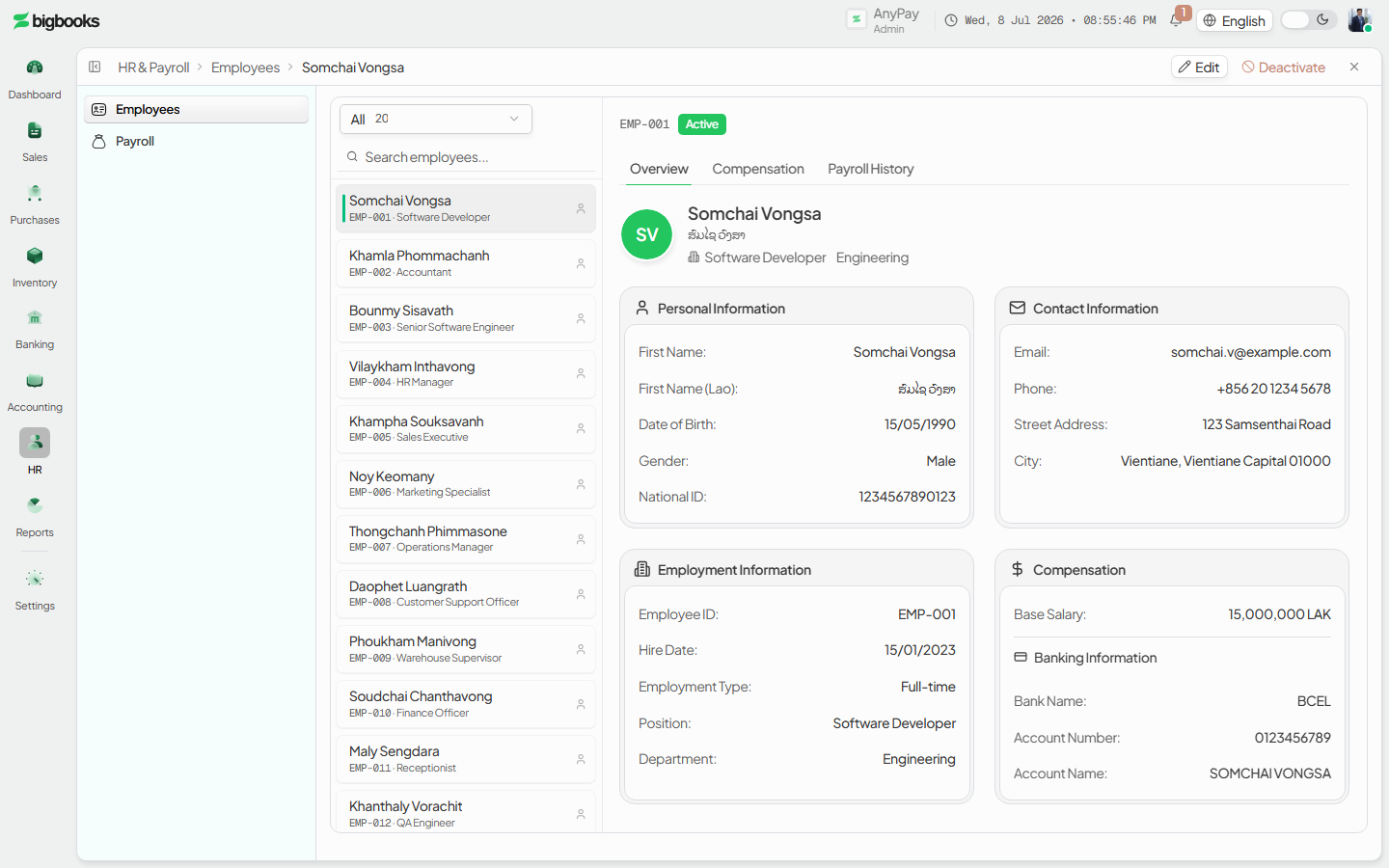
Save to create the employee (status active). The record opens in the detail panel; the old /[lang]/employees/[id] route redirects into /[lang]/employees?selected=<id>. The panel has Overview, Compensation, and Payroll tabs, and you edit the record in place.
Set allowances and deductions Open the Compensation tab to manage allowances (transport, housing, meal, phone, position, other — each taxable or not, with an effective-from and optional effective-to date) and deductions (loan, advance, uniform, other — with start/end dates, optional instalments, and a remaining balance for loan paydown). The monthly net is base salary plus active allowances minus active deductions.
What happens behind the scenes
Creating or updating an employee (create / update in employees/mutations.ts) writes the master record, an employeeHistory entry, and an audit-log entry — and creates an empty compensation record — but writes no journal entry; employees are an HR/payroll master, not a financial document. Allowances and deductions are stored on the employeeCompensation table (via employeeCompensation/mutations.ts) and are date-effective: each carries effective-from/start and optional effective-to/end dates rather than a version number, so the payroll run reads only the entries active for the run's period. Those active allowances and deductions, together with the base salary, are exactly what the payroll calculation consumes to produce gross pay, taxable income, social-security, salary tax, and net pay — the GL impact happens there, at payroll approval, not here.
Common problems
- Duplicate employee ID: The employee ID must be unique within the company; the form checks availability before saving.
- Future hire date / invalid email: A hire date cannot be in the future, and an email (if given) must be valid.
- Below minimum wage: A LAK base salary under the company's minimum wage raises a warning but does not block saving.
- Missing compensation before payroll: An employee with no base salary or with incomplete Compensation is flagged when you validate a payroll run — set it on the Compensation tab first.
- Permissions: Creating, editing, or deactivating an employee needs admin or account-manager rights; reactivating a deactivated employee is admin-only.
- No ledger effect: If you expect an accounting entry after adding an employee, there isn't one — run payroll to post pay.
Assets & Depreciation
As an operator or admin, you will register a capitalised purchase into the fixed-asset register, then run monthly depreciation and approve the draft journal vouchers it produces so the expense is recognised in the ledger.
Payroll Run
As an operator or admin, you will create a monthly payroll run through a short wizard, review each employee's gross pay, deductions, and net pay, and (as an admin) approve the run so the wages and statutory deductions post to the general ledger.