

Payroll Run
As an operator or admin, you will create a monthly payroll run through a short wizard, review each employee's gross pay, deductions, and net pay, and (as an admin) approve the run so the wages and statutory deductions post to the general ledger.
What you'll accomplish
As an Operator or Admin, you will create a monthly payroll run through a short wizard, review each employee's gross pay, deductions, and net pay, and (as an admin) approve the run so the wages and statutory deductions post to the general ledger.
Before you start
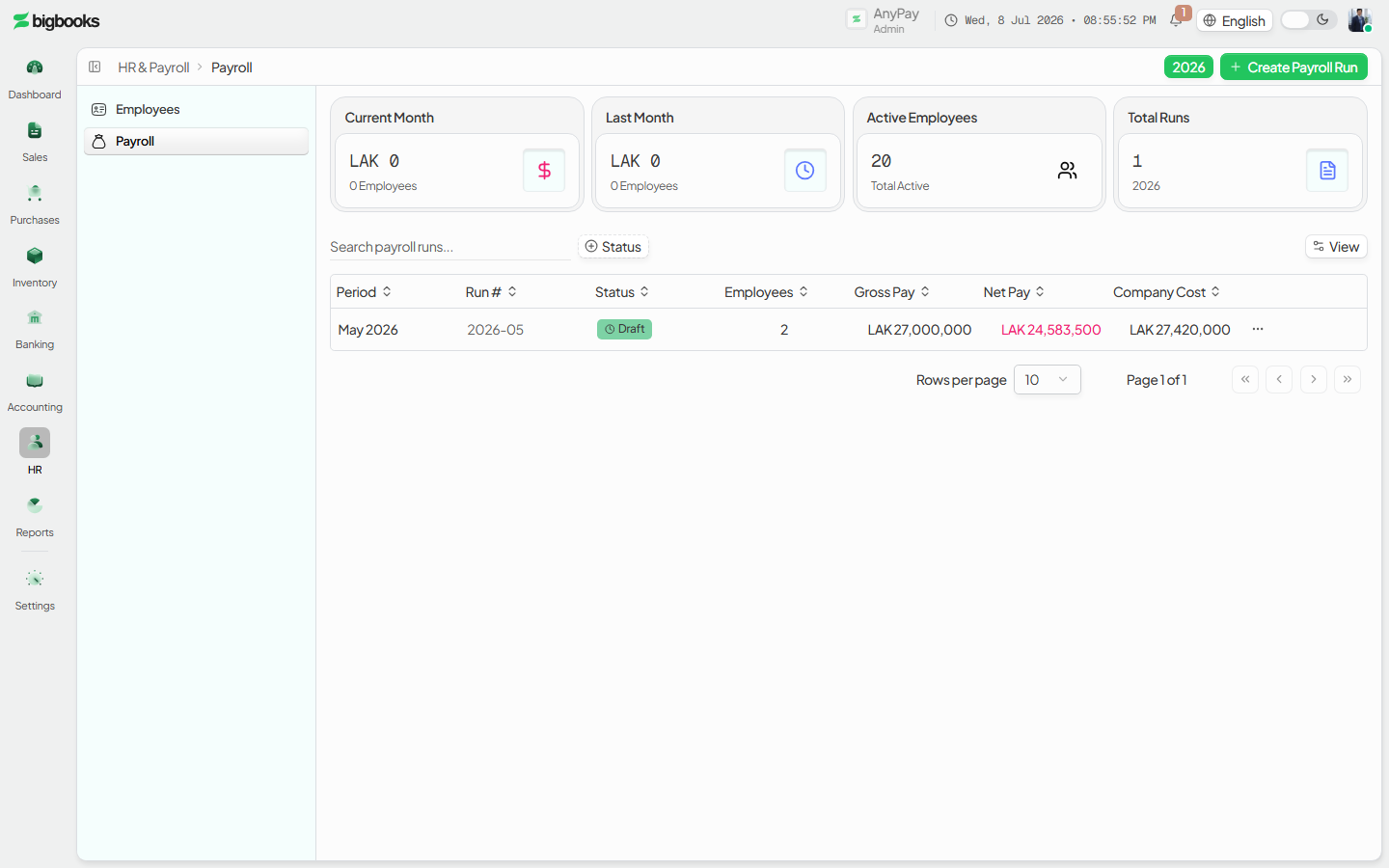
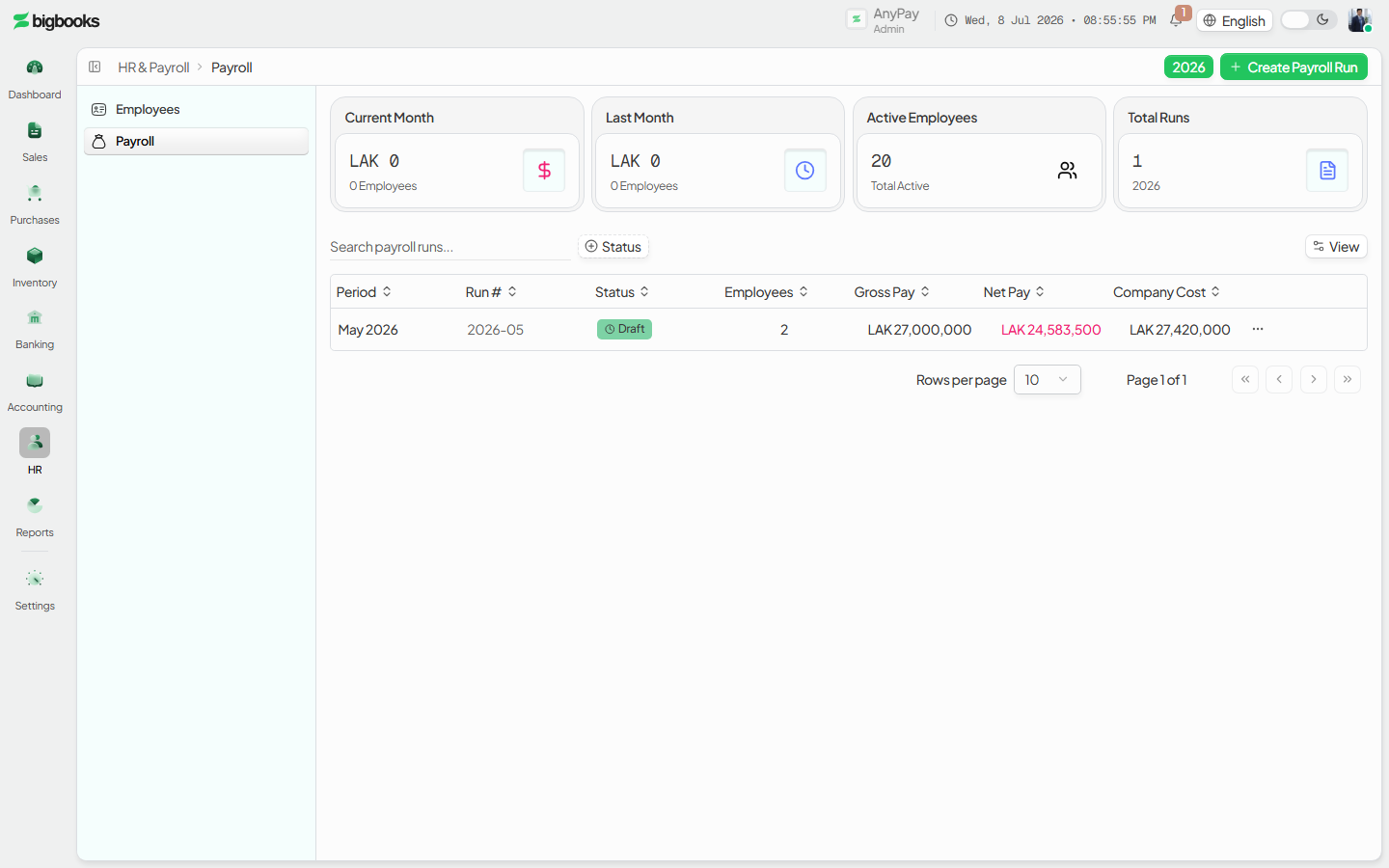
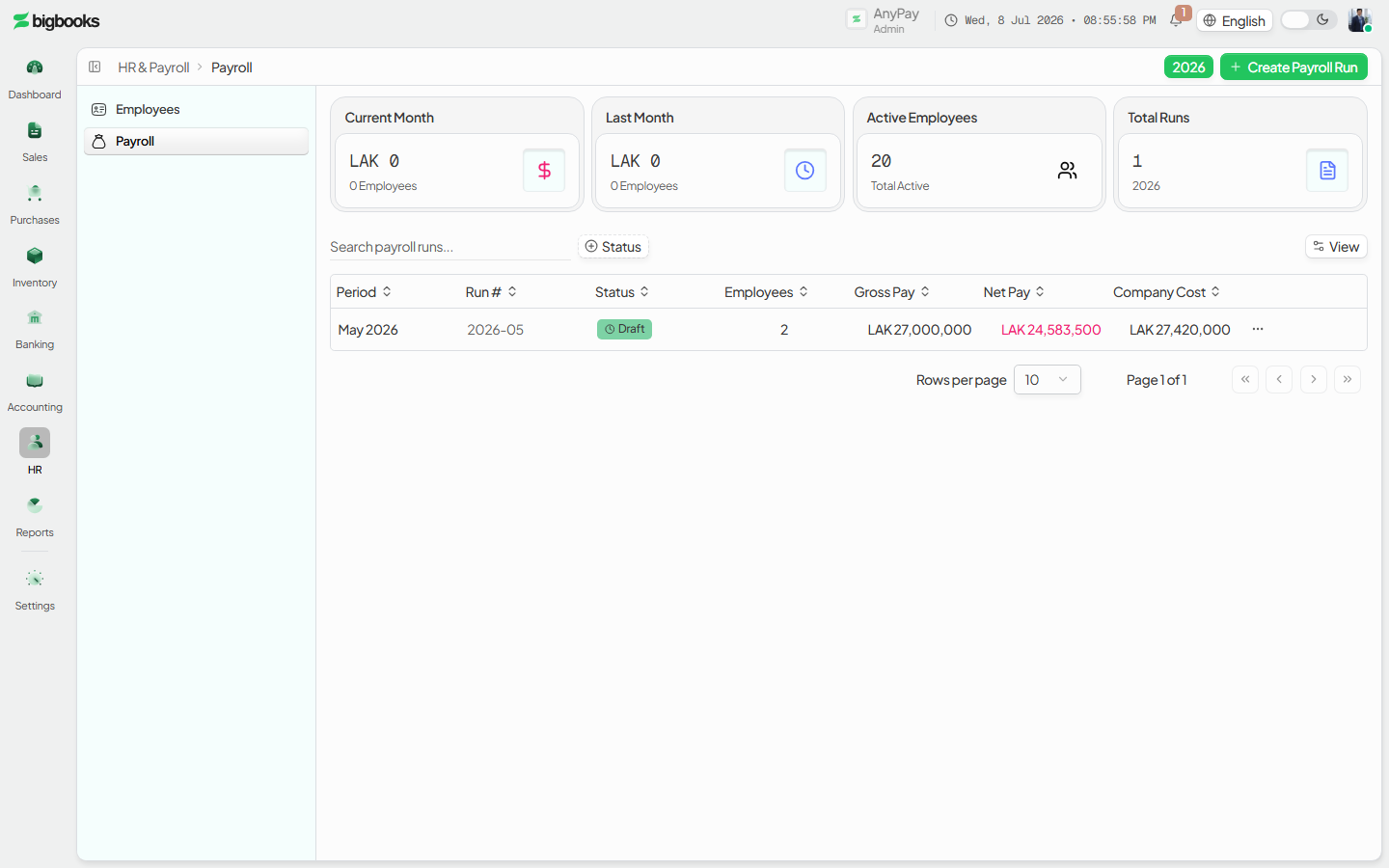
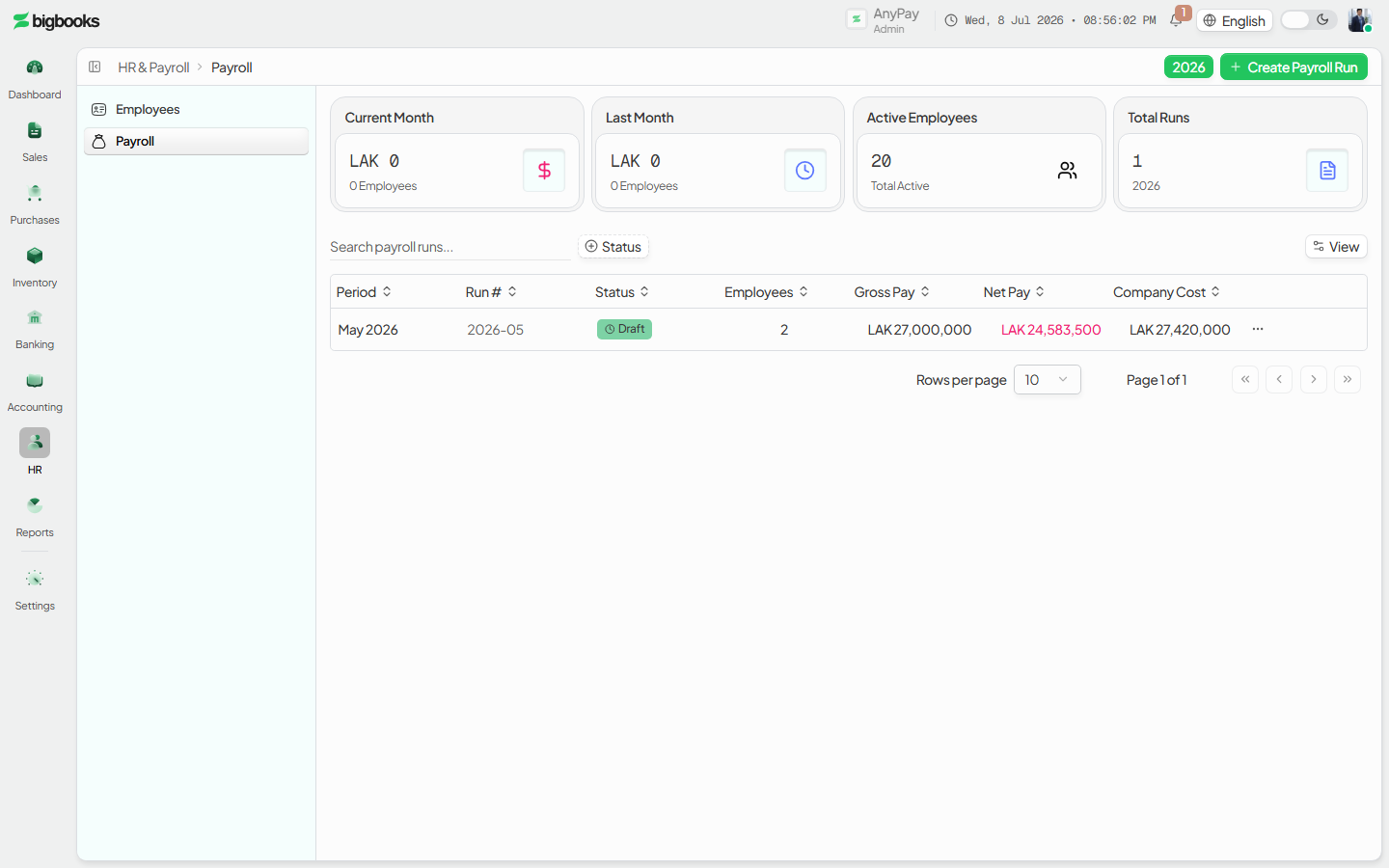
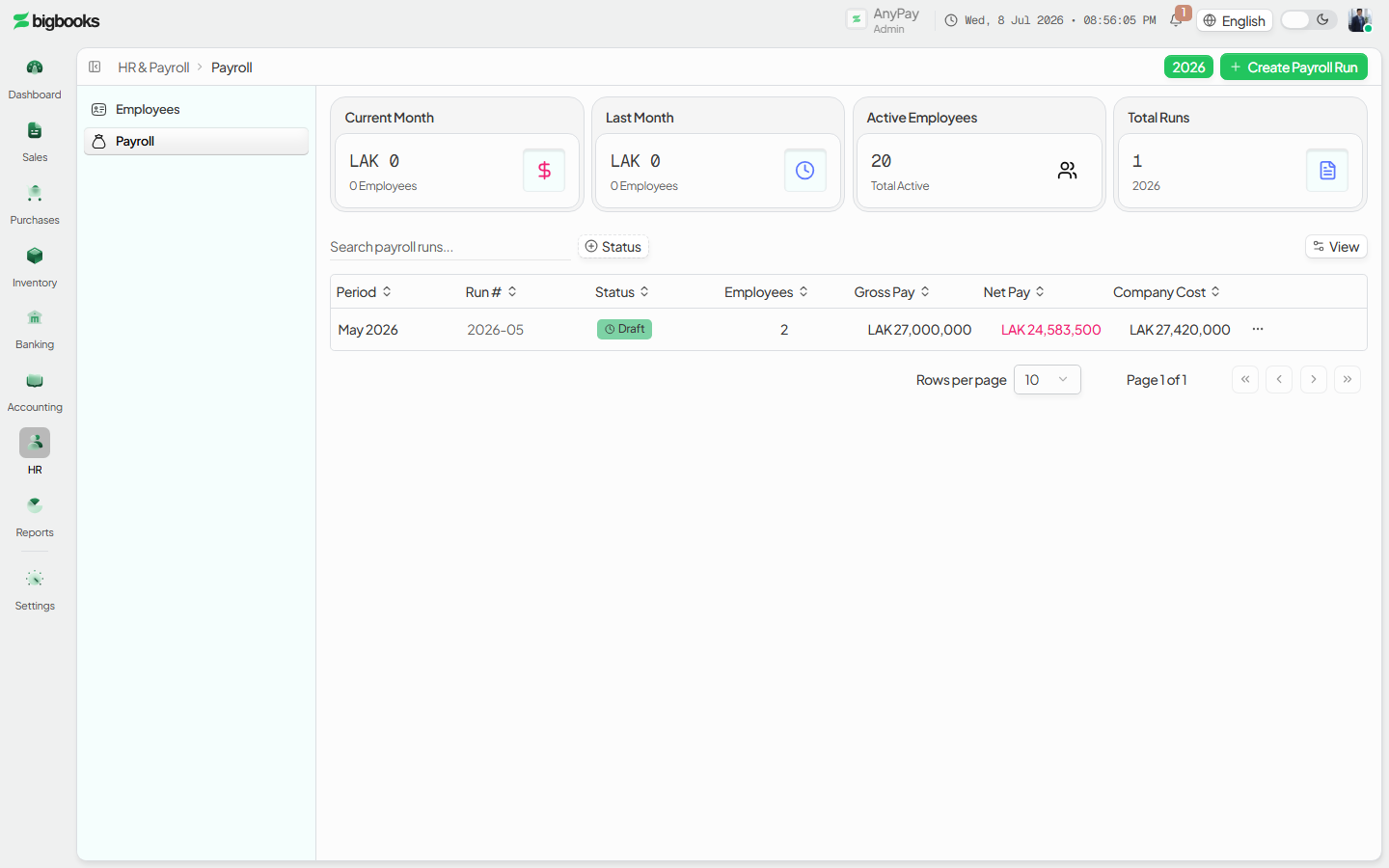
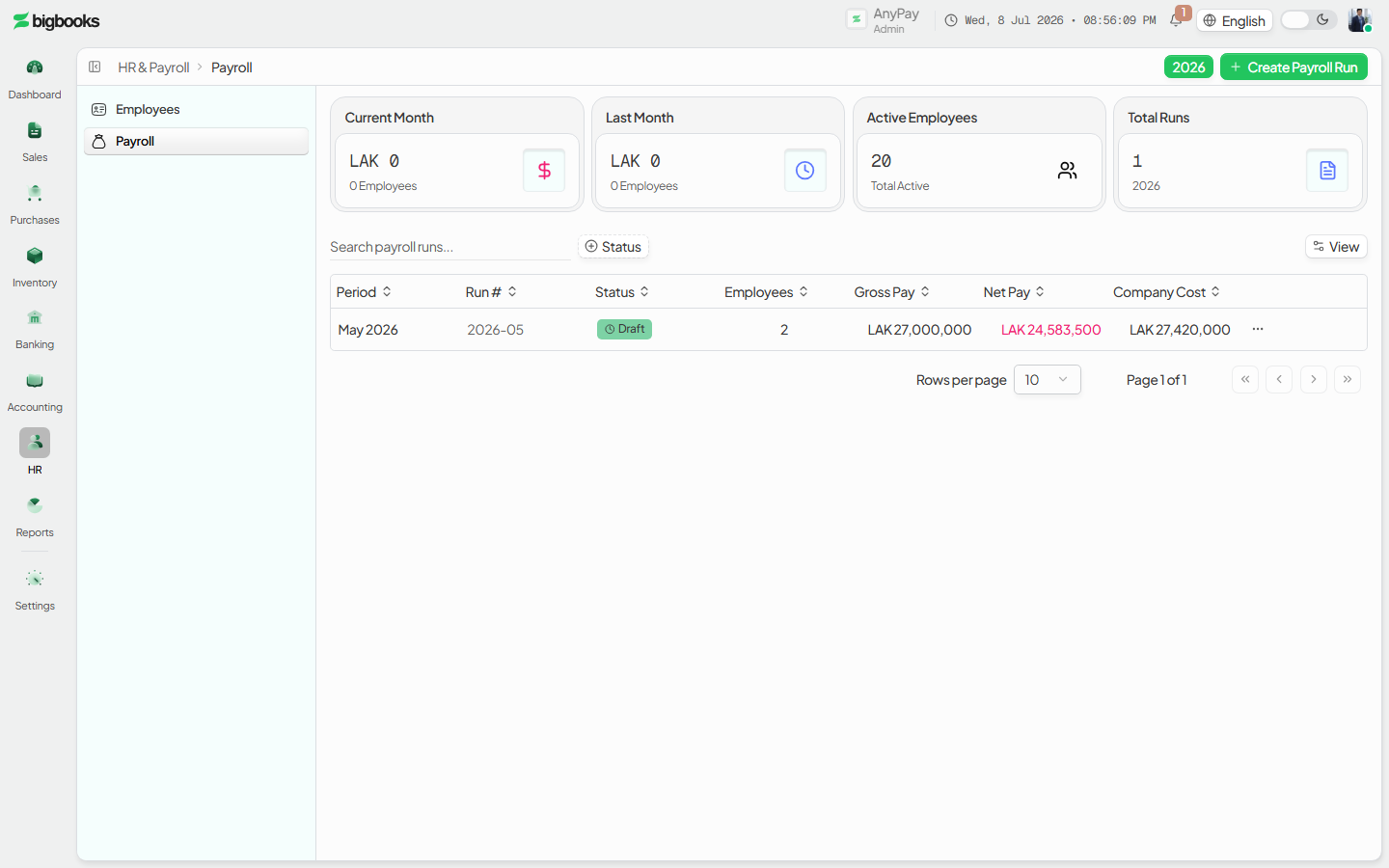
Payroll lives at /[lang]/payroll, which lists past runs with a stats strip (current-month net pay, last-month net pay, active employees, runs this year) and a year filter. Creating a run requires admin or account-manager permission; operators can open and review runs but cannot approve them. Before you run payroll your active employees must exist with a base salary, and any allowances or deductions must be set on each employee's Compensation tab (see the Employees page). Amounts are entered in a major unit but stored as integer satang (1 LAK = 100 satang); all pay is calculated server-side.
Compliance Note
Nothing posts to the GL while a run is a draft. The balanced journal entry — wage expense, withholding tax payable, and social-security payable — is written only when an admin approves the run, keeping the audit trail clean for MoF 2020.
Steps
Open payroll and start a new run
Go to /[lang]/payroll. The "Create payroll run" action sits in the secondary header (admins / account managers only). Click it to open the run wizard at /[lang]/payroll/new.
Step 1 — Select the period Choose the month and year for the run. A preview shows the selected period; choosing the current (not-yet-ended) month raises a warning.
Step 2 — Validate The wizard shows how many active employees will be included and surfaces warnings (for example, an employee missing compensation setup) and any blocking errors. You cannot proceed while errors remain.
Step 3 — Confirm and create Review the summary (period + employee count) and press Create payroll run. The run is created in draft status and you land on its detail page, where each employee's pay has been calculated.
Review the per-employee breakdown On the run detail, each employee card shows earnings (base salary, taxable/non-taxable allowances, overtime, any bonus) and deductions (employee social-security contribution, salary tax computed on the progressive Lao brackets, other deductions such as loans or advances), then net pay. The employer social-security cost is shown for awareness even though it is not deducted from the employee. While the run is a draft you can add one-off bonuses or penalties, or recalculate after fixing employee data.
Approve to post (admin)
An Admin presses Approve to finalise the run. This validates the GL account mapping and writes the payroll journal entry; the run moves to approved and its journal is posted. Use the Reports area (/[lang]/payroll/reports) for payslips, the SSO contribution report, and the salary-tax report.
What happens behind the scenes
Creating the run (createPayrollRun in payroll/mutations.ts) calculates each employee's pay via payroll/calculations.ts — progressive salary tax across the Lao brackets and social-security at the configured employee/employer rates — but posts nothing yet. Approving the run (approvePayrollRun) calls payroll/glIntegration.ts, which writes one balanced, posted journal entry referenced PAY-{year}-{month}. Base salaries are debited to employee salary expense (631), allowances and overtime to other employee expense (638), and the employer's social-security contribution to its expense (635). The credits are the liabilities the company now owes: net pay to employees (4201), salary tax withheld (430.1), the employee social-security contribution (4221), the employer social-security contribution (4222), and any other deductions such as loans or advances (4208). Total debits equal total credits by construction. Voiding an approved run posts a mirror reversal entry rather than deleting the original.
| Account | Debit | Credit |
|---|---|---|
| Salary expense — base salaries (631) | Base Salary | - |
| Other employee expense — allowances & overtime (638) | Allowances + Overtime | - |
| Social-security expense — employer (635) | Employer SSO | - |
| Employees — remuneration payable (4201) | - | Net Pay |
| Salary tax payable (430.1) | - | Salary Tax Withheld |
| Social security — employee contribution (4221) | - | Employee SSO |
| Social security — employer contribution (4222) | - | Employer SSO |
| Employees — other accrued charges payable (4208) | - | Other Deductions |
Common problems
- No active employees / missing compensation: The wizard blocks creation if there are no active employees; an employee without a base salary or with incomplete compensation is flagged in step 2.
- Missing GL accounts: On approval the system checks the payroll accounts exist and tries to add the standard ones; if it cannot, approval is blocked with the missing accounts listed.
- Operator cannot approve: Operators can review a run but only an admin (or account manager) can create or approve it — the figures show, but the GL is not posted until approval.
- Still a draft: A draft run has no journal entry. If wages are missing from the ledger, check the run status.
- Need to correct a posted run: An approved run is immutable; void it (admins only, with a reason) to post a reversal, then create and approve a corrected run.
- Current-month warning: Selecting a month that has not finished yet raises a warning to avoid paying an incomplete period.
Employees
As an operator or admin, you will create and maintain employee master records — personal and employment details plus base pay — and set the allowances and deductions that the monthly payroll run reads.
MoF Reports
As an operator or admin, you will generate the Ministry of Finance (MoF 2020) statutory report set for an accounting period, take it through approval, and submit it — at which point the figures and the period are locked.