

Counter Sessions, Day Book & Cash Book
As an operator you will open and close your counter cash session, and as an admin you will read the Day Book and Cash Book report grids — so the day's takings are recorded as a balanced journal entry and reconciled cleanly against the bank.
What you'll accomplish
As an Operator you will open and close your counter cash session, and as an Admin you will read the Day Book and Cash Book report grids — so the day's takings are recorded as a balanced journal entry and reconciled cleanly against the bank.
Before you start
The jun27 upgrade splits what used to be one "day book" idea into three distinct surfaces. Know which one you need:
- Sessions (
/[lang]/sales/sessions) is the counter operator's screen — a POS-style, paginated table of cash-drawer shifts. Each row is one session (open / closed / force-closed) for one cashier on one date. You open a session with an opening float, the drawer accumulates sales and pay-ins/pay-outs, and you close it by counting the cash. Viewing it requires thecanViewCounterSessionspermission. - Day Book (
/[lang]/reports/day-book) is a report grid — a chronological, edge-to-edge table of posted journal entries with a sticky header, a filter drawer (period + status), and an Excel export. Rows that came from a session link back to their Z-Report number. - Cash Book (
/[lang]/reports/cash-book) is a report grid for one bank/cash account — debit/credit transactions with a running balance and a reconciled flag, used by the back office to reconcile against the bank statement.
"What I took at the counter today" (a Session) is not "what posted to the ledger" (the Day Book) and is not "what cleared the bank account" (the Cash Book). Use Sessions for the shift, the Day Book for the posting trail, and the Cash Book for bank reconciliation.
Compliance Note
All amounts are stored in LAK as integer satang and displayed through the shared currency formatter, so totals are exact — never rounded. USD and THB drawers are tracked per-currency alongside LAK.
Steps
Open a counter session
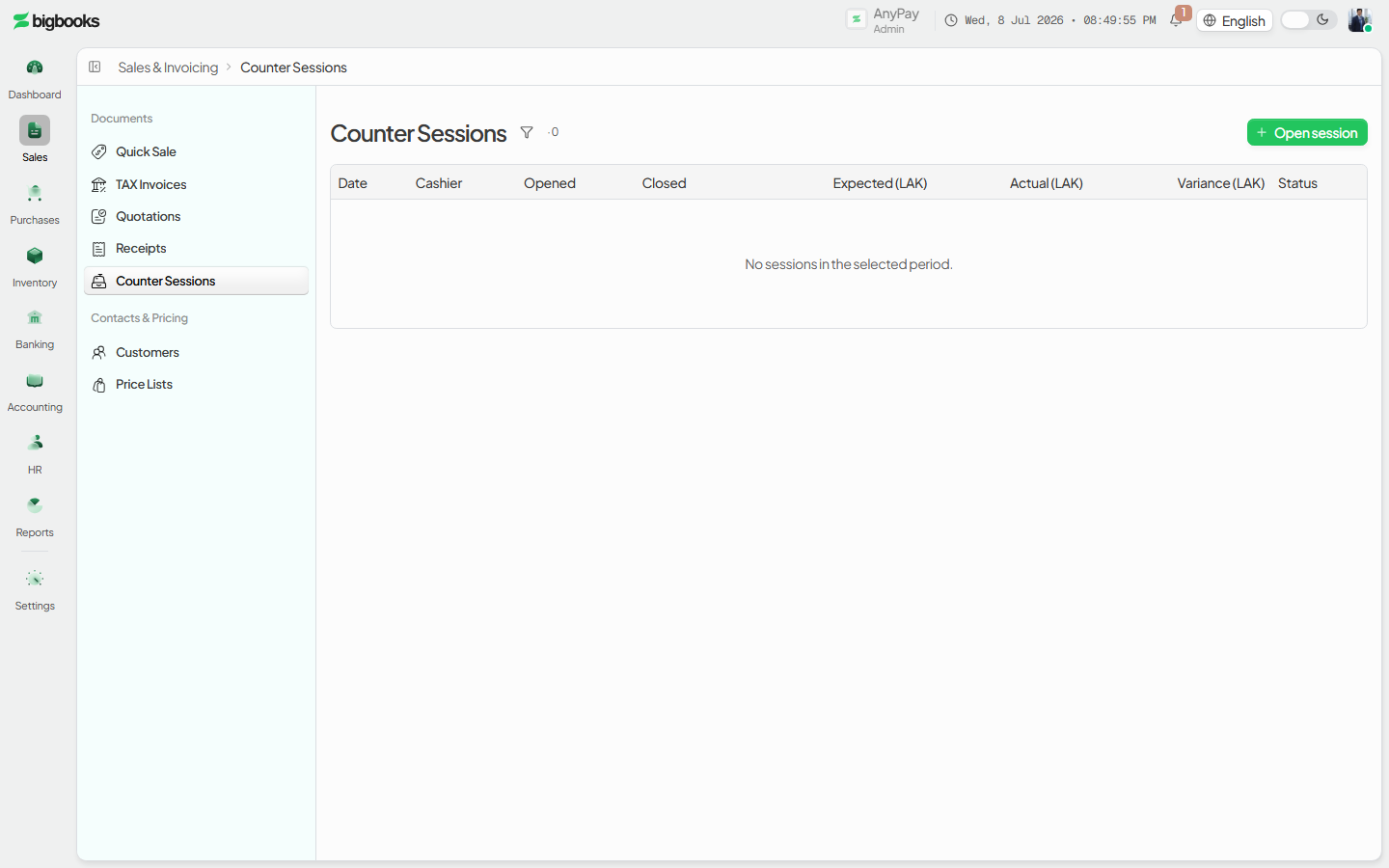
On /[lang]/sales/sessions, press Open session and enter your opening float per currency. The session snapshots today's exchange rates and starts accumulating drawer movements.
Close the session and count the cash When the shift ends, open the session and choose Close. Enter the counted cash per currency; the system computes the expected closing from the opening float plus posted cash movements and shows the over/short variance before you confirm.
Read the Day Book
Open /[lang]/reports/day-book. Use the Filters drawer to set the period and entry status, then read the chronological grid of posted entries. Entries that originated from a counter session carry their Z-Report number; click a row for the full entry detail.
Reconcile in the Cash Book
Open /[lang]/reports/cash-book, pick the bank/cash account, and read the running-balance ledger. Use the reconciled flag and drill-through to match each transaction to the bank statement.
What happens behind the scenes
Opening a session (counterSessions/open.ts) validates each opening float as satang, snapshots today's AR-buying and AP-selling rates into ratesAtOpen, and records the opening float per currency.
Closing a session (counterSessions/close.ts) is where the accounting happens. It computes the expected closing (opening float plus the session's posted cash movements) and the variance = counted actual − expected, per currency. It then writes a single balanced session_close journal entry, posted, with two kinds of lines per currency:
- Reverse the opening float — debit Cash Float Clearing, credit Cash on Hand for the opening amount.
- Variance — when the variance is at least 2 satang, a cash-over posts a debit to Cash on Hand against a credit to Cash Over/Short, and a cash-short posts the reverse. Sub-2-satang noise is ignored.
If the LAK-equivalent absolute variance exceeds the company's varianceThresholdLAK (or the tenant default), the close is blocked until a manager PIN is supplied. The close also rolls its lines into monthlyAccountTotals and allocates an atomic Z-Report number. The stored varianceLAK on the session is what later feeds the Cashier Variance report.
The Day Book (reports/dayBook.ts → generateDayBook) reads posted journal entries directly and renders them chronologically; session-sourced entries resolve their sessionId to a Z-Report number and cashier. The Cash Book (reports/cashBook.ts → generateCashBook) is scoped to one bank account and computes a running balance with reconciliation status, so the same cash movement can appear in both reports for different purposes.
Common problems
- Variance over threshold: If the counted cash differs from expected by more than the company threshold, closing requires a manager PIN; repeated wrong PINs lock that manager for five minutes.
- Missing exchange-rate snapshot: If a session was opened without a needed rate (
RATE_SNAPSHOT_MISSING), the multi-currency variance can't be expressed in LAK and the close is rejected — re-check the rates set at open. - Empty Day Book: No posted entries for the selected period shows an empty grid, not an error. Widen the filter period or check the status filter (drafts may be hidden).
- Cash Book needs an account: The Cash Book renders per bank/cash account — pick one first; an unreconciled flag means the transaction has not yet been matched to the bank.
- Force-closed sessions: A session closed by an admin override is marked
force_closedand surfaces with a warning icon; its variance still posts and still counts toward the Cashier Variance report. - Wrong surface: Looking for per-shift drawer detail in the Day Book will instead show posted entries; use the Sessions screen for the shift itself.
Supplier Invoices & Three-Way Match
As an operator, you will be able to record a supplier invoice, match it against its purchase order and goods receipt, and post it once approved, so that the payable is recognised against the right accounts, recoverable Input VAT is captured for MoF 2020, and quantity or price discrepancies are caught before payment.
Cashier Variance Report
As an admin you will open the Cashier Variance report to see each cashier's aggregated cash over/short across a date range, with outliers flagged, so you can spot drawer problems and follow up with the right people.