

Record a Direct Receipt
As an operator, you will record cash that arrives **without** an underlying BigBooks invoice — a walk-in sale, a deposit, or a receipt for an invoice raised in another system — posting it straight to an income account so the cash and a receipt are available immediately.
What you'll accomplish
As an Operator, you will record cash that arrives without an underlying BigBooks invoice — a walk-in sale, a deposit, or a receipt for an invoice raised in another system — posting it straight to an income account so the cash and a receipt are available immediately.
Before you start
Use the payment editor at /[lang]/payments/new and switch its header mode toggle to Direct Receipt. You need the operator role, an active bank or cash account (the "Deposit to" account that is debited), and an income account in your Chart of Accounts — the income picker lists Class 7 (revenue) accounts only, so the account you want must be a Class 7 leaf such as 711 Sales. If you will receive in a currency other than the company default, an exchange rate for that currency should be on file. Amounts are typed in kip and stored as integer satang (1 LAK = 100 satang).
Compliance Note
A direct receipt posts a single self-balancing entry that never touches Accounts Receivable — there is no invoice to clear. There is also no tax line in this mode: the full amount is credited to the income account you pick.
Steps
Switch to Direct Receipt mode
Open /[lang]/payments/new and flip the segmented header toggle from Apply to Invoice to Direct Receipt.
Choose who the receipt is for Use the Customer / Name toggle to either select an existing customer or type a free-text payer name. Set the payment date, method, and an optional reference.
Pick the accounts and enter the lines Select the Deposit to account (debited) and the Income account (credited, Class 7). Add one or more description lines with their amounts; the Total received is the sum of the lines.
Record the receipt
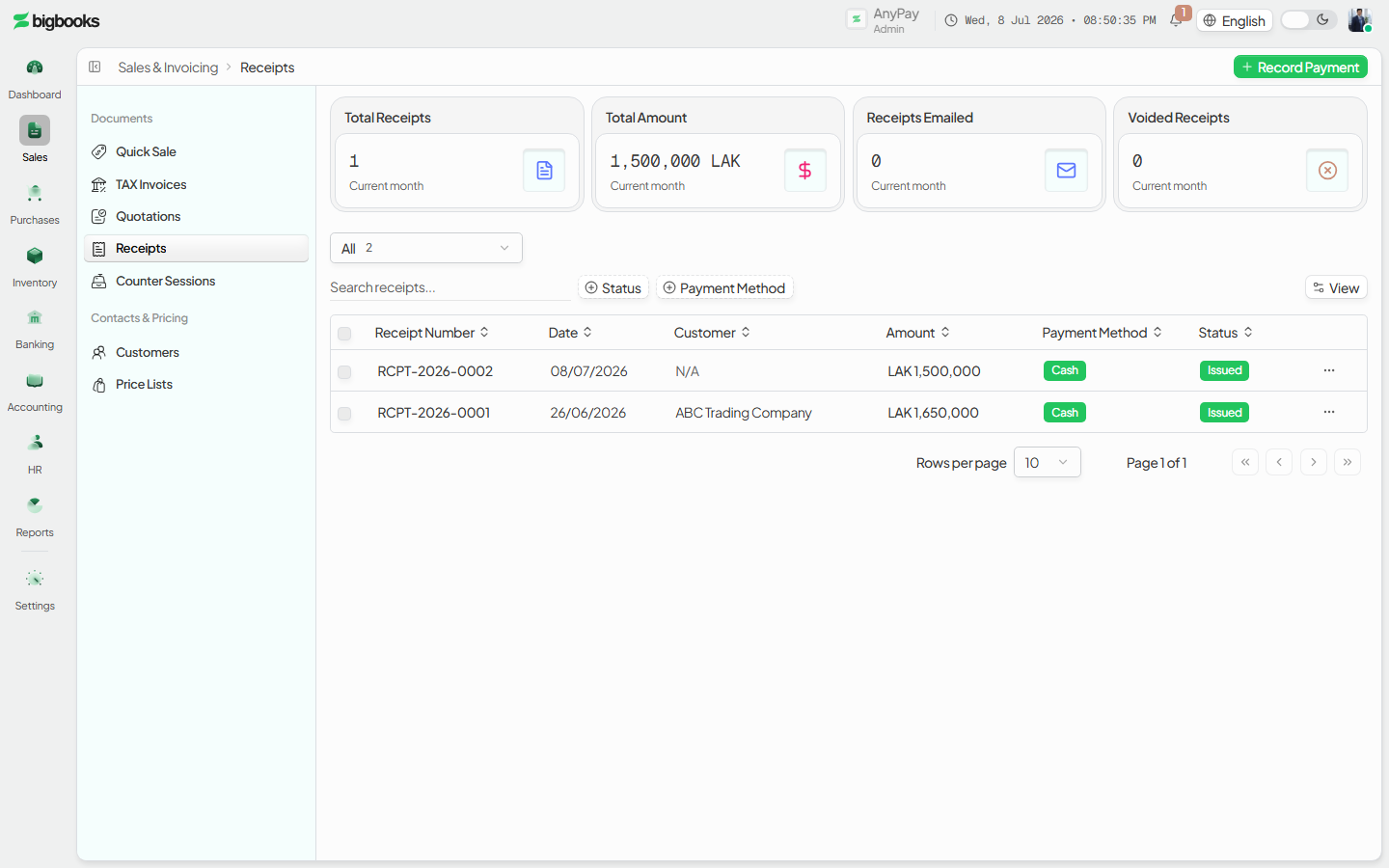
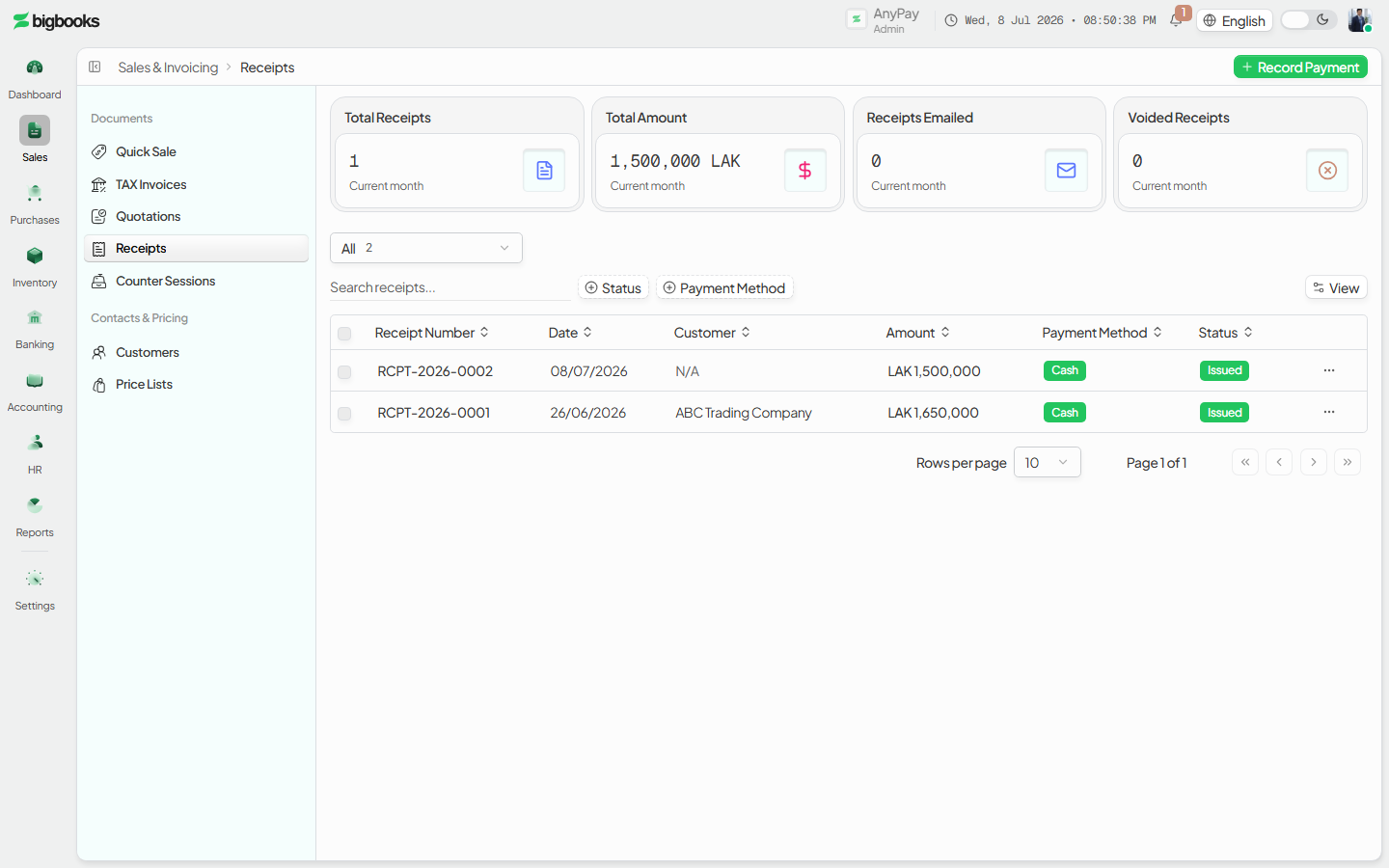
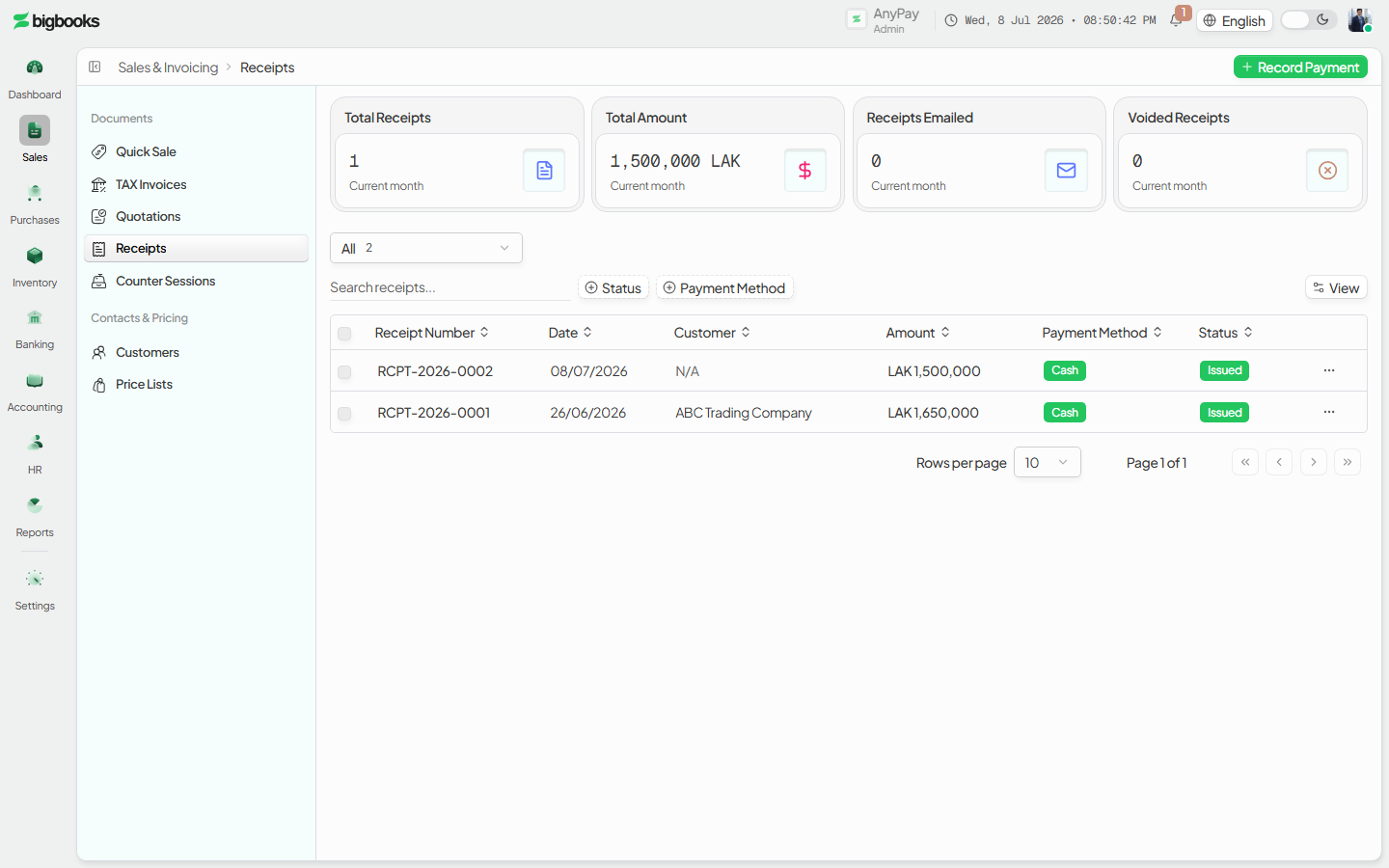
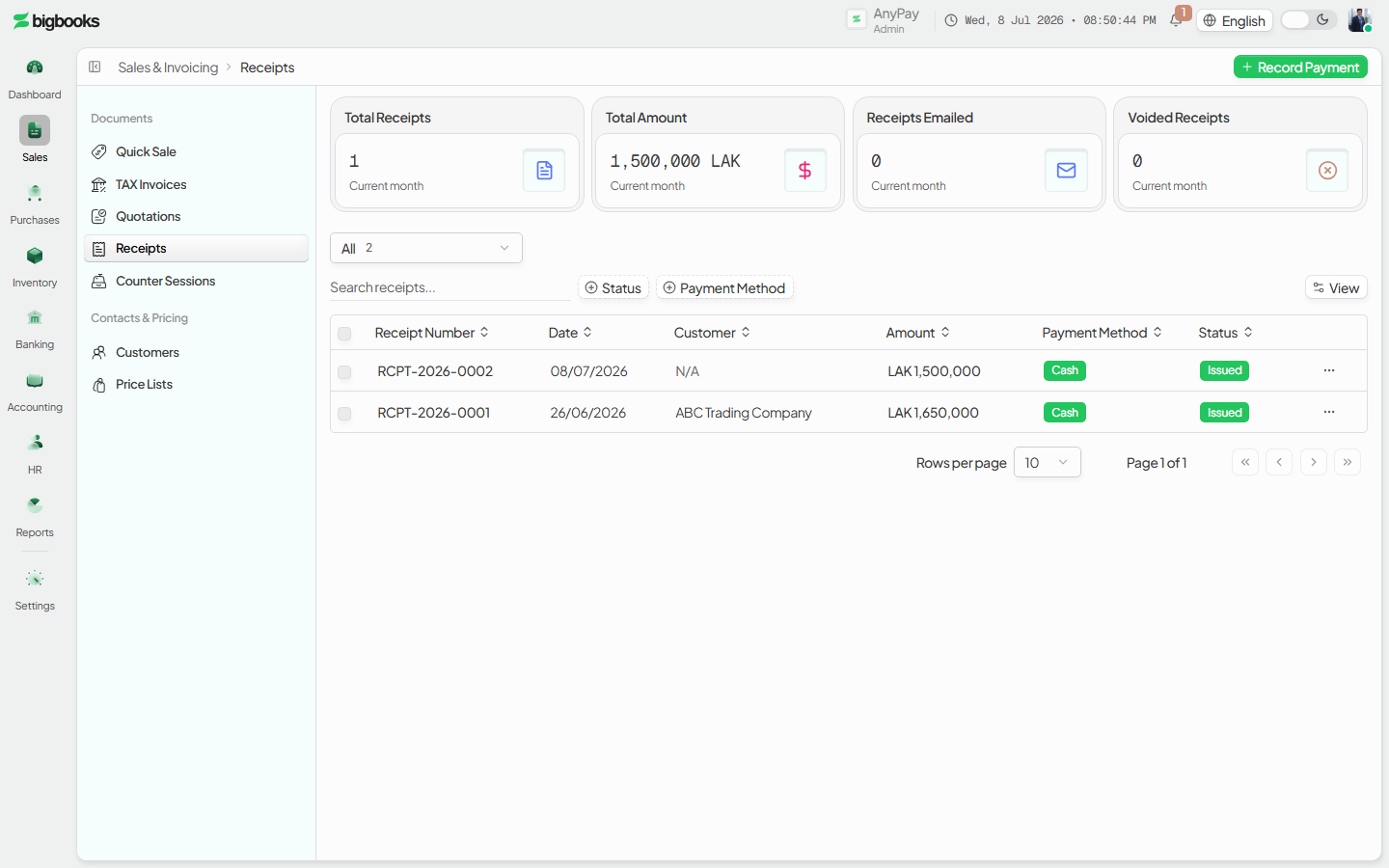
Confirm the Total received and click Record Receipt. The payment posts immediately as confirmed and a receipt becomes available on /[lang]/receipts.
What happens behind the scenes
payments/directReceipt.ts:createDirectReceipt converts the summed line amount to satang (Math.round(amount * 100), guarded by assertSatang) and writes one balanced, posted journal entry: the selected bank/cash account is debited and the chosen income (Class 7) account is credited for the same amount. Accounts Receivable is untouched, and there is no VAT line in this mode. The mutation marks both the journal entry and the payments row (PAY-YYYYMMDD-NNN) as confirmed, writes a single bank allocation, rolls the lines into the monthly aggregates, and updates Chart-of-Accounts balances. For a non-default currency it looks up the AR buying-rate and stamps it on the entry (falling back to the latest rate for the pair). Finally ensureReceiptForPayment issues the receipt (via receipts/mutations.ts) so it lands on /[lang]/receipts straight away.
| Account | Debit | Credit |
|---|---|---|
| Bank / Cash (the Deposit-to account) | Total received | - |
| Income (the Class 7 account you selected) | - | Total received |
Common problems
- "Income account … is not configured for this company": the credit account is missing or inactive — pick a valid, active Class 7 income account, or add one to the Chart of Accounts.
- No income account in the picker: the list shows Class 7 (revenue) accounts only; create one first.
- "Bank account not found" / "Selected bank account is inactive": the Deposit-to account was removed or deactivated; choose an active one.
- "Select a customer or enter a payer name": fill in one of the two payer options.
- "Amount must be greater than zero": enter a positive total across the description lines.
- Amount looks 100× off: enter normal kip, not satang — the form converts for you.
- Foreign-currency receipt with no converted rate: add the exchange rate before recording, otherwise the entry posts without a rate.
Apply a Payment to an Invoice
As an operator, you will record cash received from a customer and apply it to their open invoices, so Accounts Receivable clears for the amount paid and a receipt is issued automatically.
Receipts
As an operator, you will find and open a receipt, switch its layout between the Official and Branded template, and download or print it — without changing the payment behind it.