

Receipts
As an operator, you will find and open a receipt, switch its layout between the Official and Branded template, and download or print it — without changing the payment behind it.
What you'll accomplish
As an Operator, you will find and open a receipt, switch its layout between the Official and Branded template, and download or print it — without changing the payment behind it.
Before you start
Receipts live at /[lang]/receipts, an upgraded master-detail screen: a stats strip on top, a list with status views (All / Issued / Voided) and a status-colored accent bar on the left, and a tabbed detail panel on the right when you click a row. Search matches the receipt number or customer/payer name. The right-side action is Record Payment (it opens /[lang]/payments/new) — receipts are not created here directly; every receipt is issued automatically when a payment posts. Opening the old /[lang]/receipts/[id] URL redirects into the list with that row preselected (?selected=…). You need the operator role (canViewOwnInvoices).
Steps
Find the receipt
On /[lang]/receipts, use the search box (receipt number or payer) or the Issued / Voided view presets to locate the receipt.
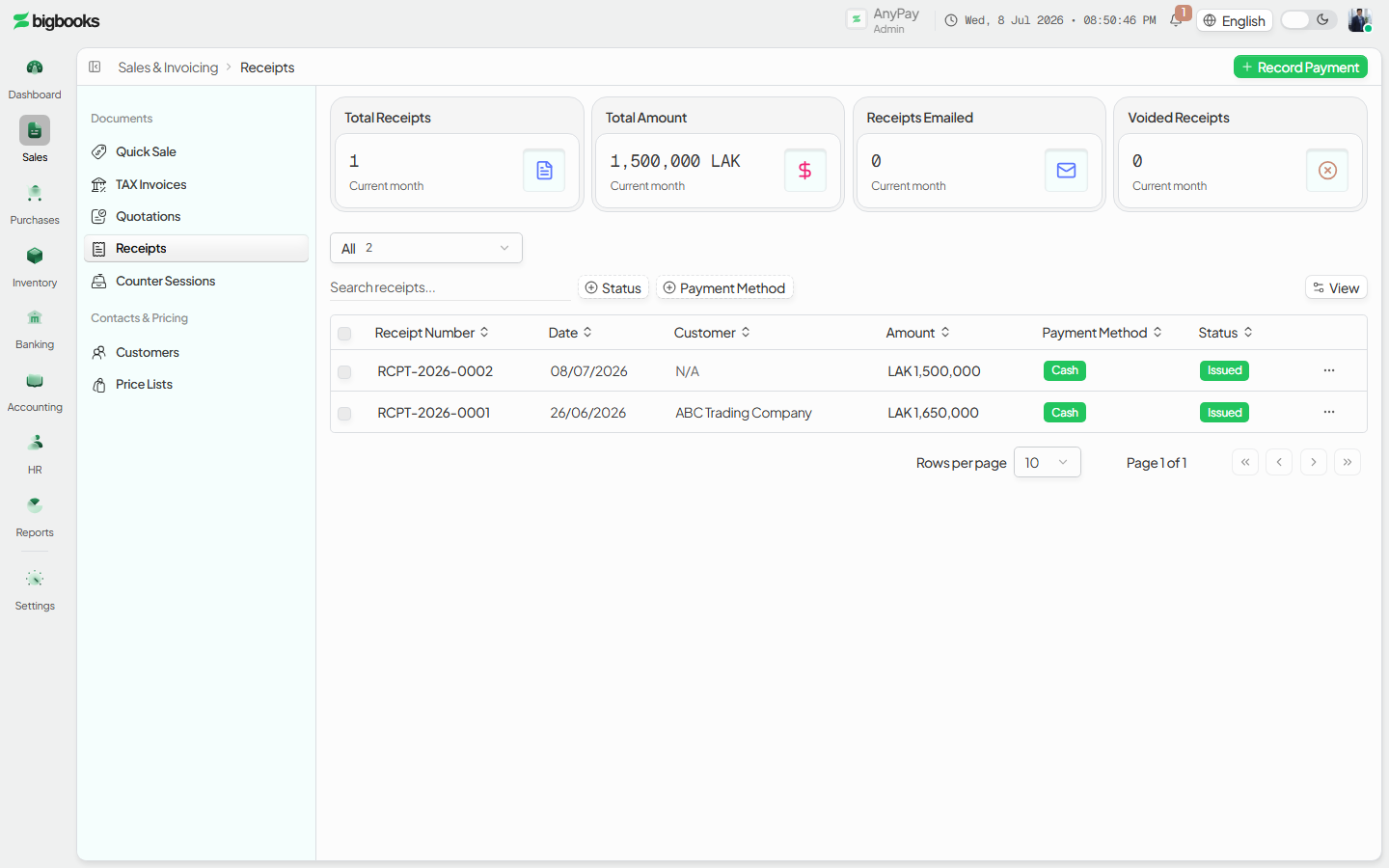
Open it Click the row to open the detail panel. It shows the receipt number and status, with the Document tab open by default and an Overview tab beside it.
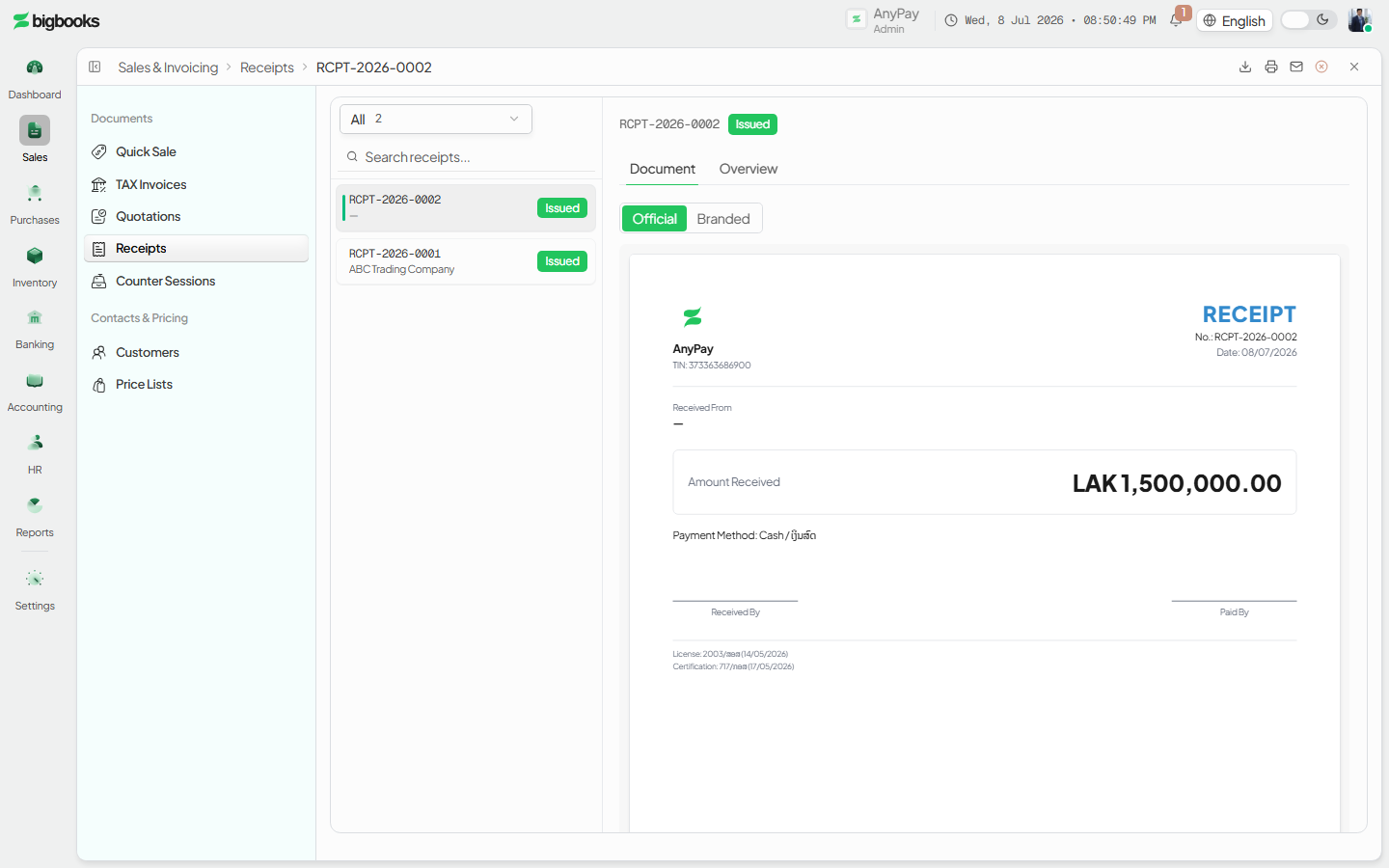
Choose the template On the Document tab, toggle between Official (the MoF-compliant layout) and Branded (your company styling). The live preview re-renders and your choice is saved on the receipt so a printed PDF matches.
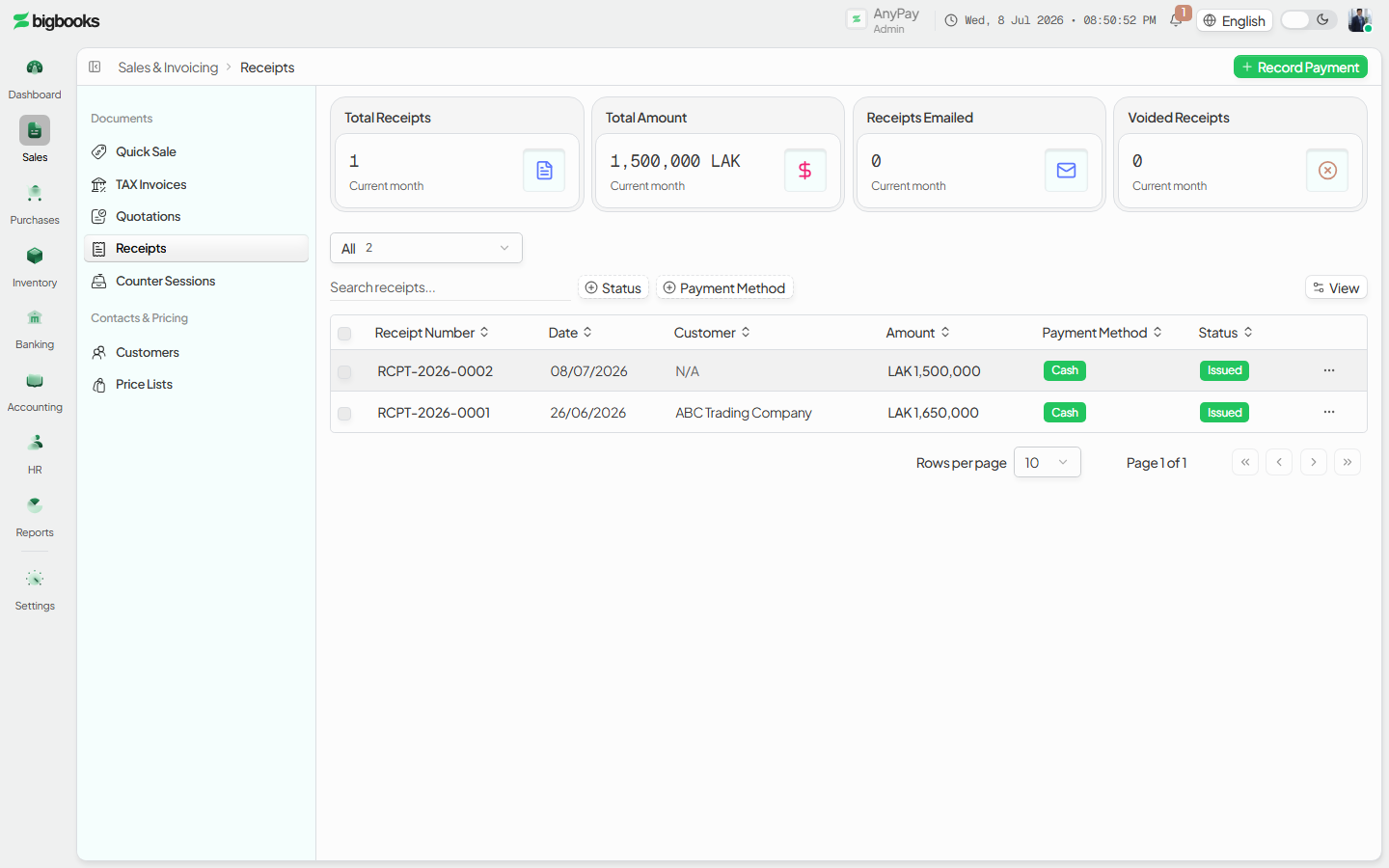
Download or print Use the header icon actions to Download PDF or Print (both open the studio PDF). The Void action is available while the receipt is issued and asks for a reason of at least 10 characters.
What happens behind the scenes
A receipt is a read view over an already-posted payment, so opening, switching templates, and reprinting it never write a new journal entry. The row itself is created automatically when the payment posts (ensureReceiptForPayment): receipts/mutations.ts assigns the next RCPT-YYYY-NNNN number from an annual sequence and snapshots the seller's legal-compliance fields (TIN, Lao/English name, address, phone) from the company. The receipt amount is stored in satang and divided by 100 for display, and the Official/Branded choice (setReceiptDocumentStyle) is presentation only. The single posting that backs a normal receipt is the payment's own entry — Cash/Bank debit against Accounts Receivable (applied payment) or against an income account (direct receipt). Voiding a normal payment receipt only sets its status to voided with a reason and does not reverse that ledger entry; the one exception is a walk-in instant-receipt sale, where voiding also reverses the perpetual COGS / stock relief recorded at issue.
Common problems
- Receipt not in the list: it appears only after the payment posts; an unconfirmed/draft payment has no receipt yet. Check the status view (it may be filtered to Issued or Voided).
- Void rejected: the reason must be at least 10 characters, and an already-voided receipt cannot be voided again.
- Email does nothing: the email action is present but currently shows a "not implemented" notice — use Download PDF or Print instead.
- Official template looks incomplete: missing company tax fields (TIN, Lao name, address, phone) are logged as warnings and render blank rather than blocking the print — complete the company profile for a fully compliant layout.
- Old
/receipts/[id]link: it redirects into the list with the row preselected; that is expected after the master-detail upgrade.
Record a Direct Receipt
As an operator, you will record cash that arrives **without** an underlying BigBooks invoice — a walk-in sale, a deposit, or a receipt for an invoice raised in another system — posting it straight to an income account so the cash and a receipt are available immediately.
Expenses
As an operator, you will be able to record an expense with its attachment and the correct expense and tax accounts, so that the cost lands in the right GL account with a verifiable document and recoverable input VAT for MoF 2020 filing.