

Apply a Payment to an Invoice
As an operator, you will record cash received from a customer and apply it to their open invoices, so Accounts Receivable clears for the amount paid and a receipt is issued automatically.
What you'll accomplish
As an Operator, you will record cash received from a customer and apply it to their open invoices, so Accounts Receivable clears for the amount paid and a receipt is issued automatically.
Before you start
Payments live at /[lang]/payments — a classic list (stats strip + table) with a New Payment button; it was not converted to the master-detail layout, so clicking a row opens the standalone payment detail at /[lang]/payments/[id]. Recording happens in the document-style editor at /[lang]/payments/new, which has a segmented mode toggle: Apply to Invoice (this page) and Direct Receipt. To apply a payment you need the operator role (canViewPayments), a customer who has issued invoices with an outstanding balance, and an active bank or cash account to deposit into. Amounts are typed in a major unit (kip) but stored as integer satang (1 LAK = 100 satang); the editor converts at the boundary and the server re-checks that bank and invoice allocations match exactly.
Compliance Note
The payment posts to the general ledger the moment you save it — there is no separate "issue" step. The entry is balanced (Cash/Bank debit = AR credit), so AR only moves by what you actually applied.
Steps
Open the payment editor
From /[lang]/payments, click New Payment. Leave the header mode toggle on Apply to Invoice.
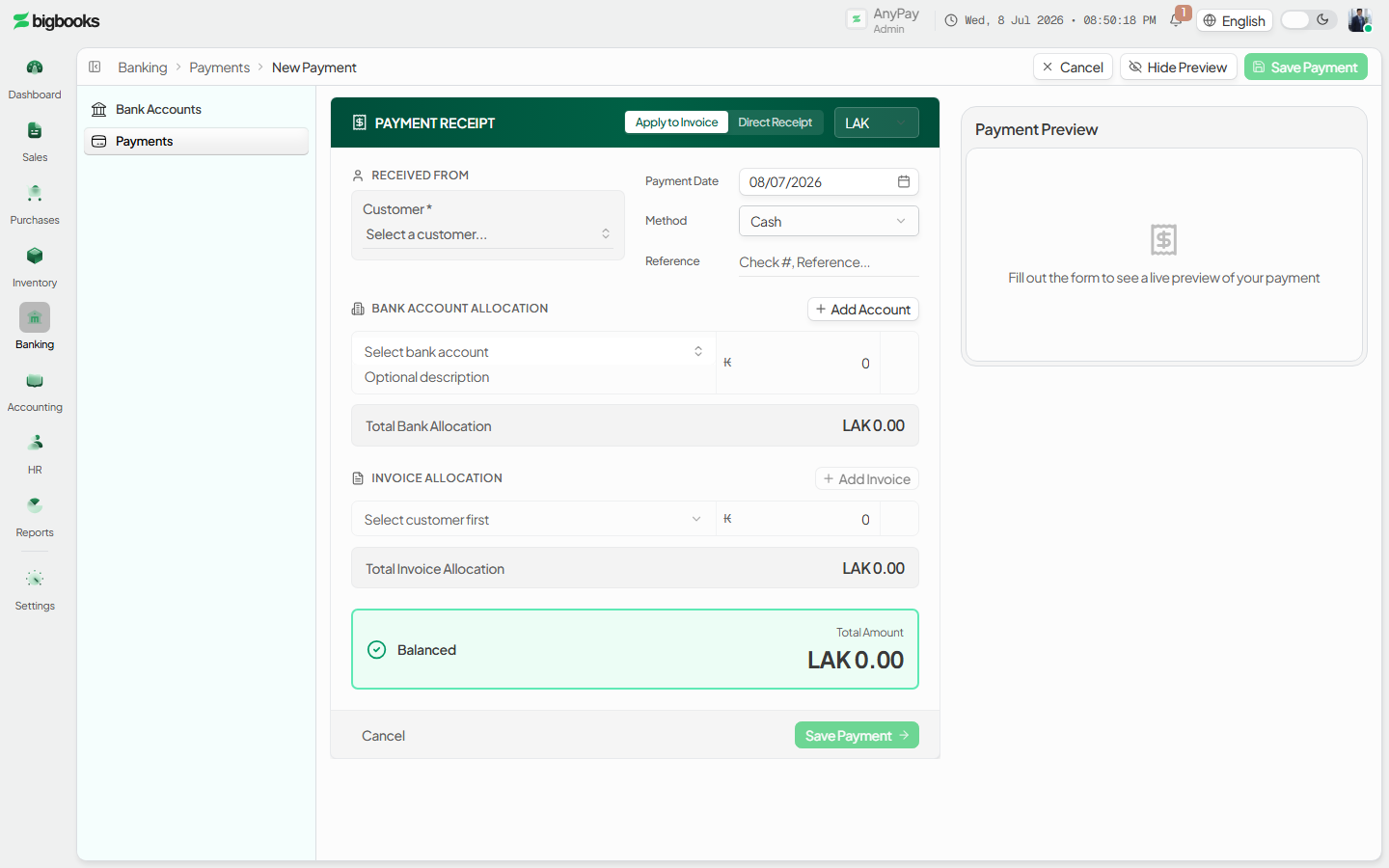
Pick the customer and deposit account Select the customer in Received from. Under Bank allocations, choose the bank or cash account the money lands in and enter the amount deposited.
Allocate to invoices Under Invoice allocations, select an outstanding invoice. The editor auto-fills the applied amount from that invoice's remaining balance and keeps the single bank row in lock-step, so the payment lands Balanced. Add more invoice rows to split one deposit across several invoices, or lower an amount to pay an invoice in part.
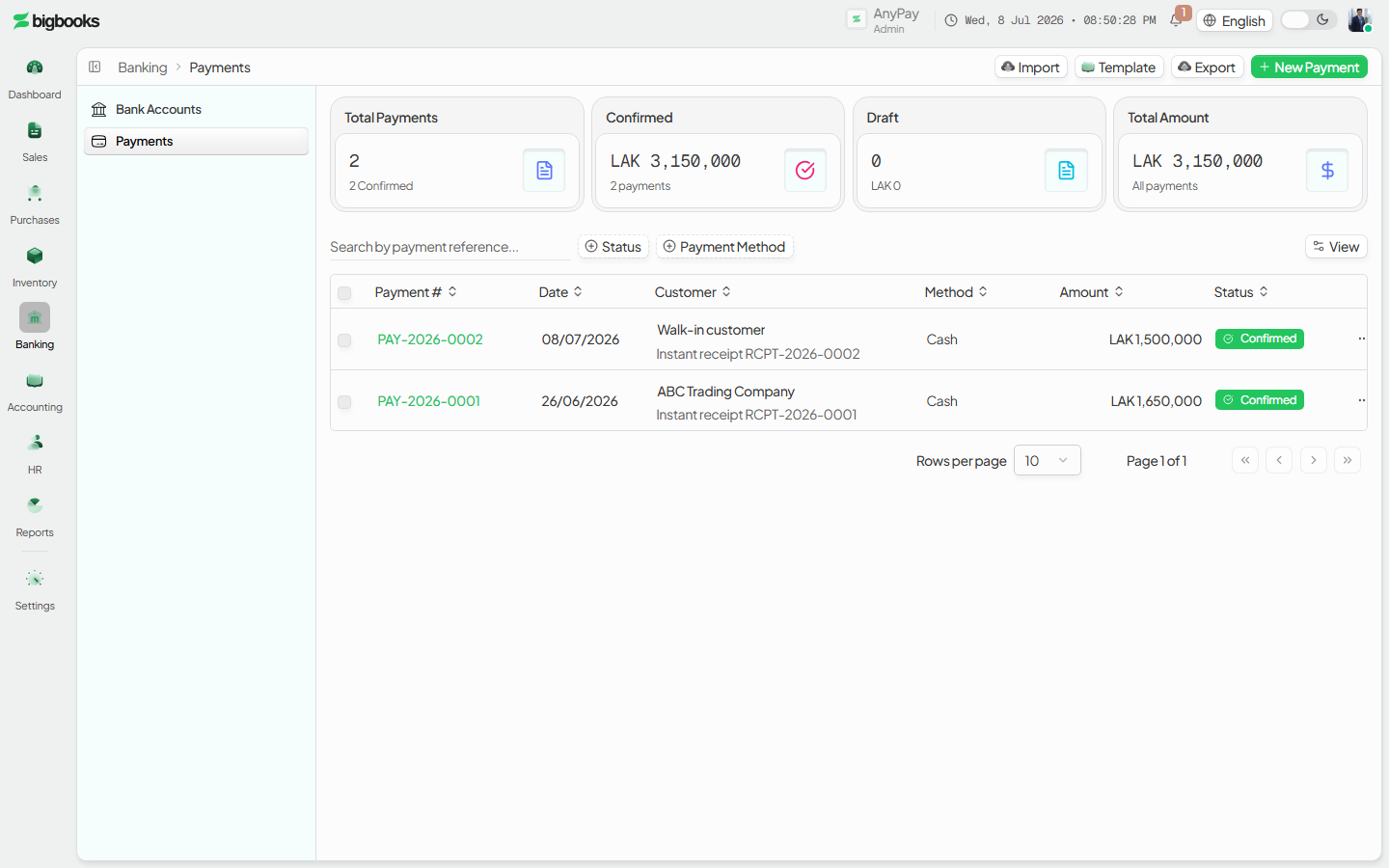
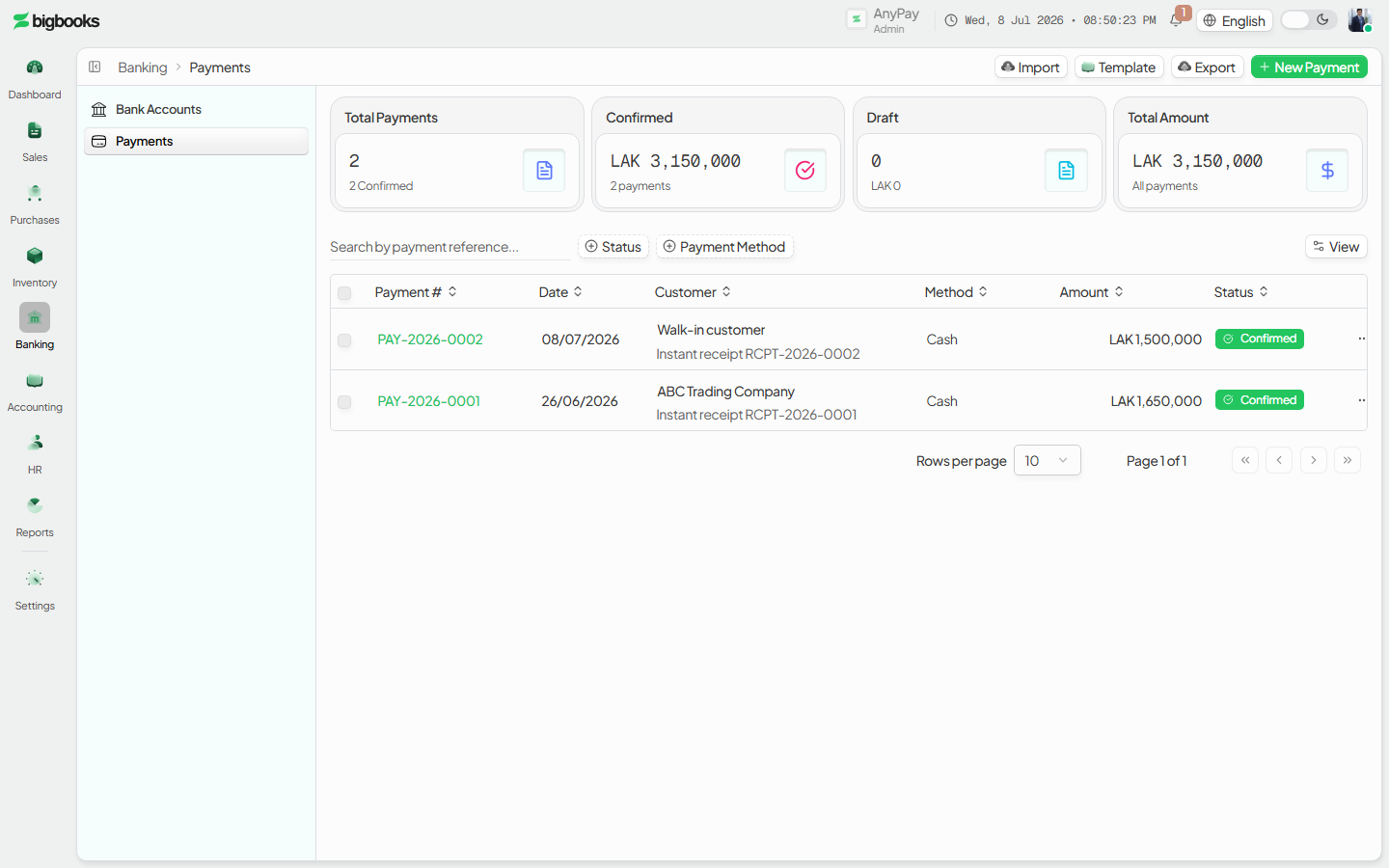
Save the payment Confirm the date, method and reference, check the Balanced banner is green, and click Save Payment. The payment posts immediately, a receipt is issued, and you land on the payment's detail page with its journal entry shown.
What happens behind the scenes
Saving runs two mutations. First payments/create.ts validates that the bank allocations equal the invoice allocations (integer satang, assertSatang), that each invoice still has enough remaining balance, and writes a draft payment (PAY-YYYYMMDD-NNN) with its bank and tax-invoice allocations. Then payments/autoPosting.ts:postPayment posts a balanced, posted journal entry: each deposit account is debited for its allocation, and the customer's Accounts Receivable control account (customer.customerAccountCode) is credited for the gross total — leaving the entry net zero. It then updates Chart-of-Accounts balances, the bank account balance, the customer's running balance, and each invoice's remainingAmount/paidAmount. A partial payment simply leaves remainingAmount above zero; tax invoices have no "paid" status, so the invoice stays issued with a smaller outstanding figure. For a non-LAK payment the AR buying-rate is looked up and snapshotted on both the payment and the journal entry (falling back to the latest rate for the pair). Finally ensureReceiptForPayment issues the receipt so it appears on /[lang]/receipts.
| Account | Debit | Credit |
|---|---|---|
| Bank / Cash (each deposit account) | Amount deposited | - |
| Accounts Receivable (customer control account) | - | Gross total applied |
Common problems
- "Bank allocations must equal invoice allocations": the deposited total and the applied total differ — the Save button only enables when the banner shows Balanced.
- "PAYMENT_EXCEEDS_BALANCE": an applied amount is larger than the invoice's remaining balance; lower it or split across invoices.
- No invoices in the picker: pick the customer first, and remember only issued invoices with a remaining balance appear — fully paid or draft invoices are hidden.
- "Bank account not found or inactive": the chosen deposit account was removed or deactivated; pick an active one.
- Amount looks 100× off: enter the figure in normal kip, not satang — the form multiplies by 100 for you.
- Foreign-currency payment with no rate: add the exchange rate for that currency and date first, or the entry posts without a converted rate.
Dual-Currency Display
As an admin, you will turn on a secondary-currency display so documents show an approximate USD or THB amount beside the LAK figure — without changing a single ledger value.
Record a Direct Receipt
As an operator, you will record cash that arrives **without** an underlying BigBooks invoice — a walk-in sale, a deposit, or a receipt for an invoice raised in another system — posting it straight to an income account so the cash and a receipt are available immediately.