

Transactions History
As an operator, you will browse one unified history of every transaction in the company — from any module — filter it by type and status, search it, and open any row to read its underlying journal entry.
What you'll accomplish
As an Operator, you will browse one unified history of every transaction in the company — from any module — filter it by type and status, search it, and open any row to read its underlying journal entry.
Before you start
The Transactions history lives at /[lang]/transactions. It is a read-only cross-module list: a single data-table that brings together invoices, payments, quotations, and manual journal vouchers, with faceted filters for transaction type and status (the status options span every kind — draft/sent/paid/overdue/cancelled for documents, confirmed/reversed for payments, accepted/declined/expired/converted for quotations) plus free-text search. You need a selected company and a journal permission (canViewJournals, canCreateJournals, or canConfirmJournals). Nothing here is created or edited — use the originating module for that.
This screen aggregates; it does not post. Every row reflects a transaction recorded elsewhere — opening it lets you read its journal entry, not change it.
Steps
Open the transactions history
Go to /[lang]/transactions. The table lists recent transactions across all modules, with a stats summary above it.
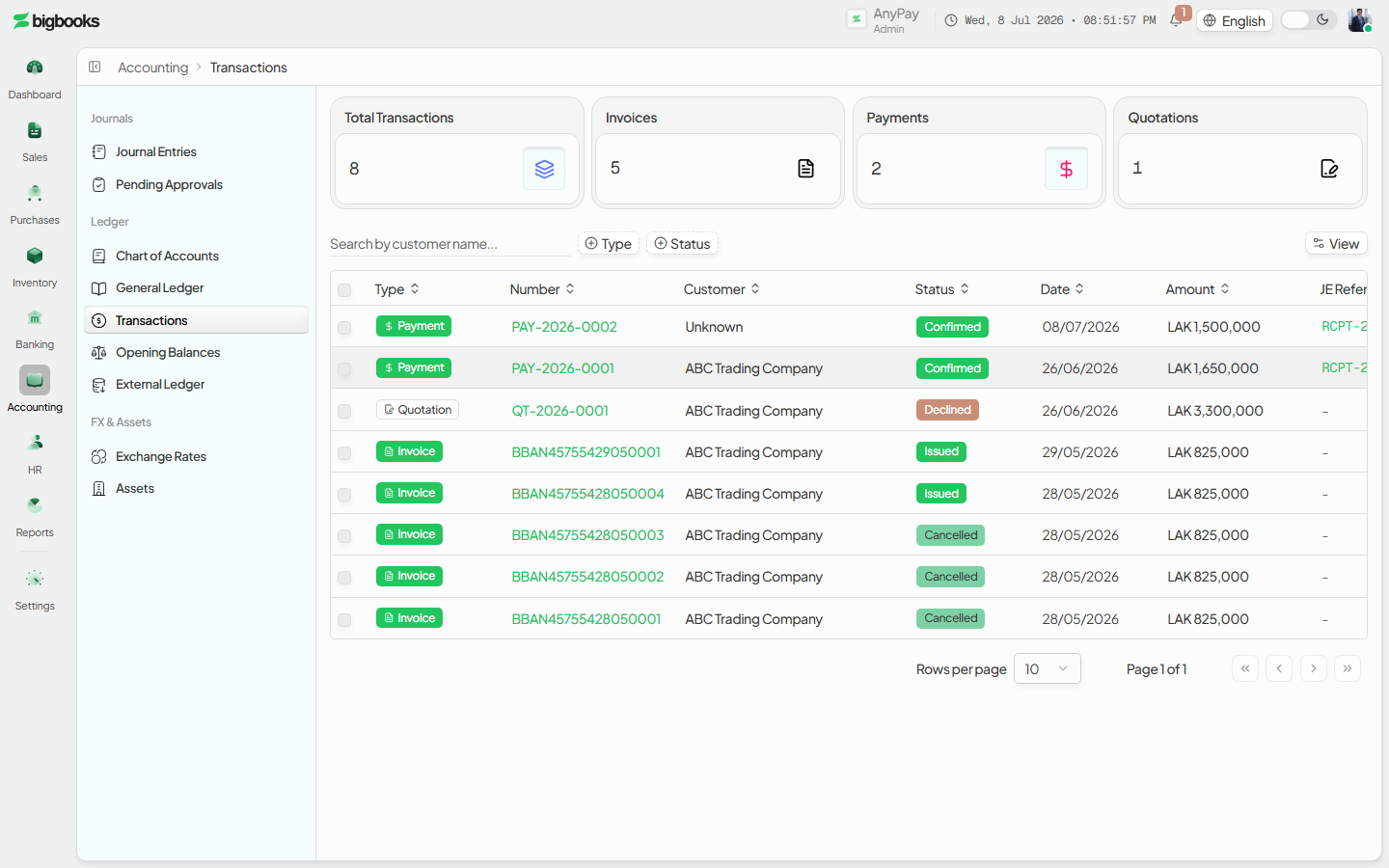
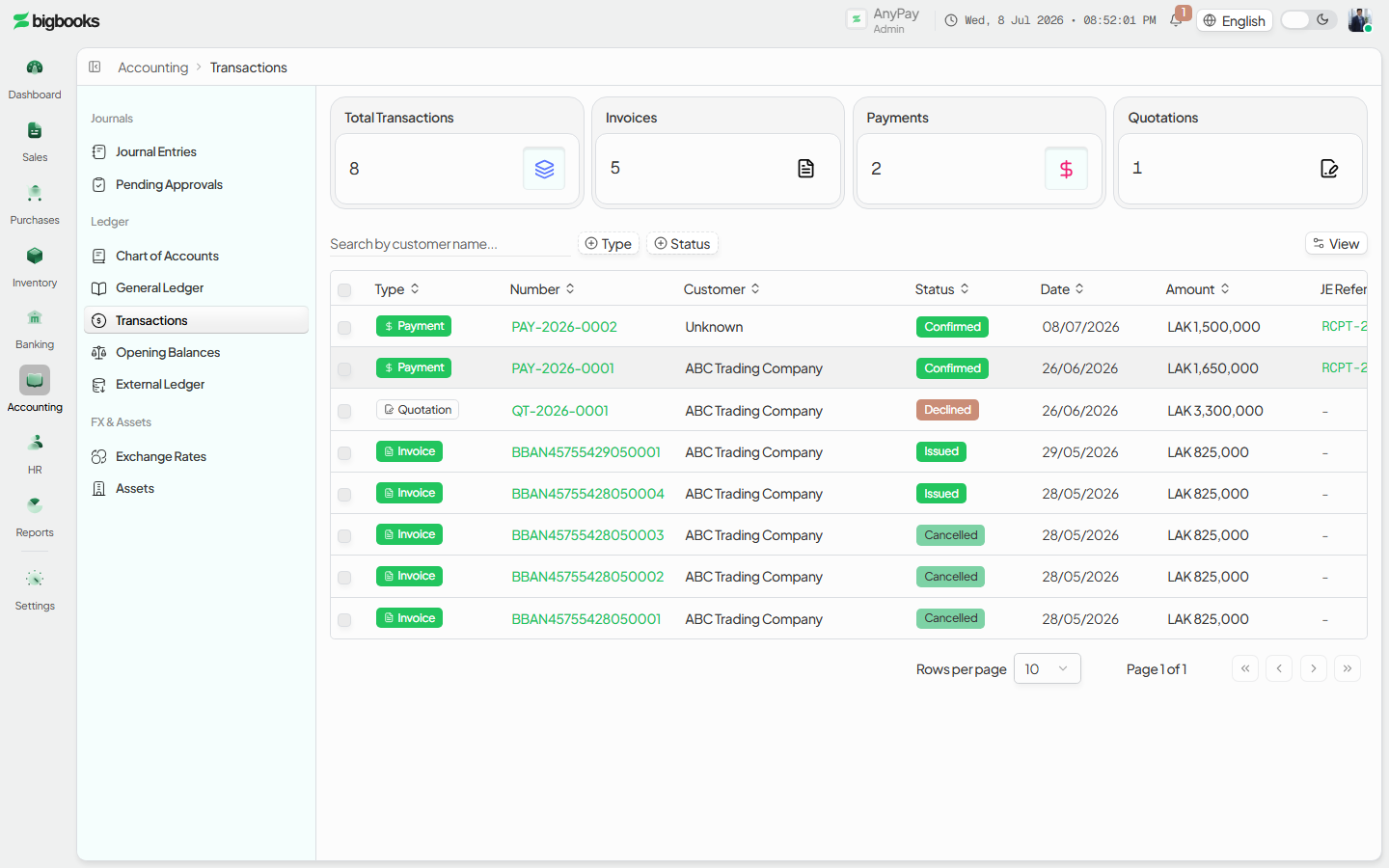
Filter and search Use the type and status faceted filters and the search box to narrow the list — e.g. only payments, only overdue invoices, or a reference you remember.
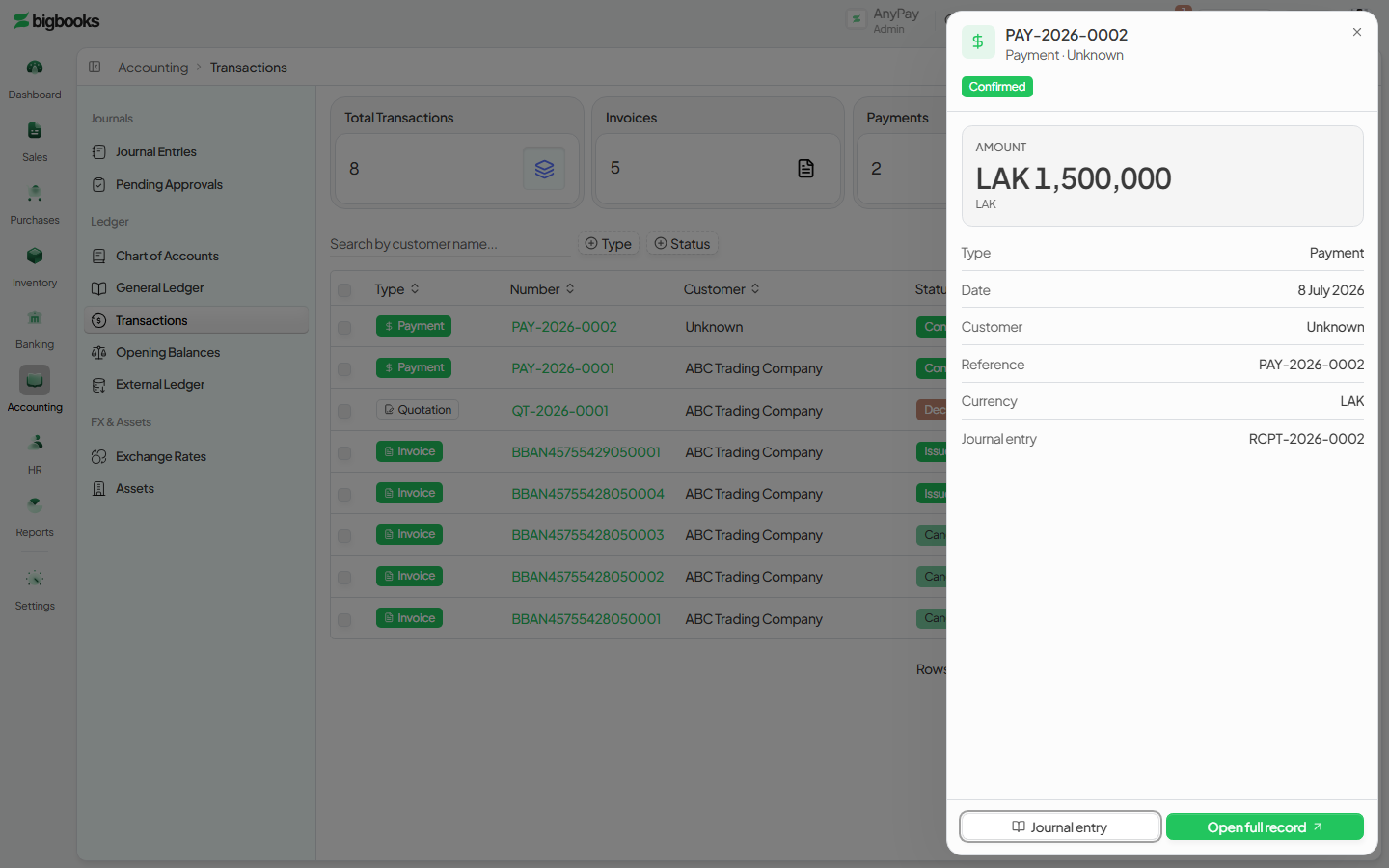
Open a transaction's detail Click a row to open the detail side-sheet, which shows the transaction's underlying journal entry — its balanced debit/credit lines and source.
What happens behind the scenes
The page renders TransactionList, which reads getRecentTransactions and getTransactionStats from dashboard/queries.ts to build the unified, cross-module feed and its summary, and getJournalEntryDetail from journalEntries/queries.ts to populate the detail sheet when a row is opened. The feed is an aggregation over already-recorded transactions — there is no write path on this screen. Each entry's detail is the same balanced double-entry posting that the general ledger aggregates: integer-satang debit and credit lines that sum to zero per transaction, linked back to the source document. Because it reads the recorded state, a transaction appears here with whatever status it currently holds in its own module (e.g. an unposted draft shows as a draft; only posted entries contribute to ledger balances).
Common problems
- A document is missing: Filters may be hiding it — clear the type/status facets or search by reference.
- Read-only: There is no New or Edit here; create and edit transactions from their own module (invoices, payments, entries).
- Detail shows no journal lines: A transaction that has not yet produced a posted journal entry (e.g. a draft) has no GL detail to show.
- No data: Without a journal permission the page is gated; ask an admin for
canViewJournals.
Journal Vouchers & Approval
As an operator, you will create a balanced manual journal voucher and move it through its lifecycle — post it directly, or submit it for an admin to approve — so that adjustments no document produces (accruals, reclassifications, opening balances) land correctly in the general ledger.
Ledger Mappings (Admin)
As an admin, you will open the ledger-mappings admin dashboard to monitor how each company's modules are wired to the chart of accounts and to manage the admin override that controls posting behaviour while mappings are being set up.