

Ledger Mappings (Admin)
As an admin, you will open the ledger-mappings admin dashboard to monitor how each company's modules are wired to the chart of accounts and to manage the admin override that controls posting behaviour while mappings are being set up.
What you'll accomplish
As an Admin, you will open the ledger-mappings admin dashboard to monitor how each company's modules are wired to the chart of accounts and to manage the admin override that controls posting behaviour while mappings are being set up.
Before you start
This page is at /[lang]/admin/ledger-mappings and is admin-only — a non-admin sees an Access-Denied notice. Ledger mappings are the rules that tell BigBooks which GL accounts a module's documents post to (customer receivables, invoice revenue/VAT, payment bank/cash, bank-account ledgers), so that issuing an invoice or confirming a payment produces a correct, balanced journal entry without anyone choosing accounts by hand.
In the current build this admin dashboard is a scaffold: the per-company status cards and audit-history shown here are placeholder/sample content. The functional control on it is the Admin Override panel. The real per-company mapping configuration is done in the mapping wizard reached from settings/configuration, not from this dashboard. Treat the figures here as illustrative until the dashboard is wired to live data.
Steps
Open the admin dashboard
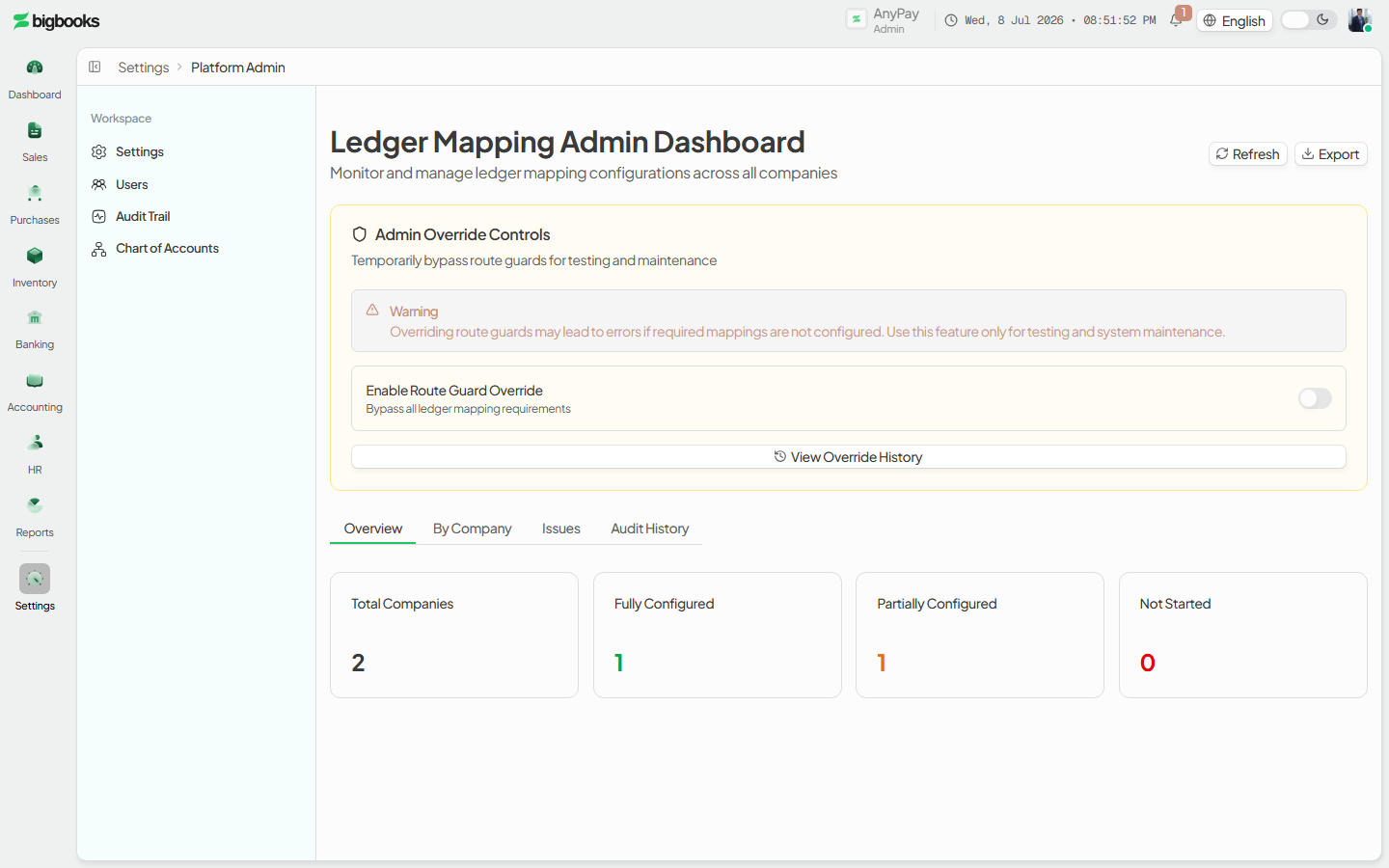
Go to /[lang]/admin/ledger-mappings as an admin. The page shows an overview of mapping configuration across companies, with tabs for Overview, By Company, Issues, and Audit History, plus Refresh and Export buttons.
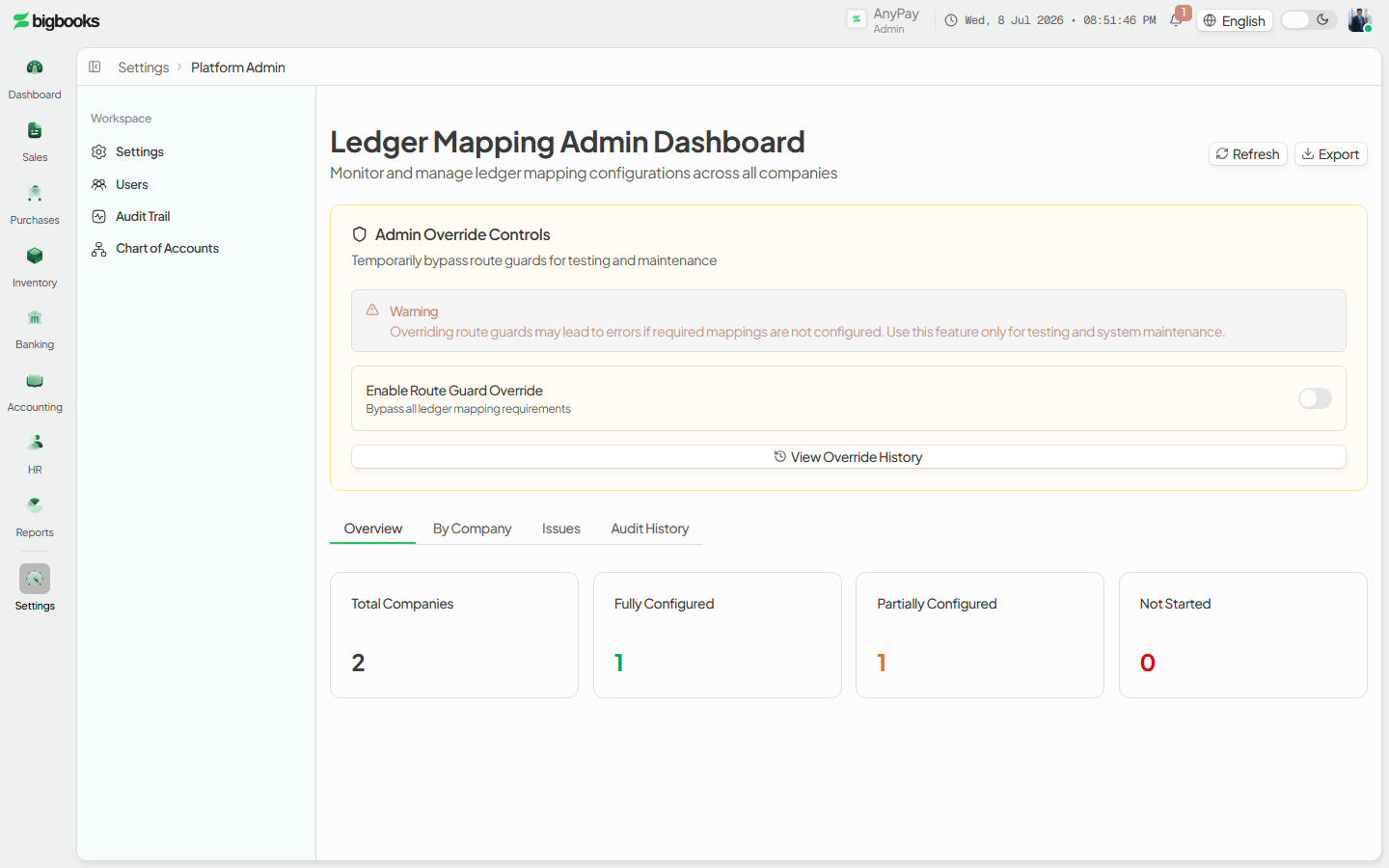
Review per-company mapping status Open the By Company tab to see, per company, which modules (customers, invoices, payments, bank accounts) are fully mapped and an overall progress figure.
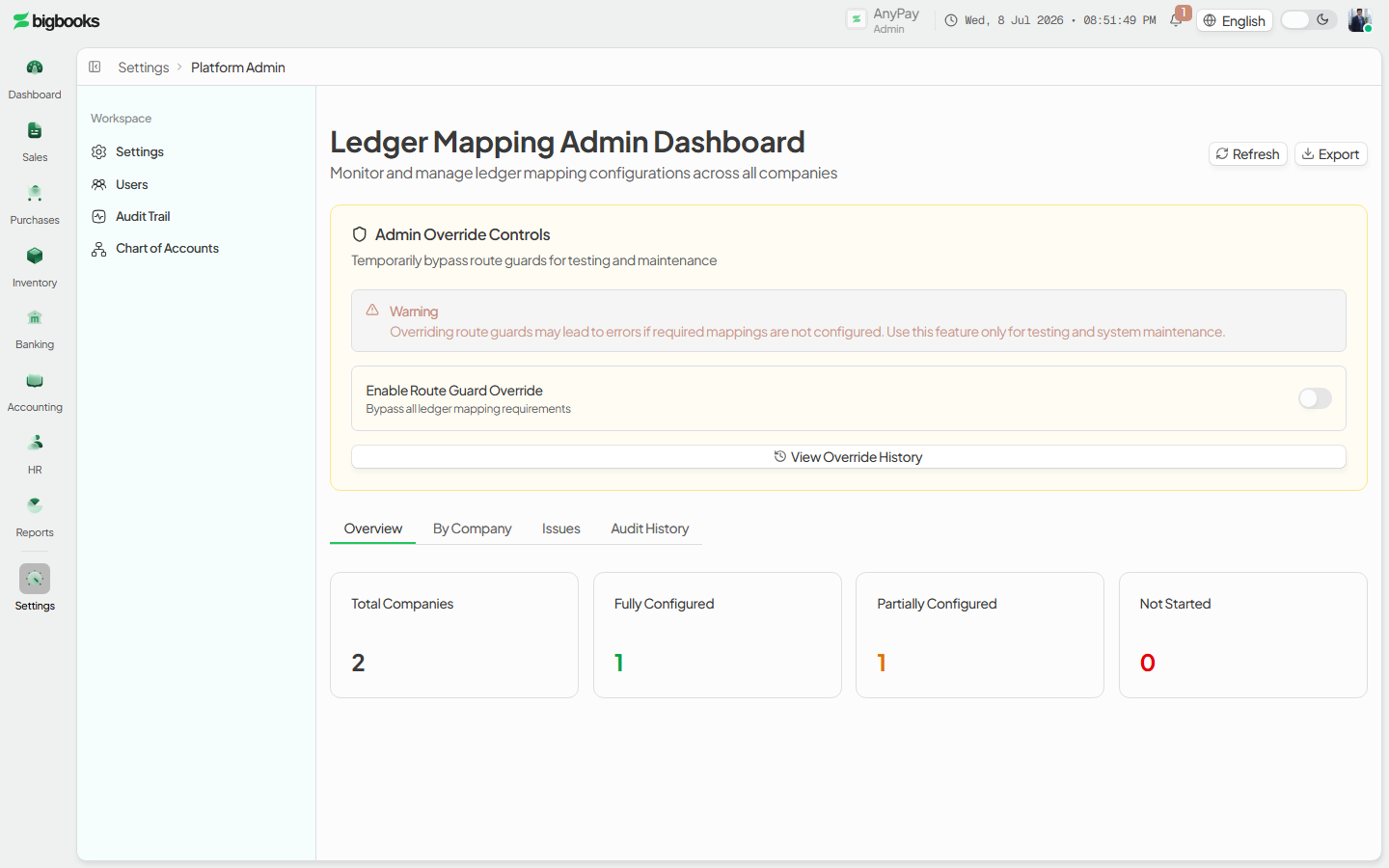
Manage the admin override Use the Admin Override panel to toggle the override flag for your active company — the panel that actually persists a change on this page.
What happens behind the scenes
The page is gated on the admin role from users/queries.ts (current) and lists companies via companies/queries.ts (list). The only write on this dashboard is the Admin Override panel, which persists through users/mutations.ts (updateUser); the per-company status cards and the audit-history list are static sample data in this build, not live queries. Functionally, ledger mappings themselves are resolved when documents post: an issued invoice or a confirmed payment looks up its module's mapping to decide which GL accounts to debit and credit, which is why a complete, correct mapping is what keeps automatic journal entries balanced and consistent. The live mapping configuration and validation surfaces (the mapping wizard and progress/validator) live under settings/configuration and are backed by the ledgerMappings and glTemplates Convex modules — this admin page is a monitoring shell over that, not the editor for it.
Common problems
- Access denied: The page requires the admin role; operators are blocked.
- Numbers look like samples: The status cards and audit history are placeholder data in this build — do not rely on them for real configuration state.
- Where to actually edit mappings: Configure a company's mappings through the mapping wizard in settings/configuration, not from this dashboard.
- Override side-effects: The admin override changes posting behaviour for the active company while it is on — turn it off once mapping setup is verified.
Transactions History
As an operator, you will browse one unified history of every transaction in the company — from any module — filter it by type and status, search it, and open any row to read its underlying journal entry.
Bank & Cash Accounts
As an operator, you will register your bank and cash accounts, each tied to a Chart-of-Accounts code, and read a multi-currency balance overview plus a per-account detail with calculated and reconciled balances — so payments, receipts, and reconciliation all point at the right ledger account.