

MoF Reports
As an operator or admin, you will generate the Ministry of Finance (MoF 2020) statutory report set for an accounting period, take it through approval, and submit it — at which point the figures and the period are locked.
What you'll accomplish
As an Operator or Admin, you will generate the Ministry of Finance (MoF 2020) statutory report set for an accounting period, take it through approval, and submit it — at which point the figures and the period are locked.
Before you start
Unlike the Trial Balance or P&L, the MoF Reports area is not a single report-upgrade grid — it is a submission workflow with several screens:
/[lang]/mof-reports— the list of submissions (period, version, status, generated/modified dates)./[lang]/mof-reports/generate— the generation wizard (pick period and report types)./[lang]/mof-reports/[id]— the tabbed viewer for one submission, with the approval panel and Excel export./[lang]/mof-reports/annexures— upload supporting documents (auditor report, meeting minutes, etc.).
Generating requires posted GL data for the period and a balanced trial balance. Most actions are gated by tax-filing permissions: generating and submitting are available to manage-level users, while approval and force-delete are admin-level.
Compliance Note
Generation takes a point-in-time snapshot of the ledger into dedicated MoF report-line tables. Once a submission is approved and submitted, the period is locked: the snapshot cannot be regenerated, the submission cannot be deleted, and GL entries for that period are frozen. A mistake after submission requires a new amendment, not an edit.
Steps
Open the submissions list
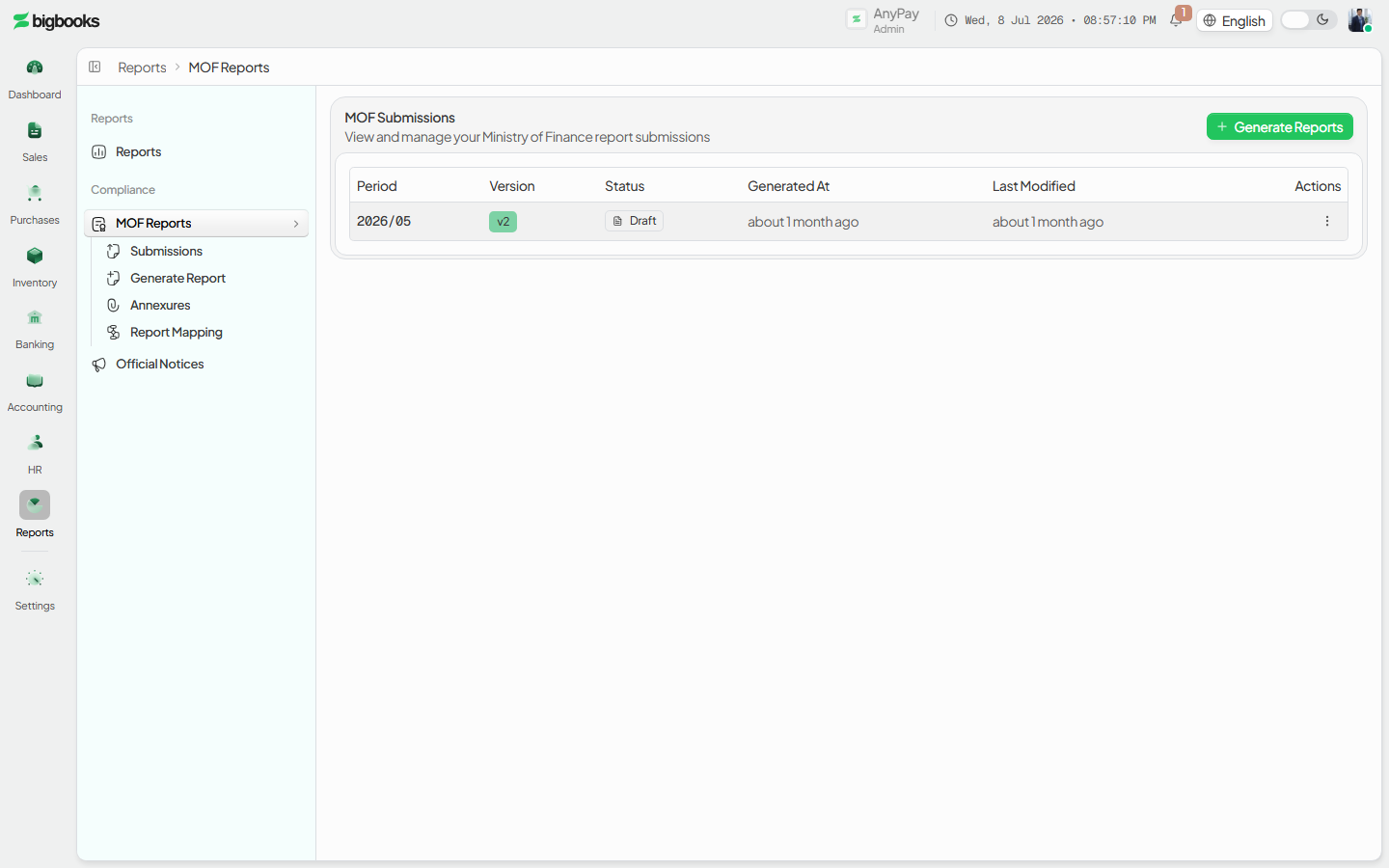
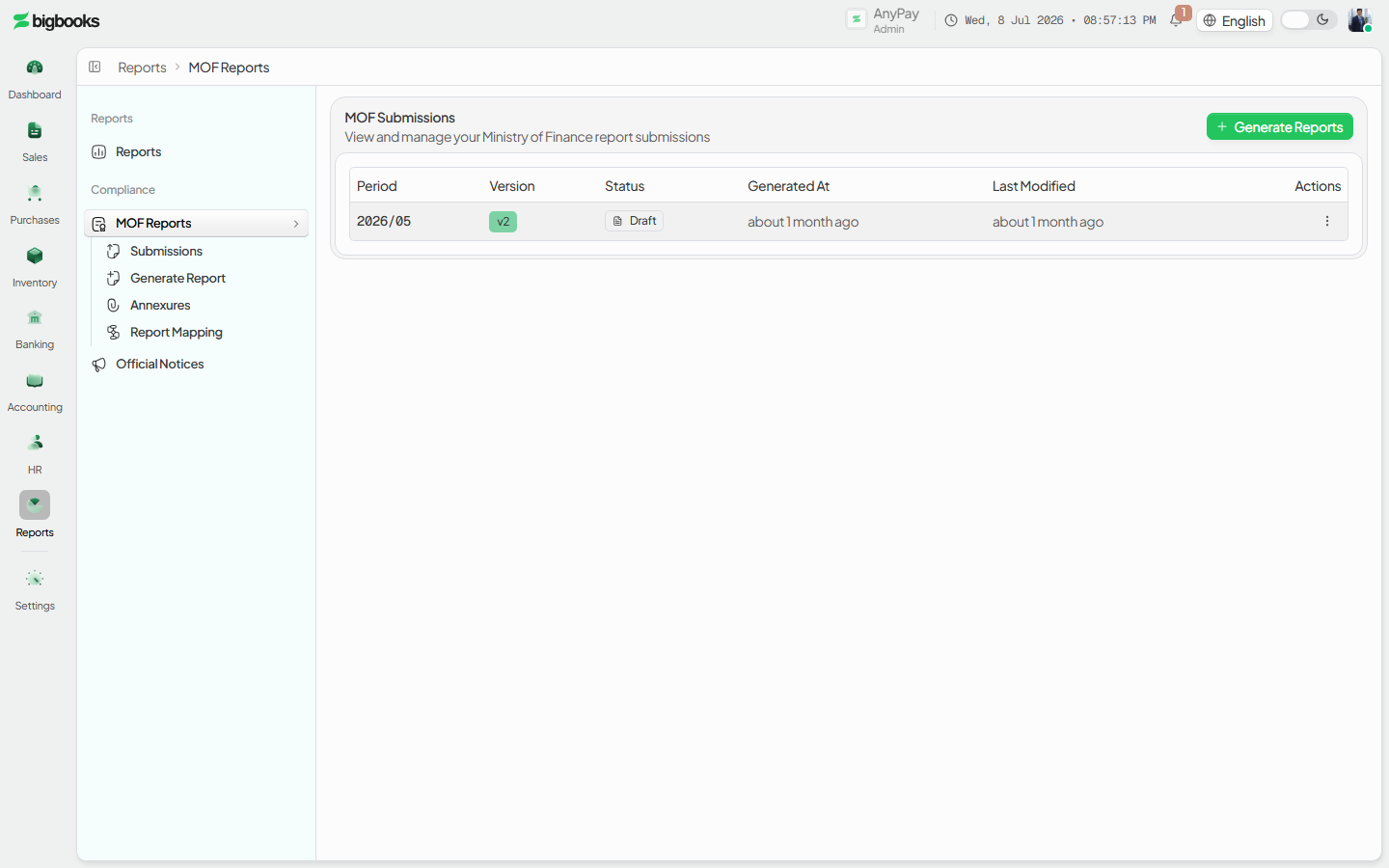
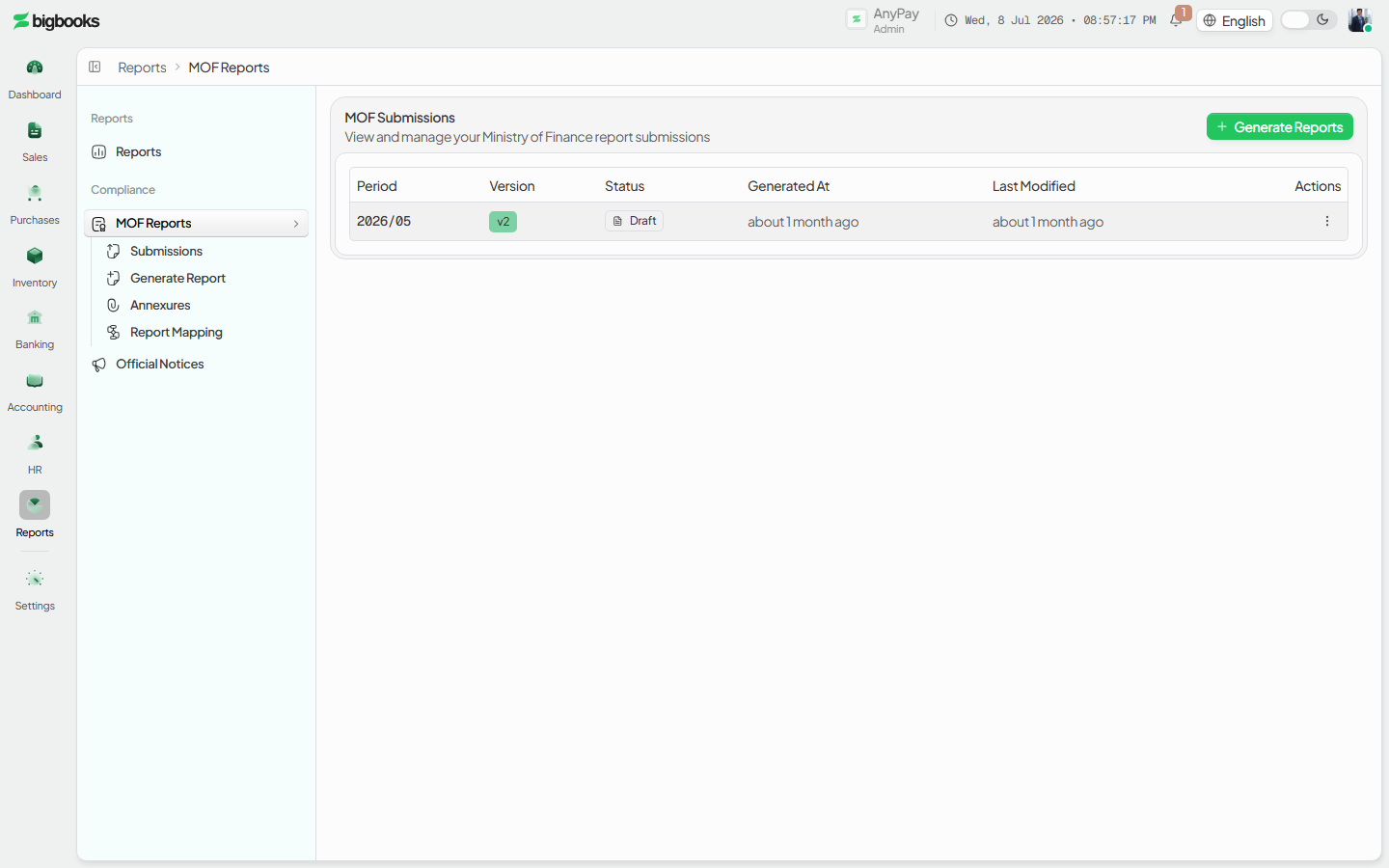
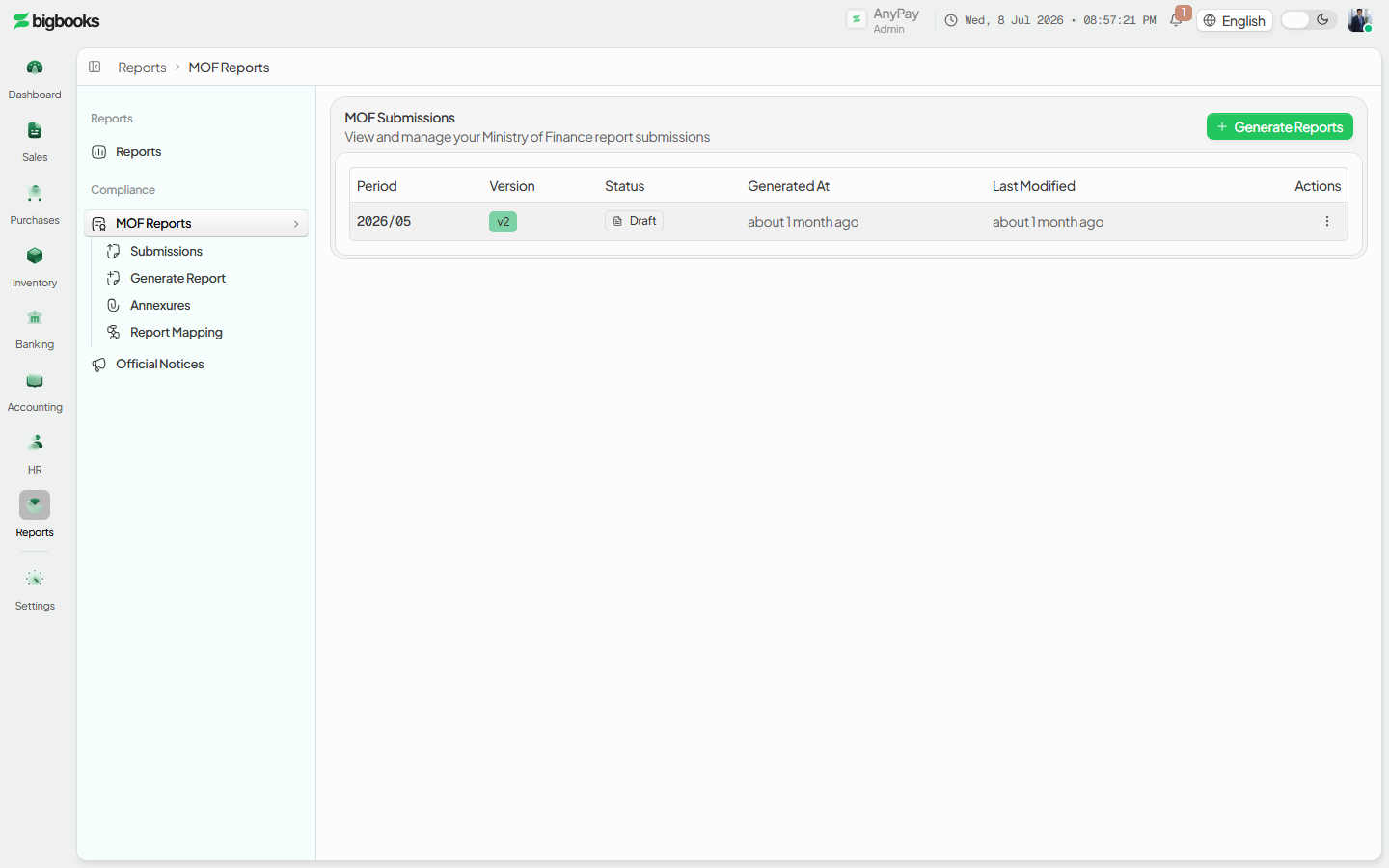
Go to /[lang]/mof-reports. Each row is a period (YYYY/MM) with its version, status (draft / pending approval / approved / returned / submitted), and row actions (view, export Excel, audit history, duplicate, submit, delete).
Generate the report set
Open /[lang]/mof-reports/generate. Pick the year and month; the screen validates the period (locked status, journal entries found, trial balance in balance). Select the report types — Income Statement, Trial Balance, Income & Expense, Assets, Liabilities, Operations — then click Generate. A progress bar runs through Fetching → Calculating → Building → Finalizing and you land on the new submission.
Review the submission
On /[lang]/mof-reports/[id], switch between the report tabs (Income Statement, Trial Balance, Income & Expense, Assets, Liabilities & Equity, Operations) and download Excel or preview/print. Open the Approval Workflow panel to see the status, the approval timeline, and the available actions.
Attach annexures and submit
On /[lang]/mof-reports/annexures, upload supporting documents (PDF/XLSX, up to 10 MB) tagged by type and period; they can link to a specific submission. When ready, Submit for approval from the list or the approval panel. After the required approvals, the submission becomes submitted and the period locks.
What happens behind the scenes
validatePeriodForMof (in mof/reportGeneration.ts) checks the period before generation: that it is not already locked, that journal entries exist, that debits equal credits, and that the required account types are present. generateMofReports then reads the posted GL for the period and writes one row per line item into the MoF report-line tables (income statement, trial balance, income & expense, assets, liabilities, operations). These rows are a snapshot — if the GL changes afterward they do not update; you must regenerate, which is only allowed while the submission is draft or returned (it deletes the old lines and increments the version).
How GL accounts roll into each report row is defined by the company mapping (mof/reportMapping.ts) and resolved against the ledger, with foreign-currency balances converted to LAK by the period's mid rate. Submission state lives in mof/queries.ts / mof/mutations.ts (create, send for approval, approve, return to draft, admin force-delete). Immutability is enforced in mof/immutability.ts: approving the final level calls lockPeriodForMof, which locks the fiscal period; from then on validateSubmissionNotLocked and validatePeriodNotLocked reject edits to the submission and to GL entries in that period, so the only path forward is an amendment. Annexures are handled in mof/annexures.ts (signed-URL upload to Convex storage, then a metadata record optionally linked to a submission).
Common problems
- Generate is disabled: The period is locked, no report types are selected, the period has no journal entries, or an existing submission is no longer editable.
- Validation fails: Debits don't equal credits, or required account types are missing — fix the ledger first via the Trial Balance.
- Can't regenerate: Only draft and returned submissions can be regenerated; a submitted one is locked — create an amendment.
- Figures look stale: The submission is a snapshot from generation time; regenerate (if still draft) to pull the latest GL.
- Can't approve: Approval levels are role-gated; only the right approver (or an admin) can advance the workflow.
- Period won't unlock: A period locked by an MoF submission cannot be manually unlocked while the submission stands.
Payroll Run
As an operator or admin, you will create a monthly payroll run through a short wizard, review each employee's gross pay, deductions, and net pay, and (as an admin) approve the run so the wages and statutory deductions post to the general ledger.
Profit & Loss and Balance Sheet
As an operator or admin, you will produce the two primary financial statements — the Profit & Loss for a period and the Balance Sheet as of a date — and confirm they tie together and to the trial balance.