

Bank & Cash Accounts
As an operator, you will register your bank and cash accounts, each tied to a Chart-of-Accounts code, and read a multi-currency balance overview plus a per-account detail with calculated and reconciled balances — so payments, receipts, and reconciliation all point at the right ledger account.
What you'll accomplish
As an Operator, you will register your bank and cash accounts, each tied to a Chart-of-Accounts code, and read a multi-currency balance overview plus a per-account detail with calculated and reconciled balances — so payments, receipts, and reconciliation all point at the right ledger account.
Before you start
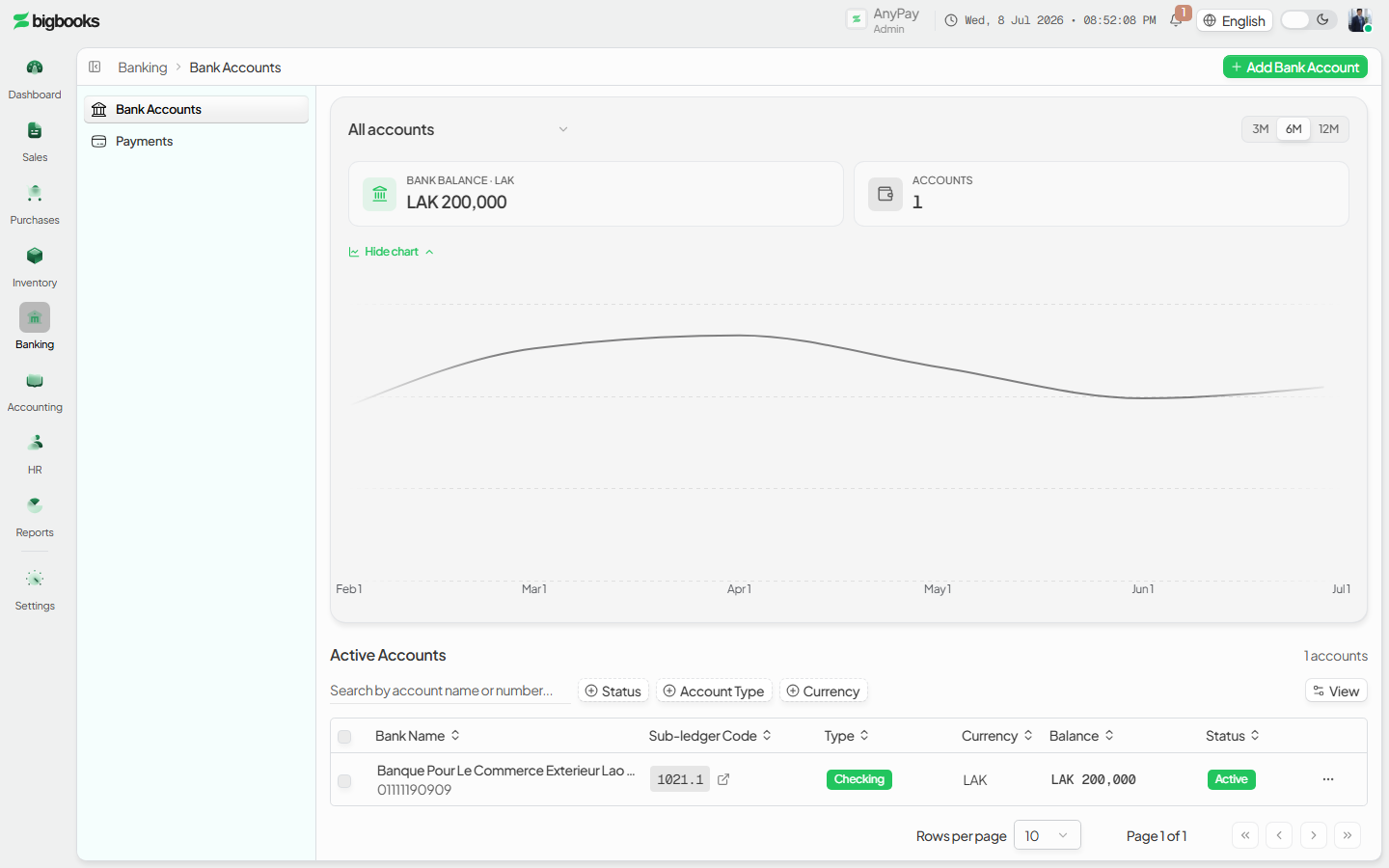
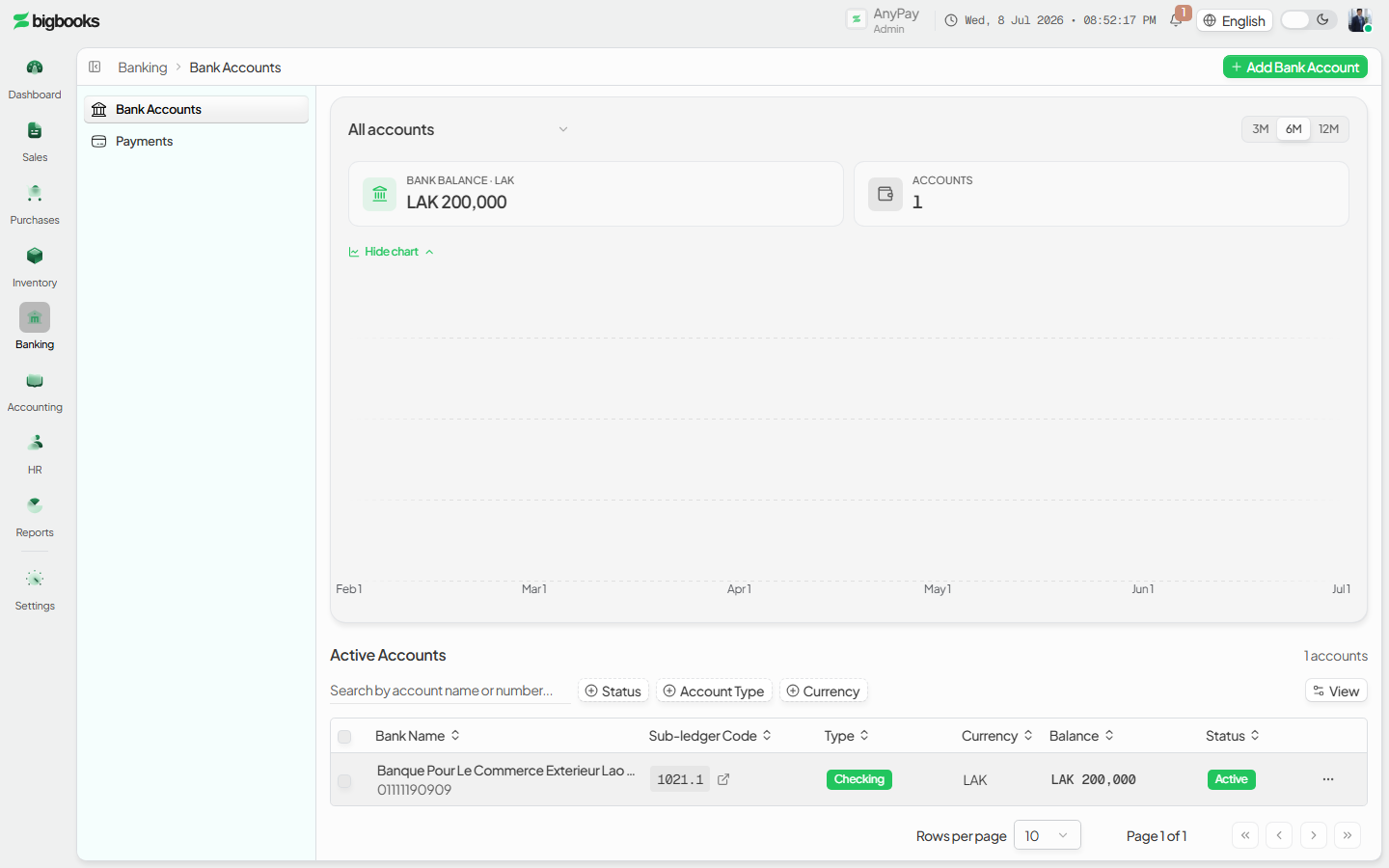
Bank accounts live at /[lang]/bank-accounts. You need the canViewPayments permission to open the screen. This screen is not the list-detail record view used by Customers and Suppliers; it is a dashboard: a balance Overview card (account selector, per-currency balance tiles, and a balance-trend chart) above an Active Accounts table. Clicking a row opens a separate per-account page at /[lang]/bank-accounts/[id]. A bank account is master data — each one links to a Lao Chart-of-Accounts asset code (for example 1021 Bank deposits), and all amounts are stored as integer satang (1 LAK = 100 satang). On a company with no accounts yet, an illustrated EmptyState offers "Add bank account" and a sample-statement template download.
Steps
Open the bank accounts screen
Go to /[lang]/bank-accounts. The secondary-header breadcrumb reads Bank Accounts and the Add Bank Account action sits on the right. The Overview card shows a balance tile per currency and an account count; pick a single account or "All accounts" from the selector, and switch the trend range between 3M / 6M / 12M.
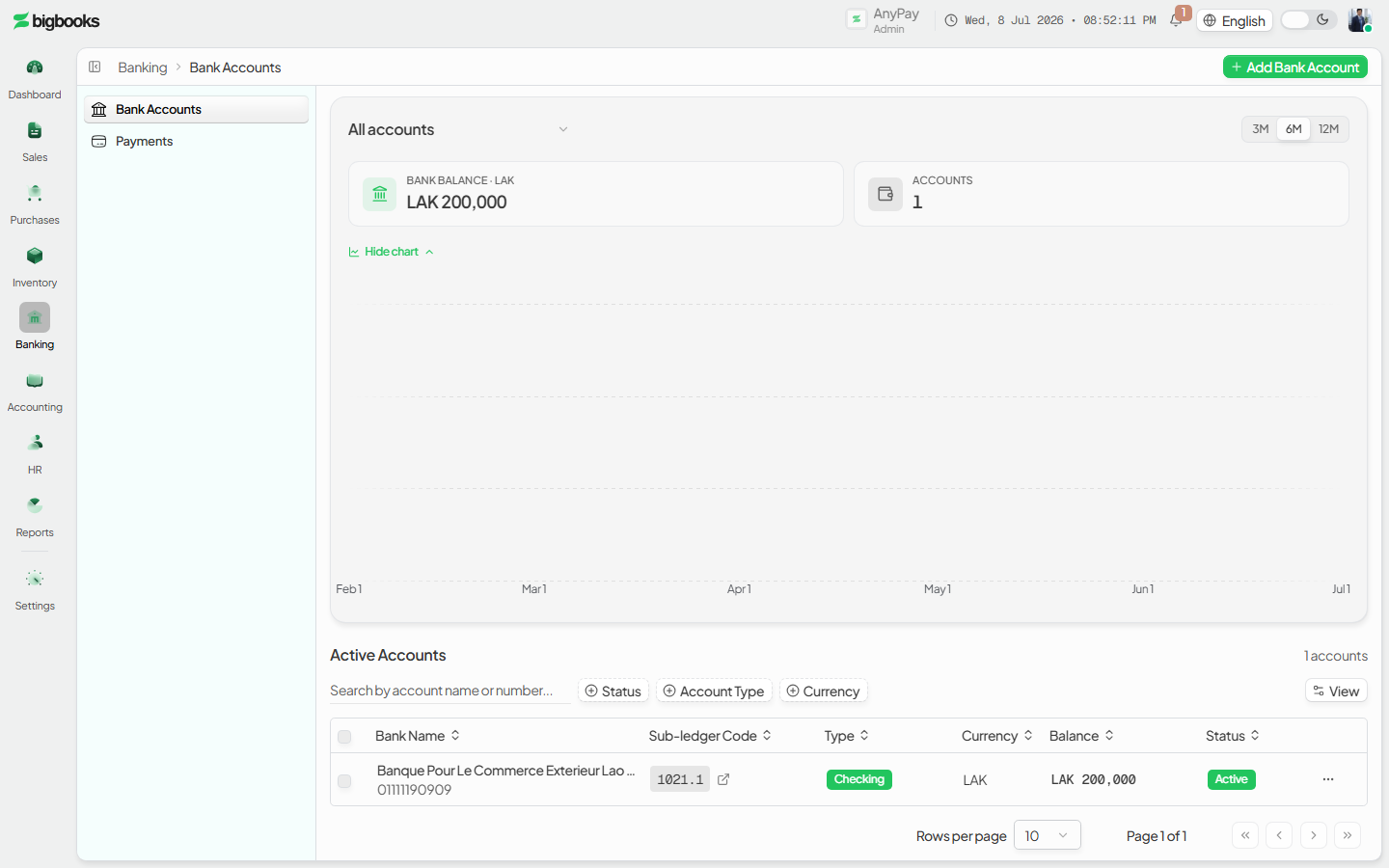
Add a bank or cash account Click Add Bank Account to open the create dialog. Enter the bank name, account number, the linked Chart-of-Accounts code, the account type (checking / savings / foreign currency), and the currency. Save — the account appears in the Active Accounts table.
Open an account's detail
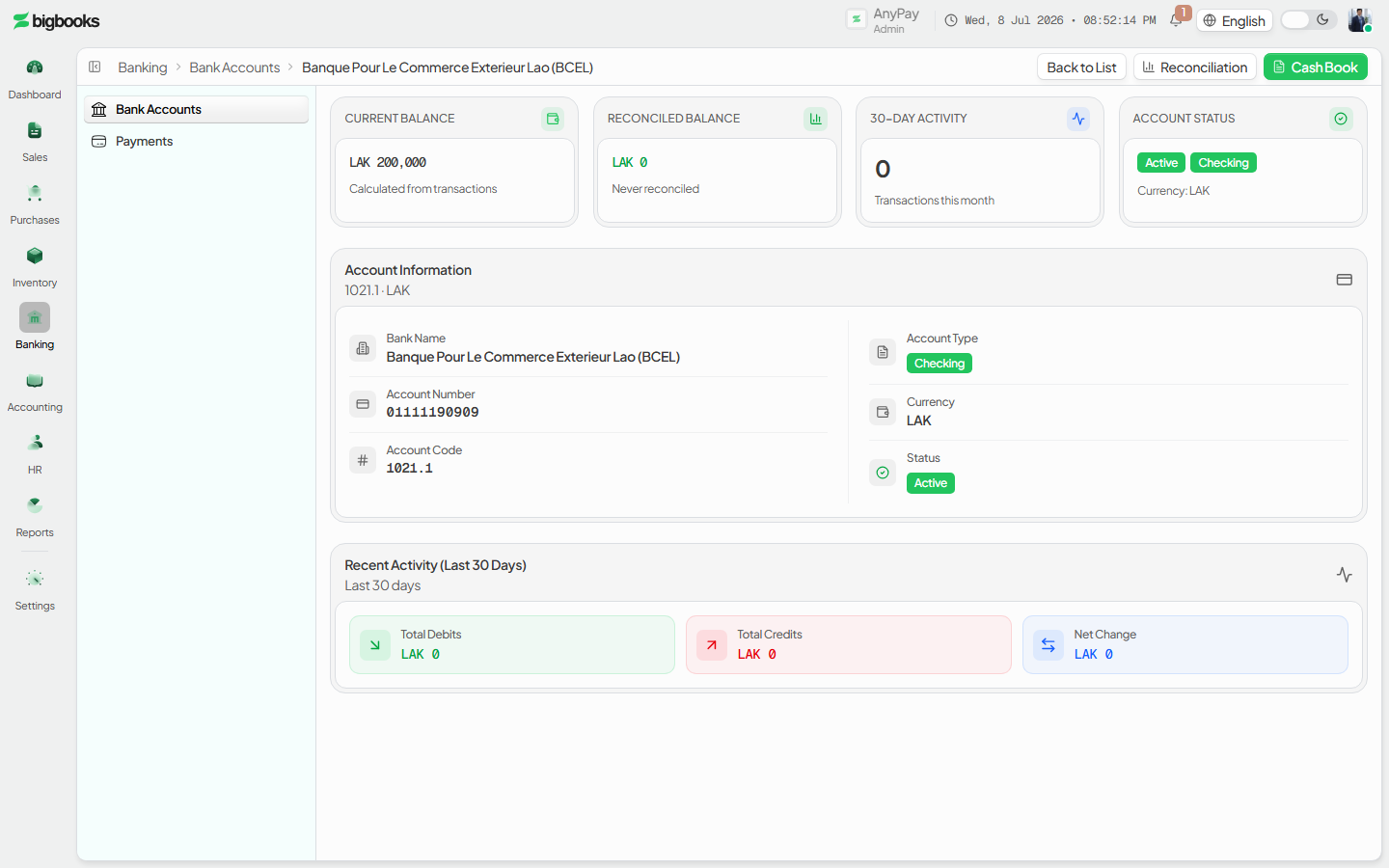
Click a row to open /[lang]/bank-accounts/[id]. The detail shows metric cards — Current Balance (calculated from transactions), Reconciled Balance (with the last-reconciled date), 30-day transaction count, and account status — plus an Account Information grid and a 30-day activity summary (total debits, total credits, net change).
Reconcile or open the cash book
From the detail header, jump to Reconciliation (/[lang]/bank-accounts/[id]/reconciliation) to match imported statement lines against the books, or open the Cash Book report for the account. These are where statement matching and day-book review happen — the account record here just anchors them.
What happens behind the scenes
Creating a bank account is a structural change — there is no journal entry for the record itself. create (bankAccounts/create.ts) saves the account against its Chart-of-Accounts code, and bankAccounts/queries.ts (listByCompany, get) reads it. The balances you see are computed live, not stored on the record: bankAccounts/balances.ts (getCalculatedBalance) derives the current and reconciled balances from posted journal lines, and bankAccounts/charts.ts (getBankBalanceTrend) builds the per-currency trend. Money only moves on the account's GL code when a payment, receipt, or reconciled statement line posts — never from adding or editing the account.
Because the account is just a pointer to a Chart-of-Accounts code, its balance always reconciles to the general ledger: there is no separately stored bank balance to drift out of sync.
Common problems
- Screen won't open: Without
canViewPaymentsthe page is blocked by the access guard. - Balance reads zero or looks wrong: Balances are computed from posted journal lines (drafts are excluded); if a transaction hasn't posted, it won't show.
- No COA code to pick: The linked account code must exist in the Chart of Accounts first — set up the chart before adding bank accounts.
- Reconciled balance is blank: An account that has never been reconciled shows "never reconciled" until you complete a reconciliation.
- Wrong currency tile: Each account carries its own currency; the Overview groups balances by currency, so a mis-set currency lands the account under the wrong tile.
Ledger Mappings (Admin)
As an admin, you will open the ledger-mappings admin dashboard to monitor how each company's modules are wired to the chart of accounts and to manage the admin override that controls posting behaviour while mappings are being set up.
Chart of Accounts
As an operator or admin, you will browse your company's Chart of Accounts as a tree, switch the display currency, and — with admin rights — add a sub-ledger account or import/export the chart, so day-to-day work always posts into the right account.