

Chart of Accounts
As an operator or admin, you will browse your company's Chart of Accounts as a tree, switch the display currency, and — with admin rights — add a sub-ledger account or import/export the chart, so day-to-day work always posts into the right account.
What you'll accomplish
As an Operator or Admin, you will browse your company's Chart of Accounts as a tree, switch the display currency, and — with admin rights — add a sub-ledger account or import/export the chart, so day-to-day work always posts into the right account.
Before you start
The Chart of Accounts browser is served at /[lang]/accounts. The /[lang]/chart-of-accounts path is a redirect that forwards here, and some in-app links (for example from a bank account) point at /[lang]/chart-of-accounts?highlight=<code>. You need one of the journal permissions (canViewJournals, canCreateJournals, or canConfirmJournals) to open the screen. Account codes follow the government (Bank of Laos / MoF 2020) chart, and balances are stored in LAK as integer satang.
This page is the browse / maintain view of the chart. Setting the chart's policy (code style, depth, posting-to-leaf rule) and bulk-importing or replacing the whole tree live in the onboarding Chart of Accounts Setup surfaces (/[lang]/settings/chart-of-accounts and /[lang]/admin/coa-management) — see that guide rather than duplicating the import mechanics here.
Steps
Open the Chart of Accounts
Go to /[lang]/accounts (or follow a Chart-of-Accounts link, which redirects here). The page shows the account tree explorer; the breadcrumb leaf is Chart of Accounts and the actions live on the right of the secondary header.
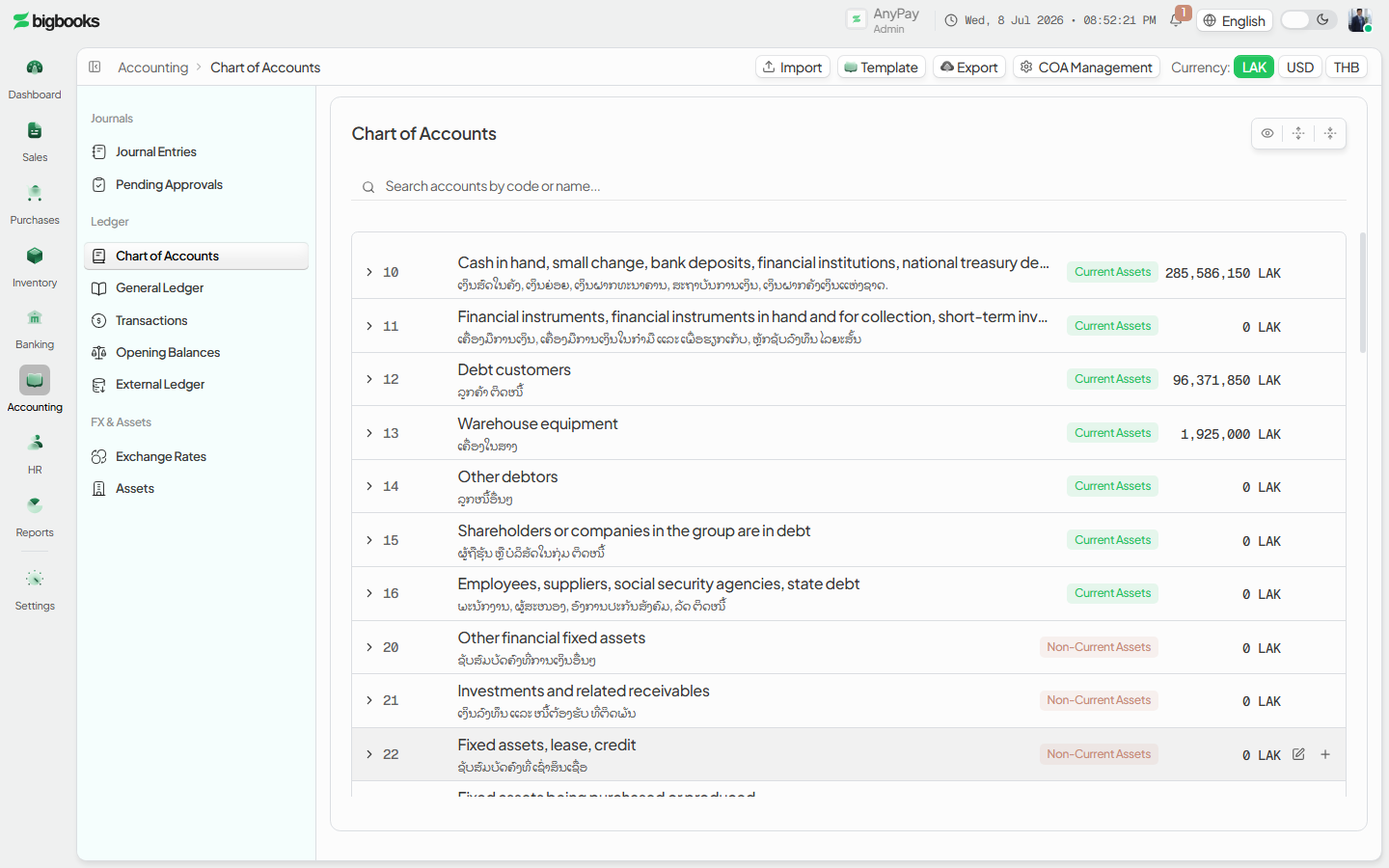
Browse and switch currency Expand and collapse the tree to find an account by code or name. Use the LAK / USD / THB toggle in the header to switch the display currency for the balances shown.
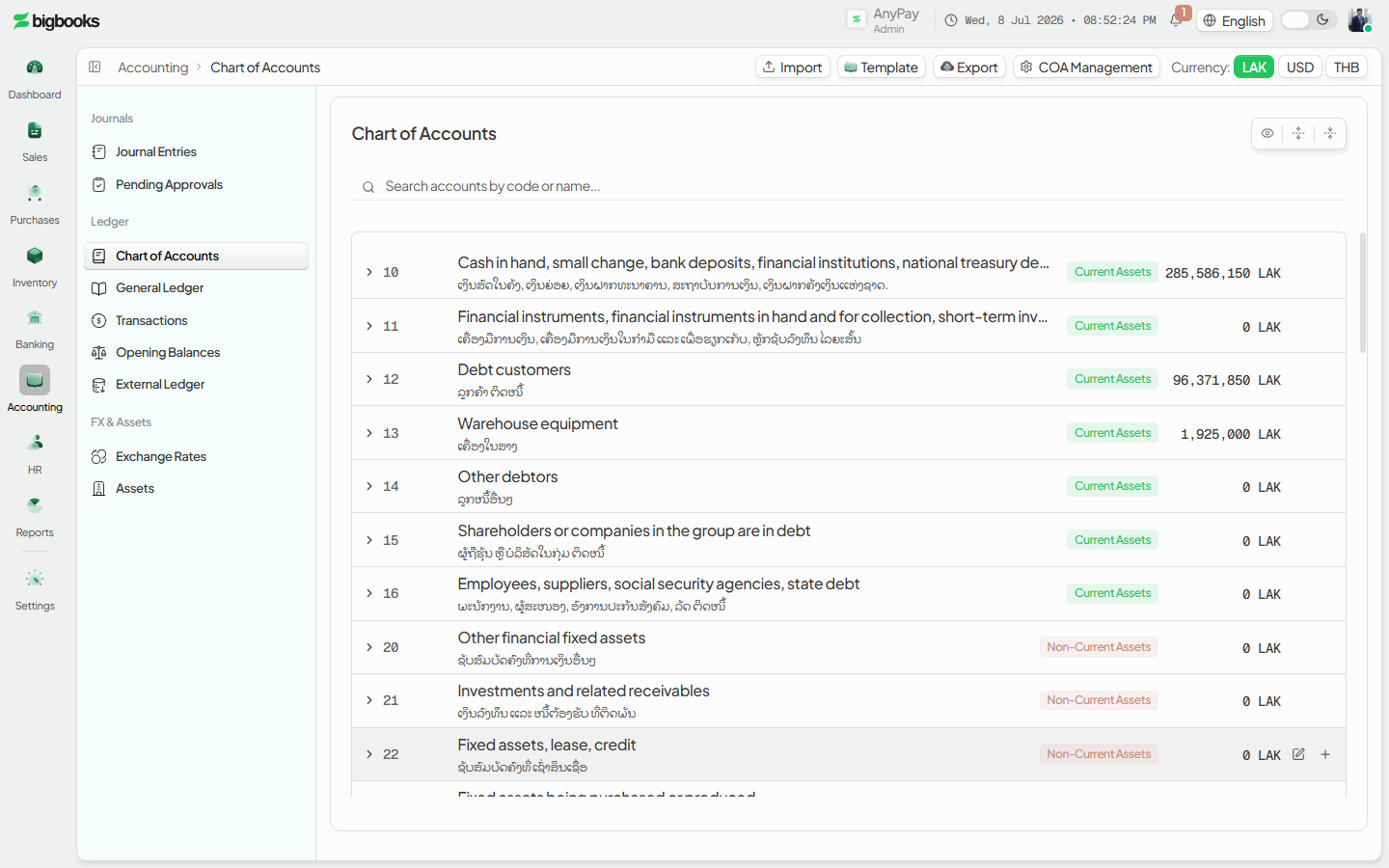
Add a sub-ledger (admin) On a parent account, choose to create a sub-ledger; the sub-ledger modal opens so you can add a child account (for example a per-customer or per-cashier sub-account) under that parent. The tree refreshes in real time once it is created.
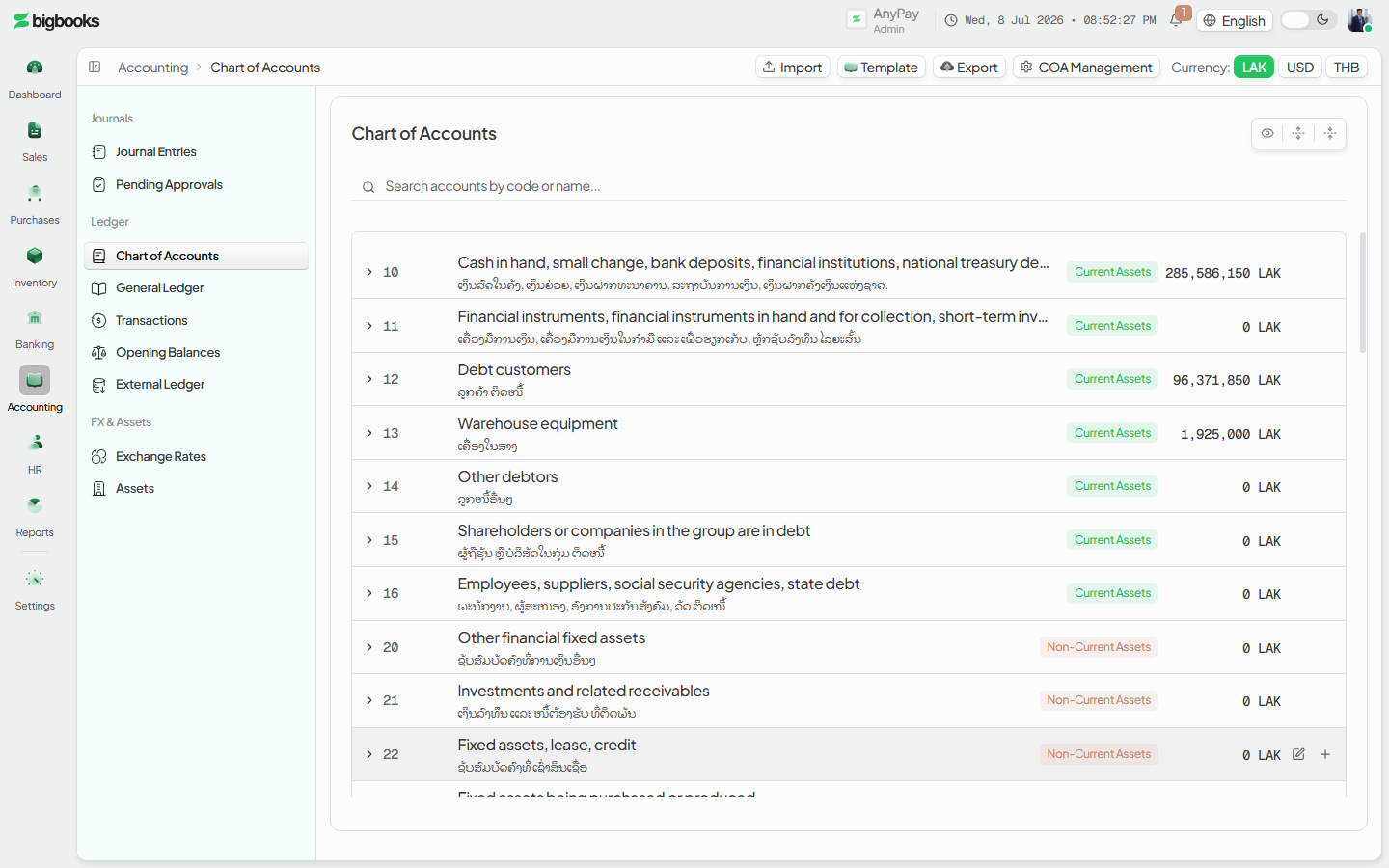
Import, export, or manage (admin)
Administrators also see Import, Template, Export, and COA management actions in the header (the last opens the admin dashboard at /[lang]/admin/coa-management). Use Export to download the current chart, or Import to bulk-load accounts in the Bank-of-Laos column format. Non-admins do not see these maintenance actions.
What happens behind the scenes
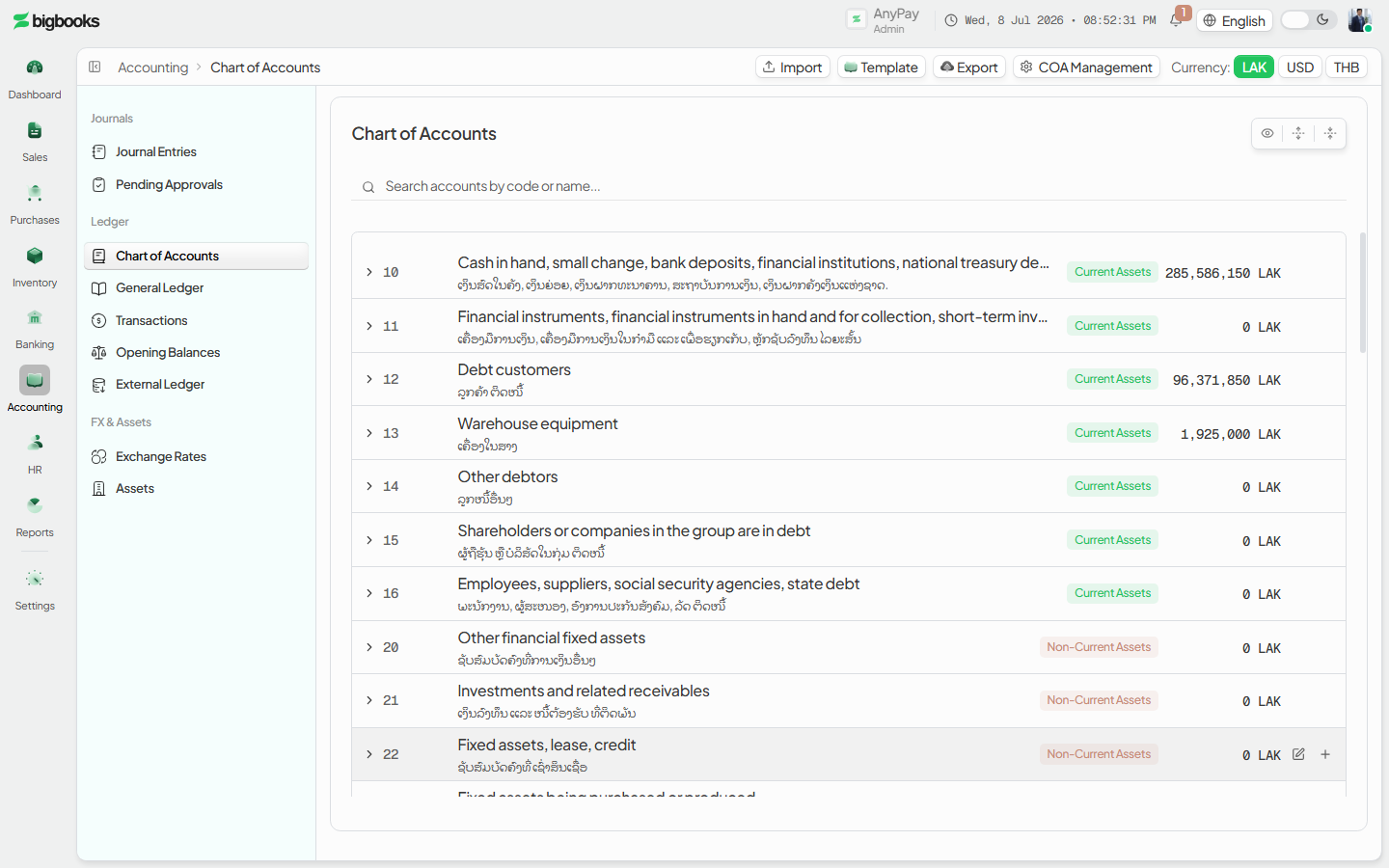
Browsing the chart posts nothing — it is a read. chartOfAccounts/queries.ts (list) serves the tree and balances, which are derived from posted journal lines (the chart record stores no live balance to drift). Adding a sub-ledger inserts a new child account node; it shapes where future transactions can post but writes no journal entry of its own. The admin Import runs through chartOfAccounts/import.ts (bulkImport) and Export through chartOfAccounts/export.ts. None of these are GL postings — they define and maintain the account tree that later transactions post into.
Compliance Note
The chart follows the MoF 2020 / Bank of Laos structure. Government-required accounts can be locked as view-only by the chart policy (set in onboarding) so the compliant chart is not edited or deactivated by mistake.
Common problems
/chart-of-accountslooks empty for a moment: It is a redirect to/[lang]/accounts— the explorer renders there.- Screen won't open: You need a journal permission (
canViewJournals/canCreateJournals/canConfirmJournals) to view the chart. - No Import / Export / COA management buttons: Those are admin-only (they require
MODIFY_COMPANY_SETTINGS); operators see the read-only browse view. - Balance looks wrong: Tree balances come from posted journal lines; drafts are not included.
- Where do I change the code style or do a full replace?: That is the onboarding Chart of Accounts Setup, not this browse view — see the related guide.
Bank & Cash Accounts
As an operator, you will register your bank and cash accounts, each tied to a Chart-of-Accounts code, and read a multi-currency balance overview plus a per-account detail with calculated and reconciled balances — so payments, receipts, and reconciliation all point at the right ledger account.
Customers
As an operator, you will maintain customer records on the upgraded list-detail screen — adding, editing in place, and reading each customer's receivable balance, activity, and statement — so every invoice and receipt links to one clean record.