

Products & Categories
As an operator, you will maintain the product catalogue on the upgraded list-detail screen — adding, editing in place, and reading each product's stock level, purchase history, and accounting fields — and organise products into categories, so every sales and purchase line is built from one consistent record.
What you'll accomplish
As an Operator, you will maintain the product catalogue on the upgraded list-detail screen — adding, editing in place, and reading each product's stock level, purchase history, and accounting fields — and organise products into categories, so every sales and purchase line is built from one consistent record.
Before you start
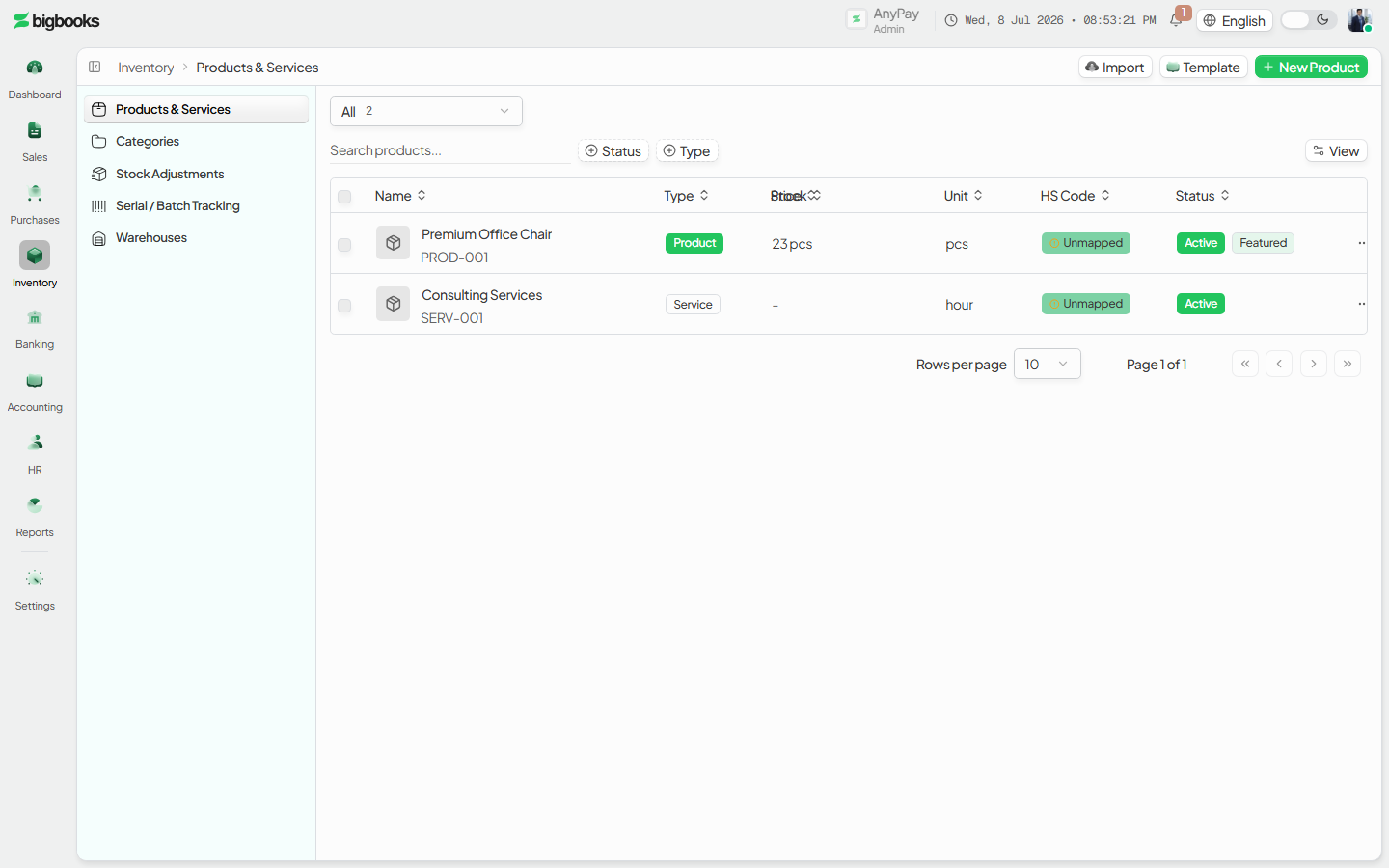
Products live at /[lang]/products. The page opens as a master-detail screen: a searchable list of products on the left, and a tabbed detail panel (Overview, Transactions) on the right when you click a row. You need the canViewProducts permission to open the screen. A product record is master data — saving one writes no accounting entry; it stores the name, SKU, price, tax rate, unit, category, and the revenue/purchase account codes that downstream documents post with. Categories are managed on a separate screen at /[lang]/products/categories, which is still the classic table layout (header, stats, data table) rather than the list-detail view. Prices are entered in a major unit but stored as integer satang (1 LAK = 100 satang).
Steps
Open the products list
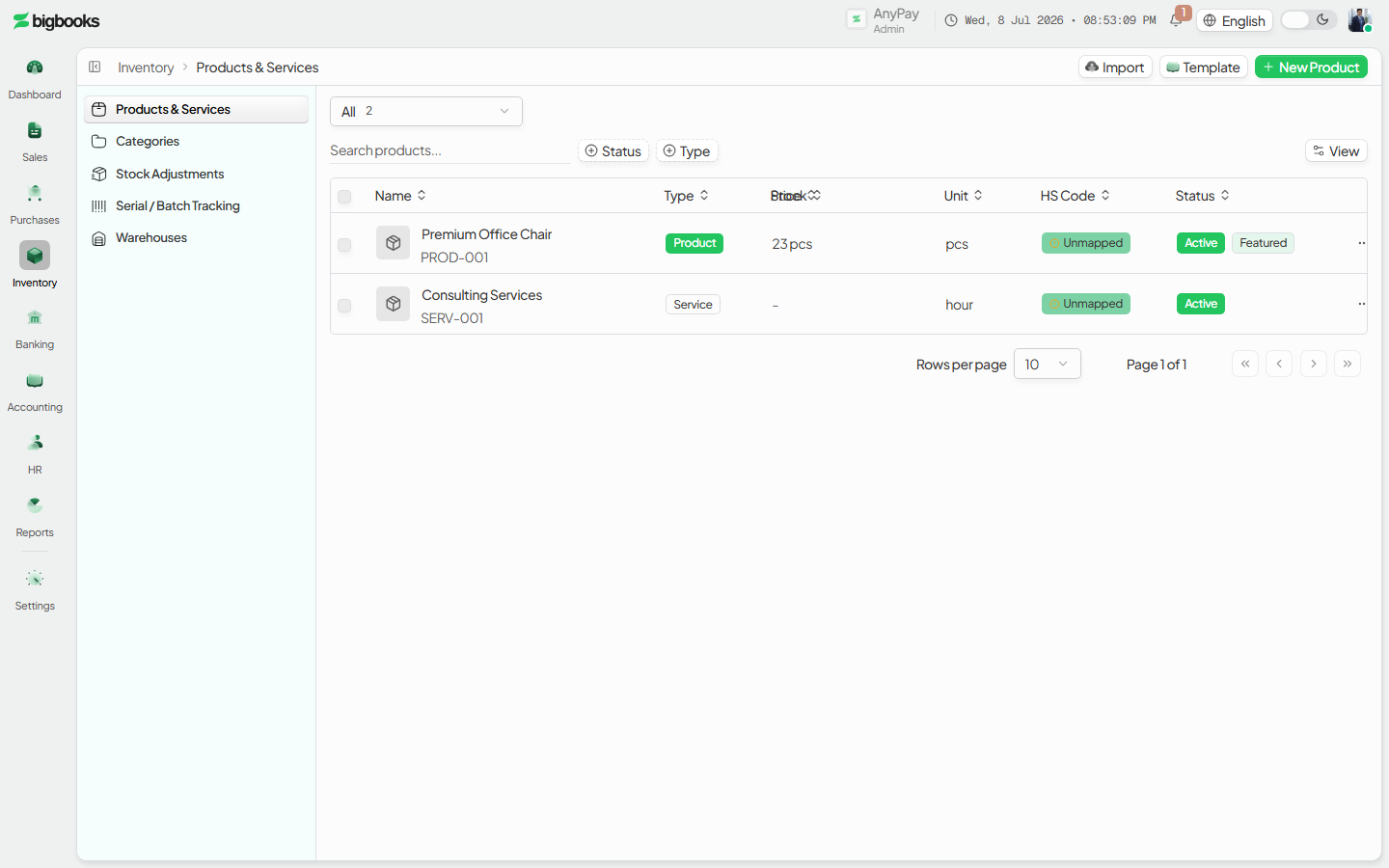
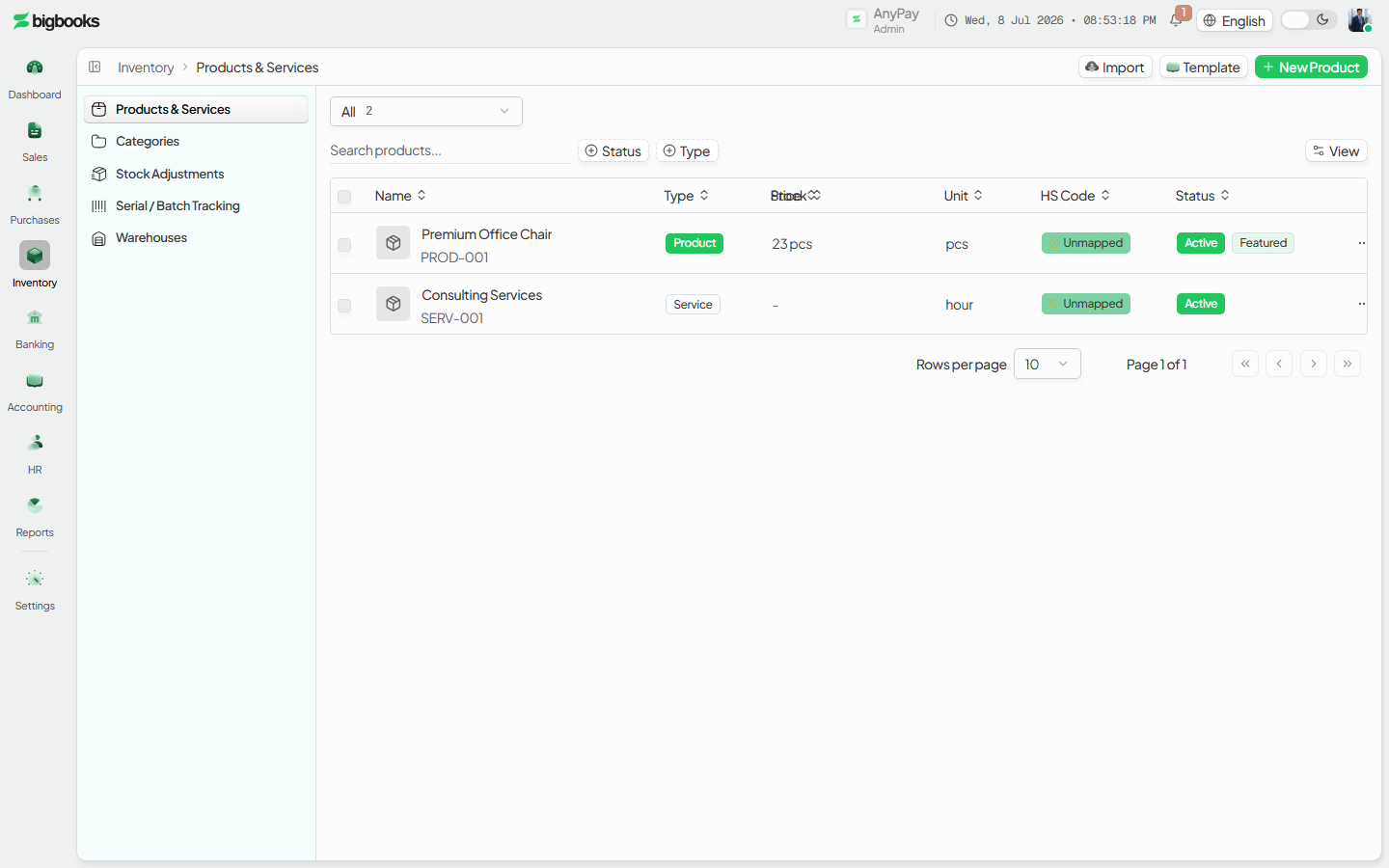
Go to /[lang]/products. The secondary-header breadcrumb reads Dashboard › Products, and the list actions (Import, Template, New product) sit on the right of that header. Search by name or SKU, and use the view presets (All / Active / Low stock / Services) to pre-filter. If any tracked item is at or below its reorder level, a reorder-alerts card appears above the list.
Add a product
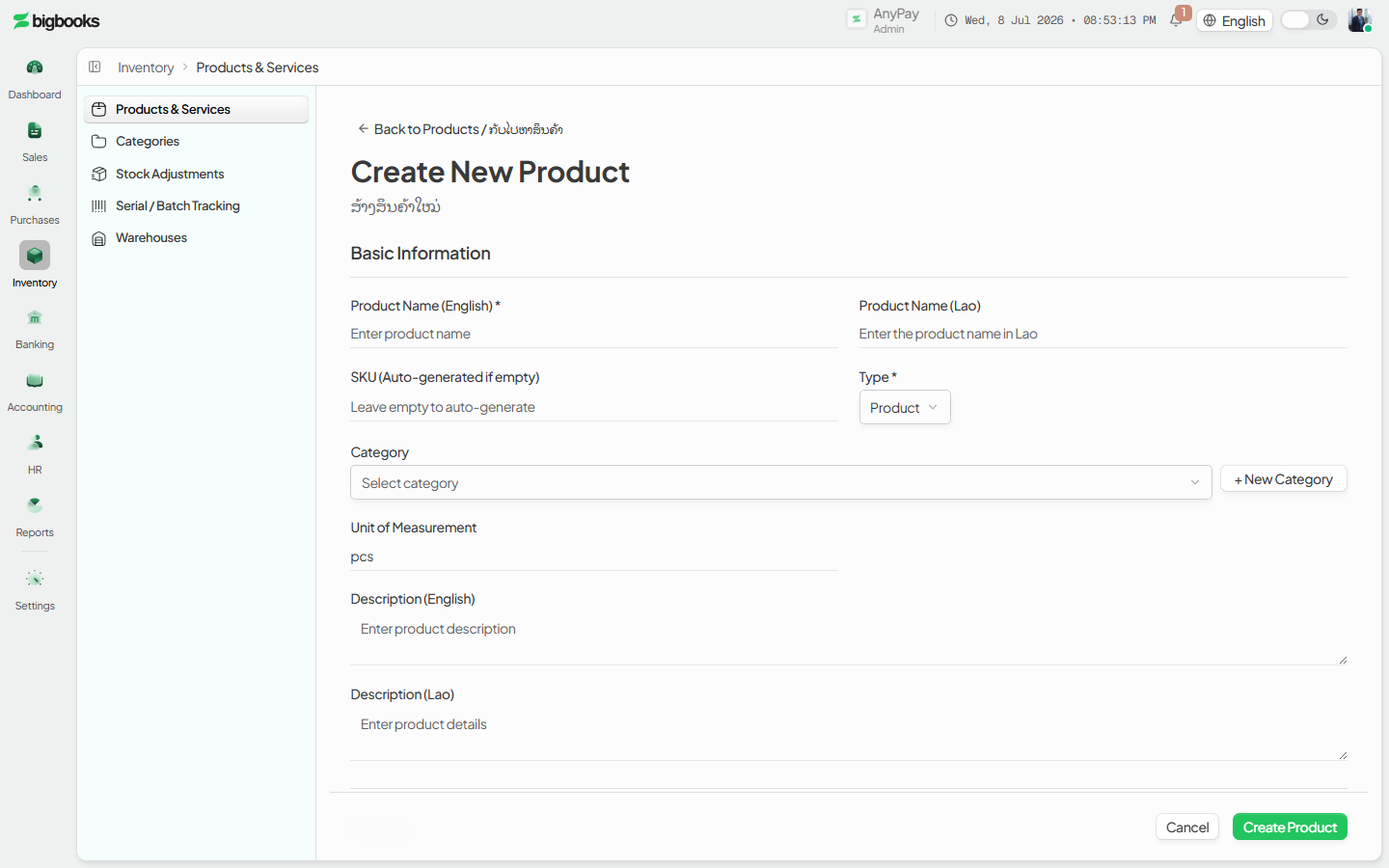
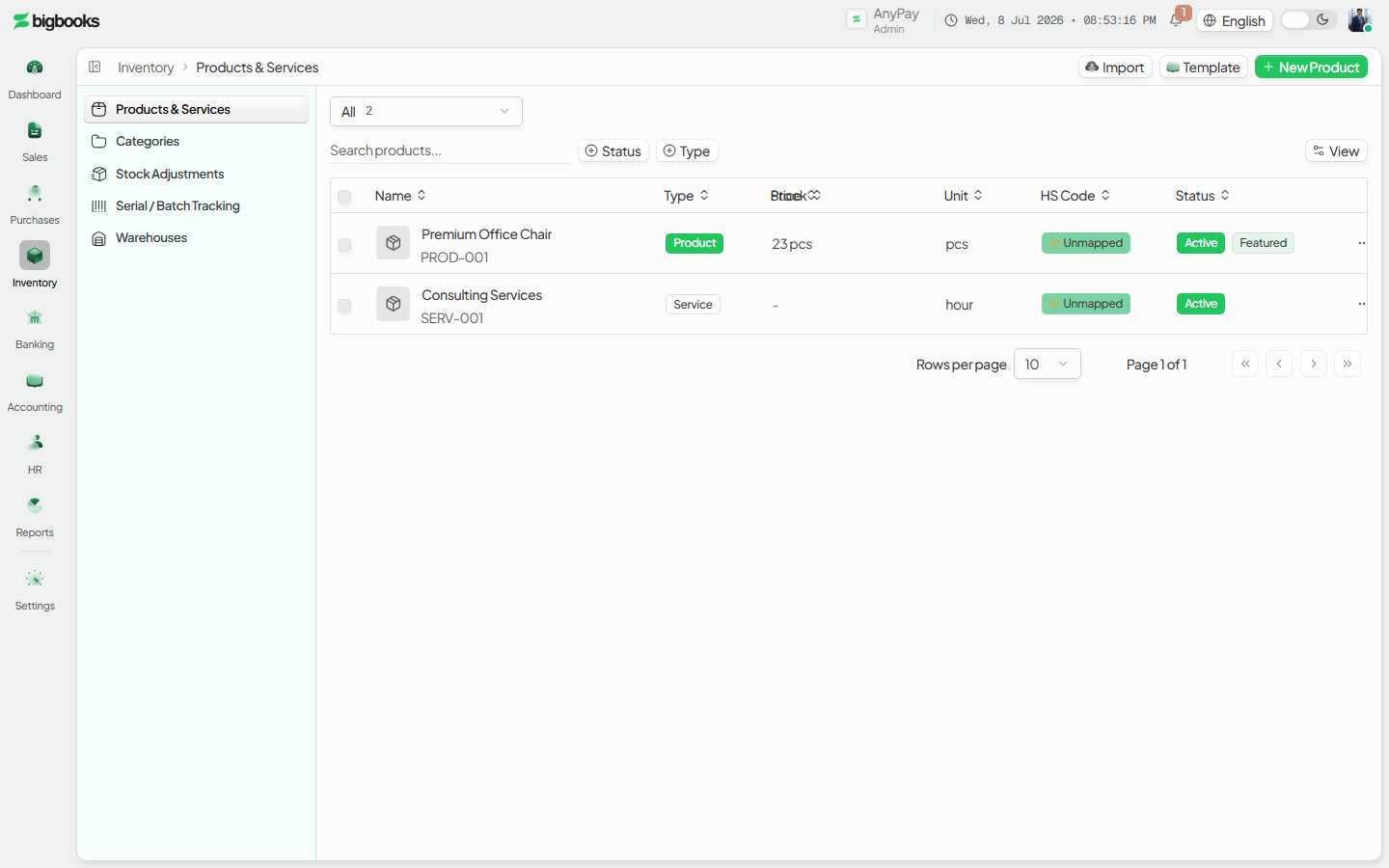
Click New product to open the create sheet. Fill in the name (and Lao name if you use it), SKU, type (product or service), price, tax rate, unit, category, and the revenue account code; for a stocked item, set tracking, reorder level, and reorder quantity. Save — the product appears in the list immediately. (A standalone create page also exists at /[lang]/products/new.)
Open the record and read the Overview Click a product row to open the detail panel. A quiet meta strip shows the SKU, an Active/Inactive badge, and a product/service badge; the breadcrumb already carries the name. The Overview tab leads with a stock-level meter (on hand vs reorder), then purchase analytics, the preferred supplier, recent goods receipts, and a reference grid of pricing (base price, unit, tax rate), accounting (revenue and purchase account codes), and category & vendors.
Edit in place, or create a document from the product
With a record open, press Edit to flip the panel into the edit form — Save / Cancel appear in the secondary header and the tabs hide while you edit. The record's New ▾ menu starts a Purchase Order (with ?productId= pre-selected) or routes you to a Stock Adjustment.
Organise categories
Open /[lang]/products/categories (a separate screen with its own header, stats cards, and table). Create, rename, or deactivate categories here; the stats show active, inactive, total categories, and total products. A category that still has products assigned cannot be deleted until those products are reassigned.
What happens behind the scenes
Creating or editing a product or a category is a structural change — there is no journal entry. The mutations in products/mutations.ts save the record (and products/import.ts powers the Excel/CSV bulk import); the catalogue queries live in products/queries.ts, including getCategoriesWithCount for the categories screen. The product record itself never debits or credits the ledger. Its fields are what later post: when the product is sold, its revenue account and tax rate drive the invoice's revenue and VAT-output postings; when it is received (a goods receipt) or adjusted, its purchase/inventory accounts move — but those postings belong to the invoice, goods-receipt, and inventory flows, not to maintaining the catalogue here.
A product is the single source of truth for a line item. Keeping the price (in satang), tax rate, unit, and account codes correct on the record is what keeps every downstream document and report consistent.
Common problems
- Screen won't open: Without
canViewProductsthe page is blocked by the access guard. - Can't delete a category: A category with products assigned cannot be removed — reassign or remove those products first, or deactivate the category instead.
- Can't delete a product: A product referenced on existing documents cannot be deleted; deactivate it (clear the Active flag) instead.
- Low-stock view is empty: Only tracked products with a reorder level set appear in the Low stock preset and the reorder-alerts card.
- Edits not saving: In inline-edit mode the Save button lives in the secondary header, not in the panel body.
- Price looks off by 100×: Prices are stored in satang; enter the major-unit amount and let the app store and format it.
Customers
As an operator, you will maintain customer records on the upgraded list-detail screen — adding, editing in place, and reading each customer's receivable balance, activity, and statement — so every invoice and receipt links to one clean record.
Suppliers
As an operator, you will maintain supplier records on the upgraded list-detail screen — adding, editing in place, and reading each supplier's payable balance, spend, and recent bills — so every purchase order, bill, and expense links to one clean vendor record.