

Suppliers
As an operator, you will maintain supplier records on the upgraded list-detail screen — adding, editing in place, and reading each supplier's payable balance, spend, and recent bills — so every purchase order, bill, and expense links to one clean vendor record.
What you'll accomplish
As an Operator, you will maintain supplier records on the upgraded list-detail screen — adding, editing in place, and reading each supplier's payable balance, spend, and recent bills — so every purchase order, bill, and expense links to one clean vendor record.
Before you start
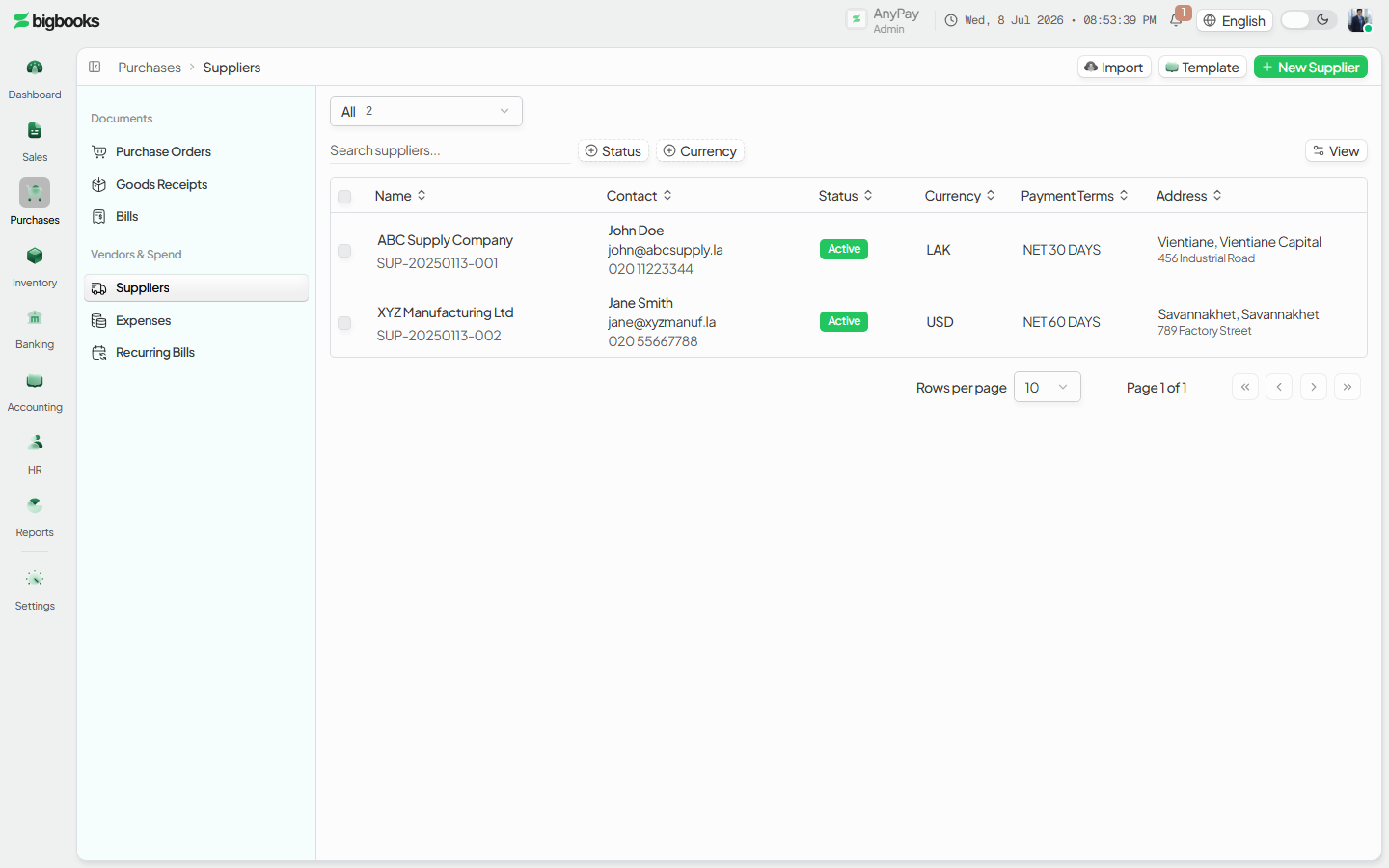
Suppliers live at /[lang]/suppliers. The page opens as a master-detail screen: a searchable list of suppliers on the left, and a tabbed detail panel (Overview, Transactions) on the right when you click a row. You need the canViewPurchases permission to open the screen. A supplier record is master data — saving one writes no accounting entry; it registers the vendor (with a payable account code under Accounts Payable) so future documents have something to point at. On a truly empty company an illustrated EmptyState carries the "New supplier" guidance instead of the table.
Steps
Open the suppliers list
Go to /[lang]/suppliers. The secondary-header breadcrumb reads Dashboard › Suppliers, and the list actions (Import, Template, New supplier) sit on the right of that header. Search by name, supplier code, email, phone, or contact person, and use the view presets (All / Active / Inactive).
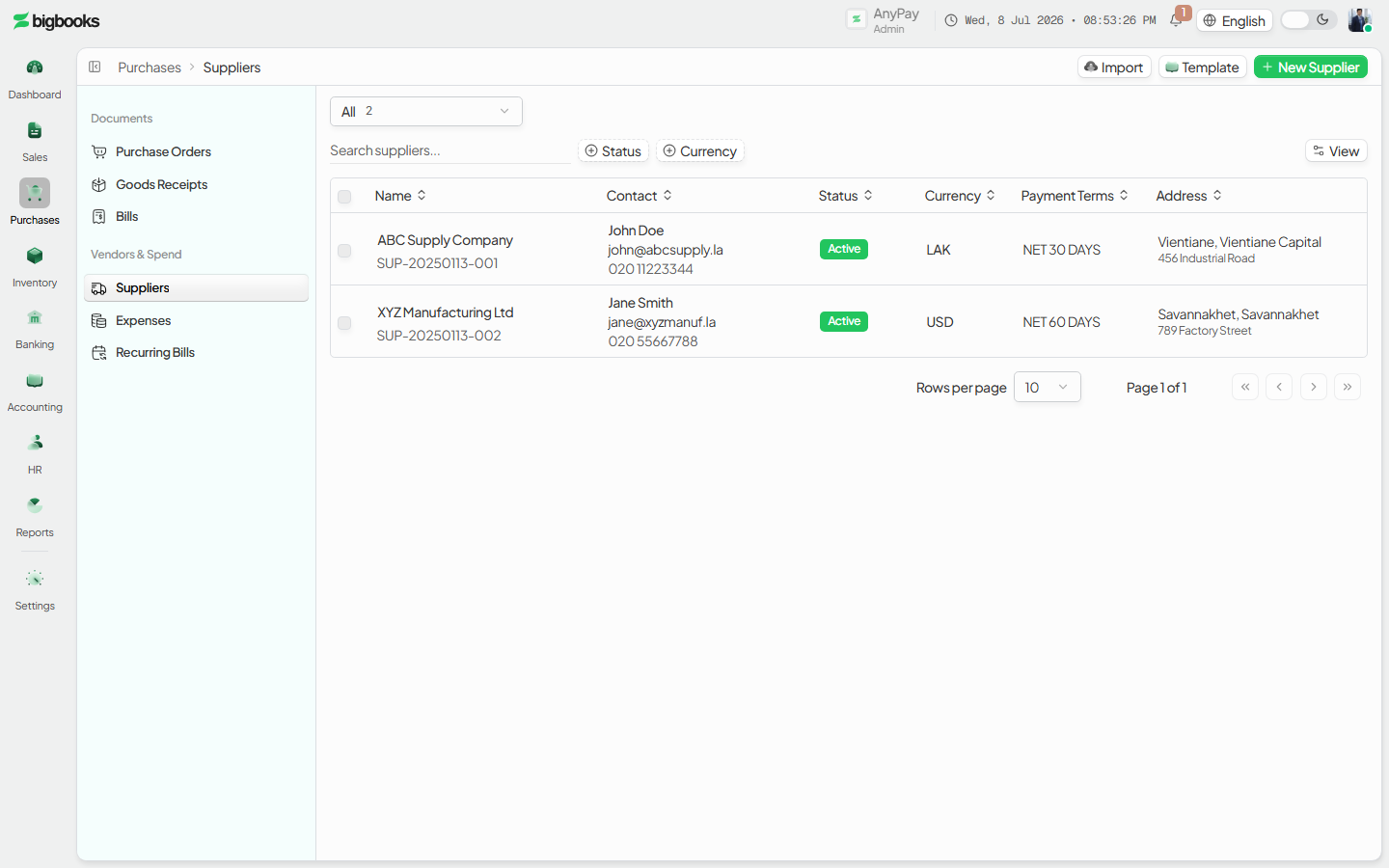
Add a supplier Click New supplier to open the create sheet. Fill in the name, supplier code, contact person, email, phone, tax ID, address, the payable account code, default currency (LAK / USD / THB), and payment terms. Save — the supplier appears in the list immediately. The payable account code must be an existing liability (type 4) account in the Chart of Accounts, or the save is rejected.
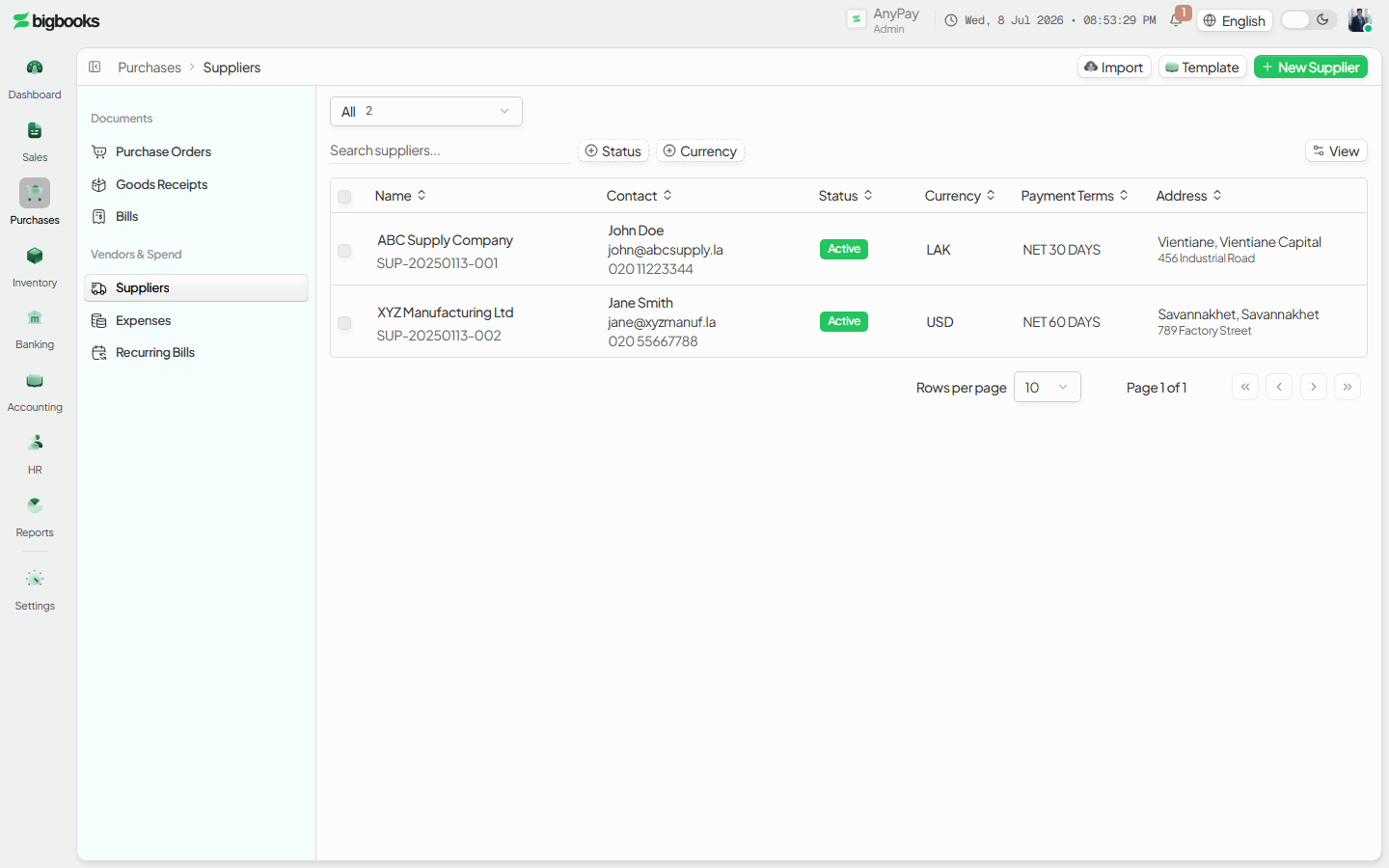
Open the record and read the Overview Click a supplier row to open the detail panel. A quiet meta strip shows the supplier code and an Active/Inactive badge; the breadcrumb already carries the name. The Overview tab leads with the outstanding payable as the hero figure (shown in rose when money is owed), with open / overdue / paid counts inline, total billed and total paid as supporting figures, a monthly-spend chart, recent bills, and a reference grid of contact, address, and account details.
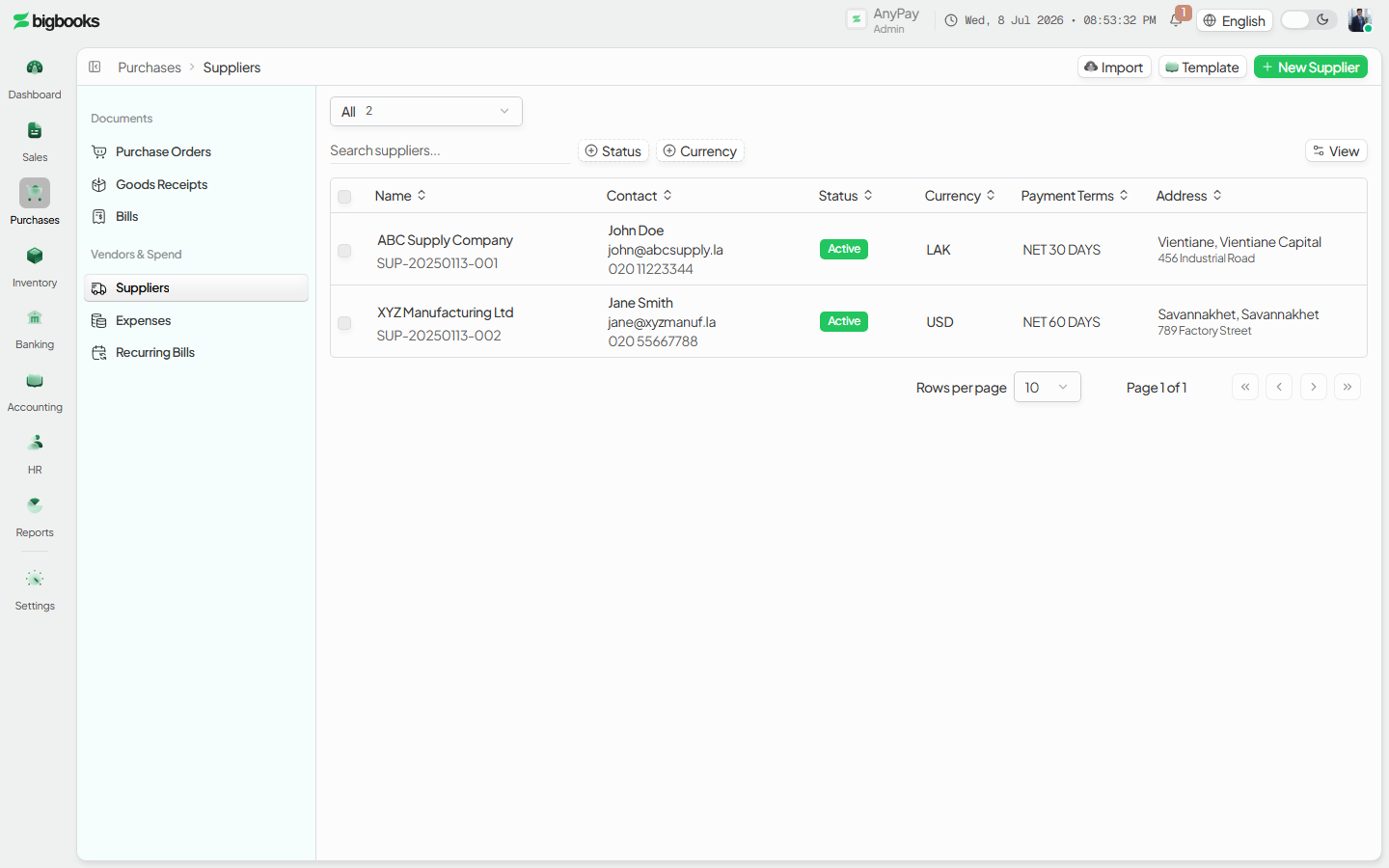
Edit in place With a record open, press Edit. The panel flips into the edit form (the tabs are hidden) and Save / Cancel appear in the secondary header. Change the fields and save without leaving the record.
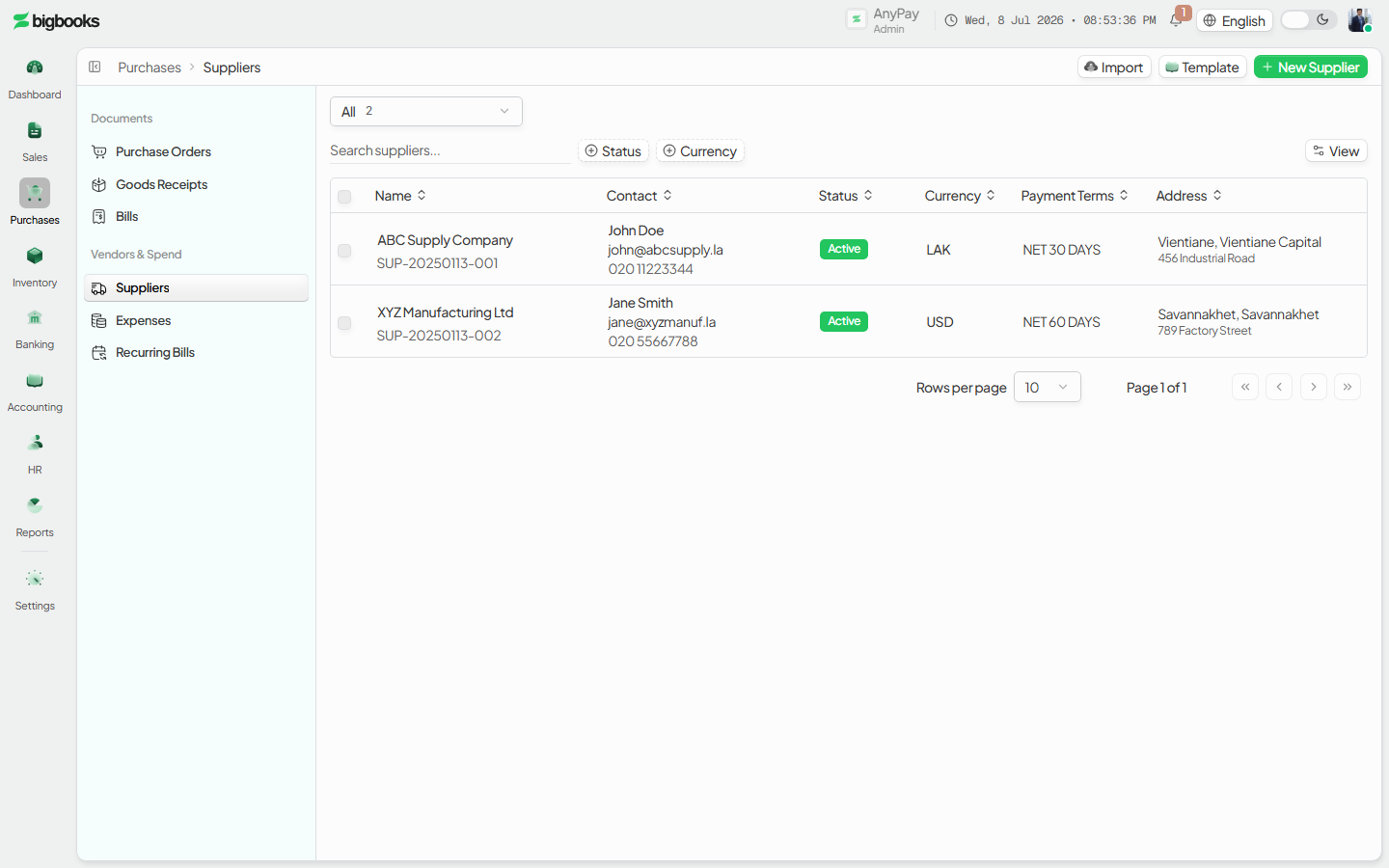
Create a document from the supplier
Use the record's New ▾ menu to start a supplier invoice (bill) or a purchase order with this supplier pre-selected — the link carries ?supplierId=, so the new document opens with the supplier already chosen. Switch to the Transactions tab to review that supplier's documents.
What happens behind the scenes
Creating or editing a supplier is a structural change — there is no journal entry. create (suppliers/create.ts) validates the payable account code (it must exist and be a liability/type-4 account) and the supplier code (unique within the company), then saves the record; the mutations in suppliers/mutations.ts edit and delete it, and suppliers/subLedger.ts ties the supplier into its Accounts-Payable sub-ledger. The outstanding payable shown on the Overview is computed live from posted bills and payments (suppliers/queries.ts), not stored on the record. Money flows into the supplier's AP balance only when a bill is posted or a payment is applied; the supplier record itself never debits or credits the ledger.
Common problems
- Screen won't open: Without
canViewPurchasesthe page is blocked by the access guard. - Payable account rejected: The payable account code must already exist in the Chart of Accounts and be a liability (type 4) account.
- Duplicate code: A supplier code that already exists in the company is rejected — use a unique code.
- Balance looks wrong: The Overview figure is live from posted documents; a draft bill has not posted yet, so it is not counted.
- Can't delete a supplier: A supplier referenced by existing POs, bills, or expenses cannot be removed — deactivate it (clear the Active flag) instead.
- Edits not saving: In inline-edit mode the Save button lives in the secondary header, not in the panel body.
Products & Categories
As an operator, you will maintain the product catalogue on the upgraded list-detail screen — adding, editing in place, and reading each product's stock level, purchase history, and accounting fields — and organise products into categories, so every sales and purchase line is built from one consistent record.
Inventory: Warehouses, Lots & Adjustments
As an operator, you will manage stock locations, trace serial/batch lots, and review and post stock adjustments — so on-hand quantities and inventory value stay accurate and every adjustment hits the general ledger deliberately.