

Inventory: Warehouses, Lots & Adjustments
As an operator, you will manage stock locations, trace serial/batch lots, and review and post stock adjustments — so on-hand quantities and inventory value stay accurate and every adjustment hits the general ledger deliberately.
What you'll accomplish
As an Operator, you will manage stock locations, trace serial/batch lots, and review and post stock adjustments — so on-hand quantities and inventory value stay accurate and every adjustment hits the general ledger deliberately.
Before you start
Inventory is three separate surfaces, none of which is the master-detail record view used elsewhere:
/[lang]/inventory/warehouses— warehouse list, default warehouse, and a stock-transfer flow. NeedscanViewProducts; transferring stock requires thecanManageProducts(manage products) permission./[lang]/inventory/lot-tracking— a read-only serial/batch trace and an expiring-batch watch list. NeedscanViewProducts./[lang]/inventory/adjustments— a drafts-review queue that posts stock adjustments to the GL. NeedscanManageInventory.
Quantities are whole units; inventory value is stored as integer satang (1 LAK = 100 satang) and only ever formatted, never divided, before display.
Steps
Create warehouses and set a default
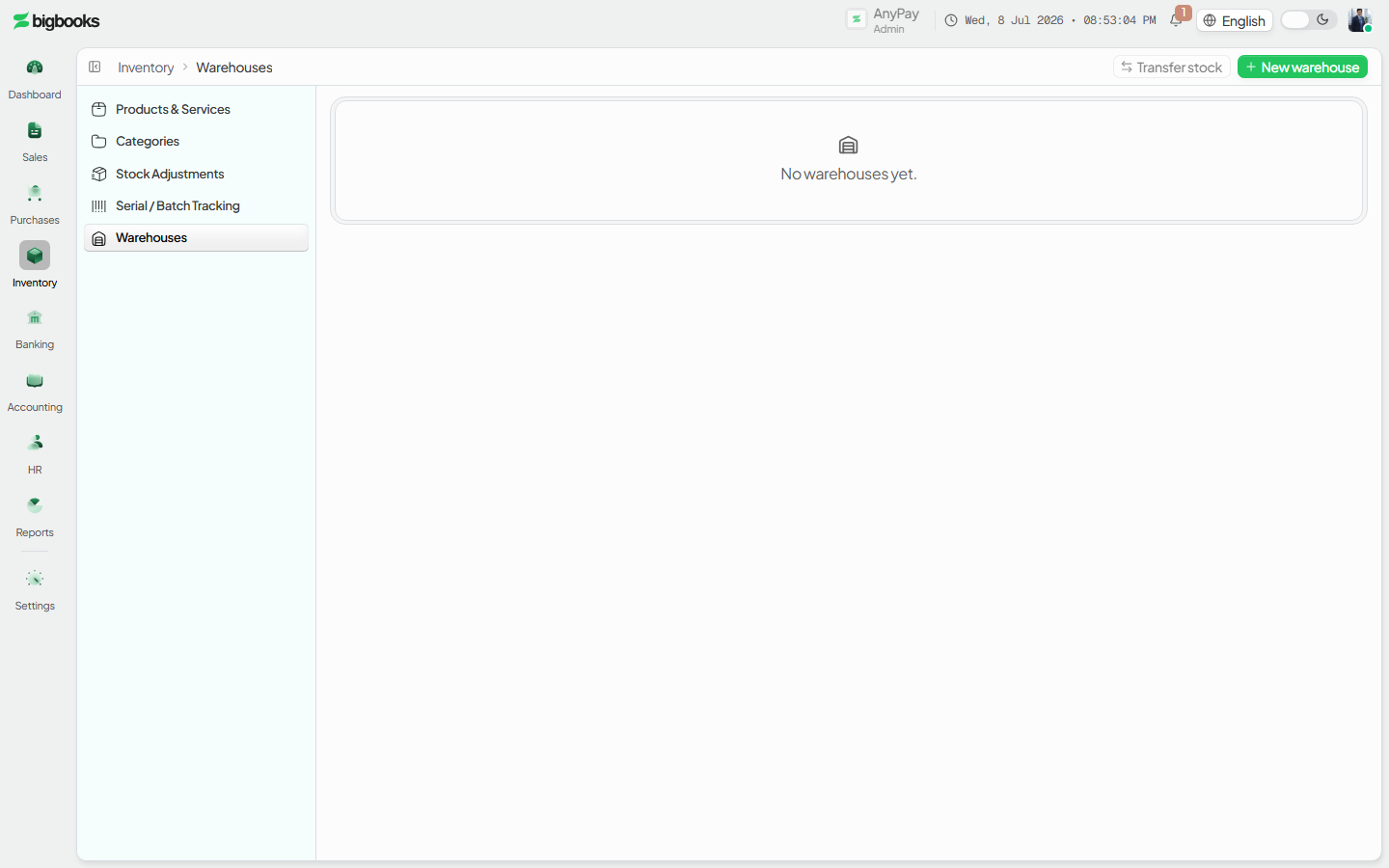
Open /[lang]/inventory/warehouses. The New warehouse action (top-right) opens a dialog for a name and code; the table lists each warehouse with its status, and a Set default action marks the location new stock defaults to.
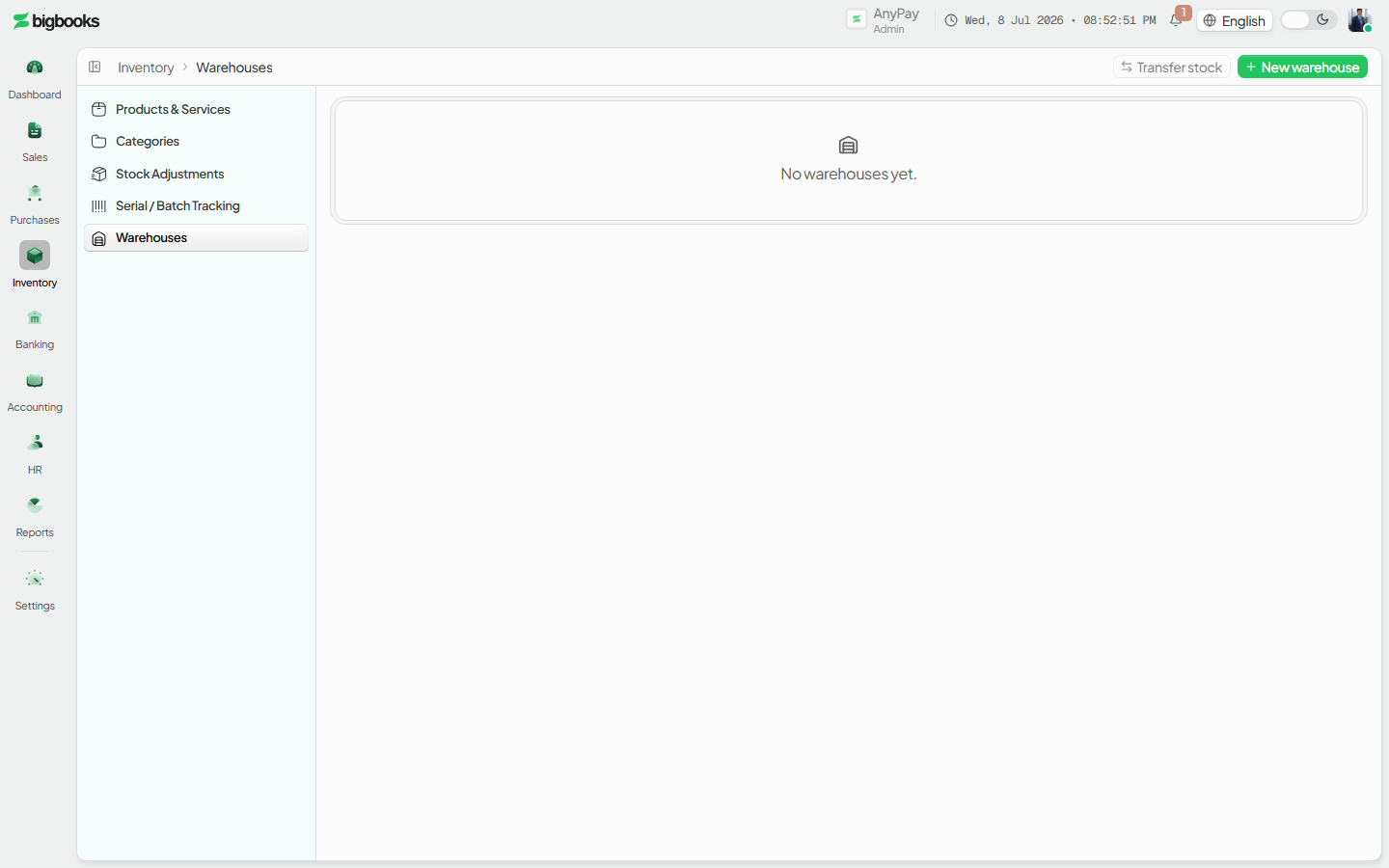
Transfer stock between locations With at least two warehouses, use Transfer stock: pick a product, a source and destination warehouse, and a quantity (capped at what is on hand at the source). The transfer moves both quantity and value between locations — total inventory value is unchanged, so it posts no profit-or-loss entry.
Trace a serial or batch lot
Open /[lang]/inventory/lot-tracking. Enter a serial or batch number to trace its lot back to the goods receipt it arrived on and forward to every sale it was consumed into, with the remaining-vs-original quantity and expiry date.
Watch expiring batches On the same screen, the expiring-and-expired table lists batches due within 30 days (and already-expired ones, flagged) with their product, expiry date, and remaining quantity — so you can act before stock is lost.
Review and post stock adjustments
Open /[lang]/inventory/adjustments. The Drafts tab is a review queue: each row shows the product, mode (quantity or value), reason, the change, the GL impact (in satang), and the offset account. Press Post to commit an adjustment to the ledger or Discard to drop the draft; the Posted tab is the history. Use New stock adjustment (header) to raise one.
What happens behind the scenes
A stock transfer is value-neutral: warehouses/mutations.ts (transferStock) moves the quantity and its satang value from one location to another and records an audit event, but writes no journal entry because the company's total inventory value does not change. The lot trace and expiry list are pure reads from serialBatch/queries.ts (getLotTrace, listExpiringBatches). A stock adjustment is the surface that touches the ledger: posting it (inventory/mutations.ts, postAdjustment) runs the shared inventory posting core (inventory/posting.ts, postInventoryJournal), which assembles a balanced journal — the inventory control account against the chosen offset account — validates it to the exact satang (zero tolerance), and auto-posts it as a posted entry with an audit-trail row. An unbalanced or zero-value adjustment throws and the whole mutation rolls back.
| Account | Debit | Credit |
|---|---|---|
| Inventory (increase) — or Offset account (decrease) | Adjustment value | - |
| Offset account (increase) — or Inventory (decrease) | - | Adjustment value |
Common problems
- Transfer button disabled: You need at least two warehouses before a transfer is possible.
- Transfer rejected: The quantity cannot exceed what is on hand at the source warehouse; both warehouses must belong to your company.
- No permission to transfer / adjust: Transfers need manage-products rights; posting adjustments needs
canManageInventory— viewing iscanViewProducts. - Lot not found: The trace matches an exact serial/batch code; check the number if nothing returns.
- Adjustment won't post: An unbalanced or zero-value adjustment is rejected to the satang — the offset account and amount must produce a balanced entry.
- Would drive stock negative: A quantity adjustment that would take on-hand below zero requires an explicit confirmation before it posts.
- Already posted: A draft can be posted or discarded once; a posted adjustment is an immutable record and cannot be re-posted or discarded.
Suppliers
As an operator, you will maintain supplier records on the upgraded list-detail screen — adding, editing in place, and reading each supplier's payable balance, spend, and recent bills — so every purchase order, bill, and expense links to one clean vendor record.
Assets & Depreciation
As an operator or admin, you will register a capitalised purchase into the fixed-asset register, then run monthly depreciation and approve the draft journal vouchers it produces so the expense is recognised in the ledger.