

Company Configuration
As an admin, you will connect each part of the business — customers, invoices, payments, and bank accounts — to the right general-ledger accounts through a guided configuration flow, so that day-to-day documents post to the correct accounts automatically.
What you'll accomplish
As an Admin, you will connect each part of the business — customers, invoices, payments, and bank accounts — to the right general-ledger accounts through a guided configuration flow, so that day-to-day documents post to the correct accounts automatically.
Before you start
Configuration is a guided GL-mapping surface (not the master-detail record view), in two parts:
/[lang]/configuration/overviewis the hub: a tabbed view of the four modules — Customer Accounts, Invoice Settings, Payment Mappings, Bank Accounts — each with a configuration validator and a "Proceed" action, plus an overall mapping progress panel and per-module status. It requires an active company (it sends you to onboarding if none is selected)./[lang]/configuration/setupruns the Mapping Wizard for a chosen module (deep-linked as?module=customers|invoices|payments|bankAccounts), where you pick the GL account each mapping needs and save.
This page maps modules to accounts; it does not edit the company's tax identity or compliance settings — those live on the Tax and MoF settings screens (see Compliance Settings).
Compliance Note
Mapping every module to a valid GL account before transacting is what keeps later postings consistent and reportable. Completing configuration is a step in company onboarding, alongside the chart of accounts and opening balances.
Steps
Open the configuration overview
Go to /[lang]/configuration/overview with your company active. The four module tabs show what still needs mapping, and the progress panel summarizes how complete the configuration is.
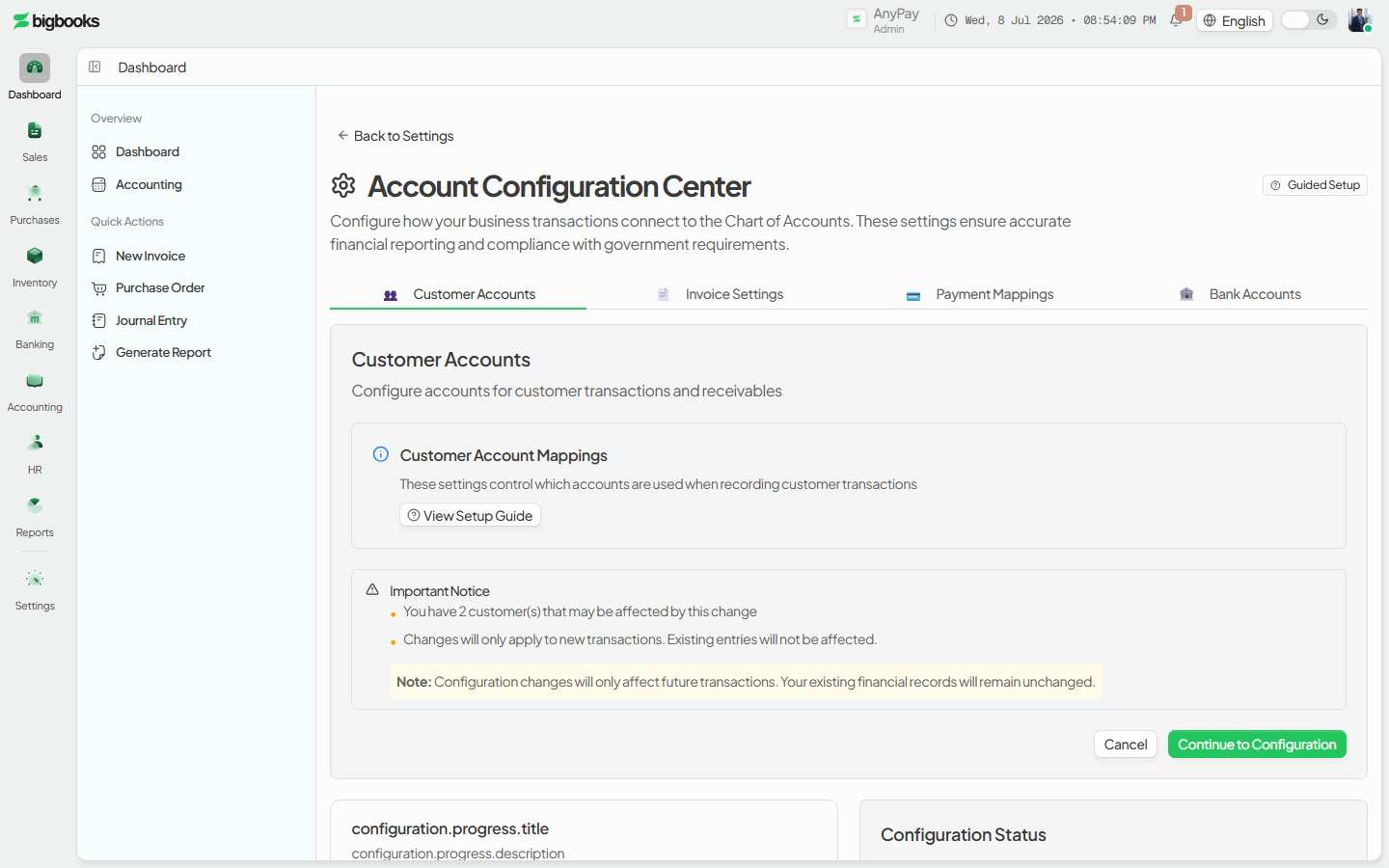
Check a module with the validator Open a module tab and read its validator — it lists what the module needs before it can be used and offers a Proceed action when you're ready to set the mappings.
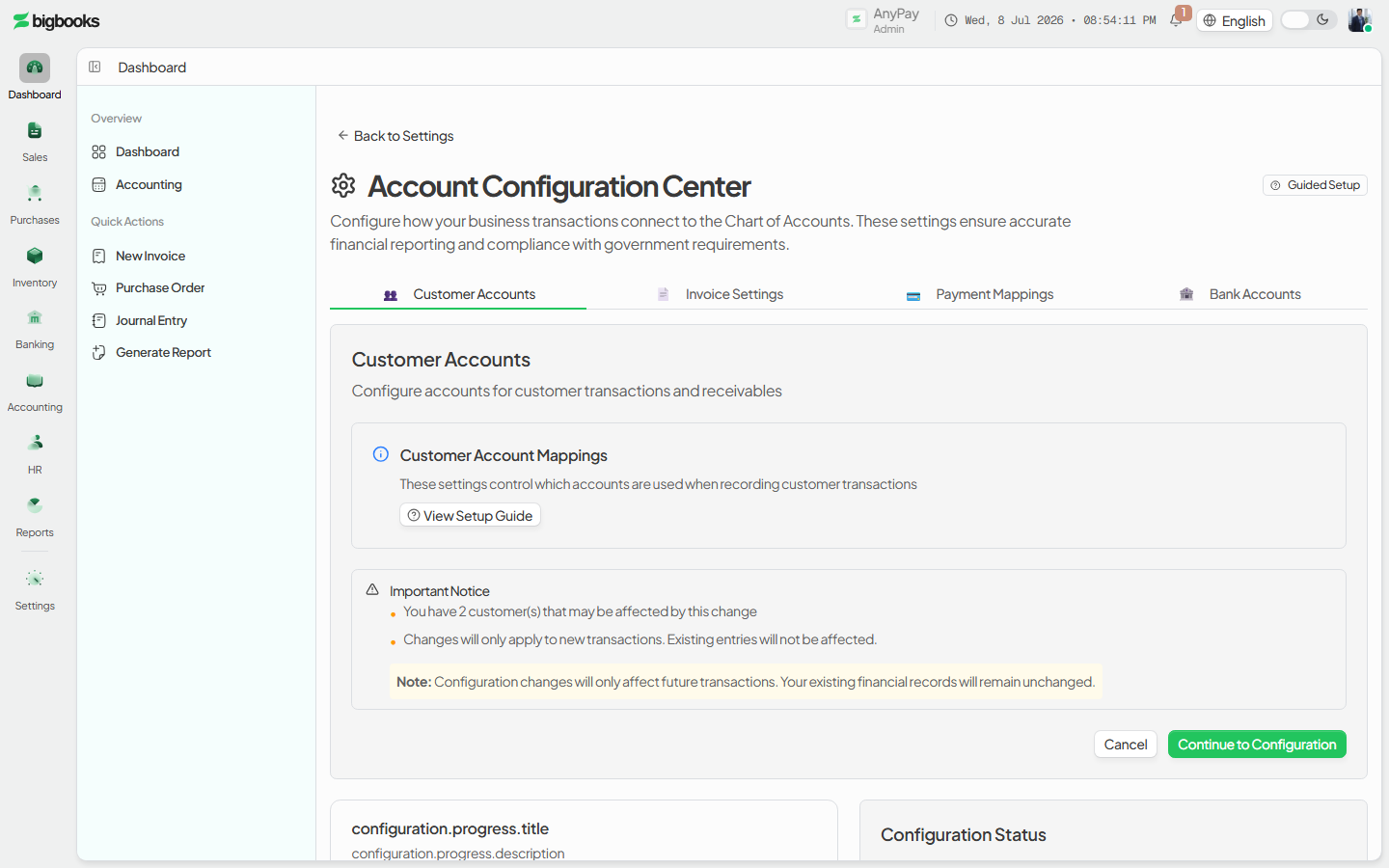
Run the mapping wizard
Proceed into /[lang]/configuration/setup?module=… to run the Mapping Wizard. Assign the GL account for each required mapping and save; the overview's progress updates to reflect it.
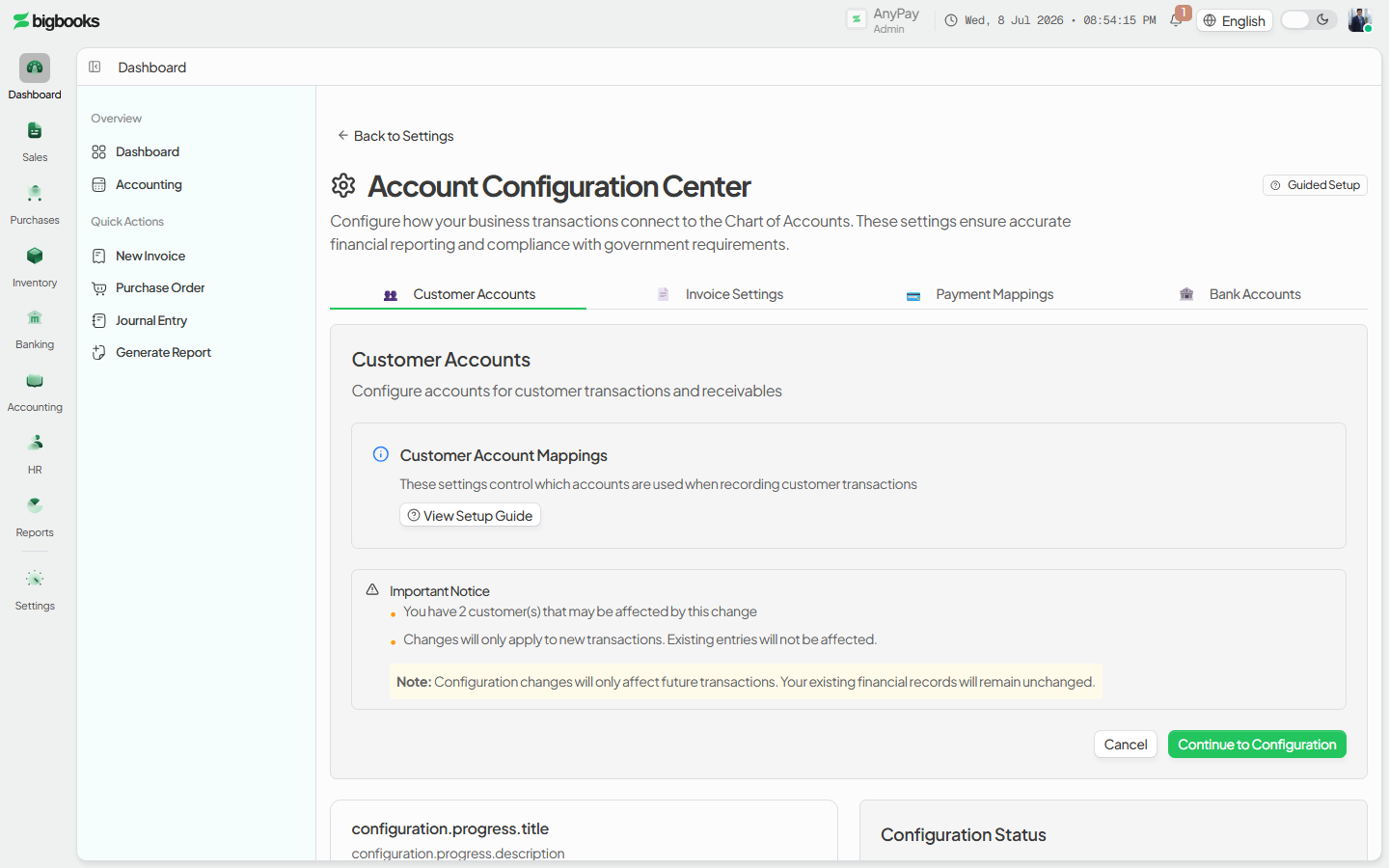
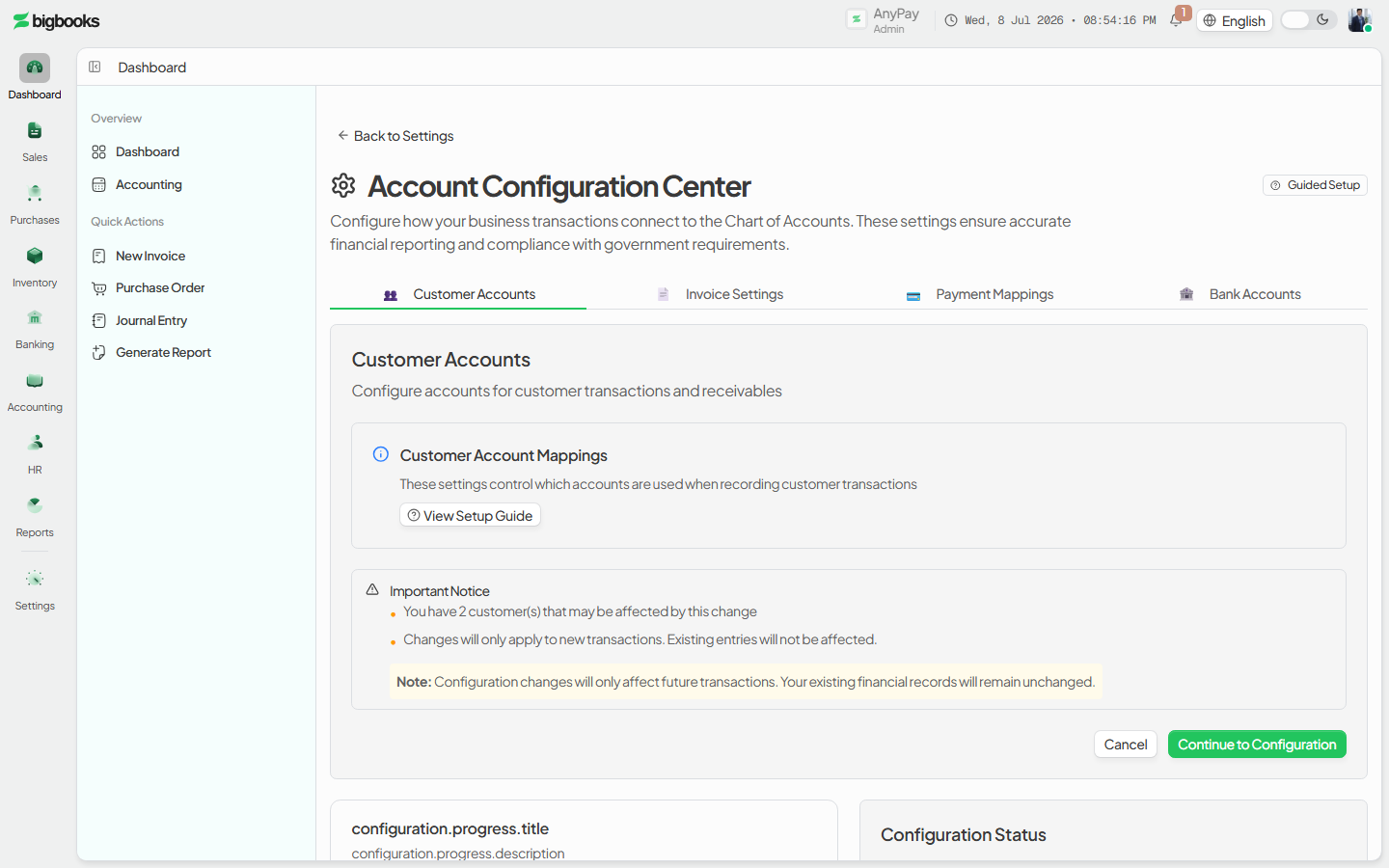
Confirm progress and finish Return to the overview and confirm each module reads as configured. When configuration (and the rest of onboarding) is complete, you are routed on to the dashboard.
What happens behind the scenes
These screens write ledger mappings, not journal entries. The overview resolves the active company through companies/queries.ts (getByUser) and reads completeness through ledgerMappings/queries.ts (checkMappingRequirements); the Mapping Wizard reads existing mappings (getByCompany) and persists each one through ledgerMappings/mutations.ts (createLedgerMapping / updateLedgerMapping). A mapping just records "this module event posts to that GL account," so it shapes where future transactions land without itself posting anything. Configuration is part of the onboarding flow finalized by onboarding/mutations.ts (completeOnboarding); once mappings and the other onboarding steps are in place, the company is marked onboarded and the user is taken to the dashboard.
Common problems
- No active company: The setup page redirects to onboarding until a company is selected.
- Module not ready: The validator blocks a module until its prerequisites (e.g. accounts to map to) exist — finish the chart of accounts first.
- Missing mapping: A module left unmapped shows as not configured; documents in that module can't post correctly until its GL accounts are set.
- Wrong account picked: Re-run the Mapping Wizard for the module to update the mapping via
updateLedgerMapping. - Looking for tax/MoF settings: Company tax identity and compliance live on the Tax and MoF settings screens, not here.
Chart of Accounts Setup
As an admin, you will set how your Chart of Accounts behaves (code style, depth, bilingual naming, posting rules) and bulk-import or export the account tree before any transactions are posted.
Compliance Settings
As an admin, you will configure the compliance plumbing — the MoF report approval workflow and notifications, plus the company tax identity and electronic submission integration — so that compliant reports and tax filings flow correctly.