

Compliance Settings
As an admin, you will configure the compliance plumbing — the MoF report approval workflow and notifications, plus the company tax identity and electronic submission integration — so that compliant reports and tax filings flow correctly.
What you'll accomplish
As an Admin, you will configure the compliance plumbing — the MoF report approval workflow and notifications, plus the company tax identity and electronic submission integration — so that compliant reports and tax filings flow correctly.
Before you start
Compliance is split across two settings surfaces; both are forms/hubs, not record views.
/[lang]/settings/mofis a hub of cards: an approval-workflow summary, an email-notifications summary, and a link to report (GL-account) mappings. It is gated on having an active company selected (no per-permission check in the page itself); each card links to its dedicated configuration page (/settings/mof/approval-workflow,/settings/mof/email-templates,/mof-reports/mapping)./[lang]/settings/taxis a settings form requiring theMODIFY_COMPANY_SETTINGSpermission. It manages the Tax Identification Number, the legacy TaxRIS toggle, and the AInvoiceX integration (the recommended e-submission channel).
Compliance Note
The TIN and the AInvoiceX configuration here are what let BigBooks produce VAT-compliant documents and submit returns electronically under MoF 2020. Set the TIN before issuing tax invoices.
Steps
Open the MoF settings hub
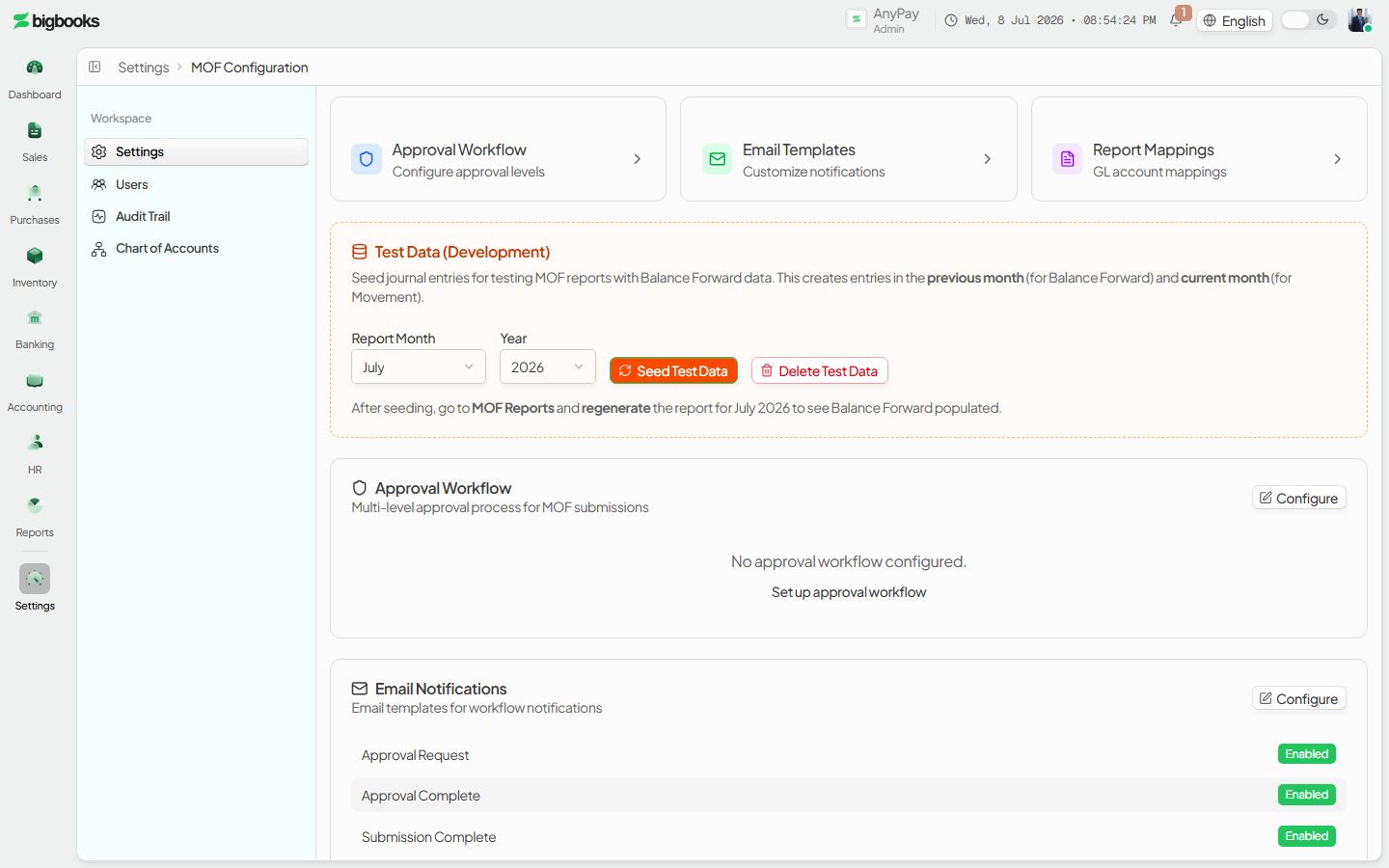
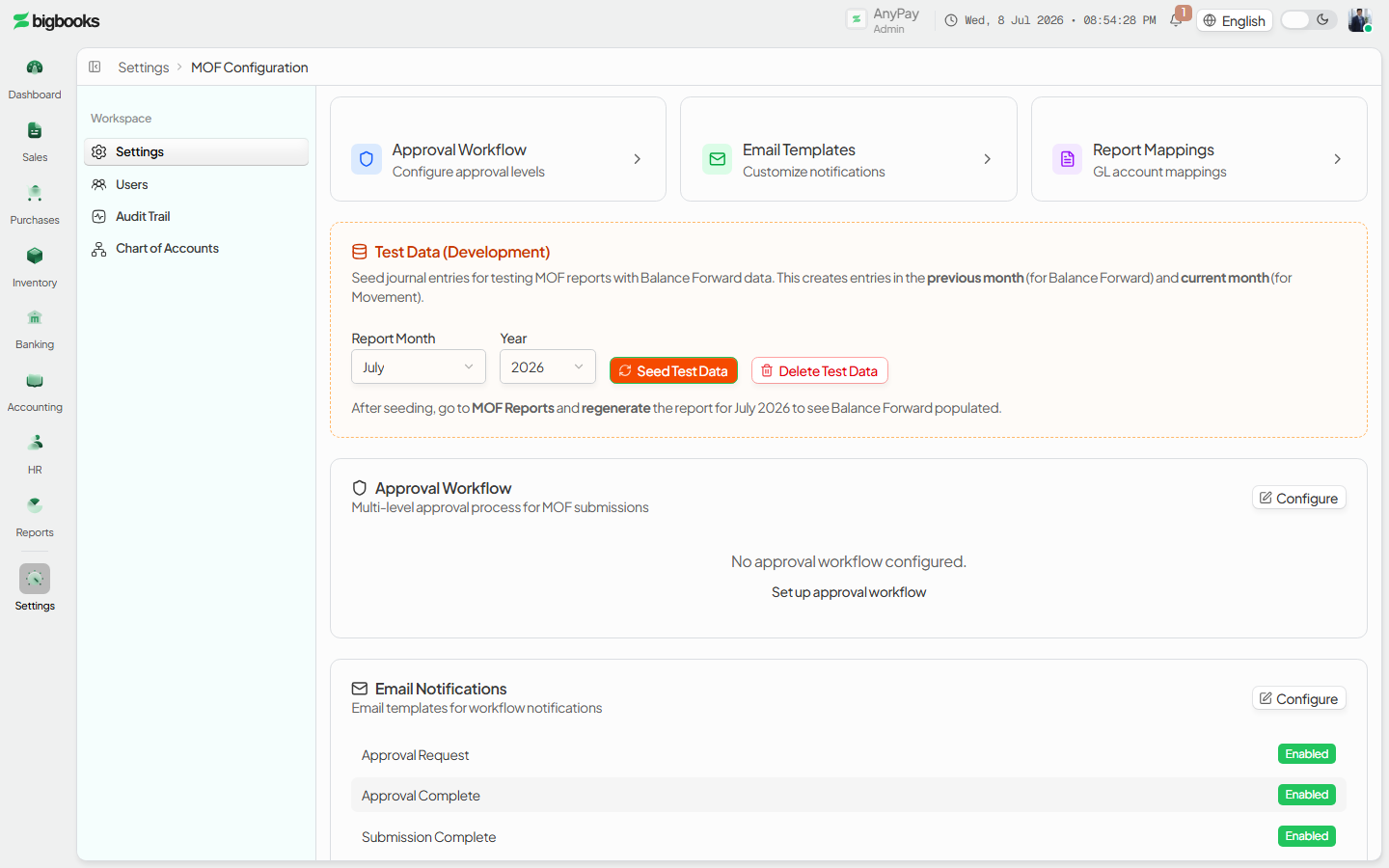
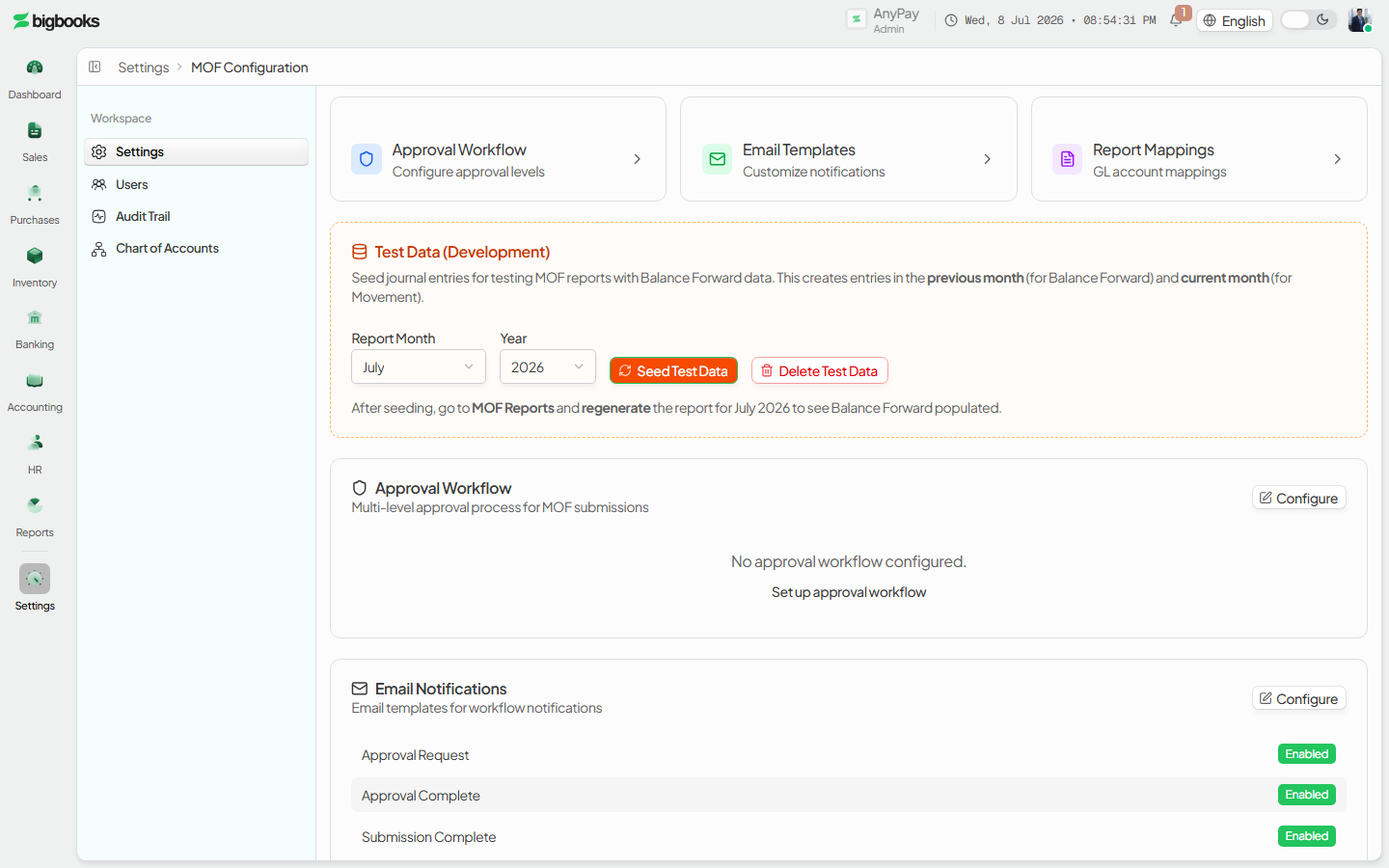
Go to /[lang]/settings/mof with your company active. Review the approval-workflow and email-notification summaries; if no workflow is configured the summary prompts you to set one up.
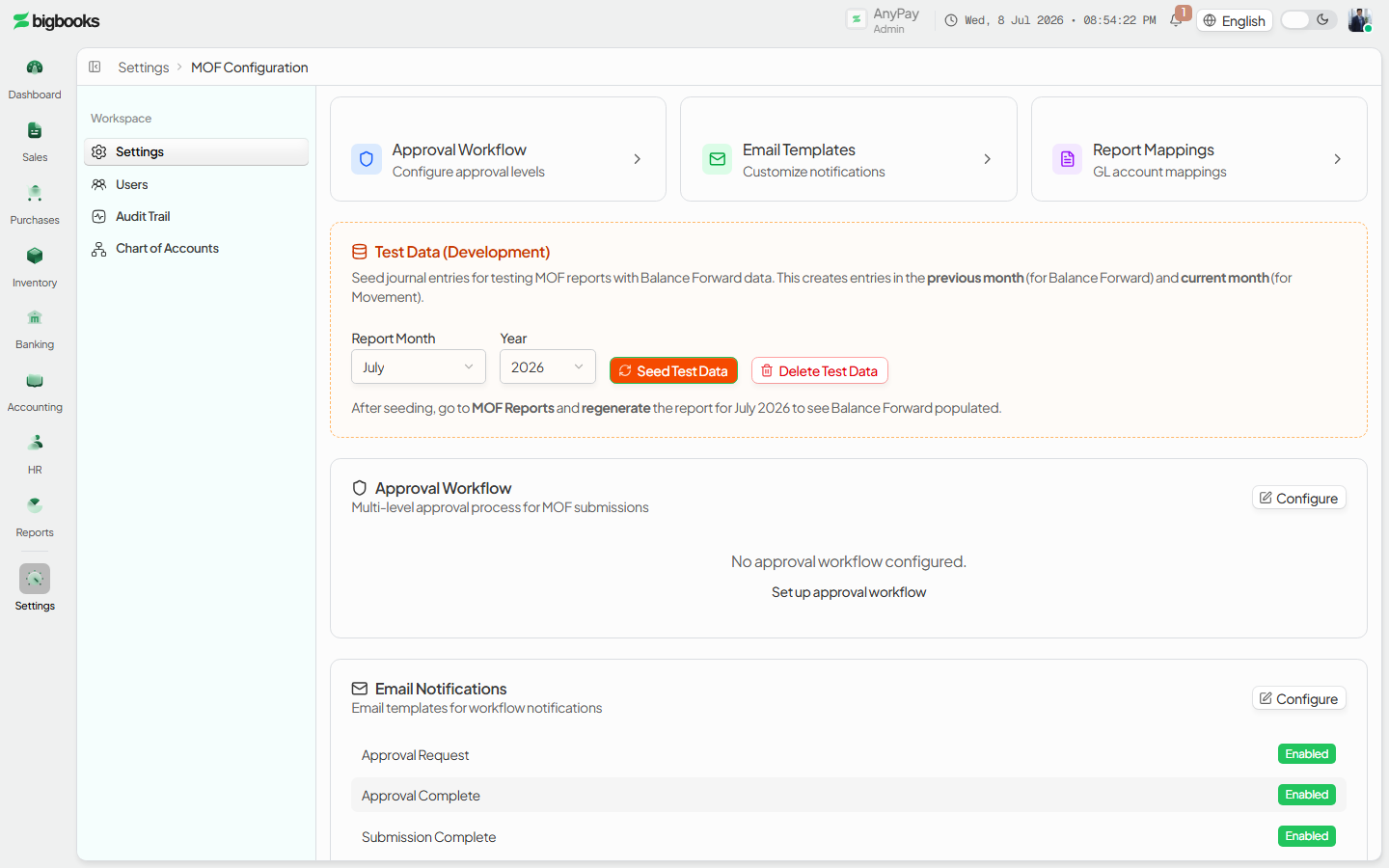
Configure the approval workflow and notifications From the hub, open Approval Workflow to define the multi-level approver roles (e.g. Head of Finance → Director), and Email Templates to enable or disable the workflow notifications (approval request, approval complete, submission complete, return to draft, period locked).
Set the tax identity
Open /[lang]/settings/tax. In Tax Configuration, set the 12-digit TIN (validated) and the business registration number. The legacy TaxRIS toggle is available but deprecated — prefer AInvoiceX.
Configure AInvoiceX In the AInvoiceX Integration card, enter the Party ID, App Key, App Secret, and Scope/Tenant ID, choose the environment (sandbox or production), and press Test Connection to validate the credentials before saving. Optionally enable auto-submission and pick a preferred UTC hour.
What happens behind the scenes
These screens write configuration, not journal entries. The MoF hub reads the approval workflow and email configs through mof/queries.ts (getCompanyApprovalWorkflow, getCompanyEmailConfigs) and resolves the active company through companies/queries.ts (getByUser); the per-card pages persist the workflow, templates, and GL mappings. The tax screen persists onto the company record via companies/mutations.ts: updateCompanyTIN, toggleTaxRIS, and updateAInvoiceXConfig (credentials are encrypted at rest), with testAInvoiceXConnection validating against the AInvoiceX service. The TIN and AInvoiceX settings are later read when documents are issued and returns are submitted, so the printed/compliant output matches the configured identity.
Common problems
- No company selected: The MoF hub shows "Please select a company" until an active company is chosen via the workspace switcher.
- No tax-settings access: Without
MODIFY_COMPANY_SETTINGSthe tax form is replaced by an admin-only alert. - Invalid TIN: The TIN must be exactly 12 digits.
- Connection test fails: Re-check the AInvoiceX Party ID, App Key/Secret, Tenant ID, and environment; auto-submission settings only show when the relevant toggle is on.
- Using the legacy path: TaxRIS is deprecated; new tenants should configure AInvoiceX instead.
Company Configuration
As an admin, you will connect each part of the business — customers, invoices, payments, and bank accounts — to the right general-ledger accounts through a guided configuration flow, so that day-to-day documents post to the correct accounts automatically.
Data Migration Wizard
As an admin, you will stand up a brand-new tenant by running one tracked migration batch that imports the chart of accounts, the opening trial balance, and the fixed-asset register, then commits them together so the company goes live with a balanced, auditable ledger.