

Data Migration Wizard
As an admin, you will stand up a brand-new tenant by running one tracked migration batch that imports the chart of accounts, the opening trial balance, and the fixed-asset register, then commits them together so the company goes live with a balanced, auditable ledger.
What you'll accomplish
As an Admin, you will stand up a brand-new tenant by running one tracked migration batch that imports the chart of accounts, the opening trial balance, and the fixed-asset register, then commits them together so the company goes live with a balanced, auditable ledger.
Before you start
The data migration tooling lives on two admin-only surfaces — neither is the master-detail record view used elsewhere in BigBooks.
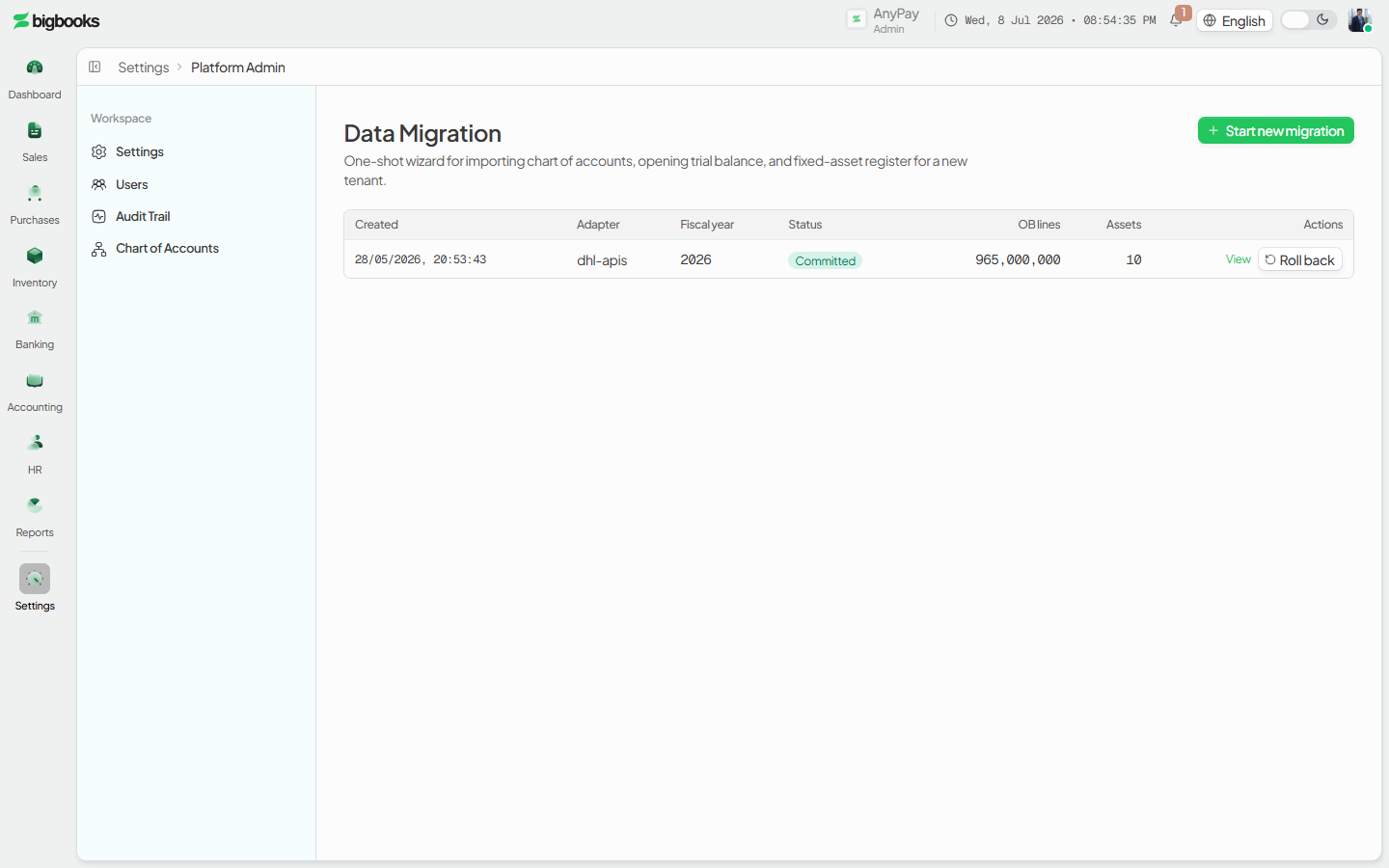
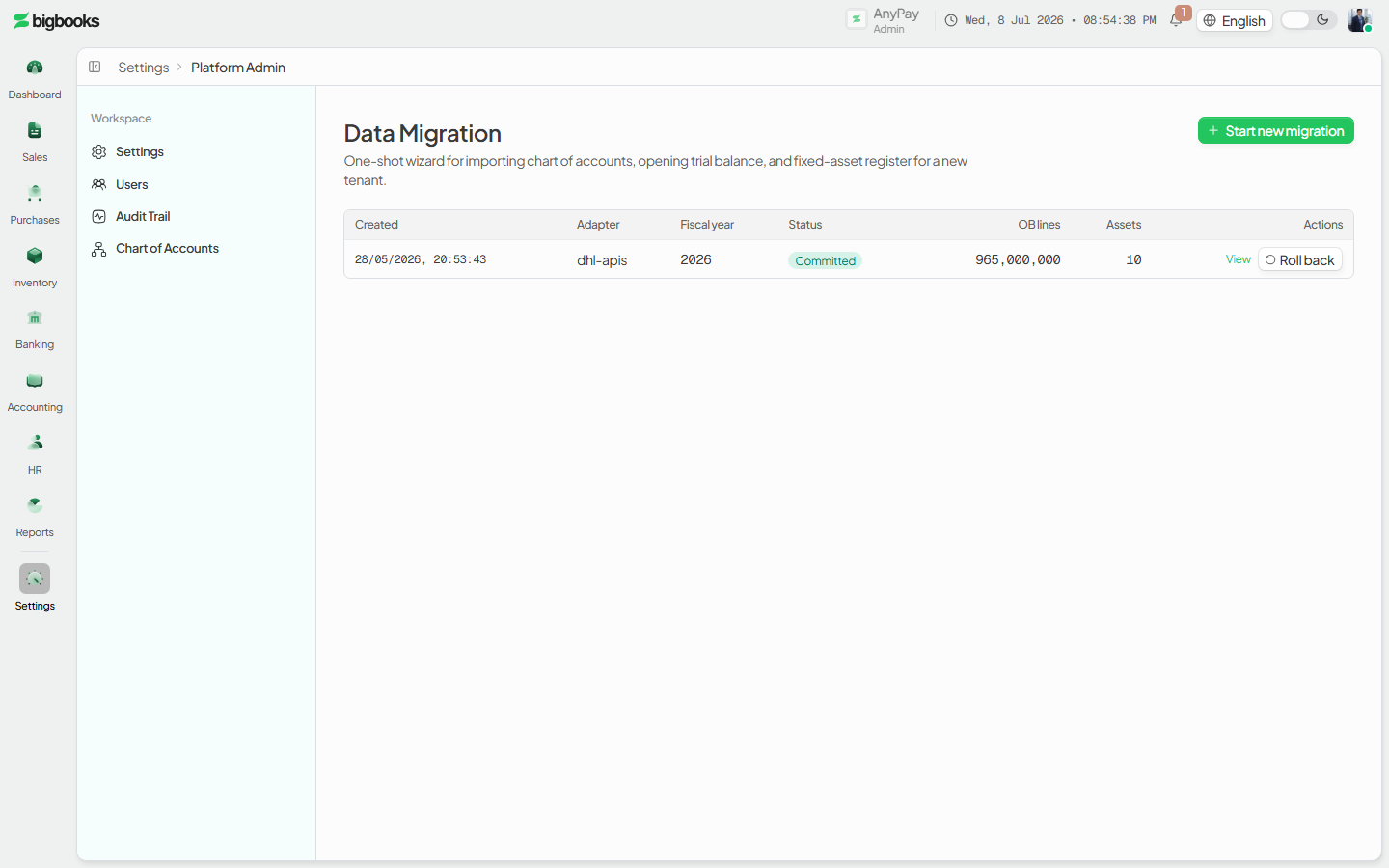
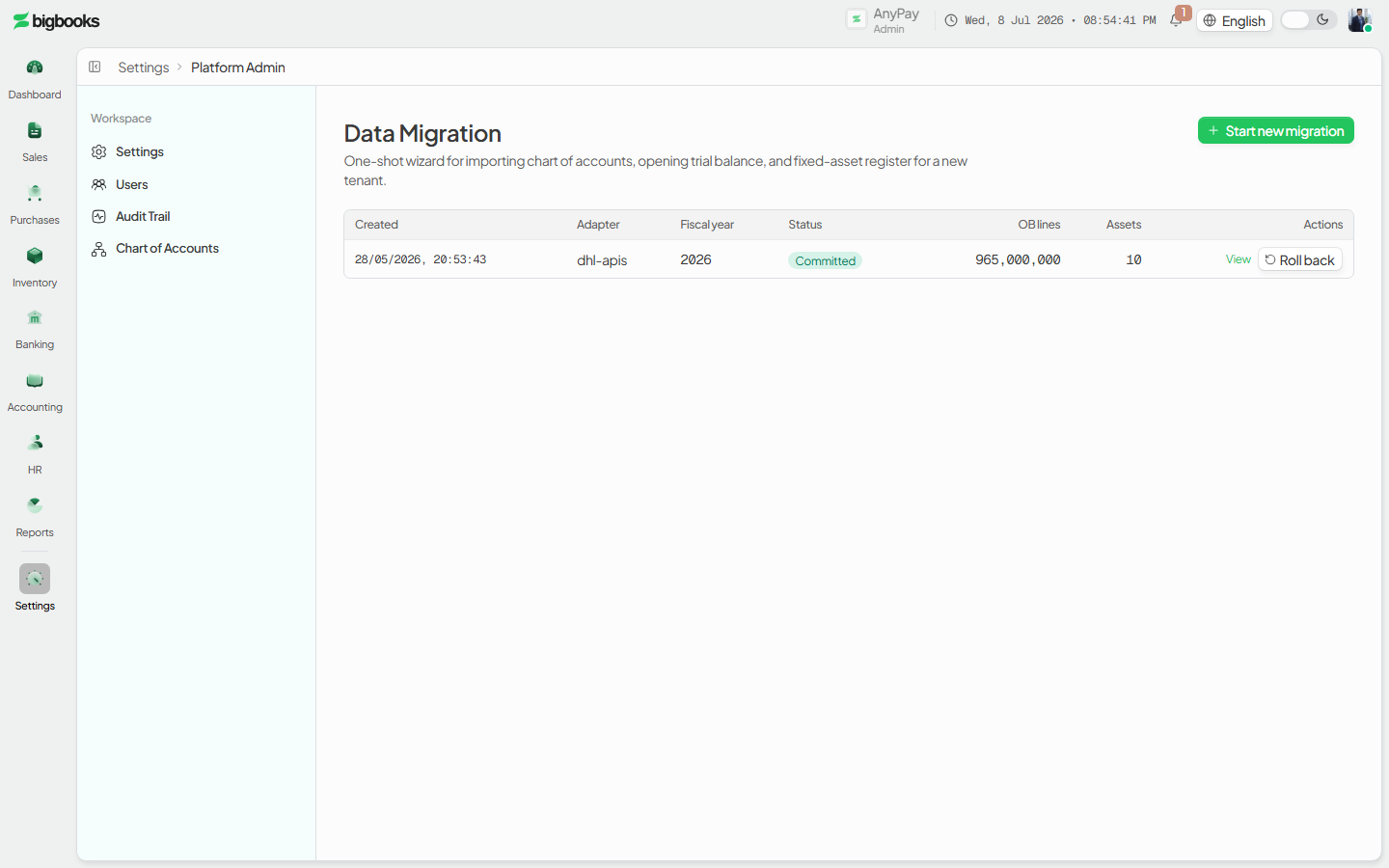
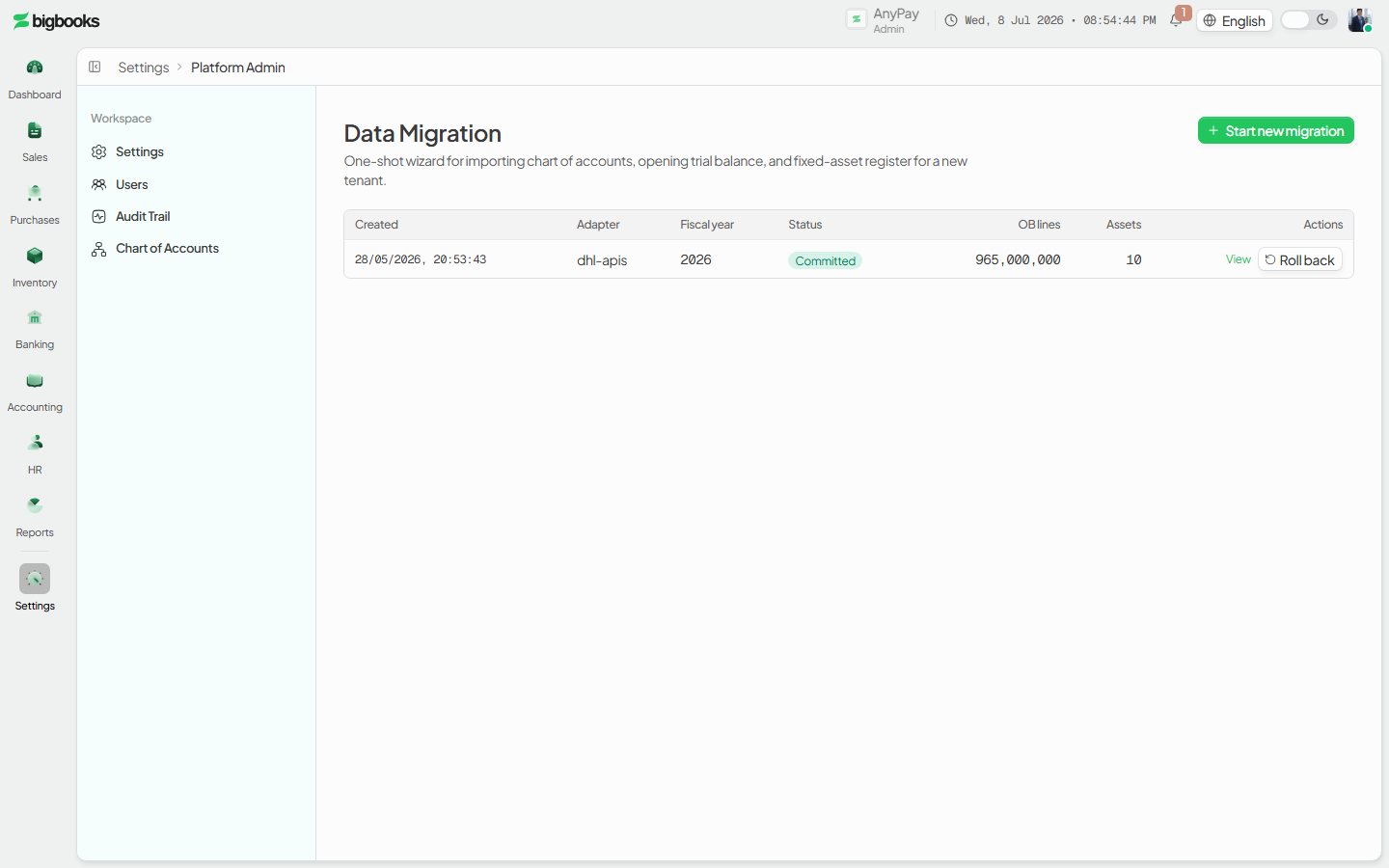
/[lang]/admin/data-migrationis the wizard's home: a plain page header with a Start new migration button and a history table of past batches (created date, adapter, fiscal year, status, OB-line and asset counts, plus View / Rollback / Delete actions). It is gated torole === "admin"and is also behind thedataMigrationWizard.enabledfeature flag — when the flag is off, the page shows a "not available for this company" notice./[lang]/settings/migrationsis the admin settings entry that surfaces the same wizard as a Data Migration card above a table of registered system migrations (developer/maintenance scripts run viamigrations/run.ts). Non-admins are redirected to the dashboard.
Each batch moves through fixed statuses — draft → coa_done → validated → committed (with rolled_back / failed as terminal states) — so an interrupted run resumes from its last checkpoint instead of re-importing. All amounts are stored as integer satang (1 LAK = 100 satang).
Compliance Note
The opening trial balance must net to zero before it can commit, and committing writes a balanced, posted opening-balance journal entry — so a migrated tenant starts MoF 2020-compliant. Do not bypass the wizard with direct opening-balance or bulk-import calls; that skips these validation and reconciliation guards.
Steps
Open the migration history
Go to /[lang]/admin/data-migration (or open the Data Migration card under /[lang]/settings/migrations). Review any past batches in the history table; an empty company prompts you to start the first migration.
Start a new migration and import the chart of accounts
Click Start new migration to open the staged wizard. The first stage imports and pre-flights the chart of accounts for the new tenant; once accepted, the batch advances to coa_done.
Validate the opening trial balance and assets
Provide the opening trial balance and the fixed-asset register. The wizard validates that the trial balance nets to zero and that asset rows are well-formed; passing both moves the batch to validated. Running debit/credit totals show whether the trial balance is in balance.
Commit the batch
Review the reconciliation summary and Commit. The wizard atomically creates the COA codes, posts the opening-balance journal entry, and creates the fixed assets, then marks the batch committed. A committed batch can be rolled back from the history table if needed.
What happens behind the scenes
The wizard records every stage on a migrationBatches document. createBatch opens the batch; runCoaPreflight imports/validates the chart of accounts; validateTB and validateAssets check the opening trial balance and asset register; and commit (in migrationBatches/mutations.ts) performs the atomic go-live — it creates the COA codes (createdCoaCodes), drives the opening balances through openingBalanceBatches/mutations.ts so a posted, balanced opening-balance journal entry is written, and inserts the fixed assets (createdAssetIds). The batch's reconciliation block (e.g. tbDebitTotal) is what the history table reports. migrationBatches/queries.ts (listForCompany, getById, getReconciliationReport) reads batches and lets a resumed run continue from its checkpoint; rollback reverses a committed batch; deleteBatch removes a non-committed record and deactivates any zero-activity COA codes it created. The registered-migrations table on the settings page is a separate developer surface served by migrations/run.ts (listRegistered, getRecentRuns, run) and is not part of tenant onboarding.
| Account | Debit | Credit |
|---|---|---|
| Asset / expense opening balances (per line) | Debit total | - |
| Liability / equity opening balances (per line) | - | Credit total |
Common problems
- Feature disabled: When
dataMigrationWizard.enabledis off for the company,/[lang]/admin/data-migrationshows a "not available" notice — the wizard cannot be run. - Not an admin: Both surfaces are admin-only; non-admins are redirected or denied.
- Unbalanced trial balance: An opening trial balance that does not net to zero fails validation and cannot commit.
- GL 331/339 conflict: Posting opening balances that mix retained-earnings accounts is blocked (a year-end-close guard carried into the opening-balance post).
- Interrupted run: A batch left in
draft/coa_done/validatedis resumed from its last checkpoint — start a fresh batch only if you mean to. - Bypassing the wizard: Direct opening-balance or bulk-import calls skip the reconciliation guards and must not be used for go-live.
Compliance Settings
As an admin, you will configure the compliance plumbing — the MoF report approval workflow and notifications, plus the company tax identity and electronic submission integration — so that compliant reports and tax filings flow correctly.
Opening Balances Wizard
As an operator, you will record the company's starting balances — cash, receivables, inventory, payables, and equity — through a guided, self-balancing wizard (or an Excel/CSV import) so the ledger opens from a correct, balanced position.