

Users, Roles & Permissions
As an admin, you will add the people on your team to the tenant — by invitation or as internal users — give each one a role, and review or fine-tune what every role is allowed to do from the permission matrix.
What you'll accomplish
As an Admin, you will add the people on your team to the tenant — by invitation or as internal users — give each one a role, and review or fine-tune what every role is allowed to do from the permission matrix.
Before you start
Membership is managed on two surfaces; neither is the master-detail record view used elsewhere.
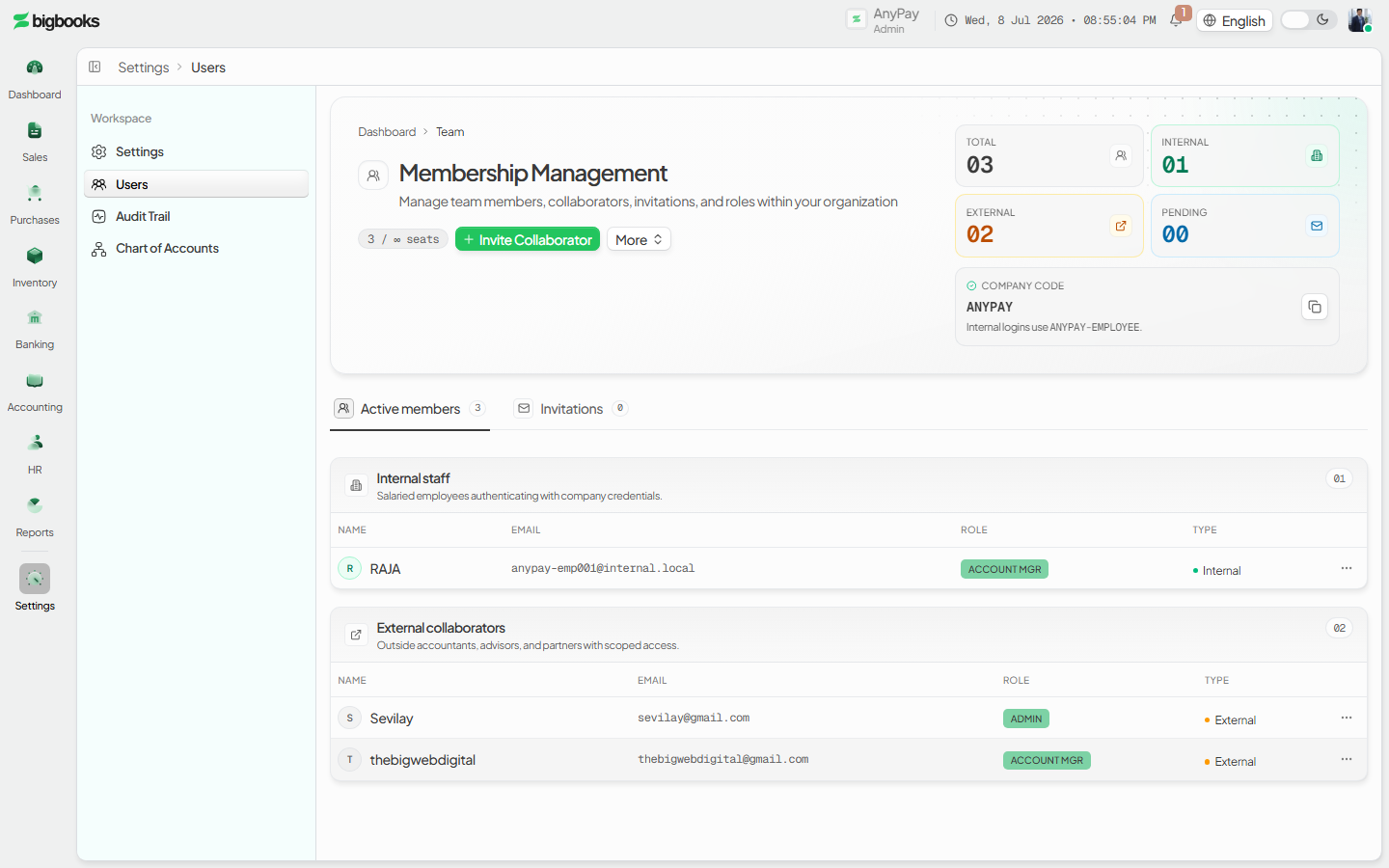
/[lang]/usersis the membership hub: an atmospheric header with member stats (Total / Internal / External / Pending), a seat-usage chip, the company code, an Invite user primary action, and a "More" menu (Bulk invite, Add internal user, View permissions, Role history, Regenerate employee codes). Below it, underlined tabs switch between active Members and pending Invitations. The page is admin-gated — non-admins see an "access restricted" message./[lang]/users/permissionsis the role permission matrix: a read-only grid of what each tenant role can do, with an "Edit permissions" toggle that appears only for users holding Manage Users. It also shows your active-tenant role and an info card describing each role.
Tenant roles are admin, account_manager, accountant, staff, cashier, viewer (a synthetic platform_support role also appears for impersonated support sessions). Roles are scoped per tenant — a person can hold a different role in another company.
Compliance Note
Roles enforce segregation of duties: they decide who can post to the GL, run a data migration, or only view reports. Assigning the least-privileged role that still lets someone do their job keeps the audit trail clean for MoF 2020.
Steps
Open the Users hub
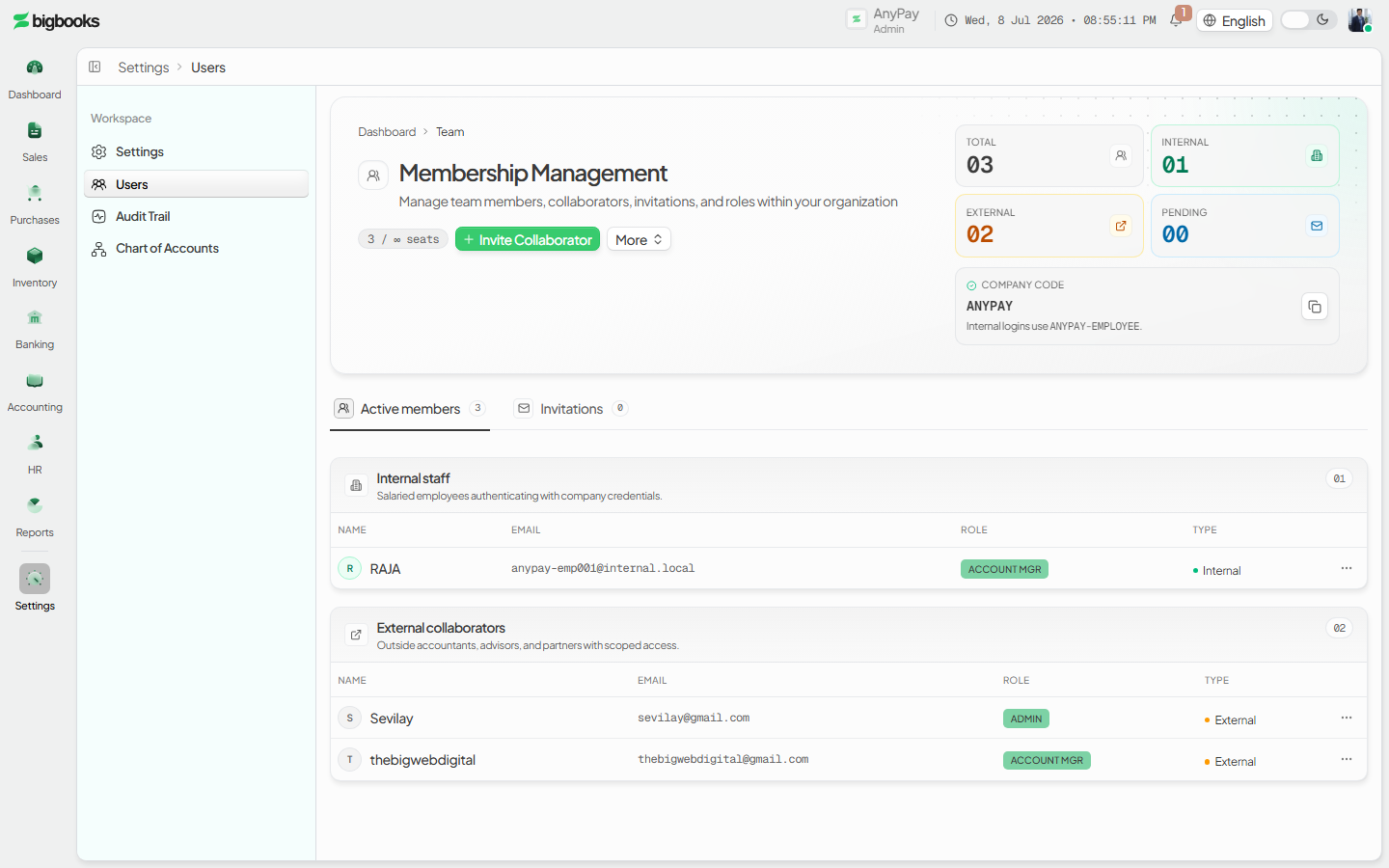
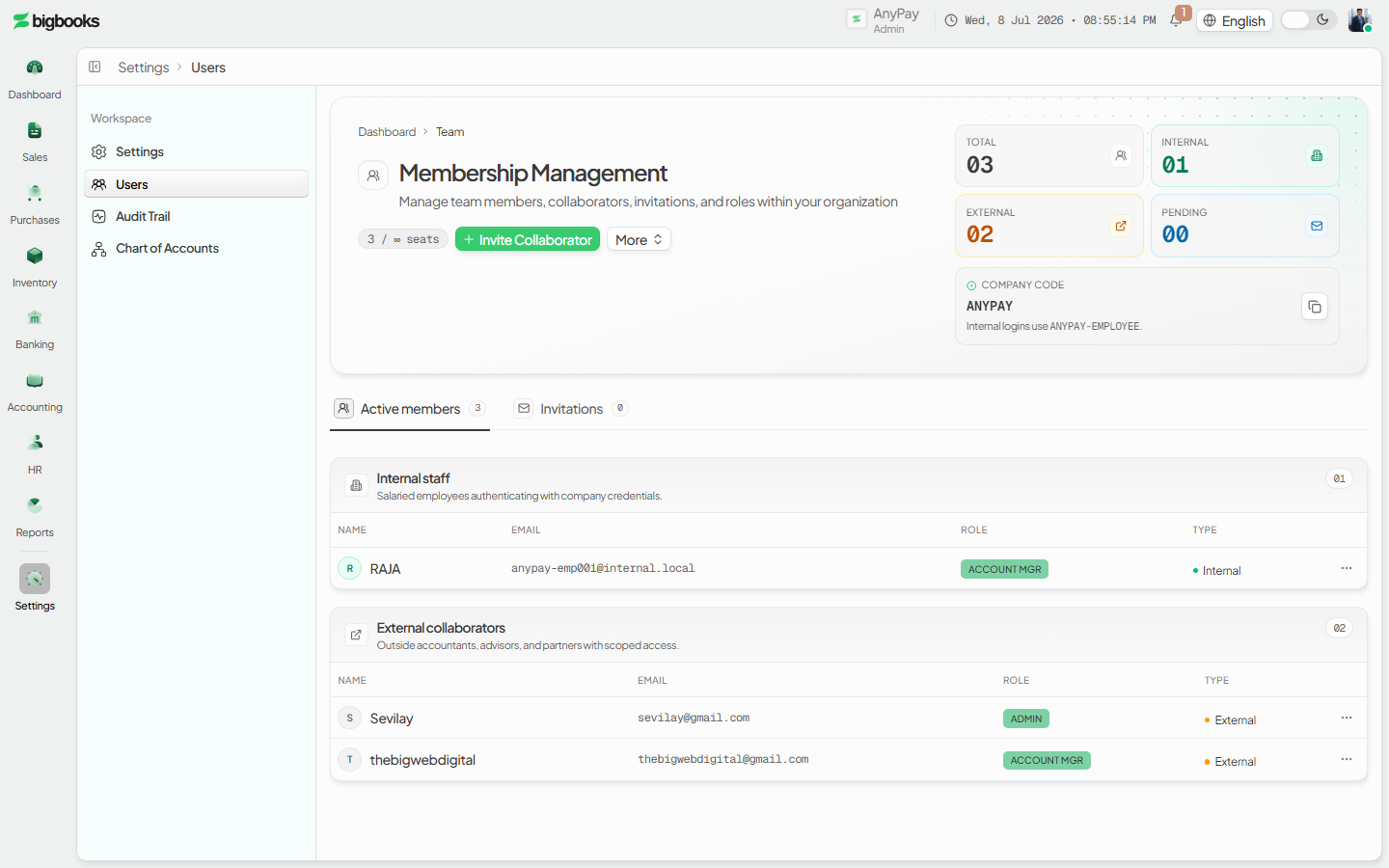
Go to /[lang]/users. Review the member stats and seat usage, and switch between the Members and Invitations tabs to see who is active versus pending.
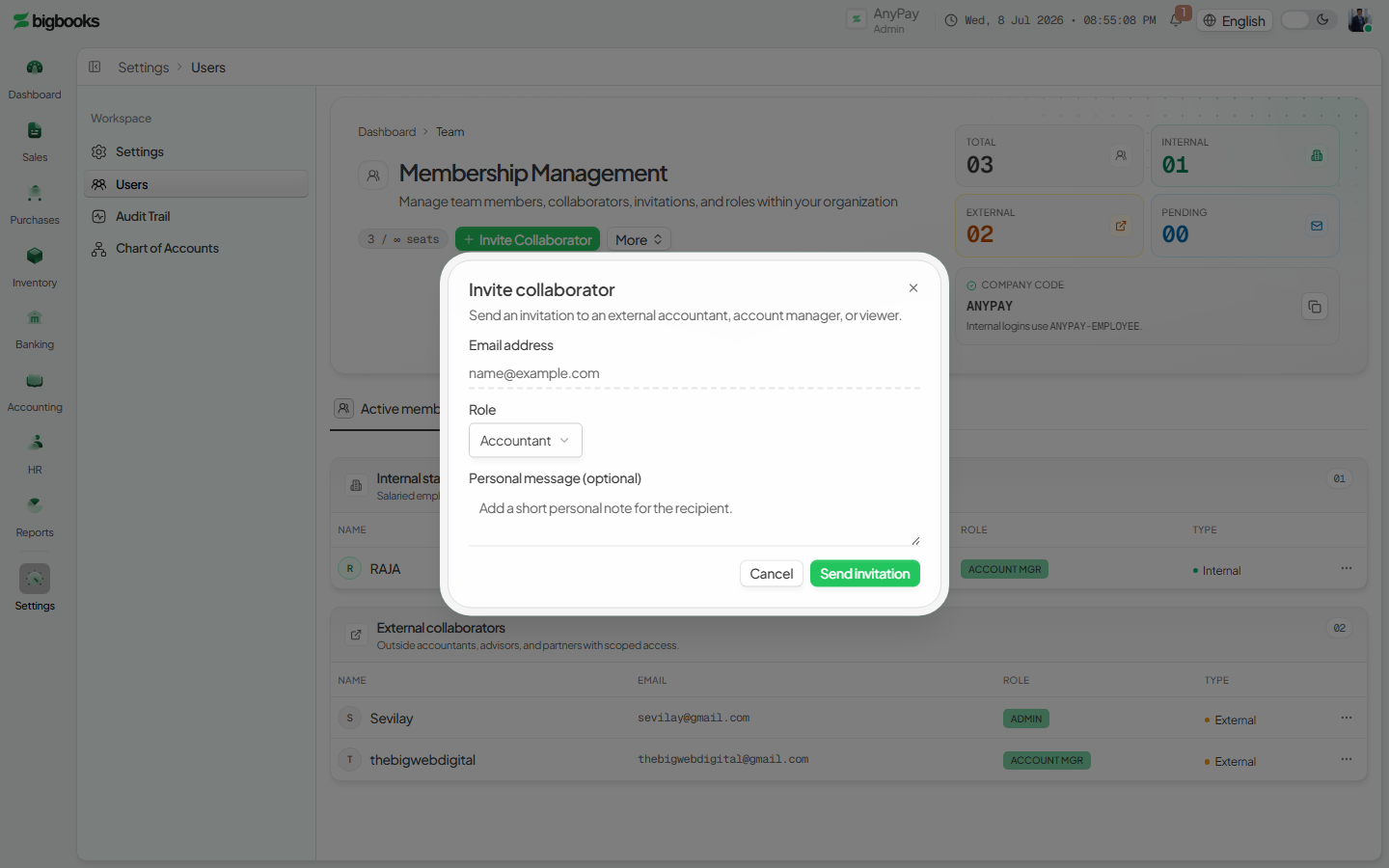
Invite a user and assign a role Click Invite user to invite a single collaborator by email and pick their role, or use More → Bulk invite for a spreadsheet of invitees, or More → Add internal user to create an internal (employee-code) login. Seats are enforced — when the plan limit is reached the invite actions disable and an Upgrade link appears.
Review the permission matrix
Open More → View permissions (or /[lang]/users/permissions). Read across each role to see exactly which features it can access; your current active-tenant role is highlighted in a card at the top.
Customize per-role permissions (optional) If you hold Manage Users, press Edit permissions to toggle individual cells for this company; Reset all restores the defaults. Each change saves immediately and is re-checked on the server.
What happens behind the scenes
These screens write configuration, not journal entries. The Users hub reads memberships and pending invitations through memberships/queries.ts (listForCompanyWithUsers) and memberships/invite.ts (listPendingInvitations), and resolves the current user via users/queries.ts (getCurrentUser); invitations, internal-user creation, deletions, and employee-code regeneration run through the membership and users/mutations.ts functions. The permission matrix reads and writes per-company overrides through permissions/rolePermissions.ts (getMyRolePermissionOverrides, setRolePermission, resetAll) — setRolePermission re-checks Manage Users on the server, so the UI toggle is not the only guard. At request time these role/permission records gate both the sidebar (features hide) and the Convex functions (a denied role is rejected even on direct navigation), which is how a viewer is kept out of posting and admin surfaces.
Common problems
- Not an admin:
/[lang]/usersshows "access restricted" for non-admins; managing members requires the admin role. - Seats full: When the plan's seat limit is reached, invite/add actions disable and an Upgrade-plan link appears.
- Can view but not edit permissions: Any user can open the matrix, but Edit permissions appears only with the Manage Users permission, and the server enforces it again.
- Role is tenant-scoped: A user's role applies only to the active tenant; impersonated support sessions show the constrained
platform_supportprofile. - Last admin: Removing or demoting the only remaining admin would orphan the tenant and is prevented.
Opening Balances Wizard
As an operator, you will record the company's starting balances — cash, receivables, inventory, payables, and equity — through a guided, self-balancing wizard (or an Excel/CSV import) so the ledger opens from a correct, balanced position.
Create an Invoice
As an operator, you will create a customer sales document — line items, currency, and tax — that saves as a draft and then posts to the general ledger the moment you issue it.