

Quick Sale
As an operator, you will ring up a fast cash-and-carry sale, issue an instant receipt, and have the cash and revenue post immediately — tagged to your counter session so the shift reconciles.
What you'll accomplish
As an Operator, you will ring up a fast cash-and-carry sale, issue an instant receipt, and have the cash and revenue post immediately — tagged to your counter session so the shift reconciles.
Before you start
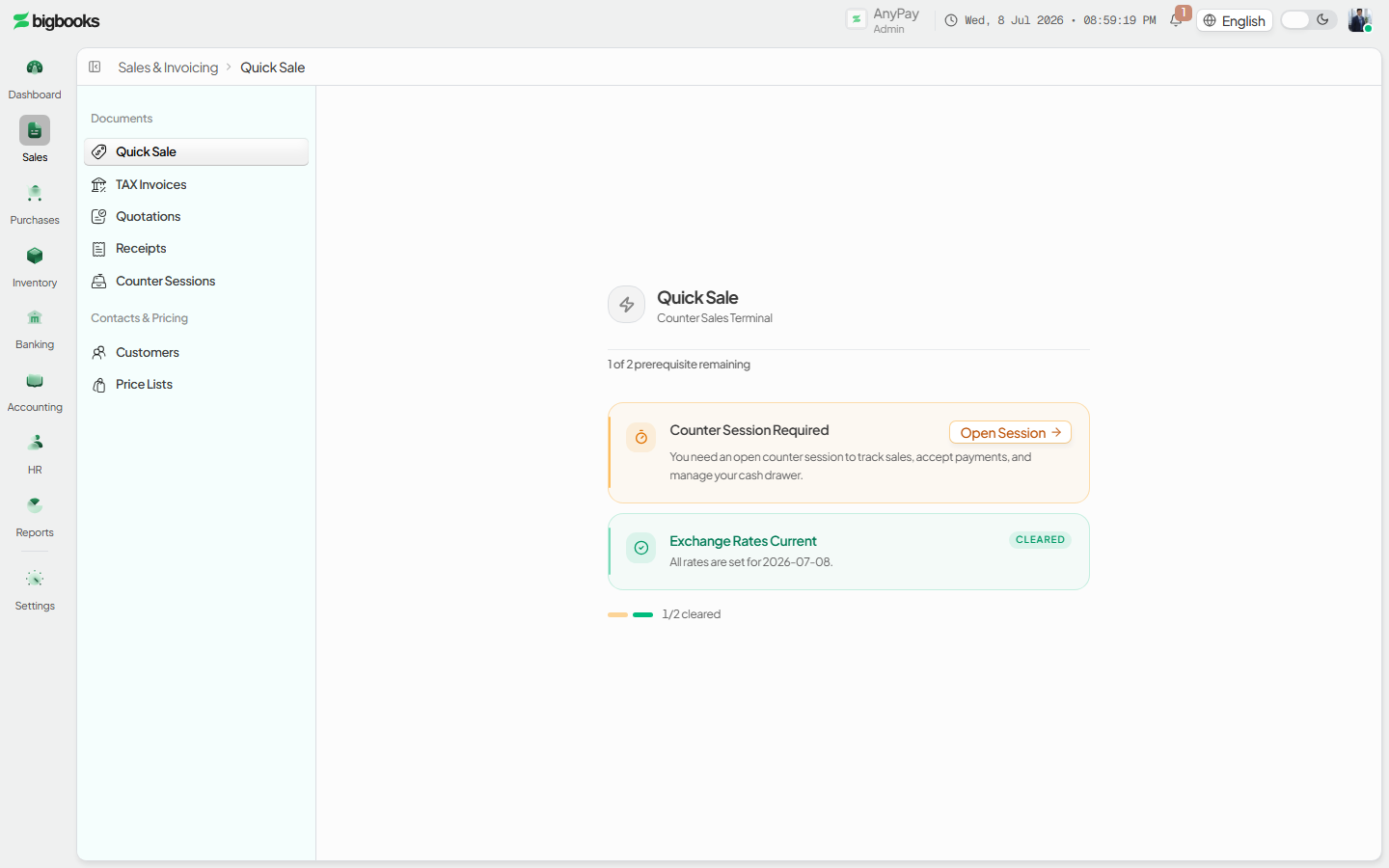
Quick Sale at /[lang]/sales/instant-receipt is a point-of-sale screen, not a list. It is gated: before you can sell, a readiness gate (QuickSaleGate) checks that you have an open counter session (counterSessions/open.ts) and that today's required exchange rates are set. If either is missing, the gate shows the blocking step instead of the till. Amounts are integer satang; confirming a payment posts the journal atomically, so the receipt and the ledger never drift. The screen needs the canUseQuickSale permission.
Compliance Note
Every instant receipt is tied to the open counter session, and its journal entry is tagged with that sessionId. That link is what makes the day's cash reconcilable when the session closes — central to MoF 2020 cash controls.
Steps
Clear the readiness gate
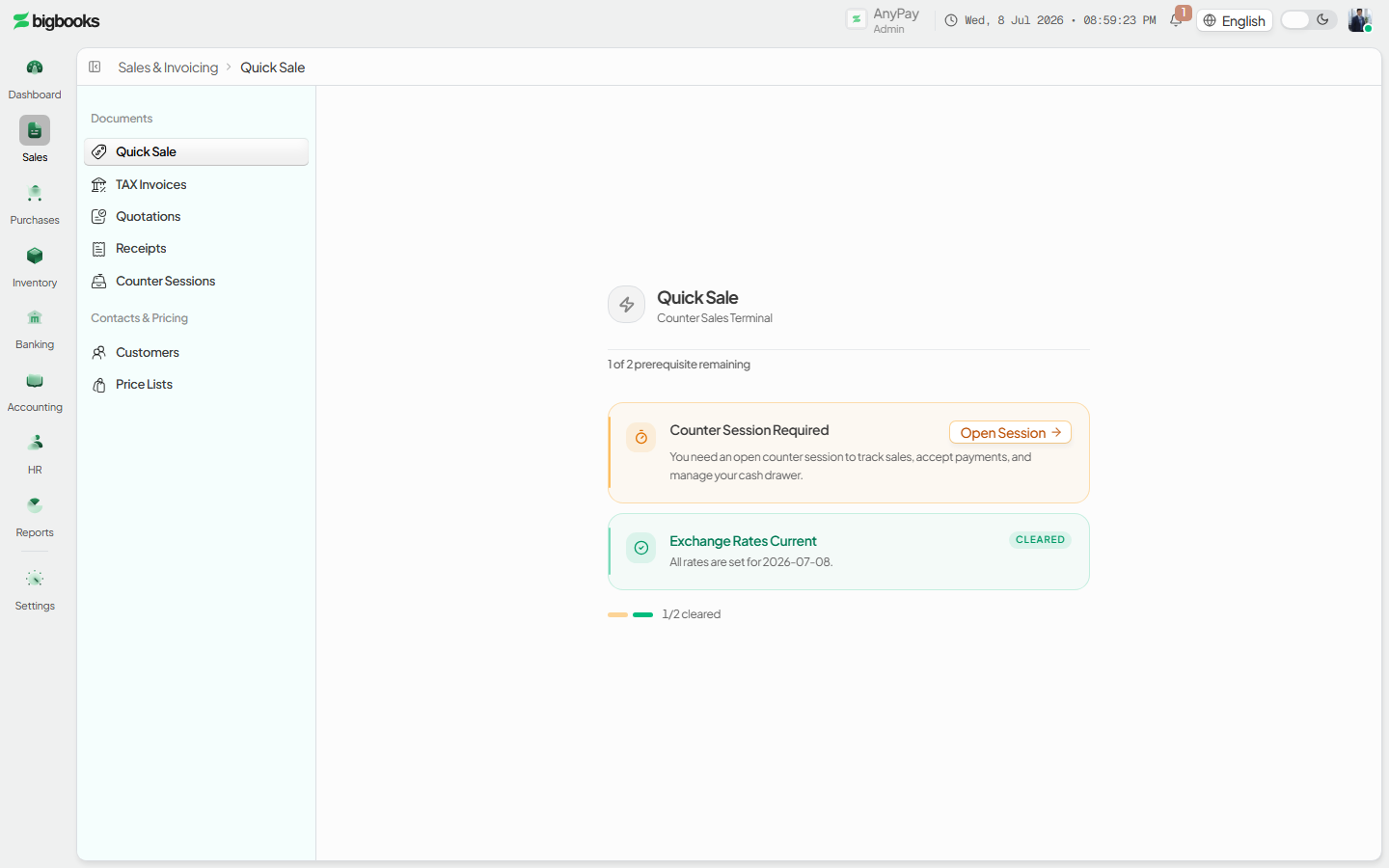
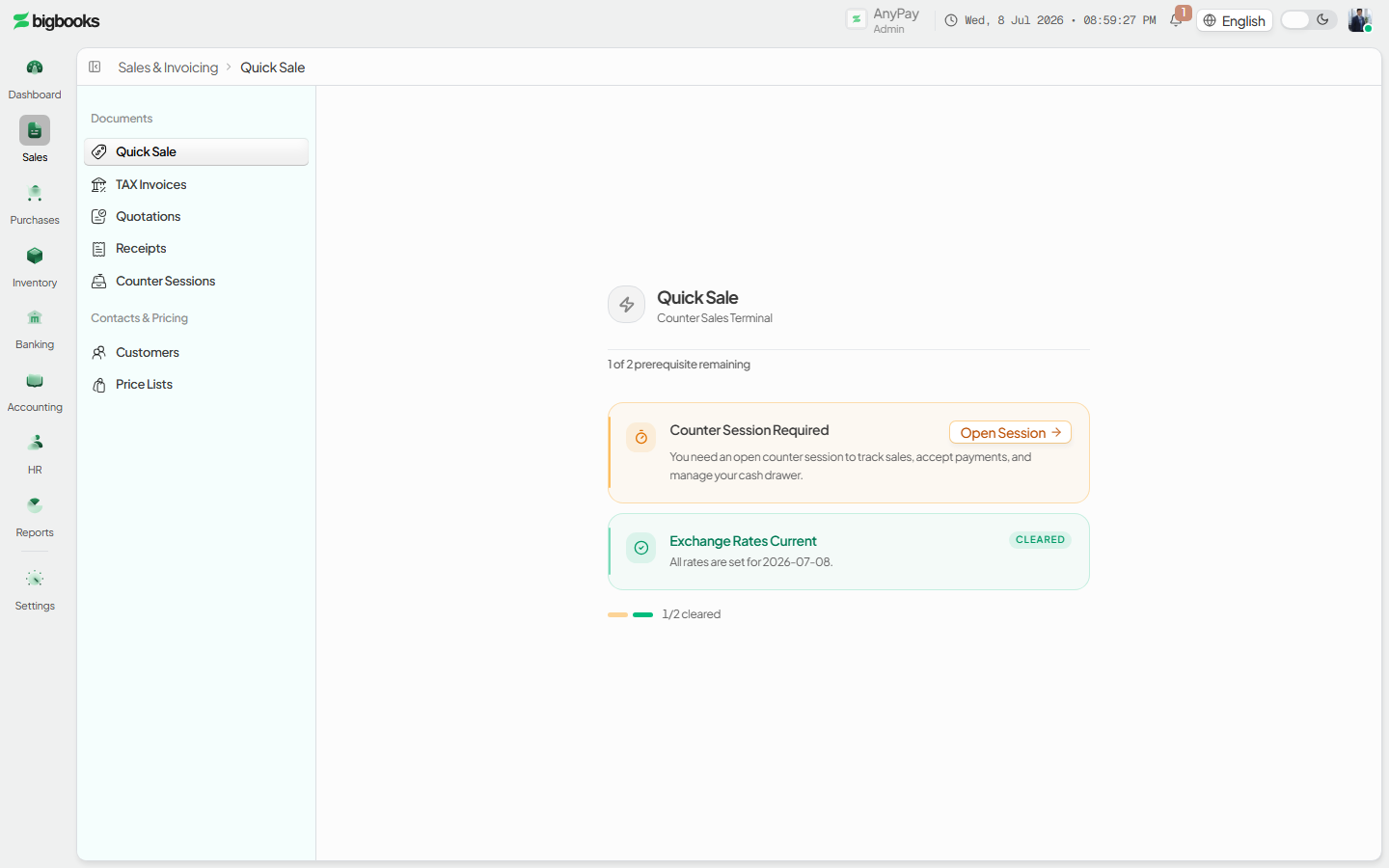
Open /[lang]/sales/instant-receipt. If you have no open session (or today's rates are missing), the gate prompts you to open a counter session / set rates first.
Ring up the items With the session open, add items to the cart on the instant-receipt screen and watch the running total.
Take payment and confirm Enter the tendered amount (change is computed), then confirm. An instant receipt with a receipt number is generated and the journal posts atomically.
What happens behind the scenes
Confirming the sale (instantReceipt/create.ts) inserts one posted journal entry tagged with the open session's sessionId and sourceType: "payment". It debits the cash/bank account — when a counter session is open the cash debit routes through the cashier's per-counter cash sub-account — for the total received, credits Sales Revenue at gross (subtotal before discount), and credits Output VAT (432) when VAT applies; a discount is recorded as its own debit line. All values are satang and the entry balances. Because the entry carries the session id, the shift's cash total reconciles at session close.
| Account | Debit | Credit |
|---|---|---|
| Cash / Bank (session sub-account) | Total received | - |
| Discount (when given) | Discount Amount | - |
| Sales Revenue | - | Subtotal (gross) |
| Output VAT (432, when applicable) | - | VAT Amount |
Common problems
- No open session: The gate blocks selling until you open a counter session.
- Missing rates: When today's required exchange rates are unset, the gate blocks until they are entered.
- Underpayment: A tendered amount below the total prevents confirmation; overpayment computes change.
- Empty cart: A zero-total sale cannot be confirmed.
- Permissions: Without
canUseQuickSalethe screen is not accessible. - Closed period: Posting into a closed period is rejected.
Create a Tax Invoice
As an operator, you will issue a VAT-compliant tax invoice — the legal document of record — with VAT and any DTTDF levy shown explicitly and posted to the ledger when you issue it.
Manage Price Lists
As an operator, you will create and maintain price lists — special sales or purchase rates for a customer, vendor, or tier — that override the default item price when you build a document.