

Create an Invoice
As an operator, you will create a customer sales document — line items, currency, and tax — that saves as a draft and then posts to the general ledger the moment you issue it.
What you'll accomplish
As an Operator, you will create a customer sales document — line items, currency, and tax — that saves as a draft and then posts to the general ledger the moment you issue it.
Before you start
Invoices live at /[lang]/tax-invoices. The page opens as a master-detail screen: a list of documents on the left, and a tabbed detail panel on the right when you click a row. Creating an invoice has prerequisites (company profile, tax setup, and a numbering series); when they are not met the first-run screen shows a guided EmptyState with a "Complete setup" checklist instead of the "New tax invoice" button. Amounts are entered in a major unit but stored as integer satang (1 LAK = 100 satang) and all totals are recomputed server-side.
Compliance Note
Nothing posts to the GL while a document is a draft. The balanced journal entry is written only when you issue the invoice, so the audit trail stays clean for MoF 2020.
Steps
Open the invoices list
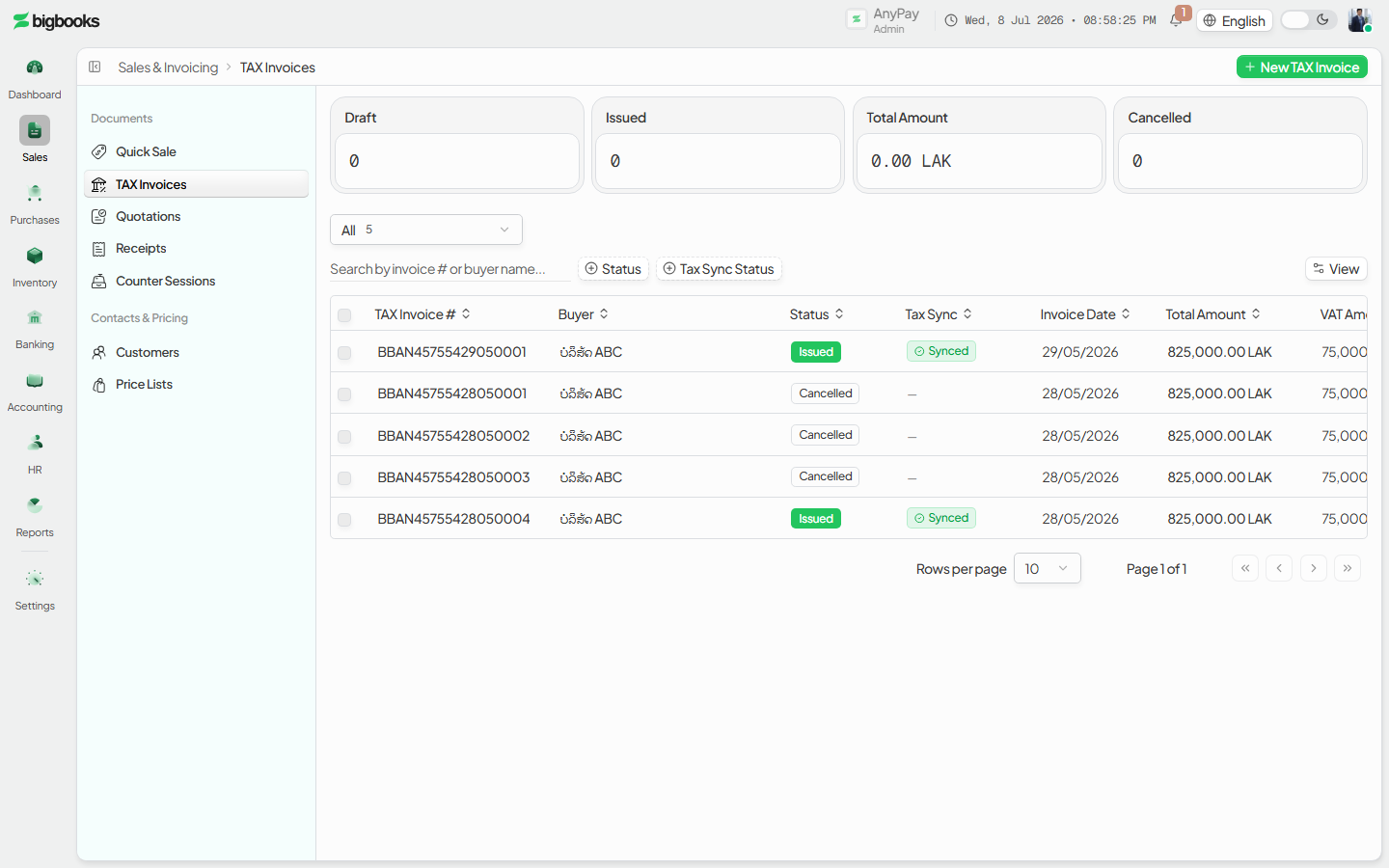
Go to /[lang]/tax-invoices. The secondary-header breadcrumb reads Dashboard › Tax Invoices, and the "New tax invoice" action sits on the right of that header. A stats strip and readiness banner show above the list once you have documents; on a truly empty company the illustrated EmptyState carries the setup guidance instead.
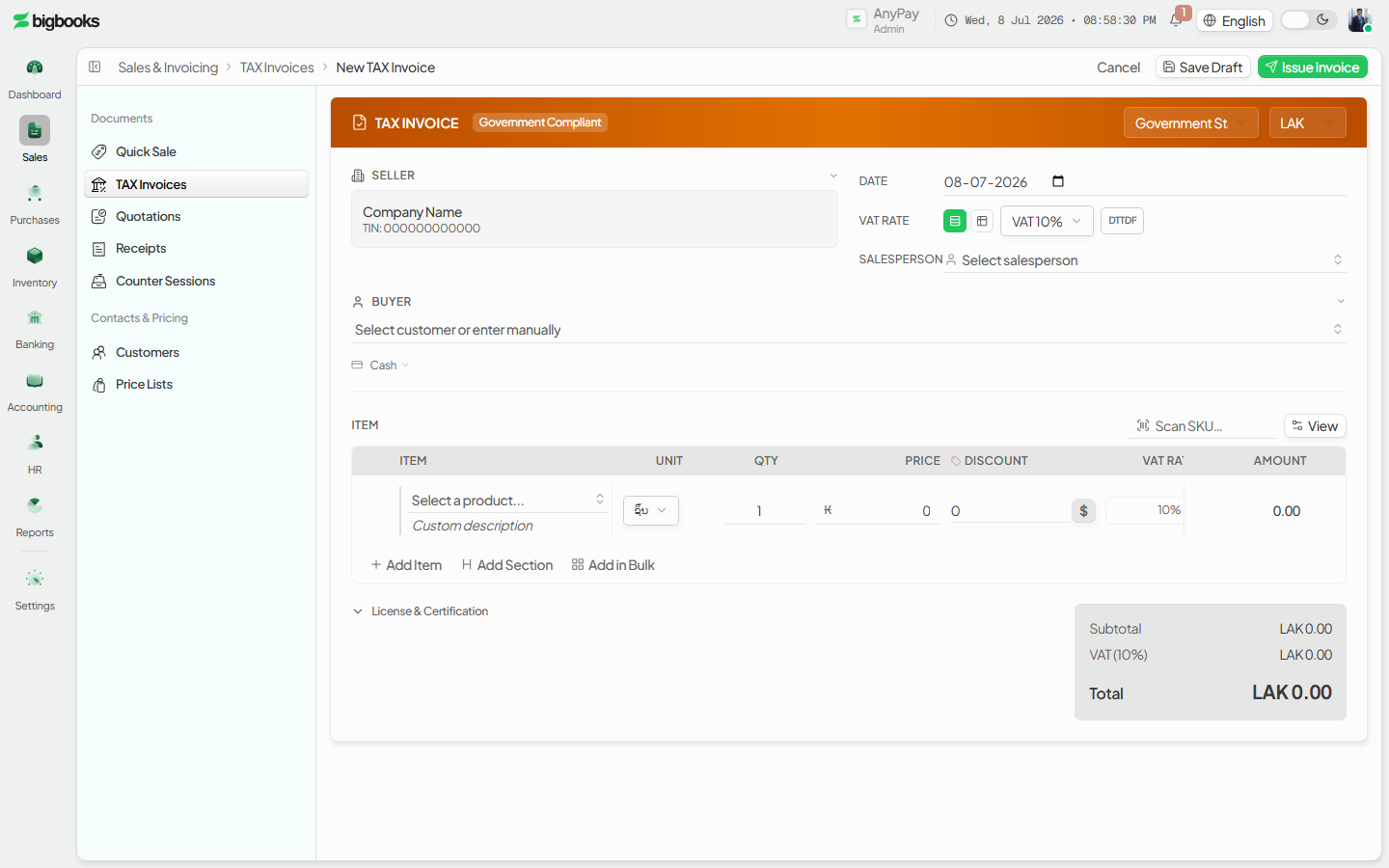
Start a new invoice Click New tax invoice to open the document-style editor. Pick the customer, add line items (description, quantity, unit price), choose the document currency, and set the tax rate. A live preview renders the document as you type.
Save the draft Save the document. It is created with status draft and a sequential number, and appears as a row in the list with an amber status accent. No accounting entry exists yet.
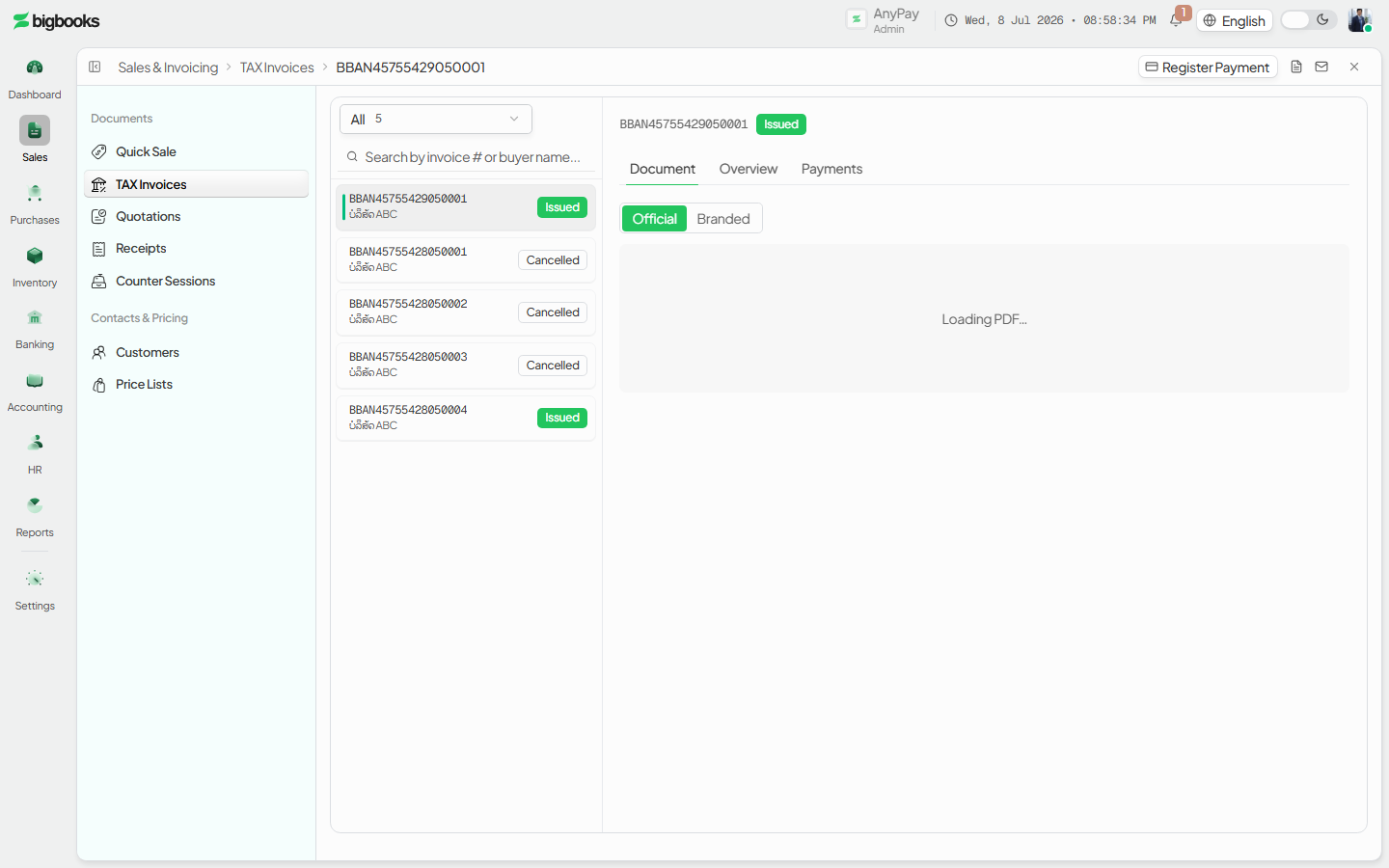
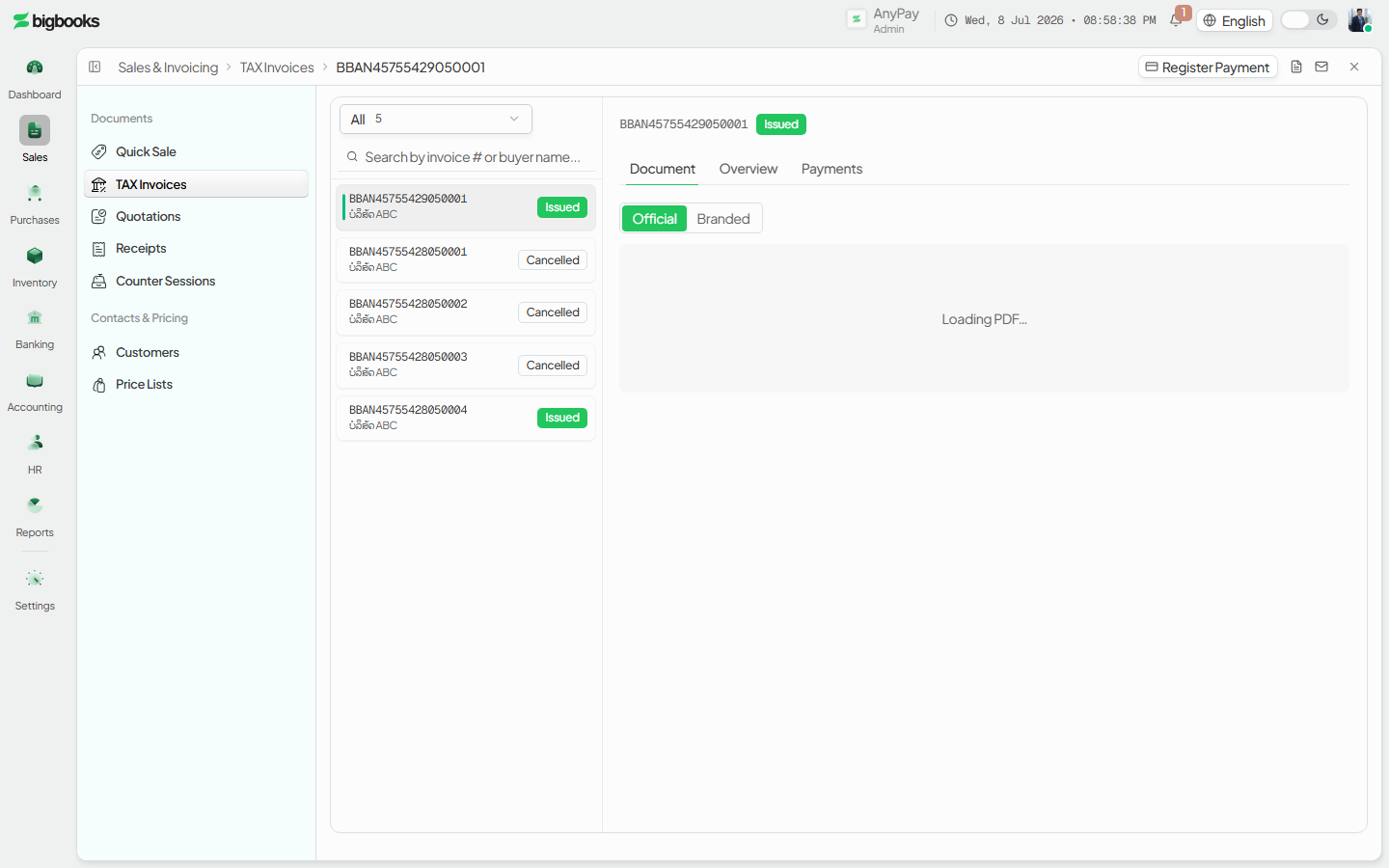
Open and issue it Click the row to open the tabbed detail panel (Document, Overview, Payments). The detail header carries icon-button actions plus an Edit button while the document is a draft. Press Issue to commit the document — this is the step that posts the GL.
What happens behind the scenes
Issuing the invoice writes one balanced, posted journal entry (createTaxInvoiceJournalEntry in invoices/mutations.ts). The debit account depends on how the buyer settles: Cash-on-hand for a CASH sale, Accounts Receivable (the customer sub-account when known) for a TRANSFER sale. Revenue is credited per line at its net base, VAT output is credited to the tax-output account, and any DTTDF levy is credited to its own payable account. The entry is in satang and always balances because the debited total equals net + VAT + DTTDF by construction. For a non-LAK document the exchangeRate is snapshotted on the journal entry so the LAK ledger value is fixed at issue time. Cancelling an issued invoice posts a mirror entry that swaps debits and credits rather than deleting the original.
| Account | Debit | Credit |
|---|---|---|
| Accounts Receivable (or Cash on CASH sale) | Total | - |
| Revenue (per line, net base) | - | Net Amount |
| VAT Output | - | VAT Amount |
| DTTDF Payable (when applicable) | - | DTTDF Amount |
Common problems
- Setup not complete: When company/tax/numbering prerequisites are missing, the EmptyState shows a "Complete setup" checklist instead of the New action — finish those links first.
- Empty or zero document: An invoice with no line items or a zero total cannot be issued.
- Missing FX rate: A non-LAK document needs a rate for its date before it can be issued.
- Closed period: Issuing into a closed accounting period is rejected.
- Permissions: Without
canCreateInvoicesthe New action and editor are not available. - Still a draft: A draft has no GL entry until issued — check the status badge if you expect a posting.
Users, Roles & Permissions
As an admin, you will add the people on your team to the tenant — by invitation or as internal users — give each one a role, and review or fine-tune what every role is allowed to do from the permission matrix.
Create a Tax Invoice
As an operator, you will issue a VAT-compliant tax invoice — the legal document of record — with VAT and any DTTDF levy shown explicitly and posted to the ledger when you issue it.