

Quotation to Invoice
As an operator, you will raise a quotation, move it through its lifecycle, and convert an accepted one into a draft tax invoice — so agreed prices flow straight into a receivable without re-keying, and revenue is recognised only once the invoice is issued.
What you'll accomplish
As an Operator, you will raise a quotation, move it through its lifecycle, and convert an accepted one into a draft tax invoice — so agreed prices flow straight into a receivable without re-keying, and revenue is recognised only once the invoice is issued.
Before you start
Quotations live at /[lang]/quotations, an upgraded master-detail screen: a list on the left, a tabbed detail panel (Document, Overview, Activity) on the right. Quotations are non-posting commercial offers — a draft or sent quotation has no GL effect. Status flows draft → sent → accepted → converted, with declined/expired as exits. Converting an accepted quotation creates a draft tax invoice (in the taxInvoices table) at /[lang]/tax-invoices, carrying over the line items, currency, and tax. Amounts are integer satang throughout.
Compliance Note
A quotation is never an accounting entry, and conversion only produces a draft — no stock moves and nothing posts. The ledger is touched solely when you later issue that tax invoice, keeping revenue recognition deliberate for MoF 2020.
Steps
Create and send a quotation
On /[lang]/quotations, use the "New" action in the secondary header. Add line items, set validity, and send it. The quotation saves with a number and moves to sent; the master row shows its status badge and accent.
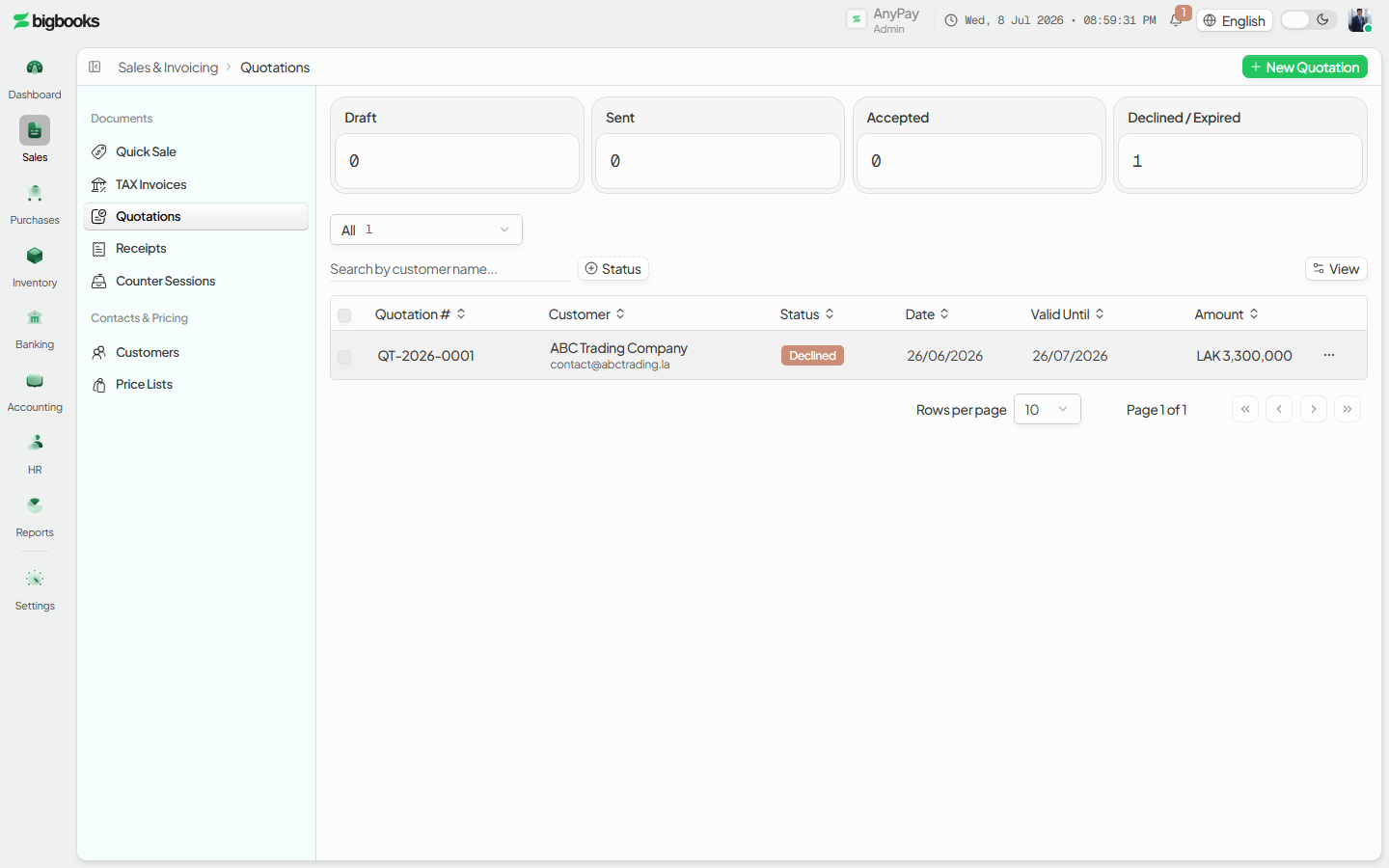
Mark it accepted When the customer agrees, set the quotation to accepted from the detail panel. Only accepted quotations can be converted.
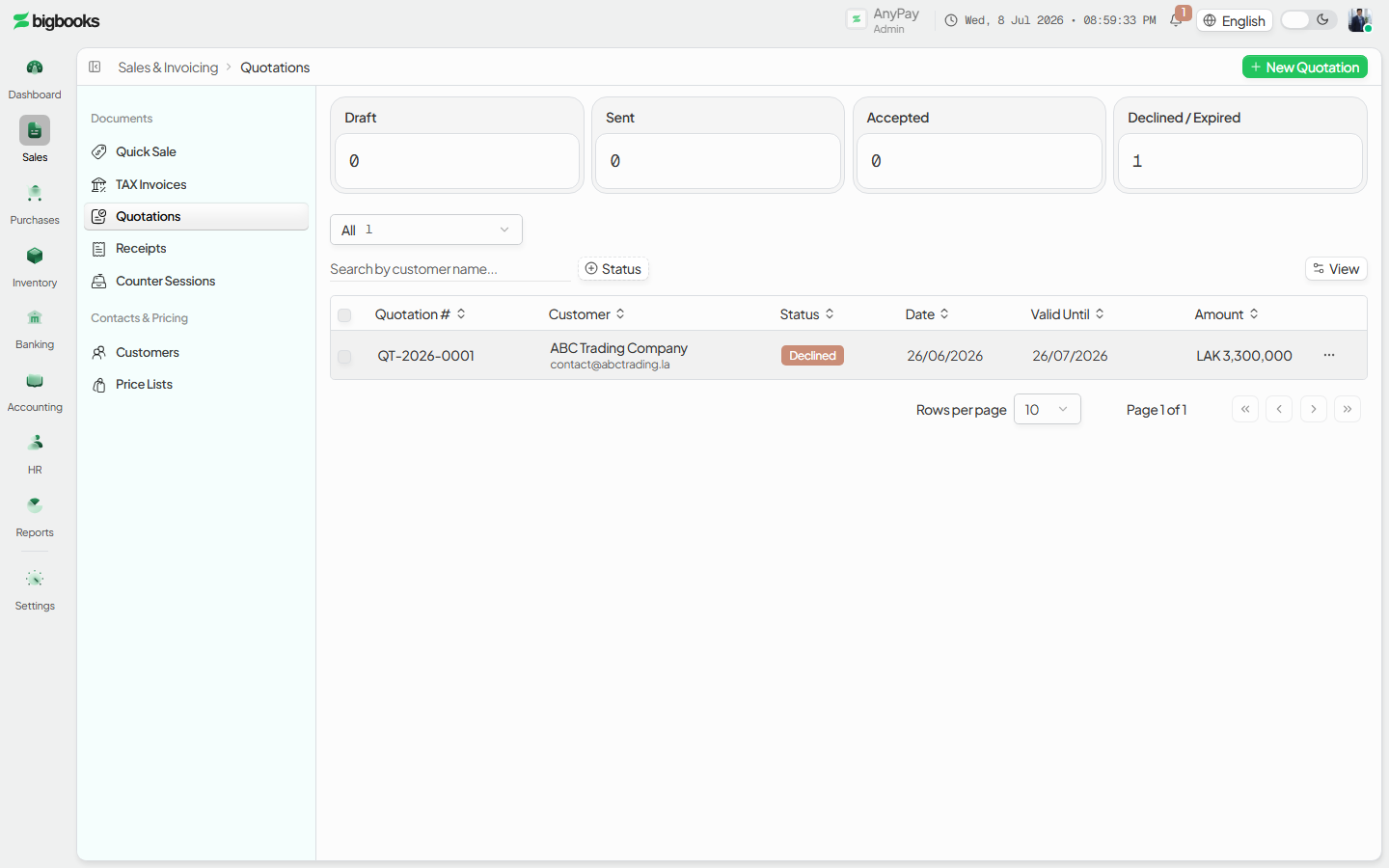
Convert to a tax invoice
Convert the accepted quotation. A draft tax invoice is created at /[lang]/tax-invoices with the same lines, currency, and tax; the quotation is marked converted and linked to the new invoice.
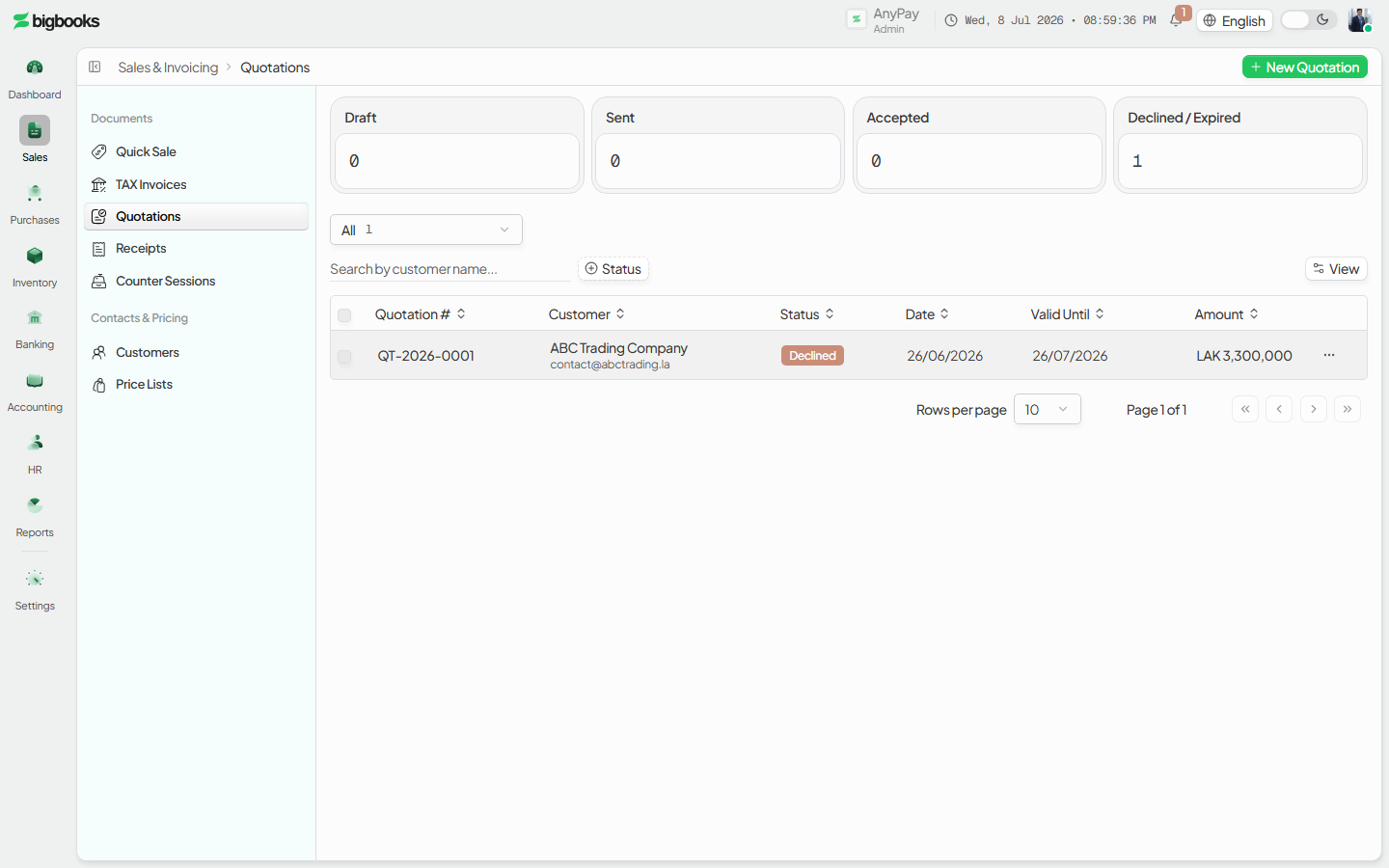
Issue the invoice Open the new draft on the tax invoices screen and Issue it. This is the only step that posts to the GL (and moves stock).
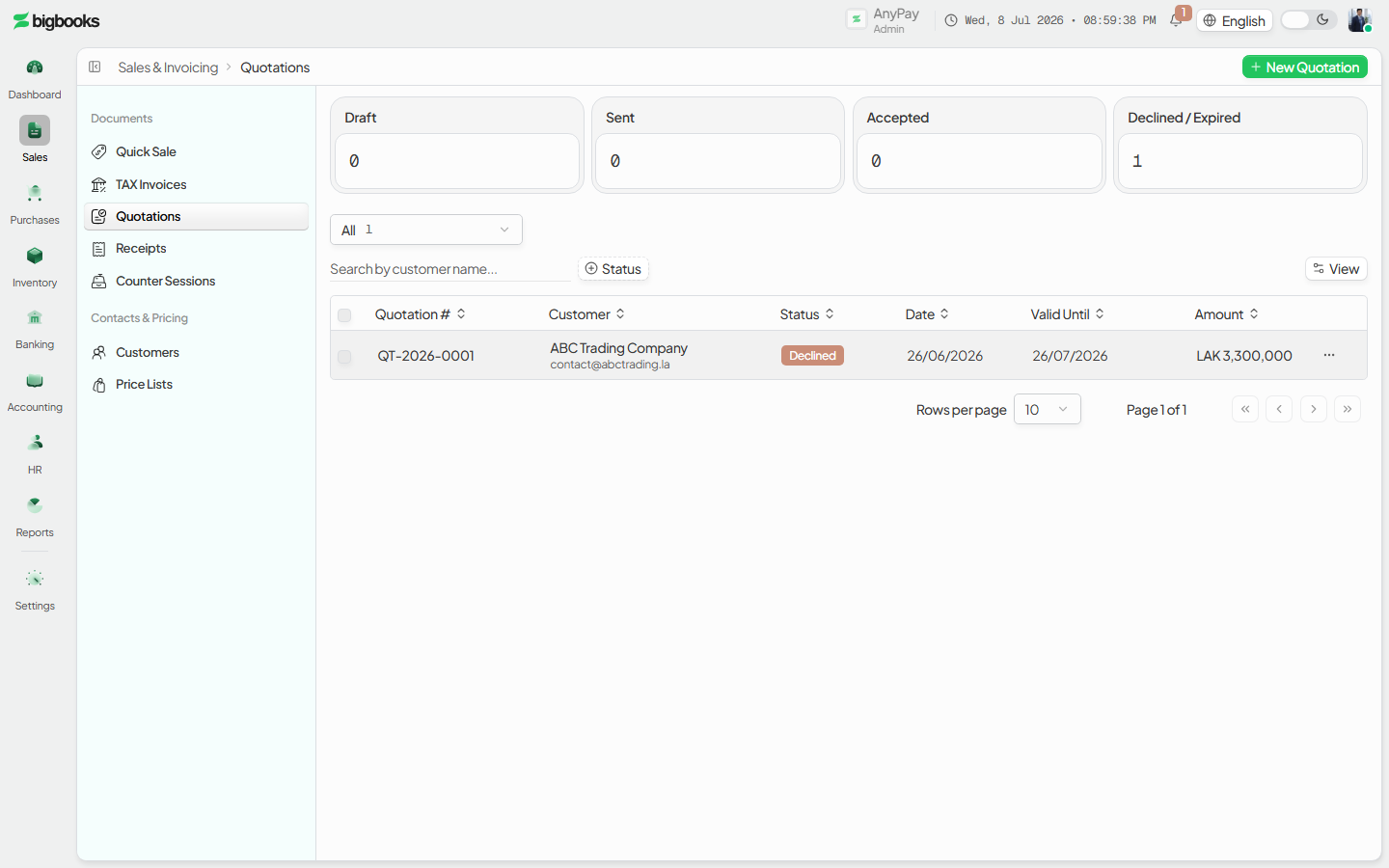
What happens behind the scenes
convertToInvoice (in quotations/mutations.ts) validates the quotation is accepted and not already converted, generates an invoice number, copies the quotation's line items (already in satang — never divided), and inserts a draft taxInvoices record with exchangeRate snapshotted (1 for LAK). It then patches the quotation to status: "converted" with convertedToInvoiceId, and writes a quotation-history "converted" event. No journal entry is written at conversion — the draft carries none. The GL posting (DR Accounts Receivable / Cash, CR Revenue, CR VAT Output, CR DTTDF) happens later when you issue that tax invoice, exactly as in Create an Invoice.
| Account | Debit | Credit |
|---|---|---|
| Accounts Receivable (or Cash) — only at issue | Total | - |
| Revenue (per line, net base) — only at issue | - | Net Amount |
| VAT Output — only at issue | - | VAT Amount |
Common problems
- Convert blocked: Only an accepted quotation converts; draft, sent, declined, expired, or already-converted ones are rejected.
- No line items: A quotation with no lines cannot be sent or converted.
- Lifecycle exits: A quotation past validity shows expired, or declined if turned down; neither can convert.
- Customer removed: Conversion fails if the quotation's customer no longer exists.
- Permissions: An operator can quote but needs
canCreateInvoicesto convert and issue. - Expecting a posting from the quote: Quotations never post — check the resulting invoice's status for the GL effect.
Manage Price Lists
As an operator, you will create and maintain price lists — special sales or purchase rates for a customer, vendor, or tier — that override the default item price when you build a document.
Dual-Currency Display
As an admin, you will turn on a secondary-currency display so documents show an approximate USD or THB amount beside the LAK figure — without changing a single ledger value.