

Chart of Accounts Setup
As an admin, you will set how your Chart of Accounts behaves (code style, depth, bilingual naming, posting rules) and bulk-import or export the account tree before any transactions are posted.
What you'll accomplish
As an Admin, you will set how your Chart of Accounts behaves (code style, depth, bilingual naming, posting rules) and bulk-import or export the account tree before any transactions are posted.
Before you start
These are two separate admin surfaces — neither is the master-detail record view used elsewhere in BigBooks.
/[lang]/settings/chart-of-accountsis a plain settings form (rendered byChartOfAccountsSettings). It needs theMODIFY_COMPANY_SETTINGSpermission; without it you see a "Only administrators can change Chart of Accounts settings" alert and read-only controls./[lang]/admin/coa-managementis an admin dashboard of quick-action cards (Import, Export, Templates) plus a statistics panel and import history. It is gated torole === "admin"and redirects non-admins to the dashboard.
Account codes use the government (Bank of Laos / MoF 2020) chart; balances are stored in LAK as integer satang.
Compliance Note
Government-required accounts can be locked as view-only (the Lock official accounts policy) so the compliant chart cannot be edited or deactivated by mistake.
Steps
Set the Chart of Accounts policy
Open /[lang]/settings/chart-of-accounts. Choose the sub-ledger code style (dotted 1022.1 or numeric 102201), the maximum sub-ledger depth (3–6 levels), whether manual code overrides are allowed, whether bilingual (Lao + English) names are required, whether official accounts are locked, and whether postings are restricted to leaf accounts only. Save to persist the settings.
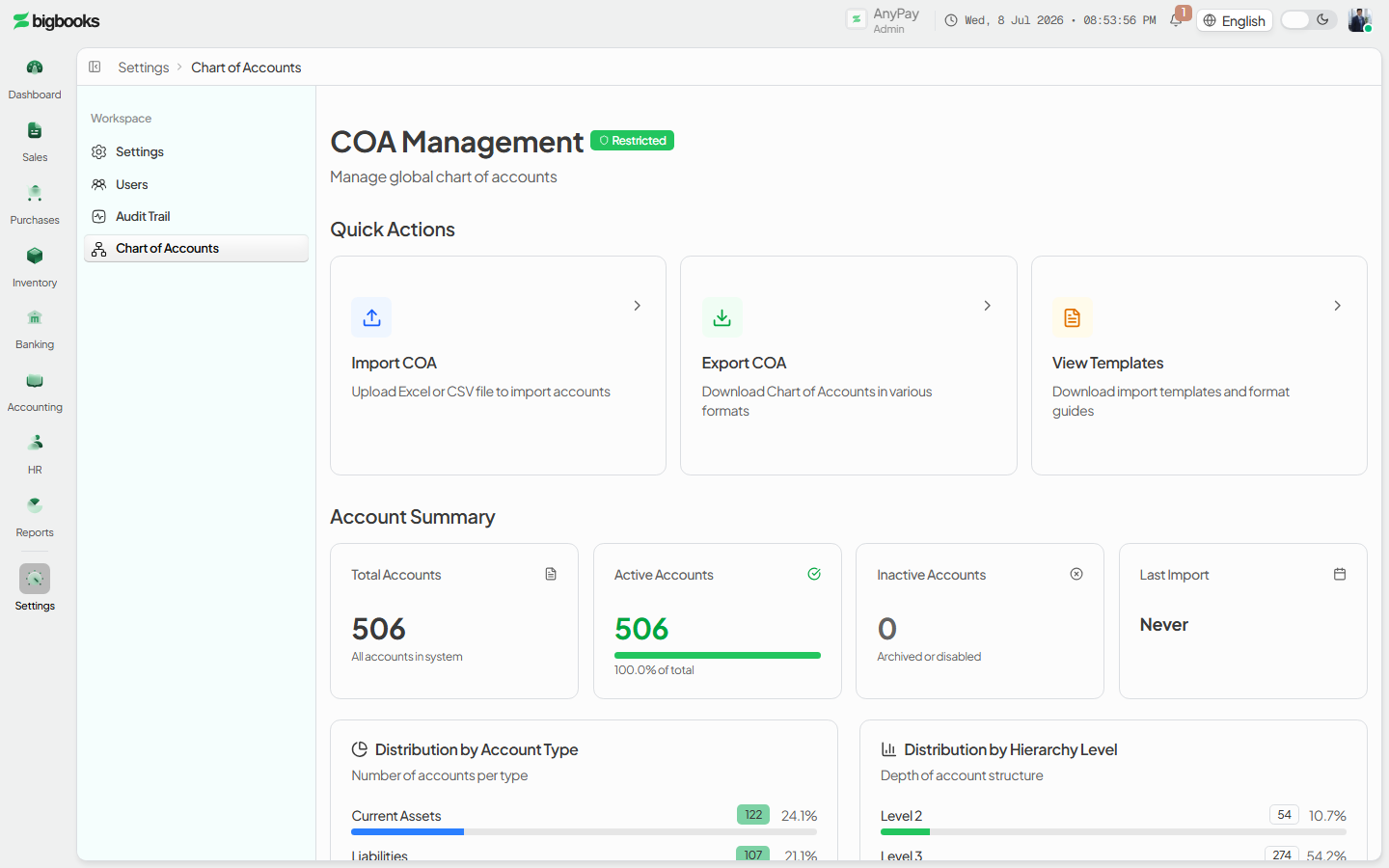
Open COA management (admin)
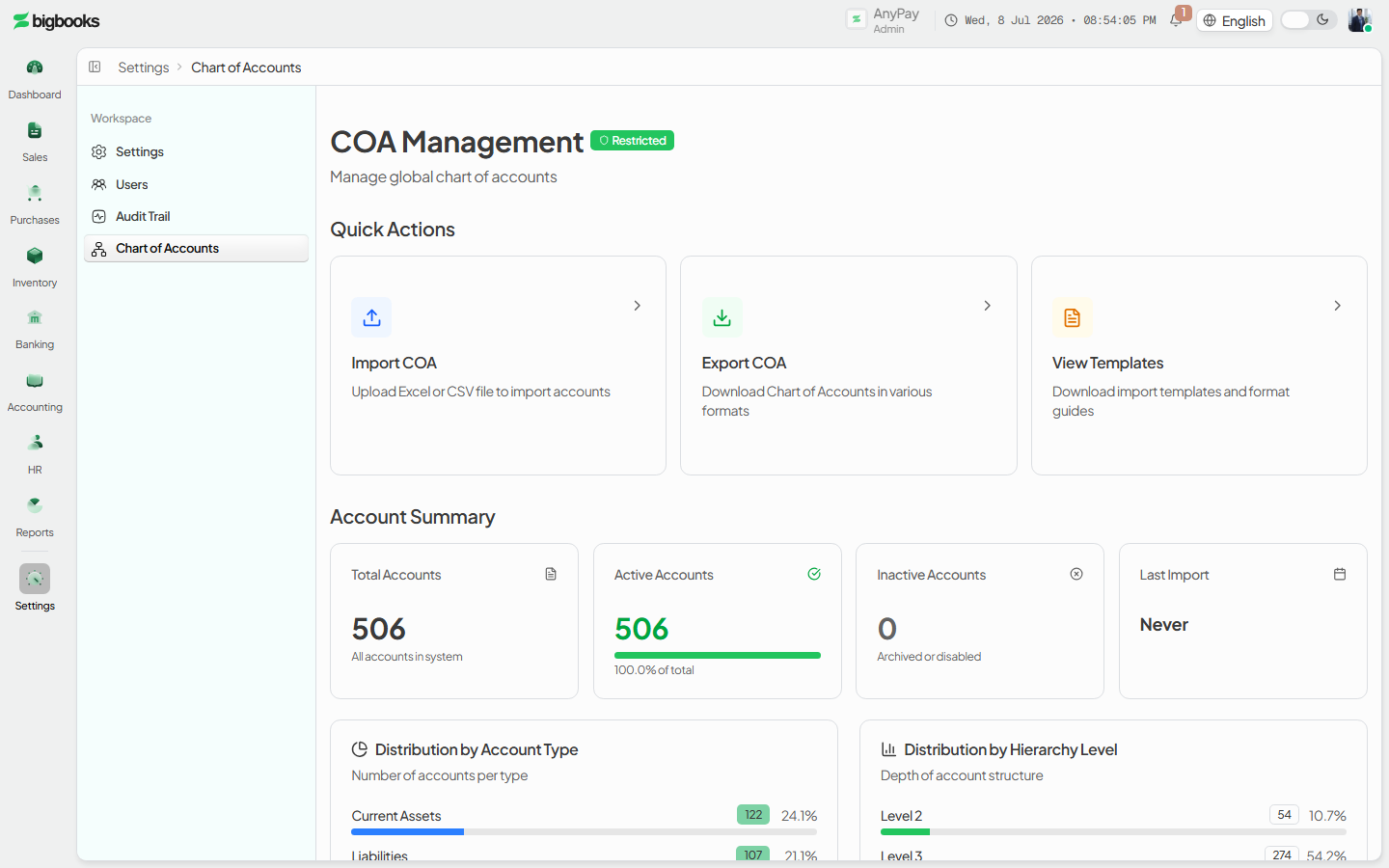
Go to /[lang]/admin/coa-management. The page shows Import / Export / Templates quick-action cards, a statistics summary (accounts by type and level, government vs custom), and recent import history.
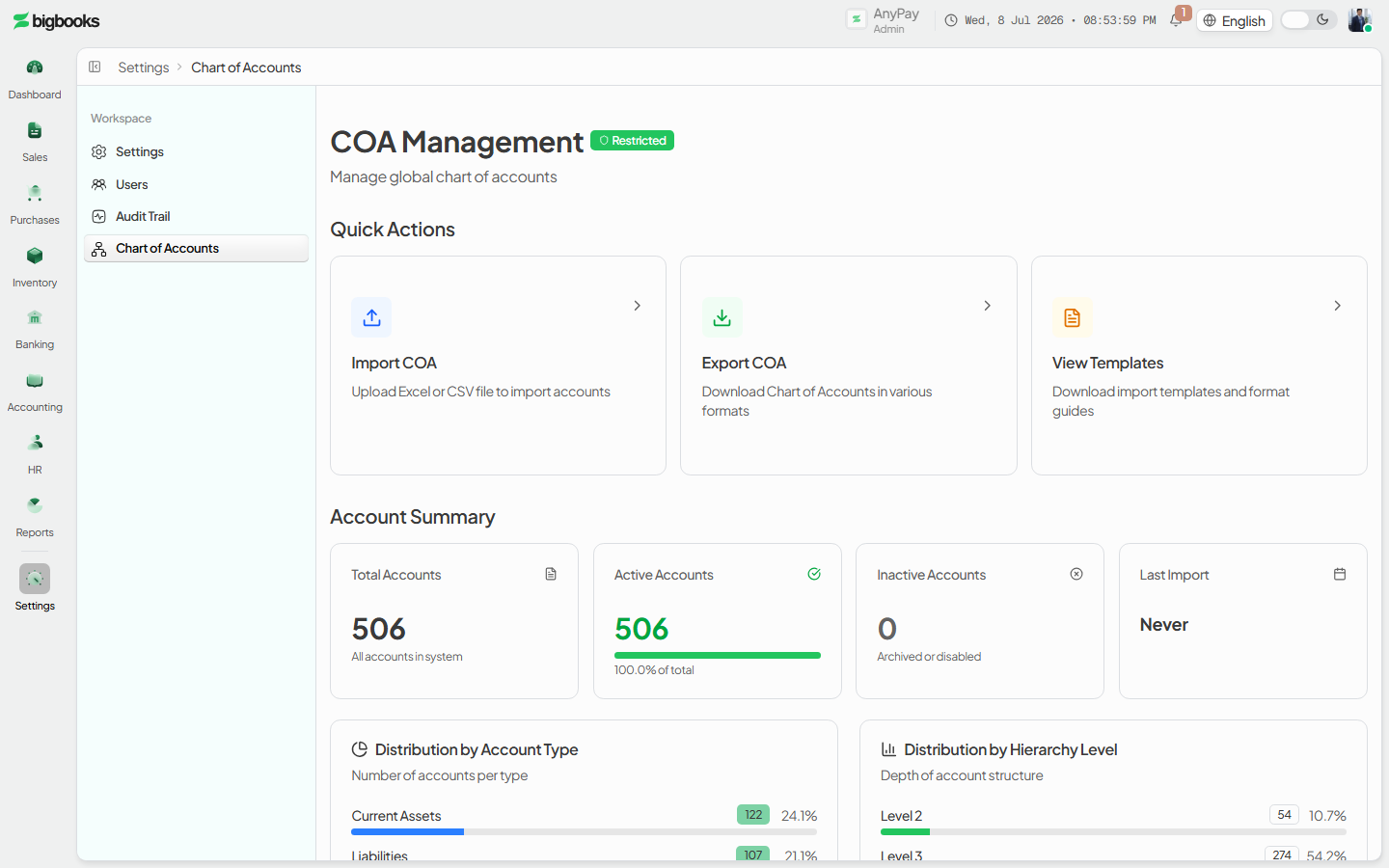
Import a Chart of Accounts Click Import to open the multi-step import wizard. Upload a CSV/XLSX/XLS file (Bank of Laos format, up to 10 MB), choose a mode — Merge (add new + update existing, the safe default), Update only, or Full replace (deactivate all then import) — then review the validated preview before executing.
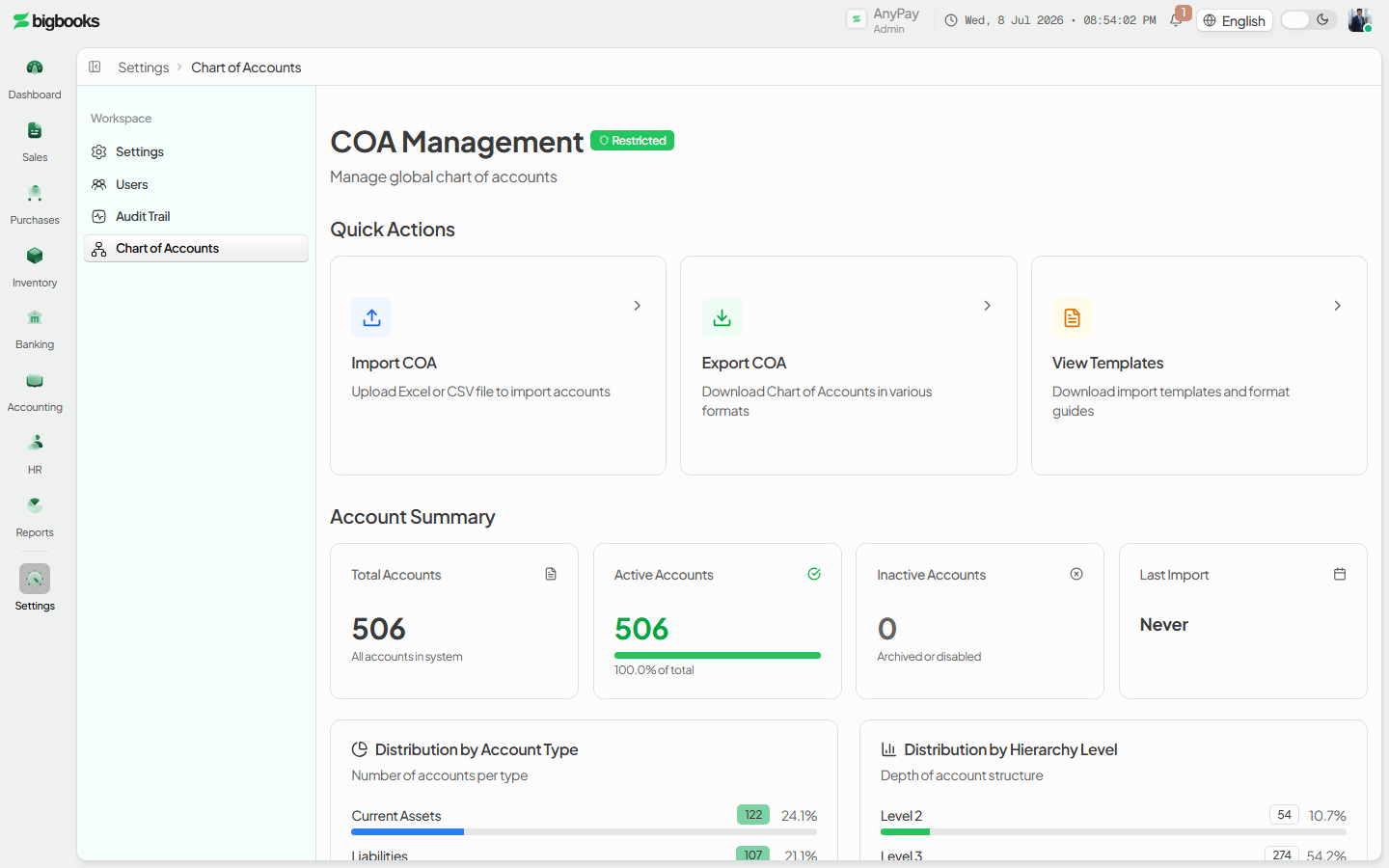
Export or template (optional) Use Export to download the current chart as Excel, or Templates to download an empty import template to fill in offline.
What happens behind the scenes
Saving the settings form writes the tenant's COA policy via chartOfAccounts/settings.ts (updateCoaSettings); it changes how codes are generated and which accounts are postable, but posts no journal entry. An import is a tracked job: chartOfAccounts/import.ts creates the job (createImportJob), validates the parsed rows and previews the impact (validateImportJob), then applies it (executeImport) — creating, updating, or deactivating accounts according to the chosen mode. Statistics, history, and Excel export are served by chartOfAccounts/export.ts. None of this is a GL posting; it shapes the account tree that later transactions post into.
Common problems
- No access: Without
MODIFY_COMPANY_SETTINGSthe settings controls are read-only; non-admins are redirected away from COA management. - Wrong import mode: Full replace deactivates the existing chart — use Merge unless you mean to replace.
- File rejected: Imports accept CSV/XLSX/XLS up to 10 MB in the Bank of Laos column format; other layouts fail validation.
- Locked accounts: When official accounts are locked, government-required codes cannot be edited or deactivated by design.
- Bilingual names required: With that policy on, a new or renamed account needs both Lao and English names.
First Login
As an operator or admin, you will sign in to BigBooks and arrive on the dashboard for your company, so that every entry you make afterwards is recorded against the right legal entity.
Company Configuration
As an admin, you will connect each part of the business — customers, invoices, payments, and bank accounts — to the right general-ledger accounts through a guided configuration flow, so that day-to-day documents post to the correct accounts automatically.