

Financial Statement Notes
As an operator or admin, you will assemble the narrative notes to the financial statements for a year — the company information, accounting policies, and supporting figures — and confirm a final, immutable PDF.
What you'll accomplish
As an Operator or Admin, you will assemble the narrative notes to the financial statements for a year — the company information, accounting policies, and supporting figures — and confirm a final, immutable PDF.
Before you start
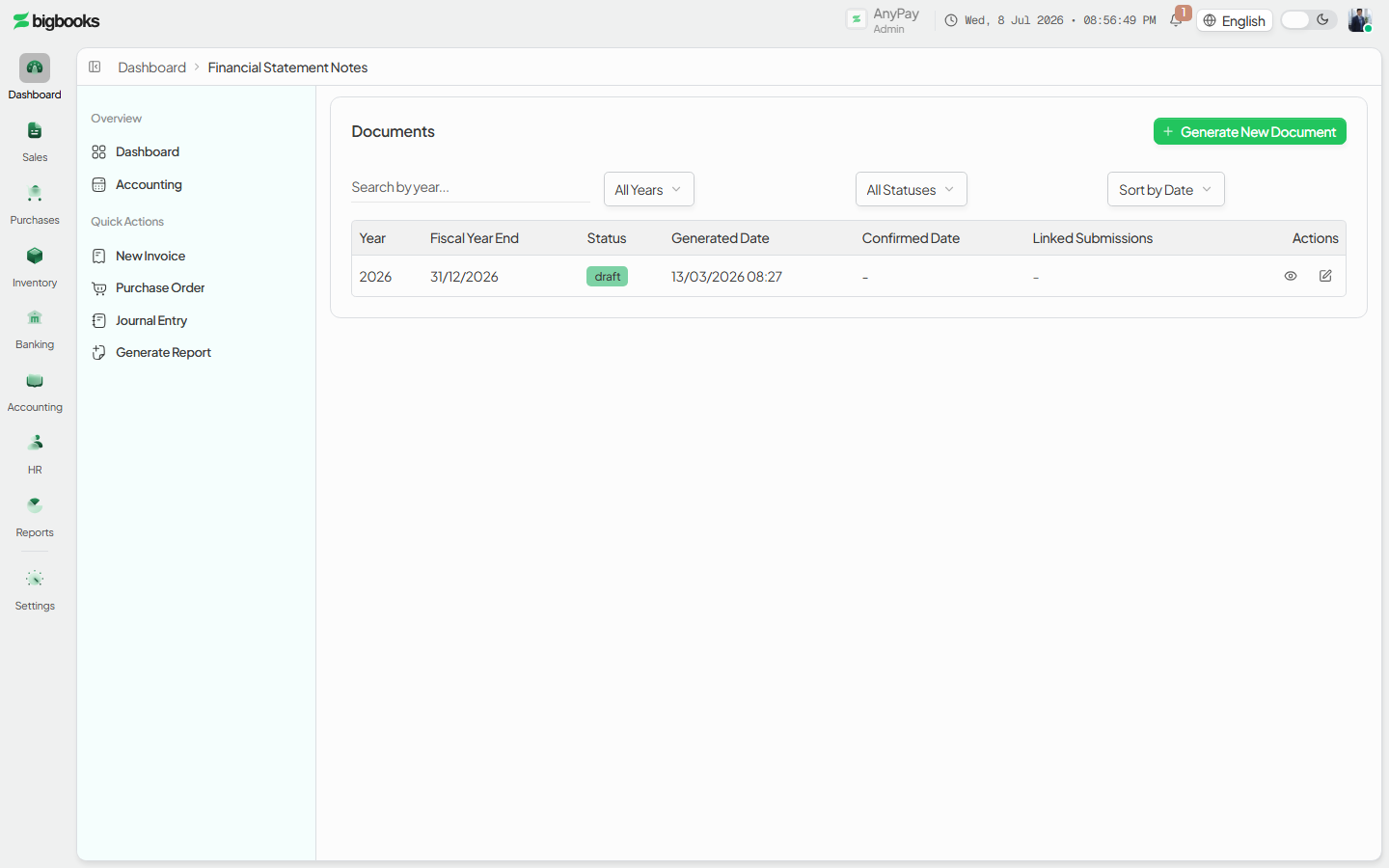
Financial statement notes live at /[lang]/financial-reports/statement-notes (the document list) and /[lang]/financial-reports/statement-notes/[id]/review (the editor). This is not a report-upgrade grid — the list is a document picker (year, fiscal year end, status, generated/confirmed dates), and the editor is a split-view form: a data editor on the right and a live PDF preview on the left.
A document moves through draft → confirmed, with archived for superseded versions. While it is a draft the editor auto-saves and you can freely edit; confirming is admin-only and makes the document permanent.
Compliance Note
Confirming a statement-notes document generates and stores a PDF and locks the document — it cannot be edited afterward. Any earlier confirmed version for the same year is automatically archived, so there is always exactly one active confirmed set of notes per year.
Steps
Open or generate a document
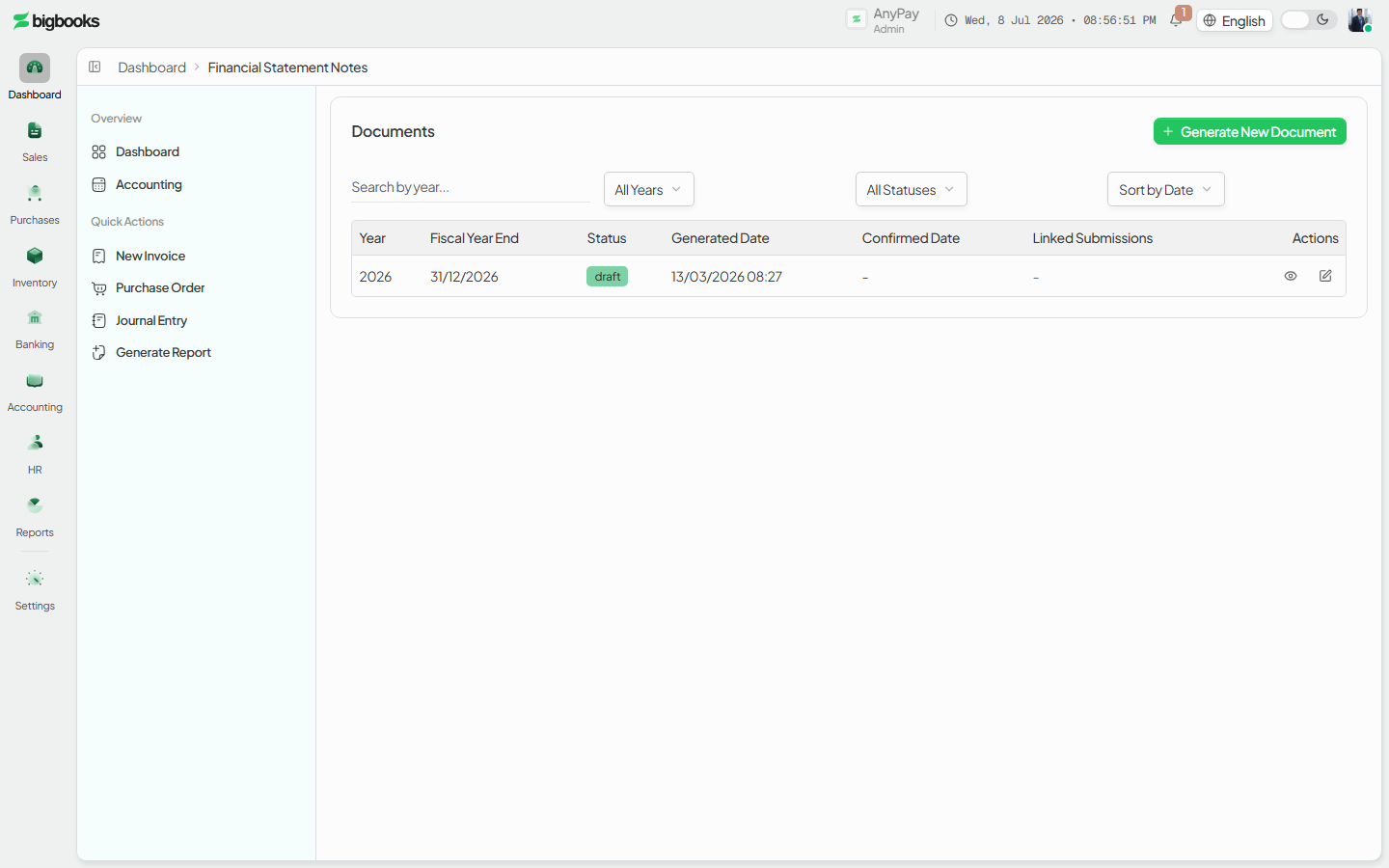
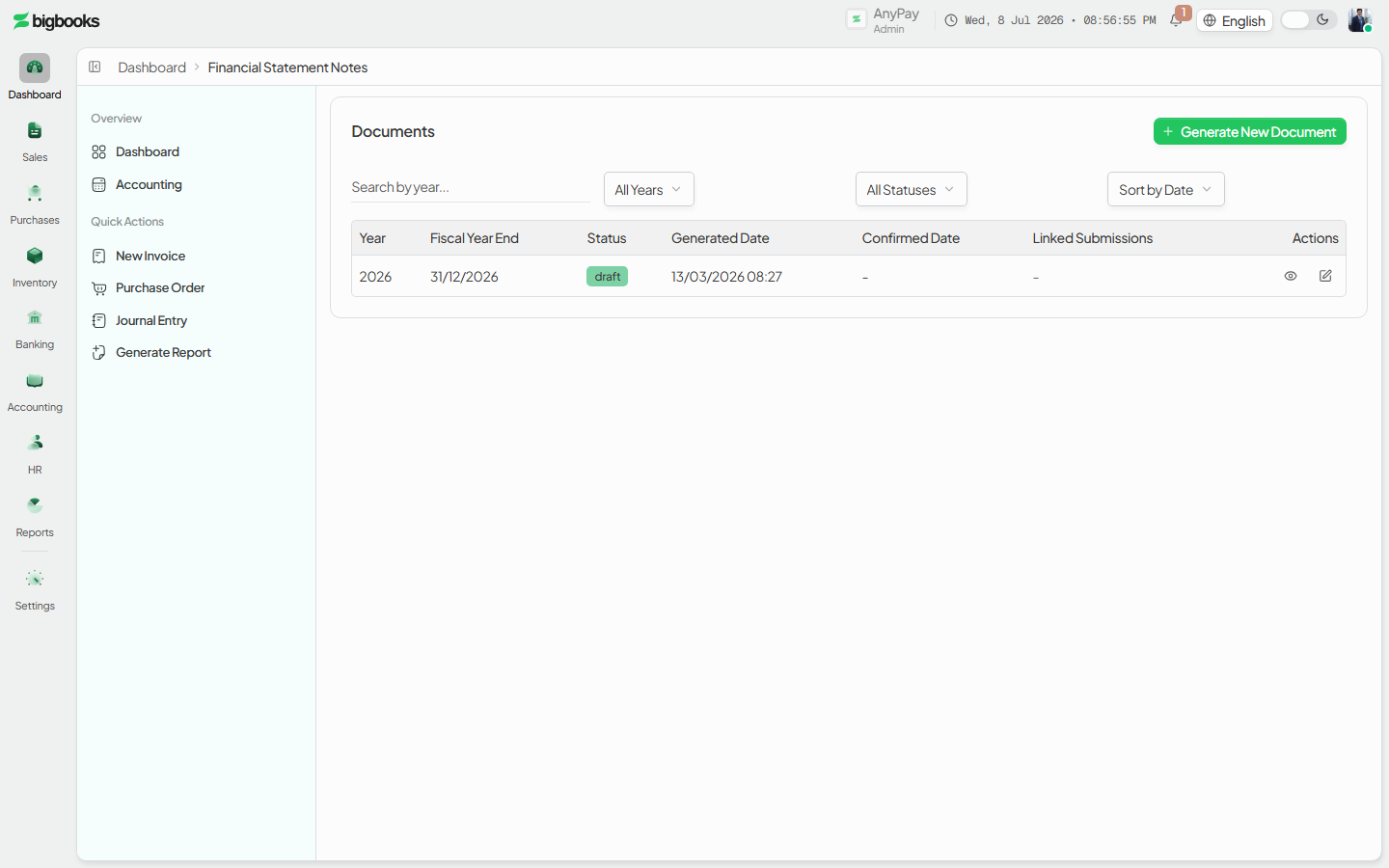
Go to /[lang]/financial-reports/statement-notes. The table lists existing documents by year and status; filter or search, then open one — or click Generate New Document to create a draft for a year.
Edit the sections
In the editor at /[lang]/financial-reports/statement-notes/[id]/review, fill in the general info, accounting policies, financial data, detailed tables, and signatures on the right; the PDF preview updates on the left. Drafts auto-save, and Regenerate from Latest Data repulls the figures from the ledger.
Preview and confirm Use Preview to render the full PDF. When the notes are complete, an admin clicks Confirm Document; a summary dialog warns that confirmation is permanent. On confirm, the PDF is stored, the status becomes confirmed, and any prior confirmed version for that year is archived.
What happens behind the scenes
The list comes from listDocuments and the editor from getDocument in financialStatementNotes/queries.ts. Generating a draft runs generateDocumentPreview in financialStatementNotes/mutations.ts, which collects the document data by aggregating the company profile, the Balance Sheet and Profit & Loss for the current and comparative year, and GL roll-ups by account prefix (cash, inventory, receivables, payables, fixed assets, equity, income, expenses, cash flow). Editing calls saveDocumentDraft / updateDocumentData, each of which increments the document version and writes an audit-log entry.
Confirming runs confirmDocument — admin-only — which generates the PDF client-side, stores it in Convex storage, sets the status to confirmed, records who confirmed it and when, and patches any earlier confirmed document for the same company and year to archived (isActive = false), chaining versions via previousVersionId. After confirmation the mutations reject further edits, so the confirmed PDF is immutable; getDownloadUrl in financialStatementNotes/actions.ts returns a signed URL to download it. The notes are a presentation/disclosure document built from the financial statements — they do not post any general-ledger entry.
Common problems
- Confirm button is disabled: Confirmation is admin-only; a non-admin can edit and preview but not confirm.
- Figures look out of date: Use Regenerate from Latest Data to repull the Balance Sheet and P&L numbers into the draft.
- Can't edit a document: It is confirmed (immutable) or archived — generate or open the active draft instead.
- Two confirmed versions for a year: There is only ever one active confirmed set; confirming a new one archives the previous automatically.
- Statements don't match the notes: The notes snapshot the Balance Sheet and P&L at generation time — regenerate the draft after posting ledger changes.
Trial Balance
As an operator or admin, you will produce a trial balance for any as-of date, confirm the ledger is in balance (total debits = total credits), and export it to Excel or PDF.
Inventory Valuation & Reconciliation
As an operator or admin, you will read the current value of your stock product by product, and confirm that the inventory figures on your books match the general ledger.