

AInvoiceX Tax Submissions
As an operator or admin, you will monitor your tax invoices as they synchronise to the Lao tax authority through AInvoiceX, resolve any that error, and retrieve the official tax-authority documents for the ones that succeed.
What you'll accomplish
As an Operator or Admin, you will monitor your tax invoices as they synchronise to the Lao tax authority through AInvoiceX, resolve any that error, and retrieve the official tax-authority documents for the ones that succeed.
Before you start
AInvoiceX is the e-invoice channel to the Lao tax authority. Its screens live under /[lang]/tax-submissions/ainvoicex (there is no other tax-submissions page):
/[lang]/tax-submissions/ainvoicex— the dashboard (synced / pending / errors / cancelled stats and the recent submissions)./[lang]/tax-submissions/ainvoicex/pending— pending and retry-eligible submissions, with bulk retry/cancel./[lang]/tax-submissions/ainvoicex/history— the full submission history with filters and CSV export.
These are operational monitoring screens, not report-upgrade grids. Tax invoices themselves are created in the Selling journey; this area only tracks their delivery to the authority. Retry and cancel actions require an admin (or account-manager) role; everyone with access can view.
A submission becomes synced once the authority accepts it and returns an ETI number (the official e-tax-invoice reference). Once synced, a submission cannot be retried — it is the authority's confirmed record.
Steps
Check the dashboard
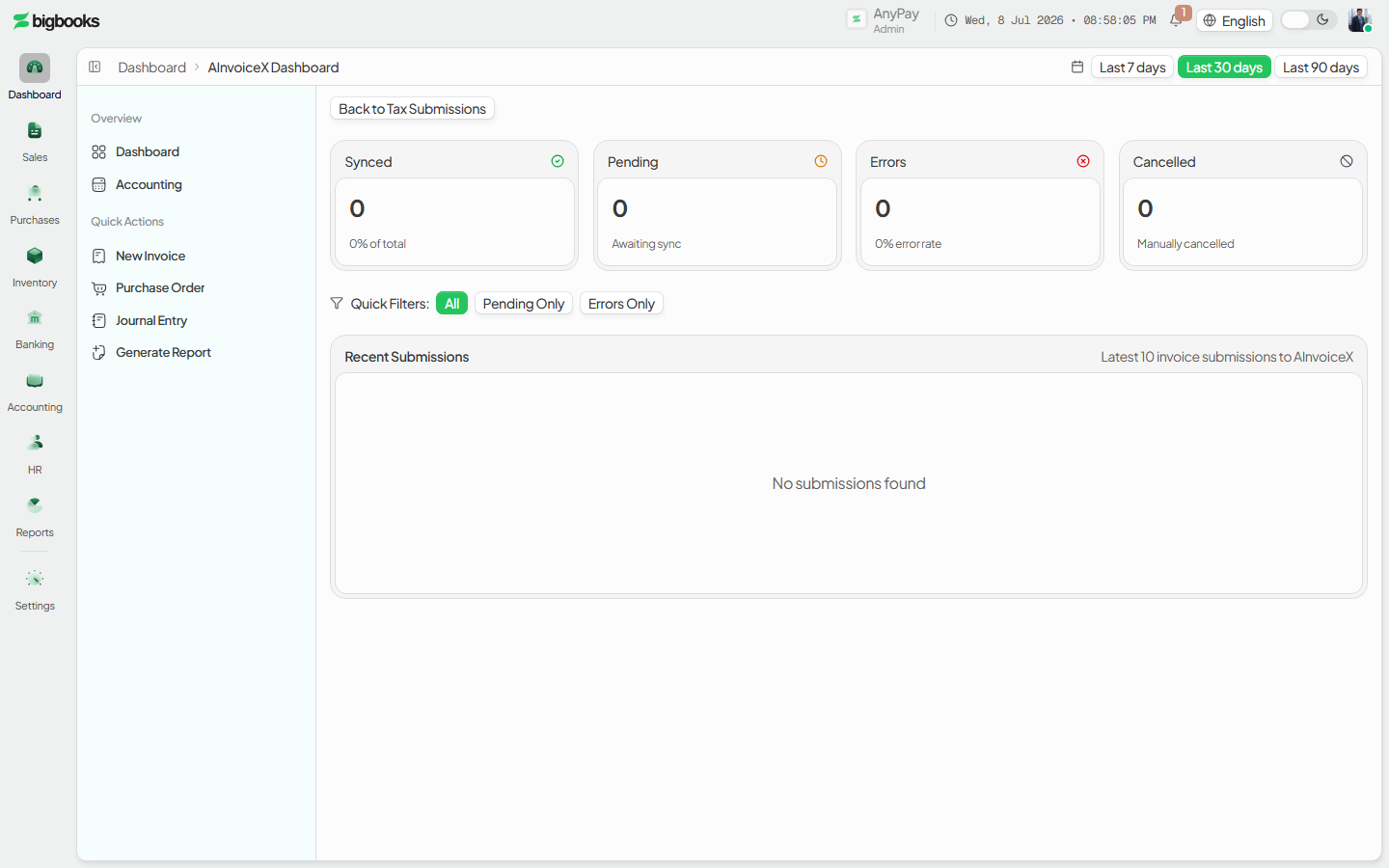
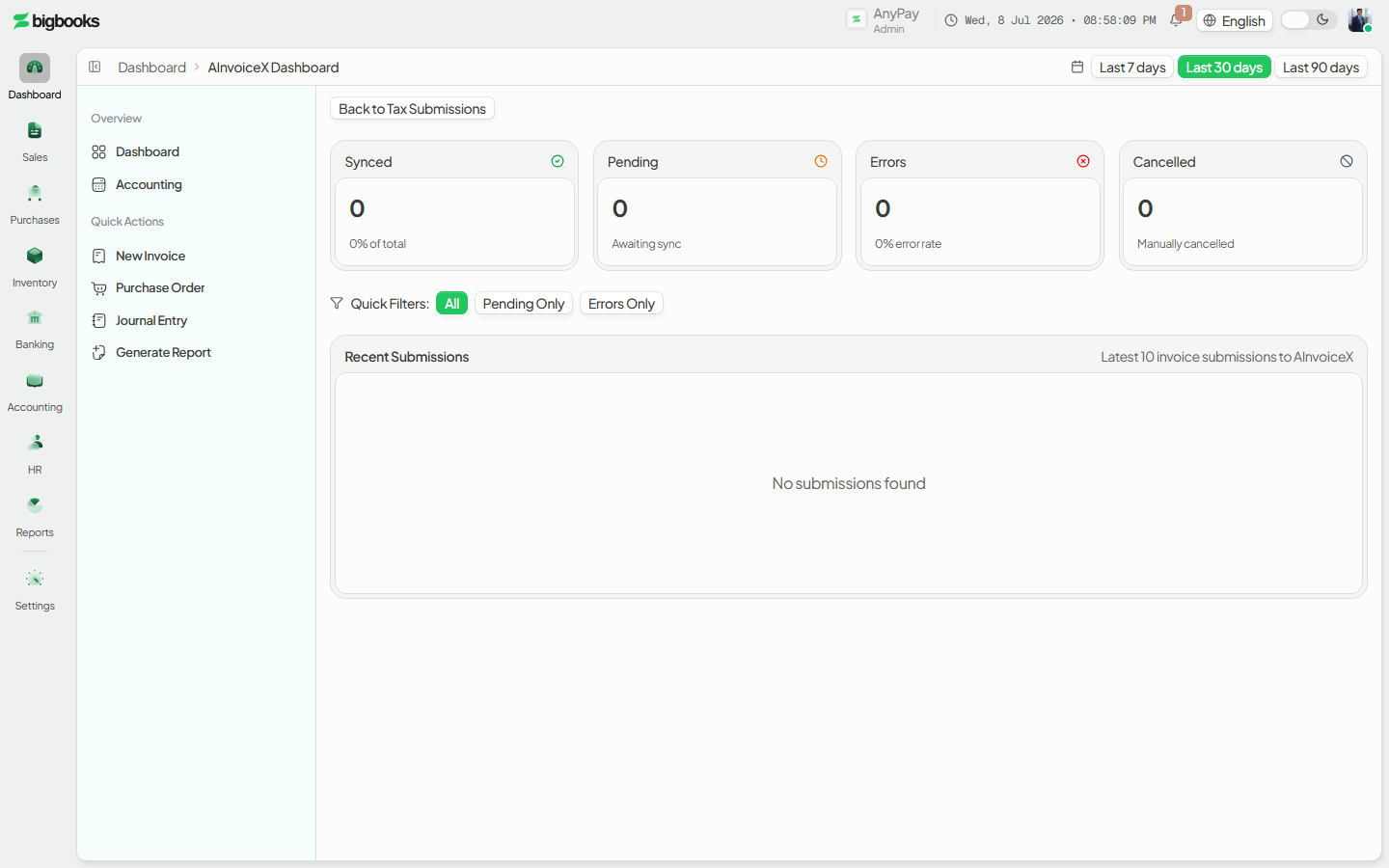
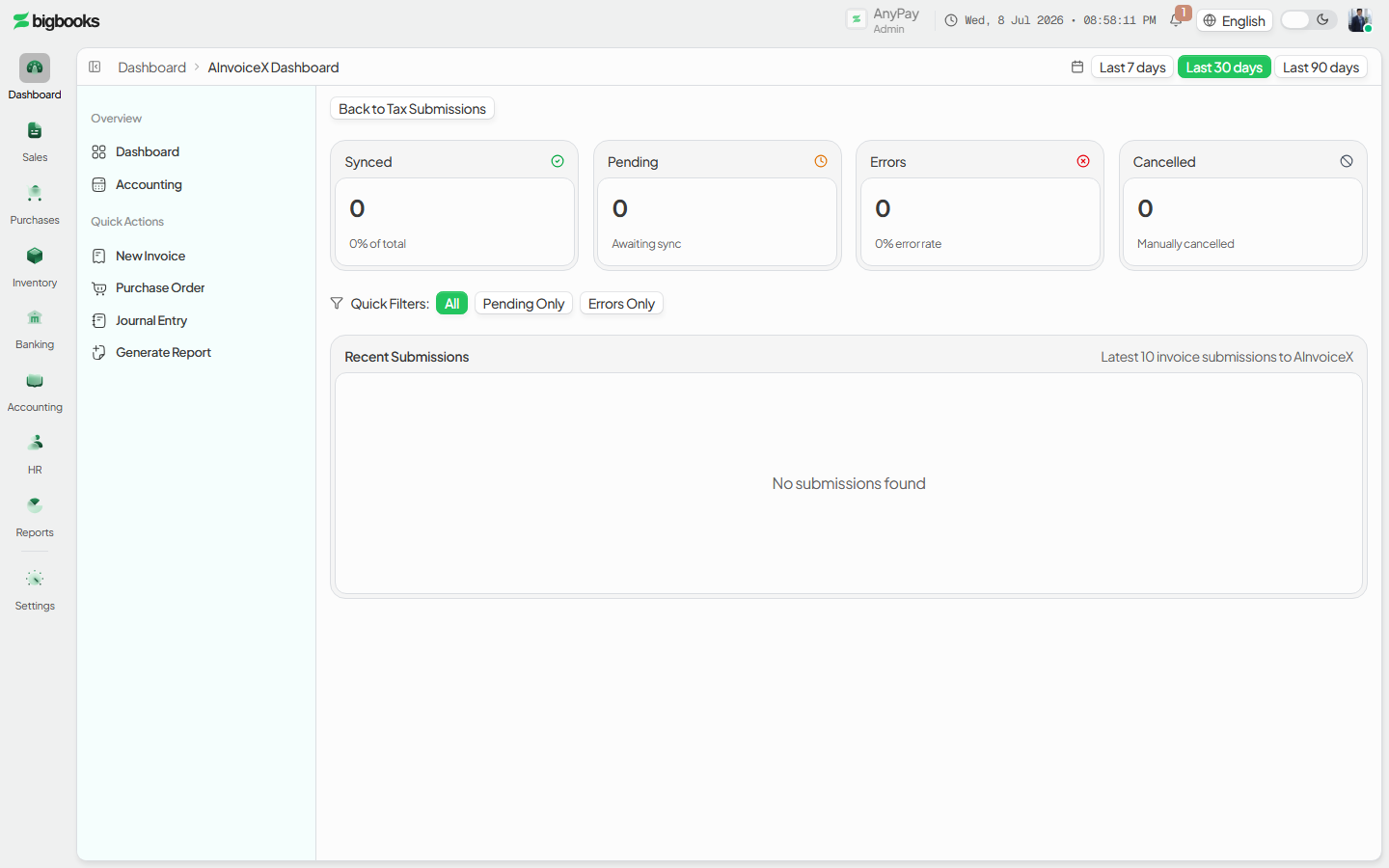
Open /[lang]/tax-submissions/ainvoicex. The four stat cards show synced, pending, error, and cancelled counts (with sync rate), and the recent-submissions table lists each invoice with its status and synced time. Use the date-range and quick filters (All / Pending only / Errors only) to focus.
Resolve pending and errors
Open /[lang]/tax-submissions/ainvoicex/pending. Select one or more rows and use Retry All or Cancel All, or sort by next-retry-time, submission date, or retry count. Each errored row shows its retry count, next-retry countdown, and last error message.
Review and export history
Open /[lang]/tax-submissions/ainvoicex/history. Filter by date range, status, or invoice/ETI number, page through the records, and use Export CSV. For a synced invoice you can view its details, open the invoice, or download the authority PDF.
What happens behind the scenes
The screens read from ainvoicex/queries.ts: getDashboardStats (synced/pending/error/cancelled totals and rates), getRecentSubmissions, getPendingSubmissions, and getSubmissionHistory (paginated, filterable). Each submission row lives in the ainvoicexSubmissions table with a status of pending, synced, error, or cancelled, plus retry count, next-retry time, and the request/response payloads.
The actual delivery runs in ainvoicex/submit.ts: processSubmission (an internal action, typically driven by a scheduled job) builds the invoice payload, signs the request, calls the AInvoiceX API, and on success stores the returned ETI number on the tax invoice and marks the submission synced; on failure it records the error and schedules a backoff retry. Manual control is in ainvoicex/mutations.ts — retrySubmission / bulkRetrySubmissions reset a pending/errored item for another attempt, and cancelSubmission / bulkCancelSubmissions stop one; all are blocked once an item is synced and are restricted to admin/account-manager roles. For a synced invoice, getOfficialTaxInvoicePdf in ainvoicex/getOfficialPdf.ts fetches the authority's official PDF URL. This flow does not post to the general ledger — the invoice's GL entry is written when the invoice is issued (see the Selling journey).
Common problems
- A submission won't retry: It is already synced — synced items are the authority's confirmed record and cannot be resubmitted.
- Repeated errors: Read the last-error message on the pending screen; configuration errors (missing AInvoiceX credentials) must be fixed in company settings before a retry can succeed.
- No official PDF: The PDF is only available once the invoice is synced and has an ETI number.
- Can't retry or cancel: Those actions require an admin (or account-manager) role; viewers can only monitor.
- CSV looks short: The export covers the current filtered page of history, not the entire dataset — widen the filters first.
Tax & Report Submissions
As an operator or admin, you will submit the periodic compliance reports your company owes the authorities (monthly trial balance, quarterly/annual financials, tax returns), and track each one through the government review cycle.
Close a Monthly Period
As an admin, you will close a monthly or quarterly fiscal period so that no one can post or backdate journal entries into its date range, locking that month's reported figures.