

Trial Balance
As an operator or admin, you will produce a trial balance for any as-of date, confirm the ledger is in balance (total debits = total credits), and export it to Excel or PDF.
What you'll accomplish
As an Operator or Admin, you will produce a trial balance for any as-of date, confirm the ledger is in balance (total debits = total credits), and export it to Excel or PDF.
Before you start
The Trial Balance lives at /[lang]/reports/trial-balance. This is one of the upgraded report screens: the page title moves into the secondary-header breadcrumb (Reports › Trial Balance), the report state (as-of date · period · currency · drafts) shows as a muted inline summary in the header, filters open in a bottom Drawer, and the data fills the page edge-to-edge with a sticky column header that pins while rows scroll. There is no master-detail panel — instead, clicking an account row expands it inline to show that account's journal entries.
Six government-format category sub-pages (/general, /assets, /liabilities, /income, /expense, /operations) break the same data down by account class for the MoF-style layout. Money is stored and displayed in integer satang (1 LAK = 100 satang); the report computes live from posted journal entries and is never stored as a snapshot.
The trial balance is a read-only view computed on demand. Generating it never writes to the ledger, so you can run it as often as you like without affecting the books.
Steps
Open the Trial Balance
Go to /[lang]/reports/trial-balance. The breadcrumb reads Reports › Trial Balance, and the as-of date, currency, and drafts state appear as a muted summary beside the Filters, Excel, and PDF actions on the right of the secondary header.
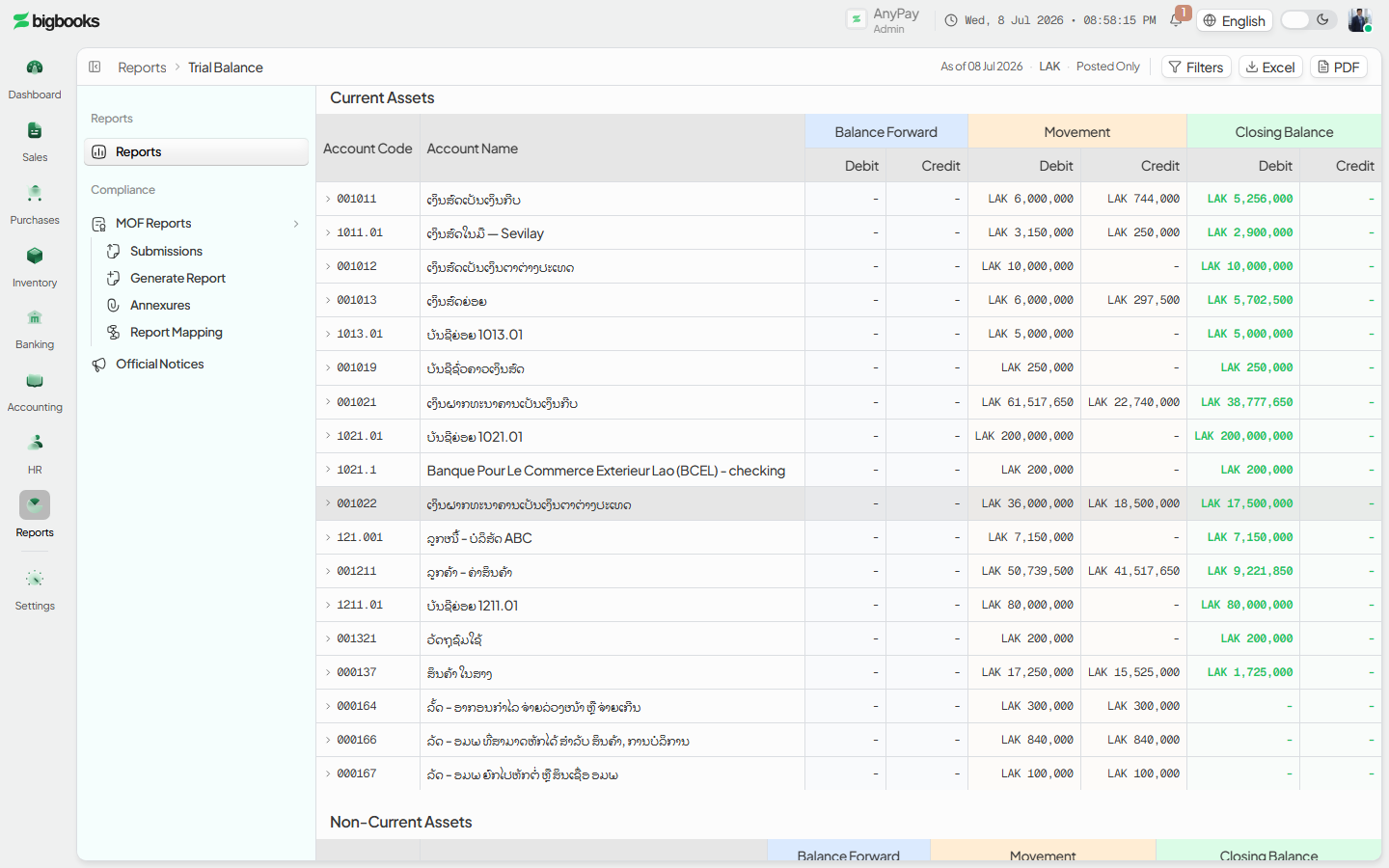
Set the date and filters Click Filters to open the bottom drawer. Set the as-of date (required) and, for a movement view, an optional period start. Choose the reporting currency (LAK / USD / THB), toggle Include drafts and Include zero balances, and turn on Government format for the MoF bilingual layout. Press Go to apply — the grid only refetches when you apply.
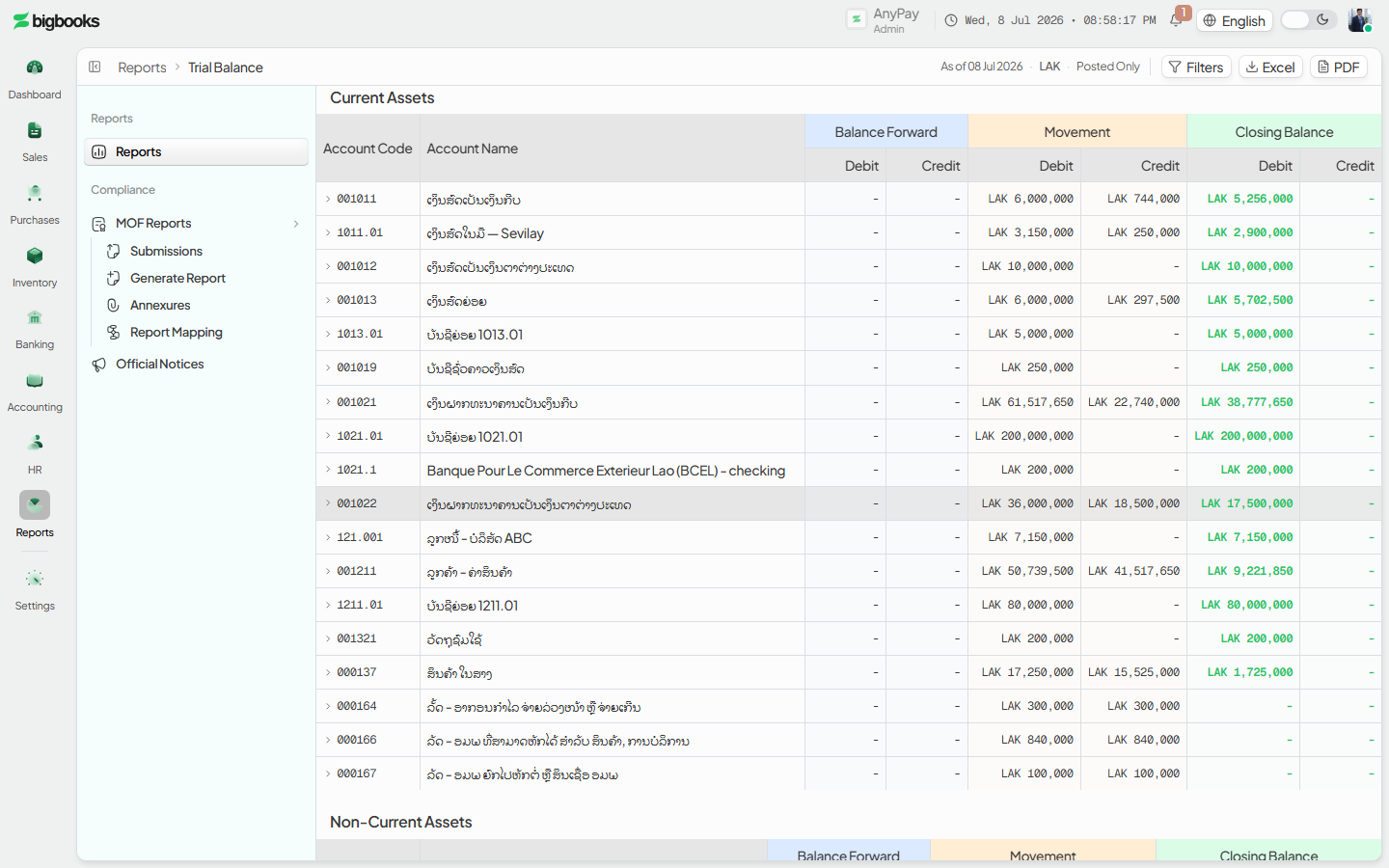
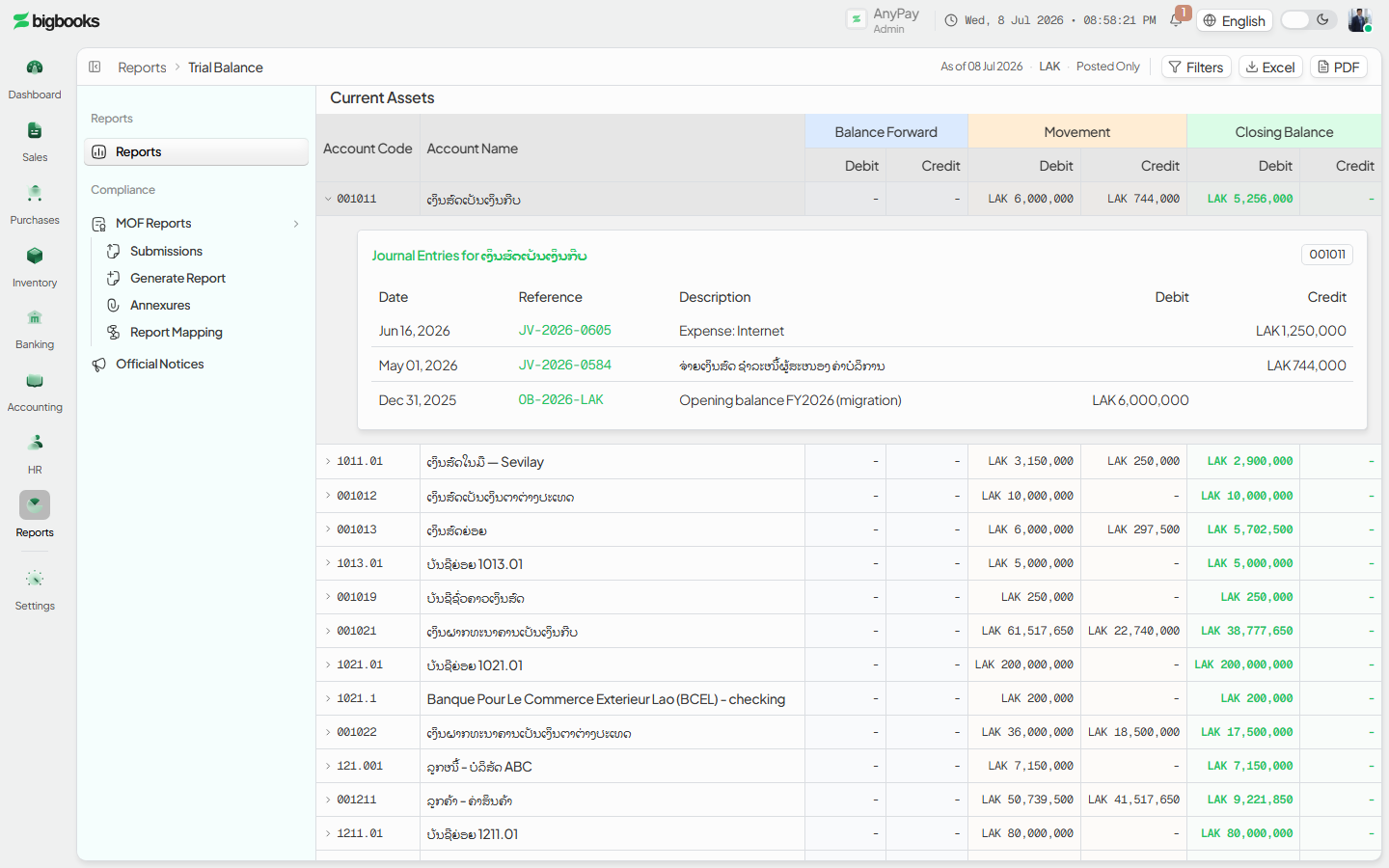
Read the balance and drill in Each account row shows opening, period movement, and closing balances in debit/credit columns. The footer totals the debit and credit columns and must be equal. Click any account to expand its journal entries inline.
Export
Use Excel (regenerated server-side from the same parameters) or PDF (rendered from the already-loaded figures) in the secondary header. Both produce identical numbers and share the filename stem TrialBalance_<asOfDate>.
What happens behind the scenes
The main report is produced by the generateTrialBalance action in reports/trialBalance.ts (an action, not a query, so it can stream large ledgers in cursor-batched reads without hitting Convex's per-query document limit); getAvailableReportDates populates the date picker. The category sub-pages call generateEnhancedTrialBalance in reports/enhancedTrialBalance.ts.
For each account the engine sums posted journal-entry lines up to the as-of date (opening), within the period (movement), and the resulting closing balance, all in satang. Because every journal entry is balanced by construction, the column totals are equal; the engine surfaces any non-zero difference so an out-of-balance ledger is visible rather than hidden. In KIP mode (base currency LAK) foreign-currency lines are converted to LAK using the period exchange rate before they are summed; in By-Currency mode balances are reported in the selected currency. Drafts are excluded unless Include drafts is on. Nothing here is snapshotted — change a journal entry and re-run, and the figures move.
Common problems
- Debits don't equal credits: A genuinely unbalanced ledger usually means an unposted or partially posted entry — the report shows the difference so you can find it.
- Missing exchange rate: In KIP mode a foreign-currency line with no rate for its date cannot be converted; add the rate, then re-run.
- Numbers look too low / too high: Check the Include drafts toggle and the selected currency in the header summary.
- A new transaction is missing: It is still a draft (unposted). Toggle Include drafts or post it.
- Export differs from screen: It shouldn't — both use the applied parameters. If it does, re-apply the filters so the screen and export share the same as-of date and currency.
Profit & Loss and Balance Sheet
As an operator or admin, you will produce the two primary financial statements — the Profit & Loss for a period and the Balance Sheet as of a date — and confirm they tie together and to the trial balance.
Financial Statement Notes
As an operator or admin, you will assemble the narrative notes to the financial statements for a year — the company information, accounting policies, and supporting figures — and confirm a final, immutable PDF.