

Tax & Report Submissions
As an operator or admin, you will submit the periodic compliance reports your company owes the authorities (monthly trial balance, quarterly/annual financials, tax returns), and track each one through the government review cycle.
What you'll accomplish
As an Operator or Admin, you will submit the periodic compliance reports your company owes the authorities (monthly trial balance, quarterly/annual financials, tax returns), and track each one through the government review cycle.
Before you start
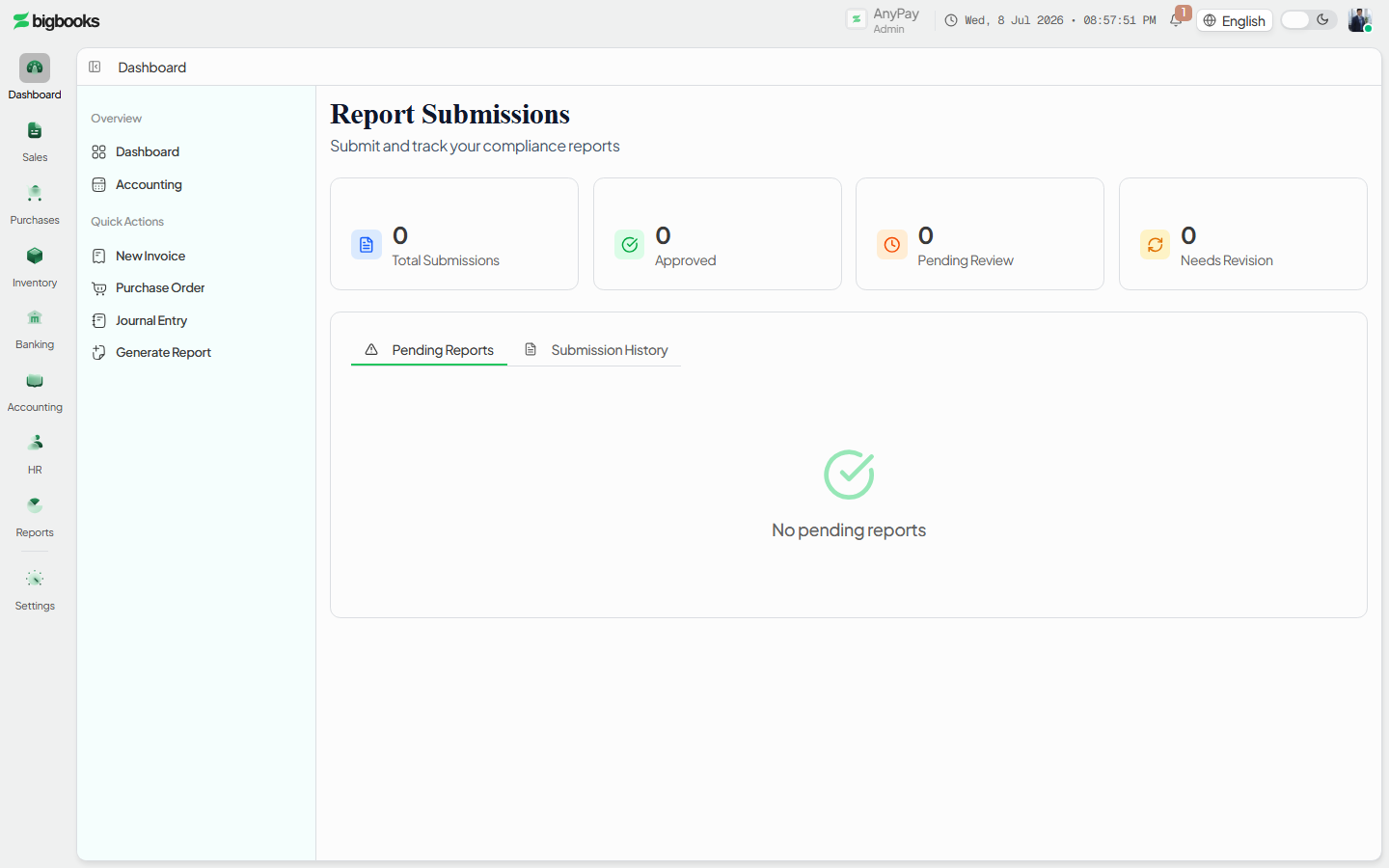
Report submissions live at /[lang]/report-submissions, with a detail view at /[lang]/report-submissions/[submissionId]. This is not a report-upgrade grid — it is a tabbed workspace: a Pending tab of due-report cards (each showing the report type, period, deadline, and an overdue/days-remaining indicator) and a History tab of past submissions with their status and revision number. Stats cards summarise the year (submitted / approved / pending review / needs revision).
This screen is for statutory report uploads to the government. The separate e-invoice tax submissions to the Lao tax authority (AInvoiceX) are tracked on their own dashboard — see the AInvoiceX guide. There is no /[lang]/tax-submissions index page; that route only hosts the AInvoiceX screens.
Steps
See what's due
Open /[lang]/report-submissions. The Pending tab lists each report you owe with its deadline and a status (overdue in red, due-today, or days-remaining). The stats strip shows your year-to-date submitted, approved, pending, and needs-revision counts.
Upload and submit Click Upload on a pending card, choose the report file (and optional notes), and submit. The system records the submission against its deadline, computes whether it is late, and starts it at revision 1.
Track the review Open a submission to see its status card, report metadata, the file (preview/download), and the revision history. The sidebar shows who submitted it and the review outcome once the authority responds.
Resubmit if returned If a submission comes back rejected or revision requested, the detail page shows the reason and a Resubmit action that uploads a new file as the next revision. An approved submission is final; a still-submitted one can be cancelled.
What happens behind the scenes
Pending reports and history come from reportSubmissions/queries.ts (getPendingReports hydrates each due report with its deadline and days-until/overdue, getSubmissionStats, getSubmissionDetail). Submitting uploads the file to Convex storage via a presigned URL and calls submitReport in reportSubmissions/mutations.ts, which creates a companyReportSubmissions record, marks it against the deadline, computes isLate, and assigns the revision number. resubmitReport creates the next revision and links back to the prior one; cancelSubmission is only allowed while the status is still submitted.
The government side reviews through government/approvalWorkflow.ts, moving a submission submitted → under_review → approved / rejected / revision_requested and recording a rejection reason where applicable. government/reportSubmissions.ts is the authority-facing list that normalises both company report submissions and MoF submissions into one view. No general-ledger entry is posted by this flow — submissions are document uploads and status changes, with the revision chain kept immutable (previous revisions are read-only).
Common problems
- Looking for tax-invoice e-filing here: That is the AInvoiceX dashboard, a separate flow — this screen is statutory report uploads.
- Late flag: A submission past its deadline is marked late automatically; the deadline comes from the per-report-type configuration.
- Can't cancel: Only a submission still in submitted status can be cancelled — once it is under review or decided, you cannot.
- Can't resubmit: Resubmission is only offered for rejected or revision requested submissions.
- Rejected without a clear reason: The reason text is shown on the detail page's status card; read it before resubmitting.
Official Notices
As an operator or admin, you will receive official communications from the authorities, respond to the ones that require a reply, and keep a record of the exchange.
AInvoiceX Tax Submissions
As an operator or admin, you will monitor your tax invoices as they synchronise to the Lao tax authority through AInvoiceX, resolve any that error, and retrieve the official tax-authority documents for the ones that succeed.